> For the complete documentation index, see [llms.txt](https://help.verkada.com/llms.txt). Markdown versions of documentation pages are available by appending `.md` to page URLs; this page is available as [Markdown](https://help.verkada.com/guest/schools/connect-verkada-guest-to-powerschool.md).
# Connect Verkada Guest to PowerSchool
Pull up-to-date student and guardian information and track tardies using Guest
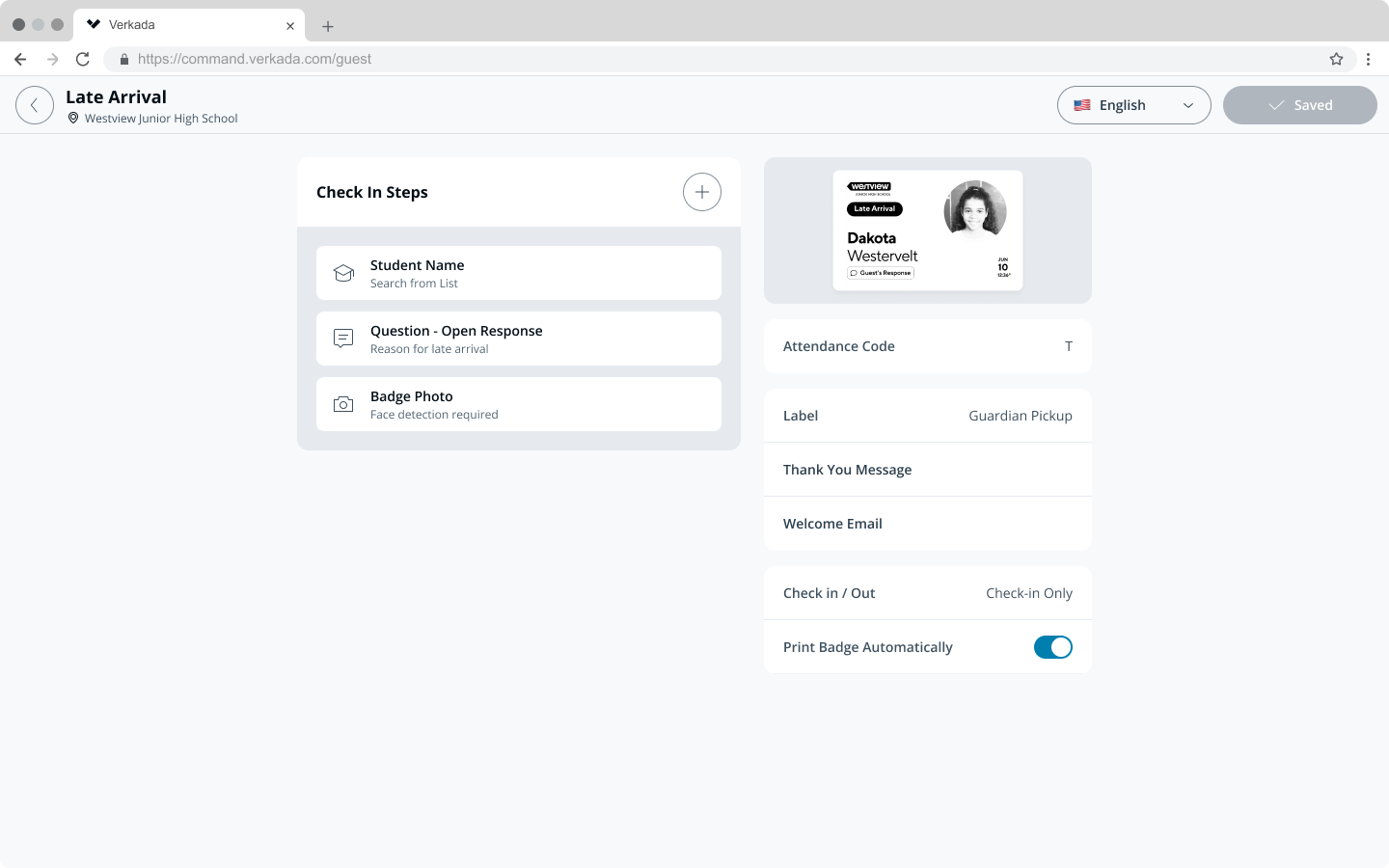
PowerSchool is a popular school information system used by admins, teachers, and students. Verkada Guest can connect with a school district’s PowerSchool Server to sync school data including student, guardian, and attendance code information. Using this integration allows schools to build out school-specific Guest Types for late arrivals, guardian pickups, and more.
***
## Setup
### Download the Verkada Guest plugin for PowerSchool
{% hint style="danger" %}
You need **Org Admins** permissions to download the Verkada Guest plugin for PowerSchool.
{% endhint %}
{% stepper %}
{% step %}
**In Verkada Command, go to All Products > Workplace > Guest.**
{% endstep %}
{% step %}
**In the left navigation, click Guest Settings.**
{% endstep %}
{% step %}
**Under Organization, select Schools.**
{% endstep %}
{% step %}
**Select Download PowerSchool Plugin.**
{% endstep %}
{% endstepper %}
### Install the Verkada Guest plugin
{% stepper %}
{% step %}
**Log in to PowerSchool as an administrator.**
{% endstep %}
{% step %}
**Click System Management > Server > Plugin Configuration.**
{% endstep %}
{% step %}
**Click Install.**
{% endstep %}
{% step %}
**Under Plugin Installation File, click Choose File.**
{% endstep %}
{% step %}
**Select the downloaded Verkada Guest plugin (.zip file) from your device and click Open (do not unzip the file and install the .XML file).**
{% hint style="warning" %}
It may take a few minutes for the plugin to install.
{% endhint %}
{% endstep %}
{% step %}
**From the Plugin Configuration page, check the box to enable the plugin.**
{% endstep %}
{% step %}
**In the sidebar that opens, click Enable.**
{% endstep %}
{% endstepper %}
### Get Client ID and Client Secret for the plugin
{% stepper %}
{% step %}
**In PowerSchool, click System Management > Server > Plugin Configuration.**
{% endstep %}
{% step %}
**Select the Verkada Guest plugin to take you to the plugin summary page.**
{% endstep %}
{% step %}
**At the bottom, select Data Provider Configuration.**
On this page, Client ID and Client Secret can be retrieved.
{% endstep %}
{% endstepper %}
### Connect a PowerSchool Server to Verkada Command
{% hint style="danger" %}
You need **Org Admins** permissions to connect a PowerSchool Server to Command.
{% endhint %}
{% stepper %}
{% step %}
**In Verkada Command, go to All Products > Workplace > Guest.**
{% endstep %}
{% step %}
**In the left navigation, click Guest Settings.**
{% endstep %}
{% step %}
**Under Organization, select Schools.**
{% endstep %}
{% step %}
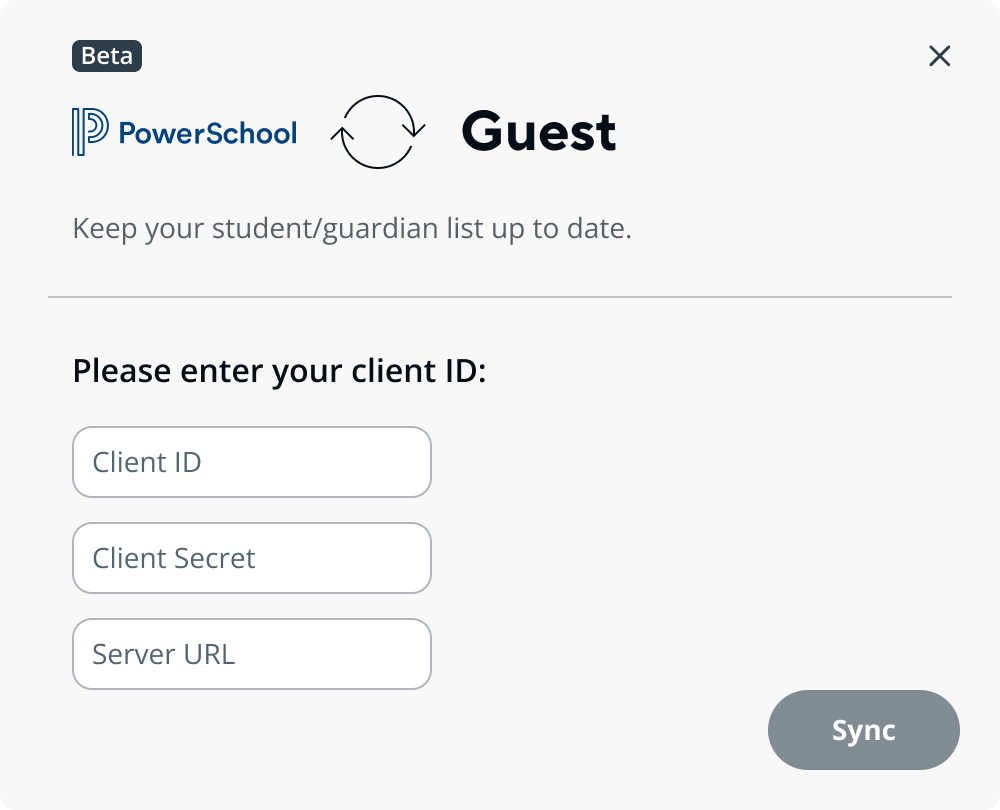
**Select Sync students with PowerSchool.**
{% endstep %}
{% step %}
**Enter the Client ID, Client Secret, and PowerSchool Server URL.**
{% hint style="warning" %}
The PowerSchool Server URL is the address you use to access your PowerSchool admin portal.
To obtain this value, log in to PowerSchool in your web browser and copy the URL directly from the address bar.
{% endhint %}
{% endstep %}
{% step %}
**Click Sync.**
{% endstep %}
{% endstepper %}
***
## Link schools to Guest sites
{% hint style="danger" %}
You need **Org Admins** permissions to link PowerSchool schools to Guest sites.
{% endhint %}
{% stepper %}
{% step %}
**In Verkada Command, go to All Products > Guest.**
{% endstep %}
{% step %}
**In the left navigation, click Guest Settings.**
{% endstep %}
{% step %}
**Under Organization, select Schools.**
{% endstep %}
{% step %}
**Under Sync students with PowerSchool, select Manage Schools.**
{% endstep %}
{% step %}
**Links schools to Guest sites. When finished, select the checkmark in the top right.**
{% endstep %}
{% endstepper %}
***
## Configure Guest Types to write Attendance Codes
{% hint style="danger" %}
You need at least **Workplace Site Admin** permissions to modify Guest Type settings.
{% endhint %}
Verkada Guest can optionally write back daily attendance codes to PowerSchool for [School Guest Types](/guest/schools/school-guest-types.md).
{% stepper %}
{% step %}
**In Verkada Command, go to All Products > Guest.**
{% endstep %}
{% step %}
**On the left navigation, click Guest Settings.**
{% endstep %}
{% step %}
**Under Sites > Guest Types, click Manage Guest Types.**
{% endstep %}
{% step %}
**Select an existing School Guest Type, or create a new one.**
{% endstep %}
{% step %}
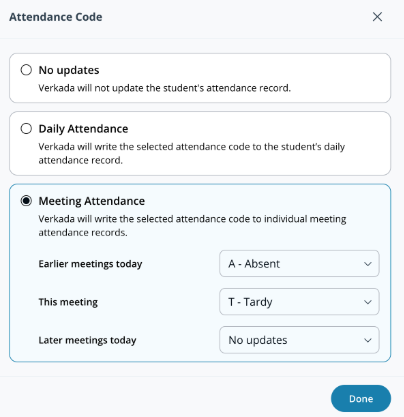
**Click Attendance Code.**
{% endstep %}
{% step %}
**Select an attendance recording method.**
* **Daily Attendance:** select one attendance code.
{% hint style="warning" %}
Any sign-in using a Guest Type with a daily attendance code automatically writes the code back to PowerSchool for the current day.
{% endhint %}
* **Meeting Attendance:** select an attendance code for the current meeting and optionally apply attendance codes to all previous or future meetings.
{% hint style="danger" %}
Verkada Guest only supports Meeting and Daily attendance recording methods. A single Guest Type can only use one attendance recording method.
{% endhint %}
{% endstep %}
{% step %}
**In the top right, click Save.**
{% endstep %}
{% endstepper %}
***
## FAQ
What is a PowerSchool Server URL?
A PowerSchool Server URL refers to the URL for the PowerSchool admin portal. this URL is unique to a PowerSchool Server.
Can Global Guest Types be configured with attendance codes?
No, only site-level School Guest Types can be configured with attendance codes.
A guardian-student association seems to be incorrect or missing.
Verkada associates a guardian with a student only if the guardian contact:
* Has the **Active** box checked
* Has the **School Pickup** flag set to **True** for the desired student
How can I check if my school records attendance in a way that Verkada supports?
PowerSchool features multiple attendance recording methods. Verkada Guest supports writing attendance codes back to schools that have **Daily** and/or **Meeting** enabled for attendance recording.
See more about configuring attendance recording in PowerSchool [here](https://ps.powerschool-docs.com/pssis-admin/latest/attendance).
Does the Attendance Code feature write to Clock In and Clock Out times in PowerSchool?
No, Verkada Guest does not populate Clock In or Clock Out times when writing attendance codes back to PowerSchool.
---
# Agent Instructions
This documentation is published with GitBook. GitBook is the documentation platform designed so that both humans and AI agents can read, navigate, and reason over technical content effectively. Learn more at gitbook.com.
## Querying This Documentation
If you need additional information that is not directly available in this page, you can query the documentation by asking a question.
Perform an HTTP GET request on the following URL with the `ask` and `goal` query parameters:
```
GET https://help.verkada.com/guest/schools/connect-verkada-guest-to-powerschool.md?ask=&goal=
```
`ask` is the immediate question: it should be specific, self-contained, and written in natural language.
`goal` is what the user is ultimately trying to achieve, the reason they need the answer. Sharing it helps GitBook give you a better, more relevant answer. A goal is most helpful when it describes the outcome the user wants rather than restating the question. For example, with `ask=how do I create an API token`, a goal like `automate deployments from our CI pipeline` lets GitBook tailor the answer to that use case.
The response will contain a direct answer to the question and relevant excerpts and sources from the documentation.
Use this mechanism when the answer is not explicitly present in the current page, you need clarification or additional context, or you want to retrieve related documentation sections.