> For the complete documentation index, see [llms.txt](https://help.verkada.com/llms.txt). Markdown versions of documentation pages are available by appending `.md` to page URLs; this page is available as [Markdown](https://help.verkada.com/guest/printers/connect-a-printer-to-verkada-guest-using-an-ip-connection.md).
# Connect a Printer to Verkada Guest using an IP Connection
Connect an iPad with a printer using an IP connection for Verkada Guest
### Before you begin
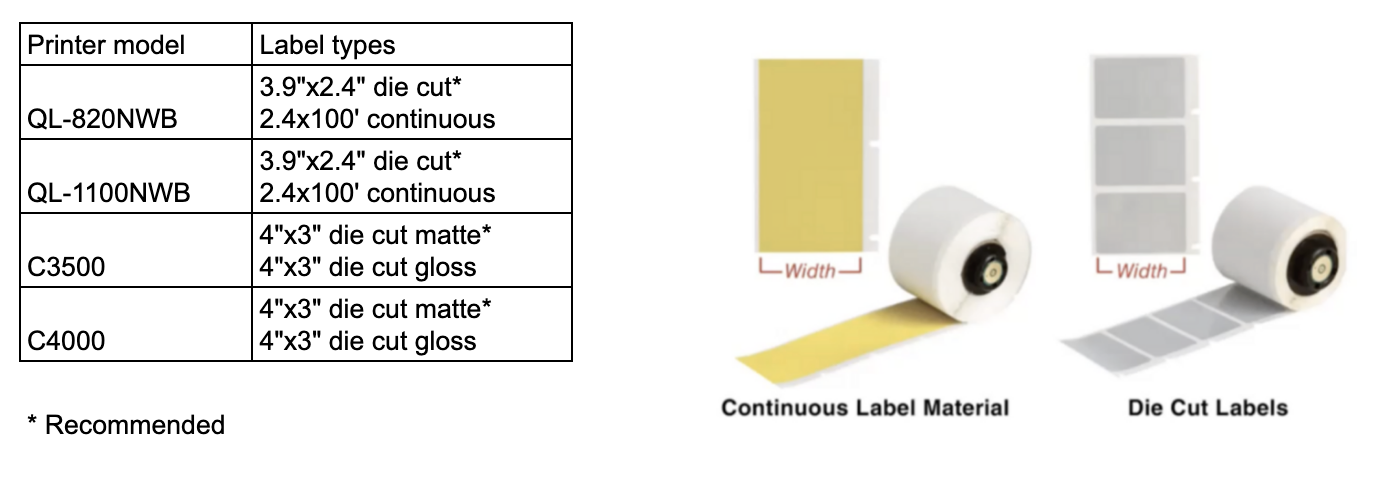
* Review the [printers](#h_ae37d6fffa), [label types, and sizes](#h_3e83b36866) that [Verkada Guest](/guest/getting-started/get-started-with-verkada-guest.md) supports.
* Make sure your tablet is [set up for the Guest app](/guest/getting-started/get-started-with-verkada-guest.md).
#### Supported printers by model
| | |
| ------------------------------------------------------------------------------- | ------------------------------------------------------------------- |
| **For Black & White Printing** | **For Color Printing** |
| Brother QL820-NWB (easy setup)
Brother QL1110-NWB
| Epson C4000 (Recommended)
Epson C3500
|
#### Supported label types and sizes
***
## Add a printer to Verkada Guest
{% hint style="danger" %}
The minimum permission required to read and update the printer pin code is **Workplace Site Admin**.
{% endhint %}
### Get the printer PIN code from Command
{% stepper %}
{% step %}
**In Verkada Command, go to All Products > Workplace >**  **Guest.**
{% endstep %}
{% step %}
**On the left navigation, select Guest Settings .**
{% endstep %}
{% step %}
**At the top, select Sites > your site.**
{% endstep %}
{% step %}
**Select Printers to view the random PIN code for the selected site. To create your own code, enter a 4-digit code and click Update.**
{% endstep %}
{% endstepper %}
### Add a printer manually via IP address
{% stepper %}
{% step %}
**Ensure that the printer has a network connection. Refer to the following articles to connect a printer to the network:**
* [Connect a Brother printer](/guest/printers/brother-printer-setup-guide.md)
* [Connect an Epson printer](/guest/printers/epson-printer-setup-guide.md)
{% endstep %}
{% step %}
**Open the Guest app, tap and hold the bottom right corner for about 3 seconds to display the PIN pad.**
{% endstep %}
{% step %}
**Enter the PIN from Command to get to the printer settings page. It may take a few seconds to load.**
{% endstep %}
{% step %}
**Tap Connect Manually.**
{% endstep %}
{% step %}
**On the next screen, enter your printer’s IP address to connect manually.**
{% endstep %}
{% step %}
**The printer should appear in Command under your site > Tablets.**
{% endstep %}
{% endstepper %}
***
## Troubleshoot your printer
### Unable to add a printer to the Guest app
If you are unable to find the printer that you want to add to Guest, we recommend the following:
{% stepper %}
{% step %}
**Ensure that you are using a** [**supported printer**](#h_ae37d6fffa)**.**
{% endstep %}
{% step %}
**Plug your printer into the wired network to ensure it has a connection to the LAN.**
{% endstep %}
{% step %}
**Reboot the printer.**
{% endstep %}
{% step %}
**If the printer is on the same LAN as the tablet and you are still unable to see the printer, contact** [**Verkada Support**](/command/need-help/contact-verkada-support.md)**.**
{% endstep %}
{% endstepper %}
### Unable to print badges
If you’re unable to print a badge, it could be that the printer is not functioning properly or the **Print Badge** button is greyed out.
{% stepper %}
{% step %}
**In Verkada Command, go to All Products > Workplace >** **Guest.**
{% endstep %}
{% step %}
**On the left navigation, select Guest Settings .**
{% endstep %}
{% step %}
**At the top, select Sites > your site.**
{% endstep %}
{% step %}
**Under Printers, select your printer to verify the status. Anything other than online is an issue.**
{% endstep %}
{% step %}
**Verify that the printer is plugged in.**
{% endstep %}
{% step %}
**Ensure the iPad is connected to the same network as the printer. If possible, connect the printer to the network with an Ethernet cable.**
{% endstep %}
{% step %}
**If the printer does not connect, contact** [**Verkada Support**](/command/need-help/contact-verkada-support.md)**.**
{% endstep %}
{% endstepper %}
---
# Agent Instructions
This documentation is published with GitBook. GitBook is the documentation platform designed so that both humans and AI agents can read, navigate, and reason over technical content effectively. Learn more at gitbook.com.
## Querying This Documentation
If you need additional information that is not directly available in this page, you can query the documentation by asking a question.
Perform an HTTP GET request on the following URL with the `ask` and `goal` query parameters:
```
GET https://help.verkada.com/guest/printers/connect-a-printer-to-verkada-guest-using-an-ip-connection.md?ask=&goal=
```
`ask` is the immediate question: it should be specific, self-contained, and written in natural language.
`goal` is what the user is ultimately trying to achieve, the reason they need the answer. Sharing it helps GitBook give you a better, more relevant answer. A goal is most helpful when it describes the outcome the user wants rather than restating the question. For example, with `ask=how do I create an API token`, a goal like `automate deployments from our CI pipeline` lets GitBook tailor the answer to that use case.
The response will contain a direct answer to the question and relevant excerpts and sources from the documentation.
Use this mechanism when the answer is not explicitly present in the current page, you need clarification or additional context, or you want to retrieve related documentation sections.
**Guest.**
{% endstep %}
{% step %}
**On the left navigation, select Guest Settings .**
{% endstep %}
{% step %}
**At the top, select Sites > your site.**
{% endstep %}
{% step %}
**Select Printers to view the random PIN code for the selected site. To create your own code, enter a 4-digit code and click Update.**
{% endstep %}
{% endstepper %}
### Add a printer manually via IP address
{% stepper %}
{% step %}
**Ensure that the printer has a network connection. Refer to the following articles to connect a printer to the network:**
* [Connect a Brother printer](/guest/printers/brother-printer-setup-guide.md)
* [Connect an Epson printer](/guest/printers/epson-printer-setup-guide.md)
{% endstep %}
{% step %}
**Open the Guest app, tap and hold the bottom right corner for about 3 seconds to display the PIN pad.**
{% endstep %}
{% step %}
**Enter the PIN from Command to get to the printer settings page. It may take a few seconds to load.**
{% endstep %}
{% step %}
**Tap Connect Manually.**
{% endstep %}
{% step %}
**On the next screen, enter your printer’s IP address to connect manually.**
{% endstep %}
{% step %}
**The printer should appear in Command under your site > Tablets.**
{% endstep %}
{% endstepper %}
***
## Troubleshoot your printer
### Unable to add a printer to the Guest app
If you are unable to find the printer that you want to add to Guest, we recommend the following:
{% stepper %}
{% step %}
**Ensure that you are using a** [**supported printer**](#h_ae37d6fffa)**.**
{% endstep %}
{% step %}
**Plug your printer into the wired network to ensure it has a connection to the LAN.**
{% endstep %}
{% step %}
**Reboot the printer.**
{% endstep %}
{% step %}
**If the printer is on the same LAN as the tablet and you are still unable to see the printer, contact** [**Verkada Support**](/command/need-help/contact-verkada-support.md)**.**
{% endstep %}
{% endstepper %}
### Unable to print badges
If you’re unable to print a badge, it could be that the printer is not functioning properly or the **Print Badge** button is greyed out.
{% stepper %}
{% step %}
**In Verkada Command, go to All Products > Workplace >** **Guest.**
{% endstep %}
{% step %}
**On the left navigation, select Guest Settings .**
{% endstep %}
{% step %}
**At the top, select Sites > your site.**
{% endstep %}
{% step %}
**Under Printers, select your printer to verify the status. Anything other than online is an issue.**
{% endstep %}
{% step %}
**Verify that the printer is plugged in.**
{% endstep %}
{% step %}
**Ensure the iPad is connected to the same network as the printer. If possible, connect the printer to the network with an Ethernet cable.**
{% endstep %}
{% step %}
**If the printer does not connect, contact** [**Verkada Support**](/command/need-help/contact-verkada-support.md)**.**
{% endstep %}
{% endstepper %}
---
# Agent Instructions
This documentation is published with GitBook. GitBook is the documentation platform designed so that both humans and AI agents can read, navigate, and reason over technical content effectively. Learn more at gitbook.com.
## Querying This Documentation
If you need additional information that is not directly available in this page, you can query the documentation by asking a question.
Perform an HTTP GET request on the following URL with the `ask` and `goal` query parameters:
```
GET https://help.verkada.com/guest/printers/connect-a-printer-to-verkada-guest-using-an-ip-connection.md?ask=&goal=
```
`ask` is the immediate question: it should be specific, self-contained, and written in natural language.
`goal` is what the user is ultimately trying to achieve, the reason they need the answer. Sharing it helps GitBook give you a better, more relevant answer. A goal is most helpful when it describes the outcome the user wants rather than restating the question. For example, with `ask=how do I create an API token`, a goal like `automate deployments from our CI pipeline` lets GitBook tailor the answer to that use case.
The response will contain a direct answer to the question and relevant excerpts and sources from the documentation.
Use this mechanism when the answer is not explicitly present in the current page, you need clarification or additional context, or you want to retrieve related documentation sections.