# Guest Tabletを設定する

Guestタブレットでは、ゲストは簡単にチェックインできます。方法は、 [Guest type](/guest/ja/she-ding/configure-guest-types.md).

### Guest appをダウンロード

{% stepper %}
{% step %}
**ダウンロードしてください** [**Verkada Guest app**](https://apps.apple.com/us/app/verkada-guest/id1584871857) **iOS 15以降を実行しているiPadで。**
{% endstep %}

{% step %}
**インストールすると、Guest appに6桁のコードが表示されます。このコードを保存して、タブレットをVerkada Commandに追加してください。**
{% endstep %}
{% endstepper %}

***

## 最初のGuestタブレットを追加する

### 新しいサイトから

{% stepper %}
{% step %}
**Verkada Command で、\[All Products] > \[Workplace] > \[Guest] に移動します。**
{% endstep %}

{% step %}
**［タブレットを接続］をクリックします。**
{% endstep %}

{% step %}
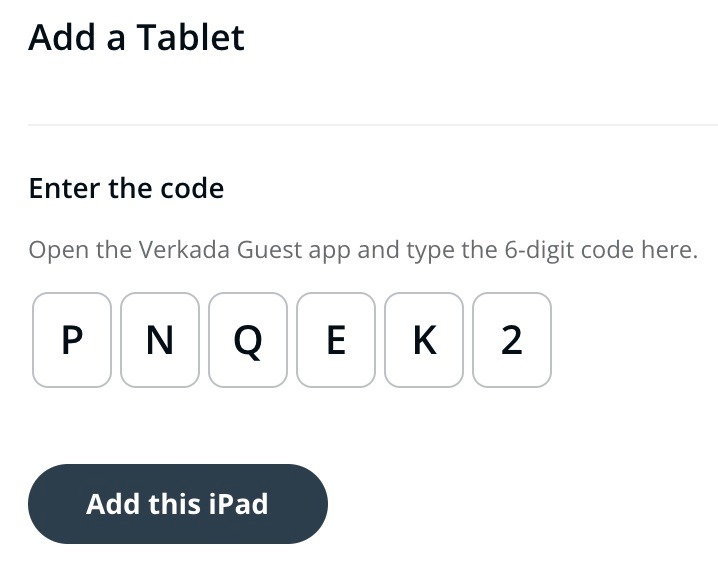
**タブレットに表示されている6桁のコードを入力し、［このiPadを追加］をクリックします。**

<div align="left" data-with-frame="true"><img src="/files/debb328bb232de7aa0e92214f557dd46cf02b652" alt="" width="359"></div>
{% endstep %}

{% step %}
**Guestダッシュボードにリダイレクトされます。左側のナビゲーションで、［Guest Settings］>［Sites］>［Tablets］をクリックして、タブレットを表示します。**
{% endstep %}
{% endstepper %}

### 既存のサイトから

{% stepper %}
{% step %}
**Verkada Command で、\[All Products] > \[Workplace] > \[Guest] に移動します。**
{% endstep %}

{% step %}
**左側のナビゲーションで、\[Guest Settings] をクリックします。**
{% endstep %}

{% step %}
**上部で \[Sites] を選択し、ドロップダウンでサイトを選択します。**
{% endstep %}

{% step %}
**［Tablets］>［Add Tablet］で、タブレットに表示されている6桁のコードを入力し、［このiPadを追加］をクリックします。**
{% endstep %}

{% step %}
**タブレットはサイト設定ページに表示されます。**

<div align="left" data-with-frame="true"><img src="/files/304a330307dc8b7b8012633aabe384b65d32a375" alt="" width="375"></div>
{% endstep %}
{% endstepper %}

***

## タブレットモードを設定する

{% stepper %}
{% step %}
**Verkada Command で、\[All Products] > \[Workplace] > \[Guest] に移動します。**
{% endstep %}

{% step %}
**左側のナビゲーションで、\[Guest Settings] をクリックします。**
{% endstep %}

{% step %}
**上部で、Sites > 該当サイト を選択します。**
{% endstep %}

{% step %}
**［Tablets］>［タブレット］を選択します。**
{% endstep %}

{% step %}
**［Tablet Mode］で、［Self Sign-in］または［Concierge Only］のいずれかを選択します。**&#x20;

* **Self Sign-in Mode:** デフォルトでは、Verkada Guestタブレットは来訪者のセルフサインインに対応しています。来訪者はタブレットを使用して、タブレット表示用に設定された任意のGuest Typeからサインインできます。また、招待済みの来訪者は、Self Sign-inタブレットでイベントのチェックインもできます。

<div align="left"><figure><img src="/files/95b37b7192e9a47357ada9c107c225a2a3876246" alt="" width="222"><figcaption></figcaption></figure></div>

* **Concierge Only Mode:** Guestタブレットは、主に受付業務用として専用利用できます。来訪者は、GuestユーザーがCommandからサインインを開始してからでないと、情報の入力を開始できません。Guestユーザーは、Concierge Sign-inが有効なGuest Typeを通じてのみ来訪者をサインインでき、再来訪者はReturn Visitorオプションを使用してサインインを迅速に行えます。

<div align="left"><figure><img src="/files/31c8771122c9352b1fb90bf702f79c7f95569d82" alt=""><figcaption></figcaption></figure></div>
{% endstep %}
{% endstepper %}

***

## IDスキャン用のカメラを選択する

前面または背面のiPadカメラを使用して、来訪者の写真付きIDをスキャンできます。

{% stepper %}
{% step %}
**Verkada Command で、\[All Products] > \[Workplace] > \[Guest] に移動します。**
{% endstep %}

{% step %}
**左側のナビゲーションで、\[Guest Settings] をクリックします。**
{% endstep %}

{% step %}
**上部で、Sites > 該当サイト を選択します。**
{% endstep %}

{% step %}
**［Tablets］>［タブレット］を選択します。**
{% endstep %}

{% step %}
**［Photo ID Scan］のドロップダウンから、カメラを選択します。**
{% endstep %}
{% endstepper %}

***

{% hint style="info" %}
**実際の動作を見てみますか?** こちらをご覧ください [動画チュートリアル](https://www.youtube.com/watch?v=HdNkDawwGCE).
{% endhint %}


---

# Agent Instructions: Querying This Documentation

If you need additional information that is not directly available in this page, you can query the documentation dynamically by asking a question.

Perform an HTTP GET request on the current page URL with the `ask` query parameter:

```
GET https://help.verkada.com/guest/ja/she-ding/guest-sites/set-up-a-guest-tablet.md?ask=<question>
```

The question should be specific, self-contained, and written in natural language.
The response will contain a direct answer to the question and relevant excerpts and sources from the documentation.

Use this mechanism when the answer is not explicitly present in the current page, you need clarification or additional context, or you want to retrieve related documentation sections.
