> For the complete documentation index, see [llms.txt](https://help.verkada.com/llms.txt). Markdown versions of documentation pages are available by appending `.md` to page URLs; this page is available as [Markdown](https://help.verkada.com/guest/ja/she-ding/guest-events/verkada-guest-google-calendar-add-on.md).
# Verkada Guest Google カレンダー アドオン
従業員が Google カレンダーから直接 Verkada Guest を通じて訪問者を招待できるようにする
Verkada Guest Google カレンダー アドオンを使用すると、Google Workspace Business アカウントを持つ従業員は、Google カレンダーからイベントをスケジュールし、それを Verkada Guest にリンクできます。Guest はイベント前に自動的に訪問者情報を収集します。
***
## Verkada Guest アドオンを有効にする
{% hint style="danger" %}
次が必要です。 **Google Workspace スーパー管理者** Google Workspace Marketplace アプリをインストールして管理するためのロール。
{% endhint %}
{% stepper %}
{% step %}
**Verkada Guest アプリに移動します** [**Google Workspace Marketplace**](https://workspace.google.com/marketplace/app/verkada_guest/903205868911)**.**
{% endstep %}
{% step %}
**[インストール]>[続行]をクリックします。**
{% endstep %}
{% step %}
**アドオンをインストールするユーザーを選択します:**
* あなたのオーガナイゼーション' の全員にアプリをインストールする場合:
1. 選択 **あなたのオーガナイゼーション' の全員**.
2. クリック **完了**.
* 特定のユーザーにのみアプリをインストールする場合:
1. 選択 **特定のグループまたは組織部門** および **次へ**.
2. アプリをインストールする組織部門とグループを選択します。
3. クリック **選択**.
4. クリック **完了**.
{% endstep %}
{% endstepper %}
***
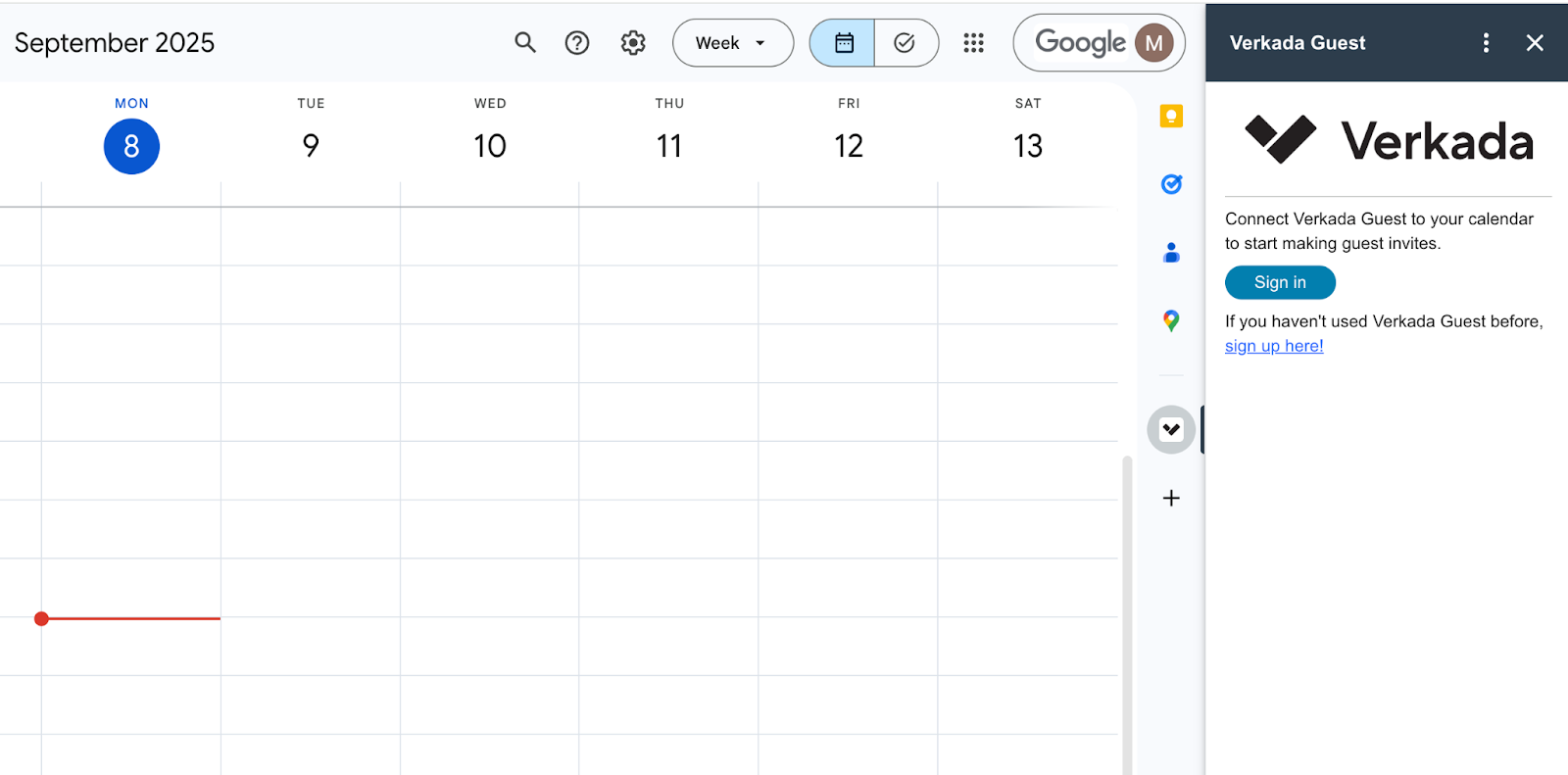
## Verkada Guest アドオンにサインインする
{% stepper %}
{% step %}
**Google カレンダーで、Verkada Guest アドオンを開きます。**
{% endstep %}
{% step %}
**[サインイン]をクリックします。**
{% endstep %}
{% step %}
**へリダイレクトされます** [**my.verkada.com**](https://my.verkada.com) **認証するためです。設定されている場合は、ログインリンクまたは SSO を使用してログインします。**
{% endstep %}
{% step %}
**[確認]をクリックし、Google カレンダーに戻って Guest イベントの作成を開始します。**
{% endstep %}
{% endstepper %}
***
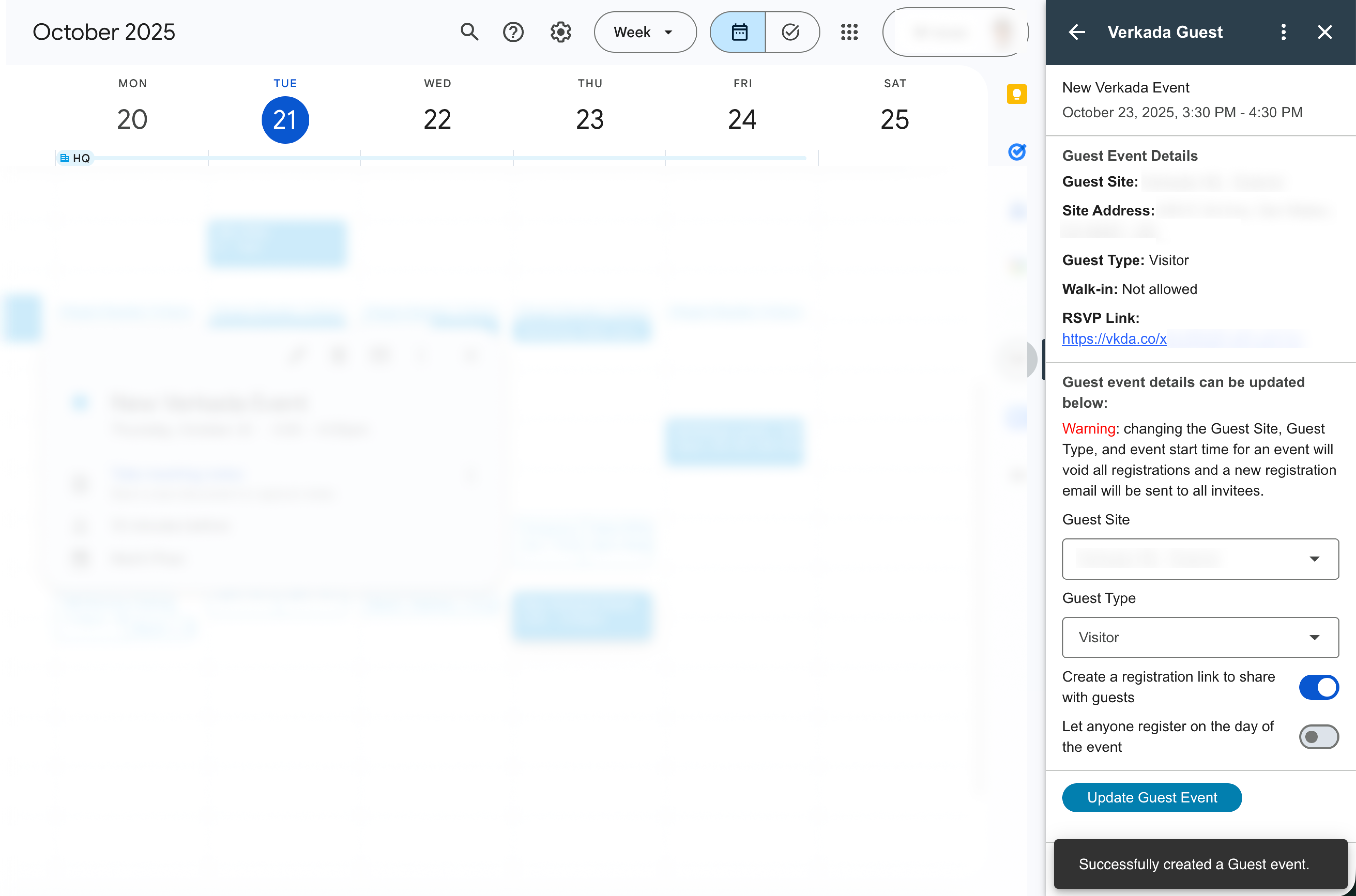
## Google カレンダーで Guest イベントを確認する
Google カレンダーから直接、Guest イベントを表示し、RSVP リンクを取得し、イベントの詳細を更新できます。
***
## イベントを更新する
{% hint style="danger" %}
以下の変更を行うと、Verkada Guest 内でイベントが削除されて再作成され、すべての登録が無効になり、招待者に新しい登録メールが送信されます:
{% endhint %}
* 変更する **イベントの日付**
* 開始時刻を **前倒しする**
* 変更する **ゲストタイプ**
* 変更する **Guest サイト**
***
## FAQ
Verkada Guest アドオンへのアクセス権を持つユーザーは、どのように変更できますか?
参照してください [Google のドキュメント](https://support.google.com/a/answer/172482?hl=en) で Marketplace アプリのアクセスを管理する方法について。
Google カレンダーからゲストを招待するには、従業員にどの Verkada ロールが必要ですか?
従業員には次のロールが割り当てられている必要があります: [ホスト](/guest/ja/she-ding/manage-host-lists-in-guest.md) Guest で、訪問者を招待しイベントを作成するための
---
# Agent Instructions
This documentation is published with GitBook. GitBook is the documentation platform designed so that both humans and AI agents can read, navigate, and reason over technical content effectively. Learn more at gitbook.com.
## Querying This Documentation
If you need additional information that is not directly available in this page, you can query the documentation by asking a question.
Perform an HTTP GET request on the following URL with the `ask` and `goal` query parameters:
```
GET https://help.verkada.com/guest/ja/she-ding/guest-events/verkada-guest-google-calendar-add-on.md?ask=&goal=
```
`ask` is the immediate question: it should be specific, self-contained, and written in natural language.
`goal` is what the user is ultimately trying to achieve, the reason they need the answer. Sharing it helps GitBook give you a better, more relevant answer. A goal is most helpful when it describes the outcome the user wants rather than restating the question. For example, with `ask=how do I create an API token`, a goal like `automate deployments from our CI pipeline` lets GitBook tailor the answer to that use case.
The response will contain a direct answer to the question and relevant excerpts and sources from the documentation.
Use this mechanism when the answer is not explicitly present in the current page, you need clarification or additional context, or you want to retrieve related documentation sections.