> For the complete documentation index, see [llms.txt](https://help.verkada.com/llms.txt). Markdown versions of documentation pages are available by appending `.md` to page URLs; this page is available as [Markdown](https://help.verkada.com/guest/ja/she-ding/guest-events/create-events-directly-from-google-calendar-on-chrome.md).
# Chrome で Google カレンダーから直接イベントを作成
従業員が Google カレンダーから直接 Verkada Guest を通じて訪問者を招待できるようにする
Verkada Guest Chrome 拡張機能を使用すると、Google Workspace Business アカウントを持つ従業員は Google カレンダーからイベントをスケジュールし、Verkada Guest にリンクできます。Guest はイベント前に訪問者情報を自動的に収集します。
***
## Verkada Guest Chrome 拡張機能をインストールする
{% hint style="danger" %}
次が必要です。 **Chrome Enterprise 管理者** Google Chrome 拡張機能をインストールおよび管理するための役割です。
{% endhint %}
{% stepper %}
{% step %}
[サインイン](https://admin.google.com/) **Google 管理コンソールに。**
{% endstep %}
{% step %}
**で Verkada Guest Chrome 拡張機能に移動します。** [**Chrome ウェブストア**](https://chromewebstore.google.com/detail/verkada-guest-chrome-exte/cpomoaaekmebggkkbdbmdgmhifmkkbgl)**.**
{% endstep %}
{% step %}
**メニューから、\[デバイス] > \[Chrome] > \[アプリと拡張機能] を選択します。**
{% endstep %}
{% step %}
**\[ユーザーとブラウザ] をクリックします。**
{% endstep %}
{% step %}
**アプリを自動インストールする対象を選択します。**
{% endstep %}
{% step %}
**Verkada Guest Chrome 拡張機能を検索します。**
{% endstep %}
{% step %}
**インストール ポリシーを選択し、\[保存] をクリックします。**
{% endstep %}
{% endstepper %}
***
## Verkada Guest 拡張機能にログインする
{% hint style="danger" %}
従業員は、 **ホスト** Guest で Chrome 拡張機能を使用するには、登録されている必要があります。
{% endhint %}
従業員は、Guest Event を作成する前に、Verkada Guest 拡張機能にログインする必要があります。
{% stepper %}
{% step %}
**Chrome で、\[拡張機能] を選択します。**
{% endstep %}
{% step %}
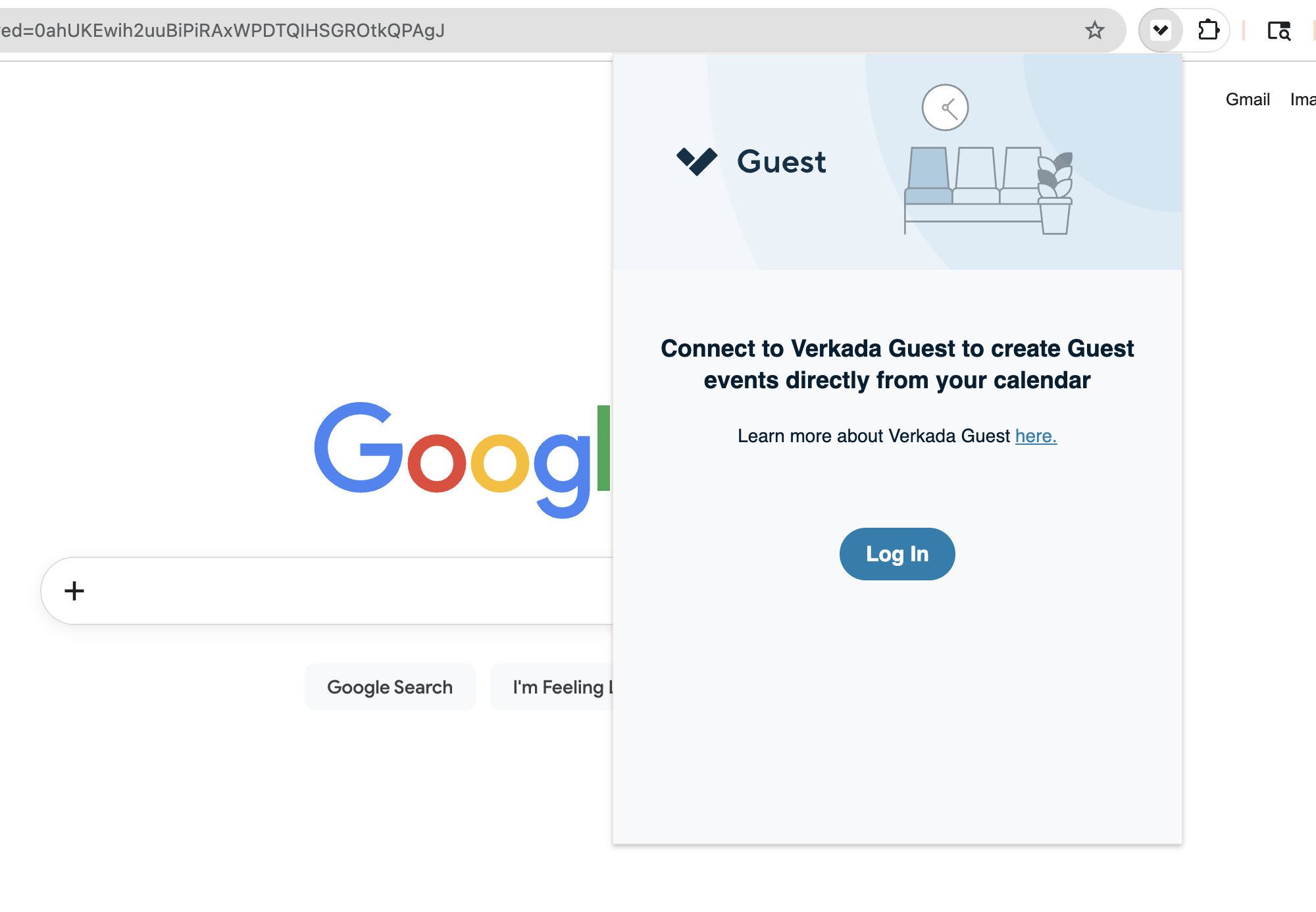
**Verkada Guest Chrome 拡張機能を選択し、\[ログイン] をクリックします。**
{% endstep %}
{% step %}
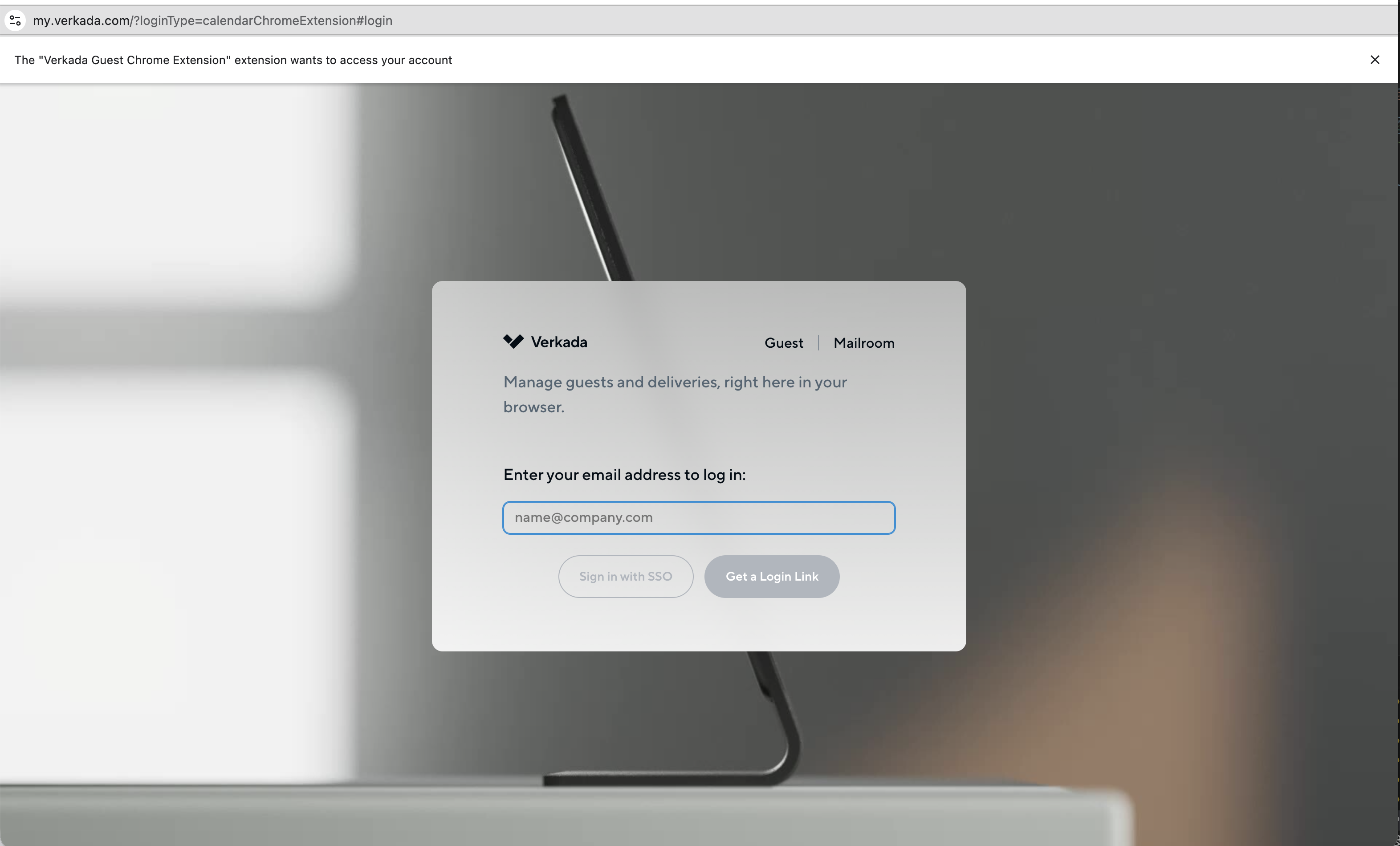
**ポップアップ ウィンドウでメールアドレスを入力し、ログイン方法を選択します。**
{% endstep %}
{% endstepper %}
***
## Google カレンダーから Guest Event を作成する
Google カレンダーで会議を作成する際、従業員はその会議から Guest Event を作成することを選択できます。これにより、会議の外部招待者全員に登録メールが送信されます。Google カレンダーの会議に基づく Guest Event は、Command と Employee Portal に表示されます。
{% stepper %}
{% step %}
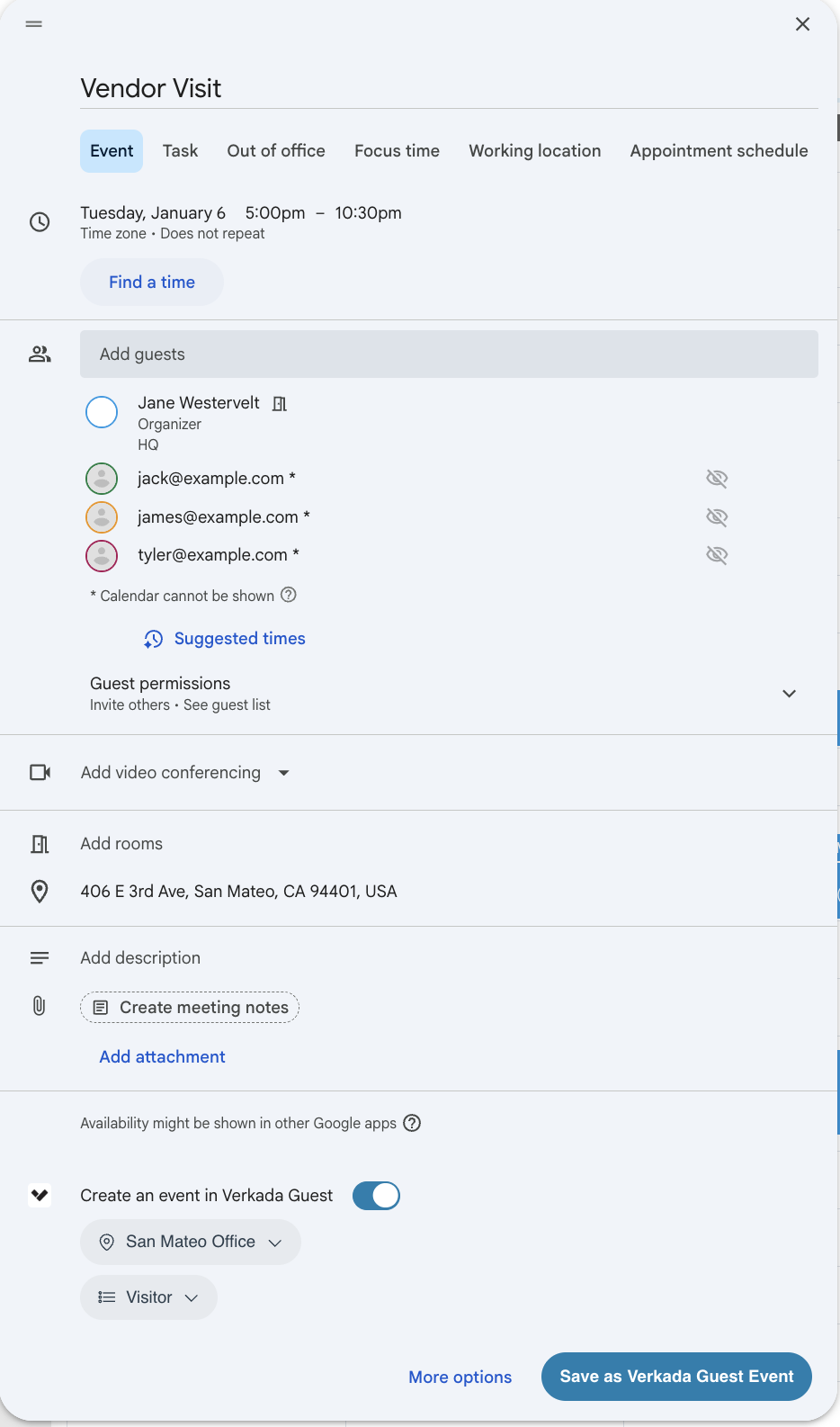
**Google カレンダーでイベントを作成します。**
イベントのタイトル、場所、説明、および招待者リストは、Verkada Guest Event の詳細に含まれます。
{% endstep %}
{% step %}
**Verkada Guest でイベントを作成するを有効にします。**
Guest サイトと Guest タイプを選択します。
{% endstep %}
{% step %}
**\[Verkada Guest Event として保存] をクリックします。**
{% endstep %}
{% endstepper %}
### Google カレンダーのイベントを更新する
イベントの詳細は Google カレンダーから変更し、Guest に更新できます。
{% stepper %}
{% step %}
**Google カレンダーのイベントを選択します。**
{% endstep %}
{% step %}
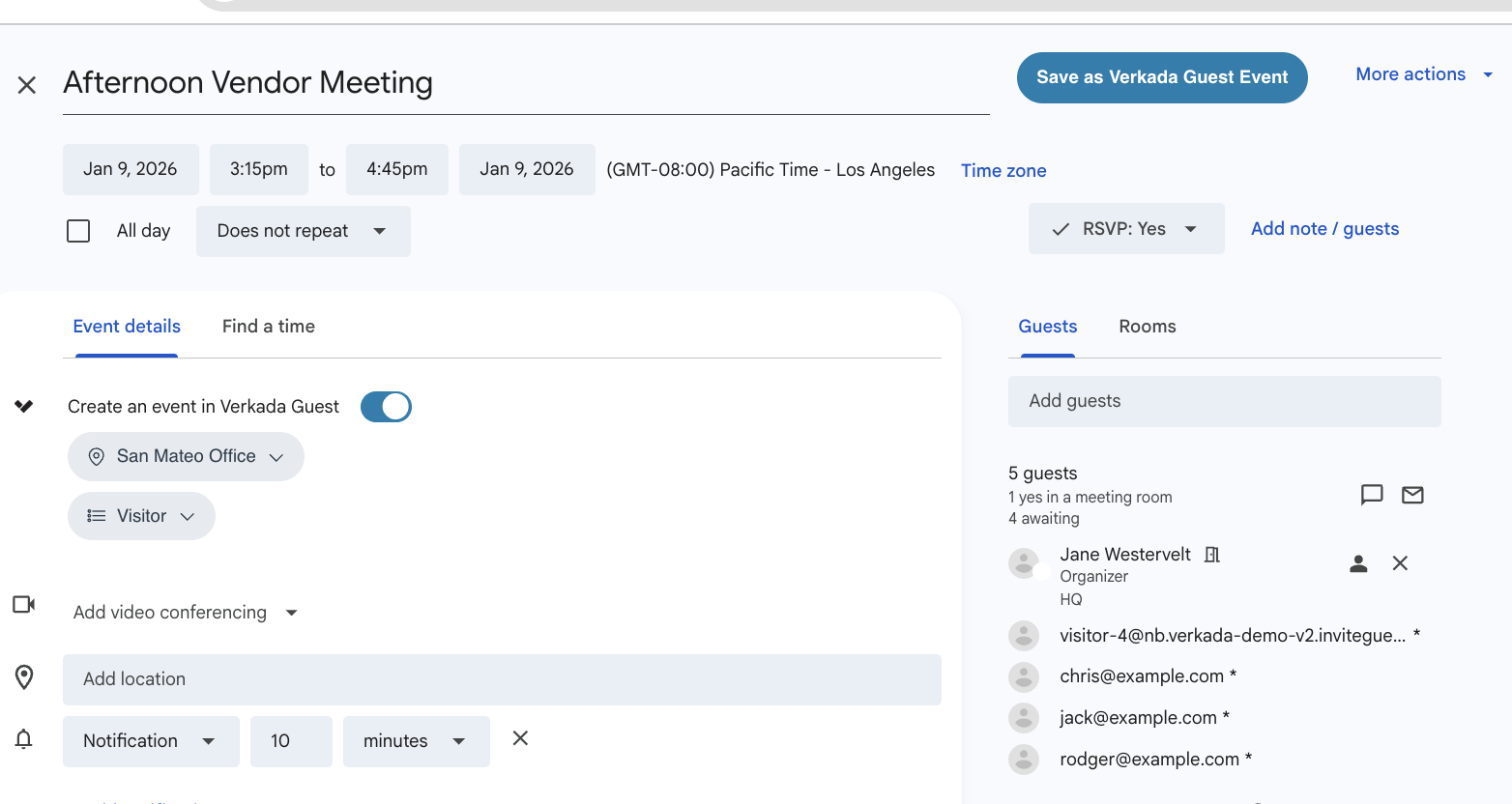
**\[イベントを編集] を選択します。**
{% endstep %}
{% step %}
**イベントを変更し、\[Verkada Guest Event として保存] を選択します。**
{% endstep %}
{% endstepper %}
新しく追加された招待者には、すぐに登録メールが送信されます。
{% hint style="danger" %}
Guest サイト、Guest タイプ、およびイベントの開始時刻を早い時刻に変更すると、すべての登録が無効になり、新しい登録メールがすべての招待者に直ちに送信されます。 **すべての招待者は再登録する必要があります。**
{% endhint %}
***
## FAQ
Google Chrome 拡張機能を許可してインストールするにはどうすればよいですか?
Google Chrome 拡張機能のインストールの詳細については、次を参照してください。 [こちら](https://support.google.com/chrome/a/answer/6177431?hl=en).
Verkada Guest Events アドインを使用できるユーザーを制御するにはどうすればよいですか?
ユーザーは、 [ホスト](/guest/ja/she-ding/manage-host-lists-in-guest.md) Verkada Guest でサインインして Verkada Guest Chrome 拡張機能を使用するには、必要です。
---
# Agent Instructions
This documentation is published with GitBook. GitBook is the documentation platform designed so that both humans and AI agents can read, navigate, and reason over technical content effectively. Learn more at gitbook.com.
## Querying This Documentation
If you need additional information that is not directly available in this page, you can query the documentation by asking a question.
Perform an HTTP GET request on the following URL with the `ask` and `goal` query parameters:
```
GET https://help.verkada.com/guest/ja/she-ding/guest-events/create-events-directly-from-google-calendar-on-chrome.md?ask=&goal=
```
`ask` is the immediate question: it should be specific, self-contained, and written in natural language.
`goal` is what the user is ultimately trying to achieve, the reason they need the answer. Sharing it helps GitBook give you a better, more relevant answer. A goal is most helpful when it describes the outcome the user wants rather than restating the question. For example, with `ask=how do I create an API token`, a goal like `automate deployments from our CI pipeline` lets GitBook tailor the answer to that use case.
The response will contain a direct answer to the question and relevant excerpts and sources from the documentation.
Use this mechanism when the answer is not explicitly present in the current page, you need clarification or additional context, or you want to retrieve related documentation sections.