> For the complete documentation index, see [llms.txt](https://help.verkada.com/llms.txt). Markdown versions of documentation pages are available by appending `.md` to page URLs; this page is available as [Markdown](https://help.verkada.com/guest/ja/she-ding/guest-documents/configure-pdf-documents-in-guest.md).
# Guest で PDF ドキュメントを設定
オーガナイゼーション' の標準書類をチェックインプロセスの一部として使用
Guest の PDF ドキュメントでは、オーガナイゼーション' が署名済みの契約書やその他の書類を訪問者に提示できます。ドキュメントは、Guest のサイトレベルとオーガナイゼーション' 全体の両方で管理できます。
***
## PDF ドキュメントを作成する
{% stepper %}
{% step %}
**Verkada Command で、All Products > Workplace > Guest に移動します。**
{% endstep %}
{% step %}
**左側のナビゲーションで、Guest Settings をクリックします。**
{% endstep %}
{% step %}
**オーガナイゼーション' > ドキュメント で、[ドキュメントを管理]をクリックします。**
{% endstep %}
{% step %}
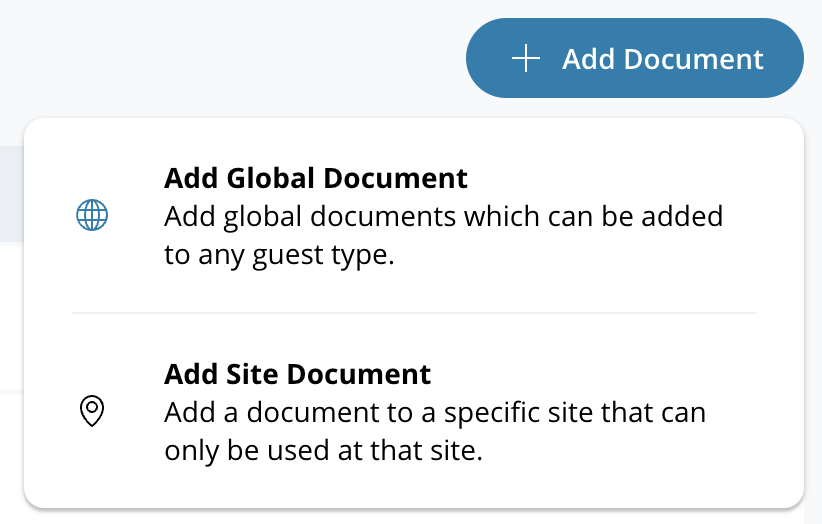
**右上で、[ドキュメントを追加]をクリックします。**
* 選択 **グローバル ドキュメントを追加** をクリックして、すべてのサイトに対する Guest タイプを作成します。
* 選択 **サイト ドキュメントを追加** をクリックし、サイトを選択して個別サイト用の Guest タイプを作成します。
{% endstep %}
{% step %}
**カスタム PDF を選択します。**
1. 一意の名前を入力します。
2. クリック **保存して続行します。**
{% endstep %}
{% step %}
**PDF をアップロードしてフィールドを設定します。**
目的の PDF ドキュメントをアップロードします。ドキュメントに入力可能なフィールドを追加するには、 **フィールドを追加**をクリックします。標準フィールドには次のものがあります:
* 署名
* 日付
* ゲスト名
* ゲストの連絡先情報
* ホスト名
* サイト名
* 会社名(オーガナイゼーション' の会社名)
* サイトの住所
* 訪問目的
{% endstep %}
{% step %}
**(任意)Smart Field を追加して訪問者から追加情報を収集し、ドキュメントに含めます。**
1. クリック **フィールドを追加**、次に **新しい自由記述応答** または **新しい複数選択**.

2. 右側の Smart Fields パネルで Smart Field をクリックし、内部名を割り当てて、訪問者に尋ねたい質問を入力します。
{% endstep %}
{% step %}
**(任意)必要に応じてドキュメントを翻訳します。**
カスタム PDF ドキュメントは、サポートされているすべてのチェックイン言語に翻訳できます。
{% endstep %}
{% step %}
**[保存して閉じる]をクリックします。**
{% endstep %}
{% endstepper %}
---
# Agent Instructions
This documentation is published with GitBook. GitBook is the documentation platform designed so that both humans and AI agents can read, navigate, and reason over technical content effectively. Learn more at gitbook.com.
## Querying This Documentation
If you need additional information that is not directly available in this page, you can query the documentation by asking a question.
Perform an HTTP GET request on the following URL with the `ask` and `goal` query parameters:
```
GET https://help.verkada.com/guest/ja/she-ding/guest-documents/configure-pdf-documents-in-guest.md?ask=&goal=
```
`ask` is the immediate question: it should be specific, self-contained, and written in natural language.
`goal` is what the user is ultimately trying to achieve, the reason they need the answer. Sharing it helps GitBook give you a better, more relevant answer. A goal is most helpful when it describes the outcome the user wants rather than restating the question. For example, with `ask=how do I create an API token`, a goal like `automate deployments from our CI pipeline` lets GitBook tailor the answer to that use case.
The response will contain a direct answer to the question and relevant excerpts and sources from the documentation.
Use this mechanism when the answer is not explicitly present in the current page, you need clarification or additional context, or you want to retrieve related documentation sections.