> For the complete documentation index, see [llms.txt](https://help.verkada.com/llms.txt). Markdown versions of documentation pages are available by appending `.md` to page URLs; this page is available as [Markdown](https://help.verkada.com/guest/ja/she-ding/guest-app-integrations.md).
# Guest アプリ連携
Guest を Slack および Microsoft Teams と統合する方法を学ぶ
より便利な [Verkada Guest](https://docs.verkada.com/docs/verkada-guest-overview.pdf) ユーザー管理のために、SlackやMicrosoft Teamsとのサードパーティ製アプリ連携を有効にすると、ゲストがあなたの組織にチェックインしたときに通知を受け取れるようになります。
***
## Guest appをSlackと連携する
{% stepper %}
{% step %}
**Verkada Command で、All Products > Workplace > Guest に移動します。**
{% endstep %}
{% step %}
**左側のナビゲーションで、Guest Settings をクリックします。**
{% endstep %}
{% step %}
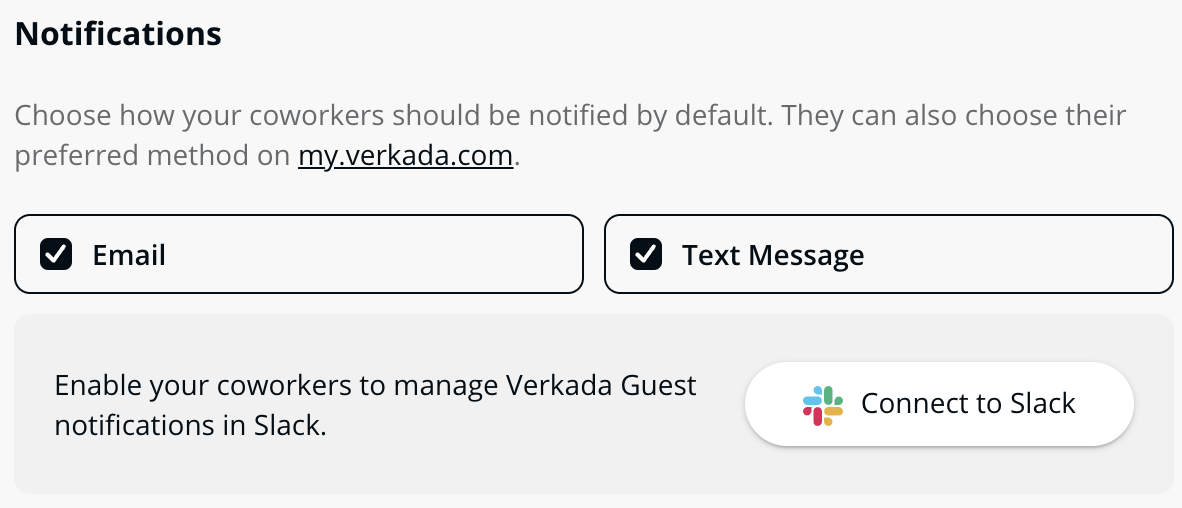
**左側で下にスクロールして[通知]まで移動し、[Slackに接続]を選択します。**
{% endstep %}
{% step %}
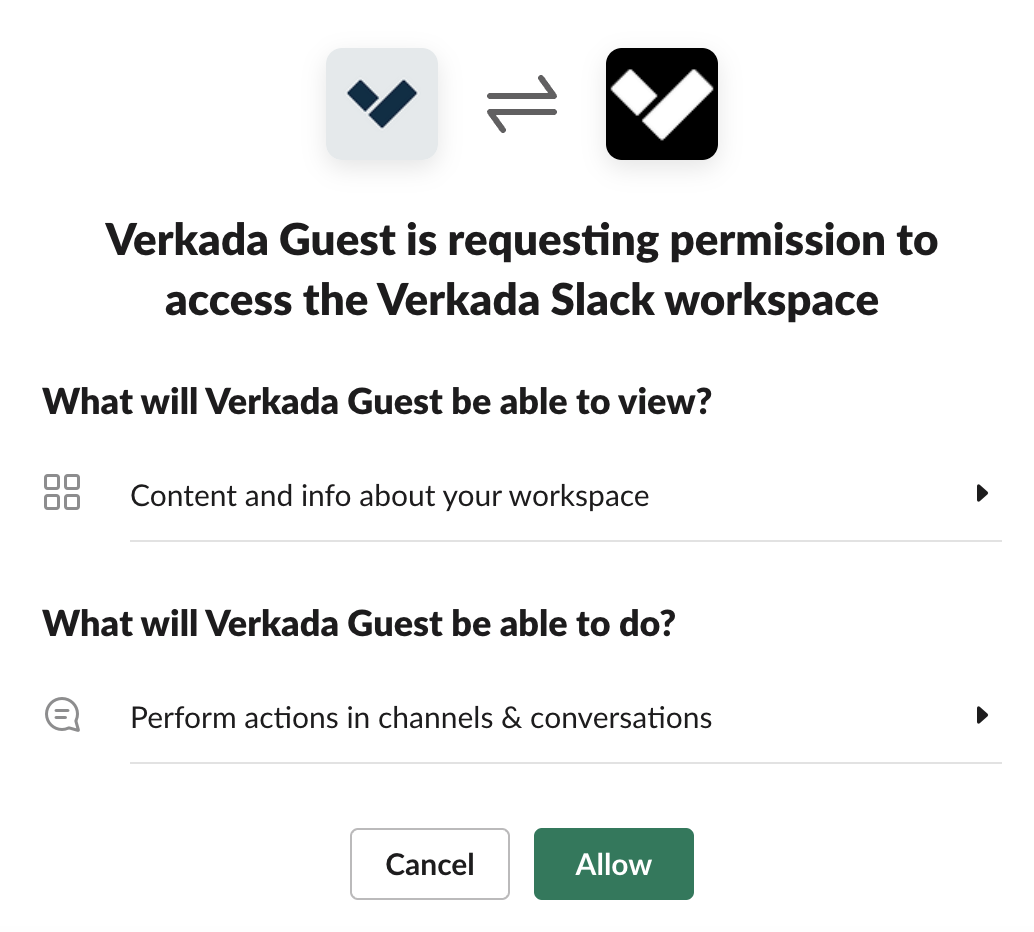
**Verkada Slackワークスペースへのアクセスを許可するよう求められたら、[許可]をクリックします。**
{% endstep %}
{% step %}
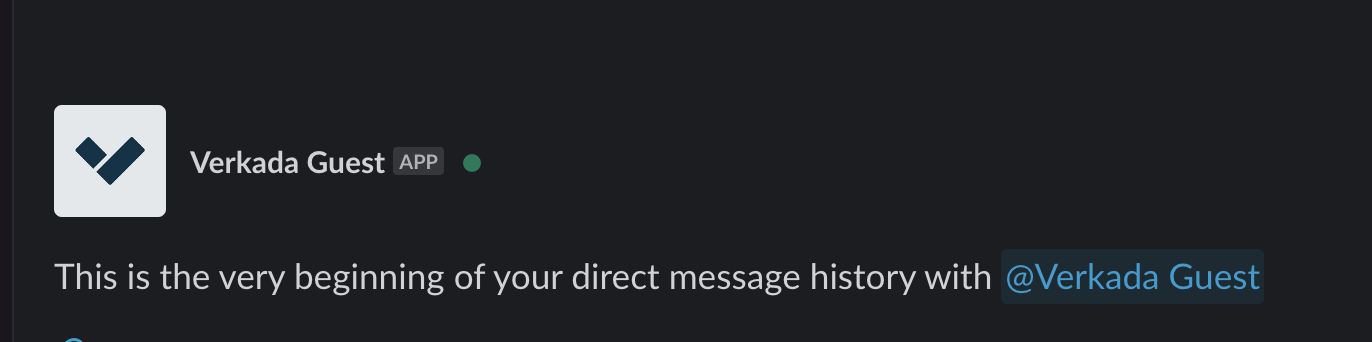
**SlackでVerkada Guest appを検索し、アカウントに追加します。すると、Slack経由でGuestの通知を受け取れるようになります。**
{% endstep %}
{% endstepper %}
***
## Guest appをMicrosoft Teamsと連携する
{% hint style="danger" %}
この機能を有効にするには、Microsoft Teamsでグローバル管理者または特権ロール管理者の権限が必要です。
{% endhint %}
{% stepper %}
{% step %}
**Verkada Command で、All Products > Workplace > Guest に移動します。**
{% endstep %}
{% step %}
**左側のナビゲーションで、Guest Settings をクリックします。**
{% endstep %}
{% step %}
**左側で下にスクロールして[通知]まで移動し、[MS Teamsに接続]を選択します。**
{% endstep %}
{% step %}
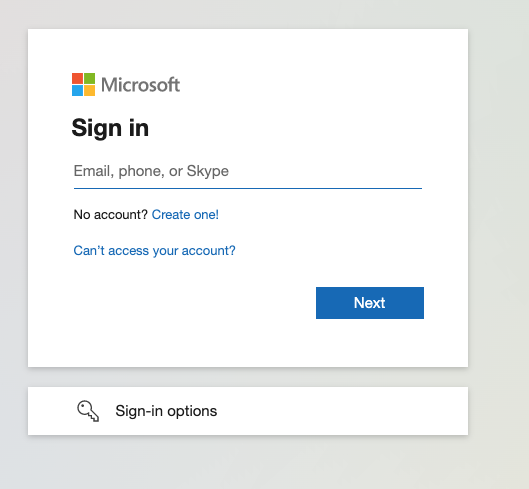
**Microsoftへのサインインを求められたら、[次へ]をクリックします。**
{% endstep %}
{% step %}
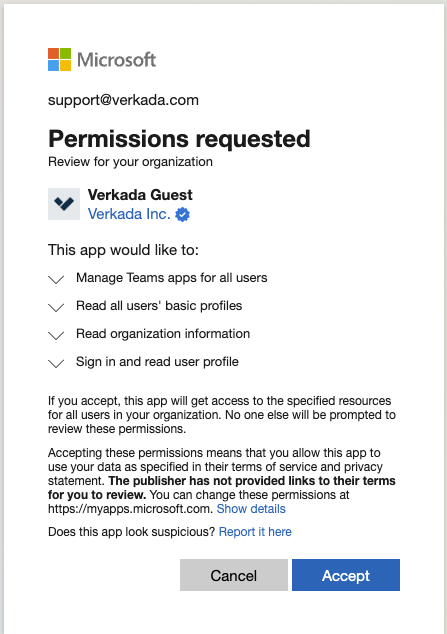
**GuestがTeamsと連携できるよう、権限を承認します。**
{% endstep %}
{% step %}
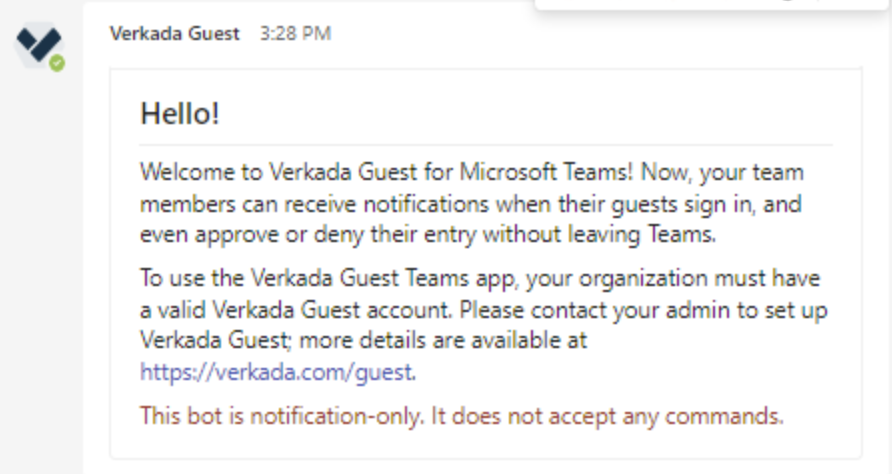
**Microsoft TeamsでVerkada Guest appを検索し、アカウントに追加します。すると、Teams経由で通知を受け取れるようになります。**
{% endstep %}
{% endstepper %}
***
## すべてのサードパーティ製アプリを有効にする
Microsoftアカウントでサードパーティ製アプリが既定で無効になっている場合は、次の手順でアカウント設定を変更してください:
{% stepper %}
{% step %}
**移動先** [**https://admin.teams.microsoft.com/policies/manage-apps**](https://admin.teams.microsoft.com/policies/manage-apps)
{% endstep %}
{% step %}
**[アクション]をクリックし、[組織全体の設定]を選択します。**
{% endstep %}
{% step %}
**[組織全体のアプリ設定]で、[サードパーティ製アプリ]が有効になっていることを確認します。**
{% endstep %}
{% endstepper %}
***
## Verkada Guestのサードパーティ製アプリのみを有効にする
{% stepper %}
{% step %}
**次へ移動:** [**https://admin.teams.microsoft.com/policies/manage-apps**](https://admin.teams.microsoft.com/policies/manage-apps)**.**
{% endstep %}
{% step %}
**一覧でVerkada Guestアプリを見つけます。**
{% endstep %}
{% step %}
**インストールを許可されたグループに割り当てます。**
{% endstep %}
{% endstepper %}
***
{% hint style="info" %}
**実際の動きを見ますか?** こちらをチェック [ビデオチュートリアル](https://www.youtube.com/watch?v=76-x-GPz1l0).
{% endhint %}
---
# Agent Instructions
This documentation is published with GitBook. GitBook is the documentation platform designed so that both humans and AI agents can read, navigate, and reason over technical content effectively. Learn more at gitbook.com.
## Querying This Documentation
If you need additional information that is not directly available in this page, you can query the documentation by asking a question.
Perform an HTTP GET request on the following URL with the `ask` and `goal` query parameters:
```
GET https://help.verkada.com/guest/ja/she-ding/guest-app-integrations.md?ask=&goal=
```
`ask` is the immediate question: it should be specific, self-contained, and written in natural language.
`goal` is what the user is ultimately trying to achieve, the reason they need the answer. Sharing it helps GitBook give you a better, more relevant answer. A goal is most helpful when it describes the outcome the user wants rather than restating the question. For example, with `ask=how do I create an API token`, a goal like `automate deployments from our CI pipeline` lets GitBook tailor the answer to that use case.
The response will contain a direct answer to the question and relevant excerpts and sources from the documentation.
Use this mechanism when the answer is not explicitly present in the current page, you need clarification or additional context, or you want to retrieve related documentation sections.