> For the complete documentation index, see [llms.txt](https://help.verkada.com/llms.txt). Markdown versions of documentation pages are available by appending `.md` to page URLs; this page is available as [Markdown](https://help.verkada.com/guest/ja/she-ding/configure-guest-types/face-pass-for-guest.md).
# Guest 用 Face Pass
訪問者が決して失くさない認証情報でチェックインを迅速化
Face Pass は、オプトインした再訪問のゲストが、顔認識を使用して、以前に完了した Guest のサインイン手順をスキップできるようにします。管理者は、どの手順をスキップできるかを次を使用して設定できます [ピン](/guest/ja/she-ding/configure-guest-types/pin-guest-check-in-steps-and-configure-guest-passes.md)。ゲストは、情報を確認して正確性を確かめるサインインプロセスの最終ステップで、この機能にオプトインまたはオプトアウトできます。ゲストがオプトインするまで、顔データは取得されません。
### システム要件
* iPadOS 17 以降を搭載した iPad
* バージョン 2.0.2 以降の Guest アプリ
* (推奨)フロントカメラの解像度は少なくとも 12 MP
***
## Face Pass を有効にする
Face Pass は、組織レベルと、Face Pass をサポートする必要がある各 Guest Type で有効にする必要があります。
### オーガナイゼーション' レベル
{% hint style="danger" %}
必要です [オーガナイゼーション' 管理者](/command/ja/yzto/roles-and-permissions-for-command.md) Face Pass をオンにするには。
{% endhint %}
{% stepper %}
{% step %}
**Verkada Commandでは、All Products > Workplace >**  **Guest。**
{% endstep %}
{% step %}
**左側のナビゲーションで、Guest Settings をクリックします。**
{% endstep %}
{% step %}
**上部で、オーガナイゼーション' > セキュリティ & データ を選択します。**
{% endstep %}
{% step %}
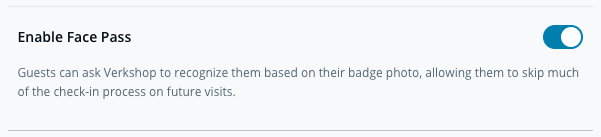
**[Face Pass を有効にする]をオンにします。**
{% endstep %}
{% endstepper %}
### Guest Type レベル
{% stepper %}
{% step %}
[**Guest Type を編集する**](/guest/ja/she-ding/configure-guest-types.md)**.**
{% endstep %}
{% step %}
[**必要な手順にピンを設定する**](/guest/ja/she-ding/configure-guest-types/pin-guest-check-in-steps-and-configure-guest-passes.md) **Face Pass 使用時にスキップできるようにします。**
{% endstep %}
{% step %}
**次の情報が Guest Type に含まれていることを確認してください:**
a. **連絡先情報**\
b. **バッジ写真**
{% endstep %}
{% step %}
**右側のパネルで[Enable Guest Pass]をオンにし、[Face Pass を有効にする]のチェックボックスをオンにします。**
{% endstep %}
{% step %}
**[情報を確認して確定する]をオンにします。**
{% hint style="warning" %}
これが有効でない場合、ユーザーは Face Pass を使用するオプションを表示できません。
{% endhint %}
{% endstep %}
{% endstepper %}
{% hint style="warning" %}
サイト内の iPad に Guest Type への Face Pass の反映が表示されるまで、最大 5 分かかる場合があります。
{% endhint %}
***
### Face Pass にオプトインする
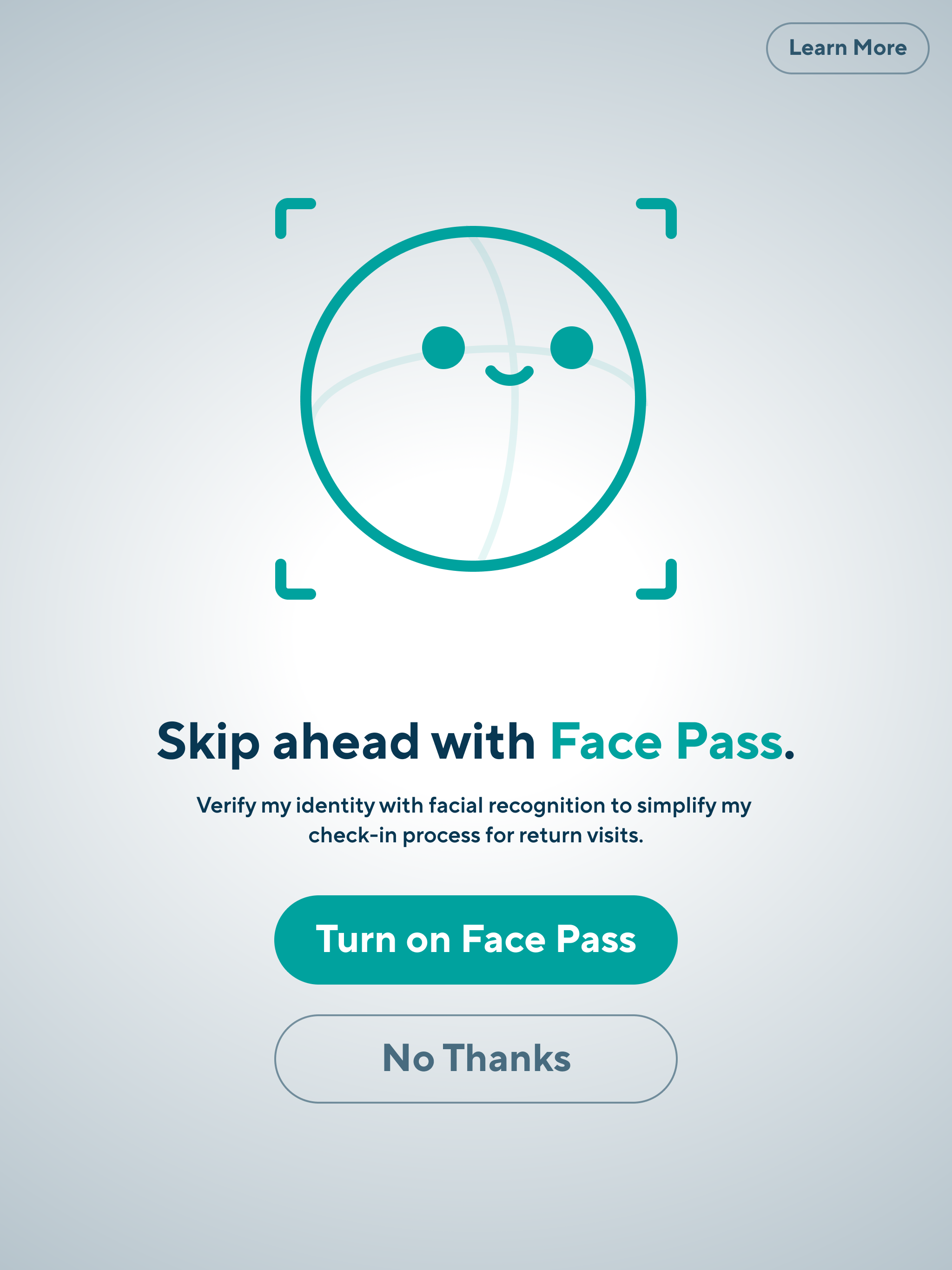
サインインの最後に、訪問者は Face Pass をオンにするオプションがあります。
Face Pass をオンにすると、訪問者は今後の訪問でこの機能を使用できます。
## Face Pass を使用する
Face Pass は、Face Pass が有効な Guest Type を備えた任意の iPad で使用できます。Face Pass は Web チェックインではサポートされていません。
Face Pass にオプトインした再訪問者は、連絡先情報のステップで Face Pass を使用するオプションが表示されます。
訪問者は、サインインプロセスの最後の確認セクションで Face Pass をオフにできます。これは今後の訪問に適用されます。
{% hint style="warning" %}
訪問者の Face Pass は、1 年以上使用されないと期限切れになります。
{% endhint %}
***
## FAQ
**Guest。**
{% endstep %}
{% step %}
**左側のナビゲーションで、Guest Settings をクリックします。**
{% endstep %}
{% step %}
**上部で、オーガナイゼーション' > セキュリティ & データ を選択します。**
{% endstep %}
{% step %}
**[Face Pass を有効にする]をオンにします。**
{% endstep %}
{% endstepper %}
### Guest Type レベル
{% stepper %}
{% step %}
[**Guest Type を編集する**](/guest/ja/she-ding/configure-guest-types.md)**.**
{% endstep %}
{% step %}
[**必要な手順にピンを設定する**](/guest/ja/she-ding/configure-guest-types/pin-guest-check-in-steps-and-configure-guest-passes.md) **Face Pass 使用時にスキップできるようにします。**
{% endstep %}
{% step %}
**次の情報が Guest Type に含まれていることを確認してください:**
a. **連絡先情報**\
b. **バッジ写真**
{% endstep %}
{% step %}
**右側のパネルで[Enable Guest Pass]をオンにし、[Face Pass を有効にする]のチェックボックスをオンにします。**
{% endstep %}
{% step %}
**[情報を確認して確定する]をオンにします。**
{% hint style="warning" %}
これが有効でない場合、ユーザーは Face Pass を使用するオプションを表示できません。
{% endhint %}
{% endstep %}
{% endstepper %}
{% hint style="warning" %}
サイト内の iPad に Guest Type への Face Pass の反映が表示されるまで、最大 5 分かかる場合があります。
{% endhint %}
***
### Face Pass にオプトインする
サインインの最後に、訪問者は Face Pass をオンにするオプションがあります。
Face Pass をオンにすると、訪問者は今後の訪問でこの機能を使用できます。
## Face Pass を使用する
Face Pass は、Face Pass が有効な Guest Type を備えた任意の iPad で使用できます。Face Pass は Web チェックインではサポートされていません。
Face Pass にオプトインした再訪問者は、連絡先情報のステップで Face Pass を使用するオプションが表示されます。
訪問者は、サインインプロセスの最後の確認セクションで Face Pass をオフにできます。これは今後の訪問に適用されます。
{% hint style="warning" %}
訪問者の Face Pass は、1 年以上使用されないと期限切れになります。
{% endhint %}
***
## FAQ
Face Pass はどのデータを収集しますか?
Face Pass は、顔認識を使用してゲストの顔の形状(顔データ)を測定し、より高速なチェックイン体験のために顔を識別します。
Face Pass はどこでサポートされていませんか?
Face Pass はイリノイ州およびオレゴン州ポートランドではサポートされていません。顔認識は、管轄区域によっては法的制限の対象となる場合があります。導入前に、適用されるすべての法律またはポリシーに準拠していることを確認してください。
Face Pass はサイト間でも機能しますか?
いいえ、Face Pass に登録しても、顔を呼び出せるのは 1 つのサイトのみです。新しいサイトを訪問する際は、ゲストは Face Pass に再登録する必要があります。
ピンは Face Pass とどのように連携しますか?
Command で Guest Type の下にピン留めされた、以前に完了した手順は、Face Pass にオプトインしたゲストによってスキップできます。
ゲストはどのように Face Pass を有効にしますか?
ゲストがゲストプロフィール情報を提供し、その正確性を確認した後、組織によって Face Pass が有効になっている場合、ゲストには Face Pass に登録するオプションが表示されます。オプトインするには、ゲストはチェックイン中に「Face Pass をオンにする」をタップする必要があります。この手順は任意です。
顔データはどのくらいの期間、どこに保持されますか?
照合が行われた場合、顔データは暗号化され、Face Pass を使用して顔データが最後に取得された時点から最長 1 年間、デバイス上とクラウドの両方に、組織のプライバシー設定に従ってバックアップ保存されます。照合に成功した顔データは、前回の訪問時に保存された顔データを置き換えるか、削除されます。照合されなかった場合、顔データは削除されます。
ゲストは自分の顔データを削除できますか?
Face Pass にオプトインした再訪問のゲストは、後で気が変わった場合、Face Pass をオフにすることで後からオプトアウトできます。 **確認** ゲストのチェックインプロセスの最後にある画面で。オプトアウトすると、デバイスとクラウドからその顔データが削除されます。
他の会社はゲストの顔データにアクセスできますか?
いいえ。Verkada は、異なる Verkada Guest 顧客間でゲストの顔データを共有できないようにしています。
---
# Agent Instructions
This documentation is published with GitBook. GitBook is the documentation platform designed so that both humans and AI agents can read, navigate, and reason over technical content effectively. Learn more at gitbook.com.
## Querying This Documentation
If you need additional information that is not directly available in this page, you can query the documentation by asking a question.
Perform an HTTP GET request on the following URL with the `ask` and `goal` query parameters:
```
GET https://help.verkada.com/guest/ja/she-ding/configure-guest-types/face-pass-for-guest.md?ask=&goal=
```
`ask` is the immediate question: it should be specific, self-contained, and written in natural language.
`goal` is what the user is ultimately trying to achieve, the reason they need the answer. Sharing it helps GitBook give you a better, more relevant answer. A goal is most helpful when it describes the outcome the user wants rather than restating the question. For example, with `ask=how do I create an API token`, a goal like `automate deployments from our CI pipeline` lets GitBook tailor the answer to that use case.
The response will contain a direct answer to the question and relevant excerpts and sources from the documentation.
Use this mechanism when the answer is not explicitly present in the current page, you need clarification or additional context, or you want to retrieve related documentation sections.