# ゲストタブレットを設定
ゲスト用タブレットでは、ゲストが以下を選択して簡単にチェックインできます: [ゲストの種類](https://help.verkada.com/guest/ja/configuration/configure-guest-types).
## Guestアプリをダウンロードする
{% stepper %}
{% step %}
**ダウンロード** [**Verkada Guestアプリ**](https://apps.apple.com/us/app/verkada-guest/id1584871857) **iOS 14以降を実行しているiPadで。**
{% endstep %}
{% step %}
**インストール後、Guestアプリは6文字のコードを表示します。このコードを保存してタブレットをVerkada Commandに追加してください。**
{% endstep %}
{% endstepper %}
***
## 最初のゲスト用タブレットを追加する
### 新しいサイトから
{% stepper %}
{% step %}
**Verkada Commandで、All Products > Workplace > Guestに移動します。**
{% endstep %}
{% step %}
**\[タブレットを接続] をクリックします。**
{% endstep %}
{% step %}
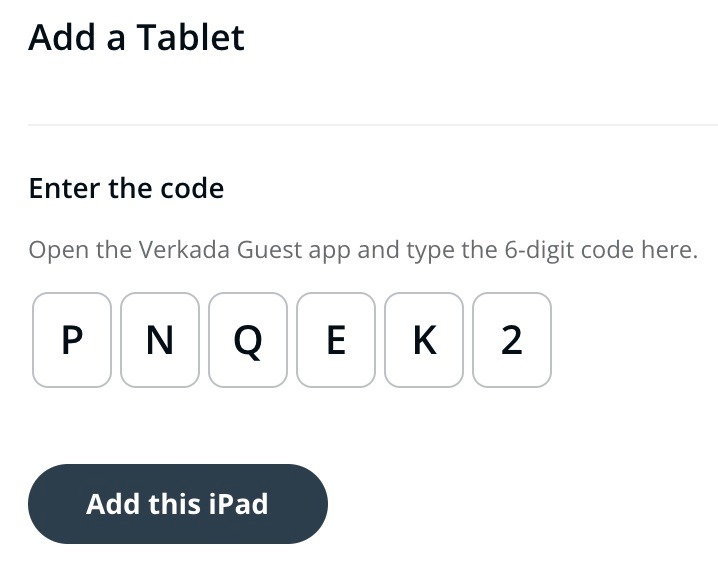
**タブレットに表示されている6文字のコードを入力し、\[このiPadを追加] をクリックします。**
{% endstep %}
{% step %}
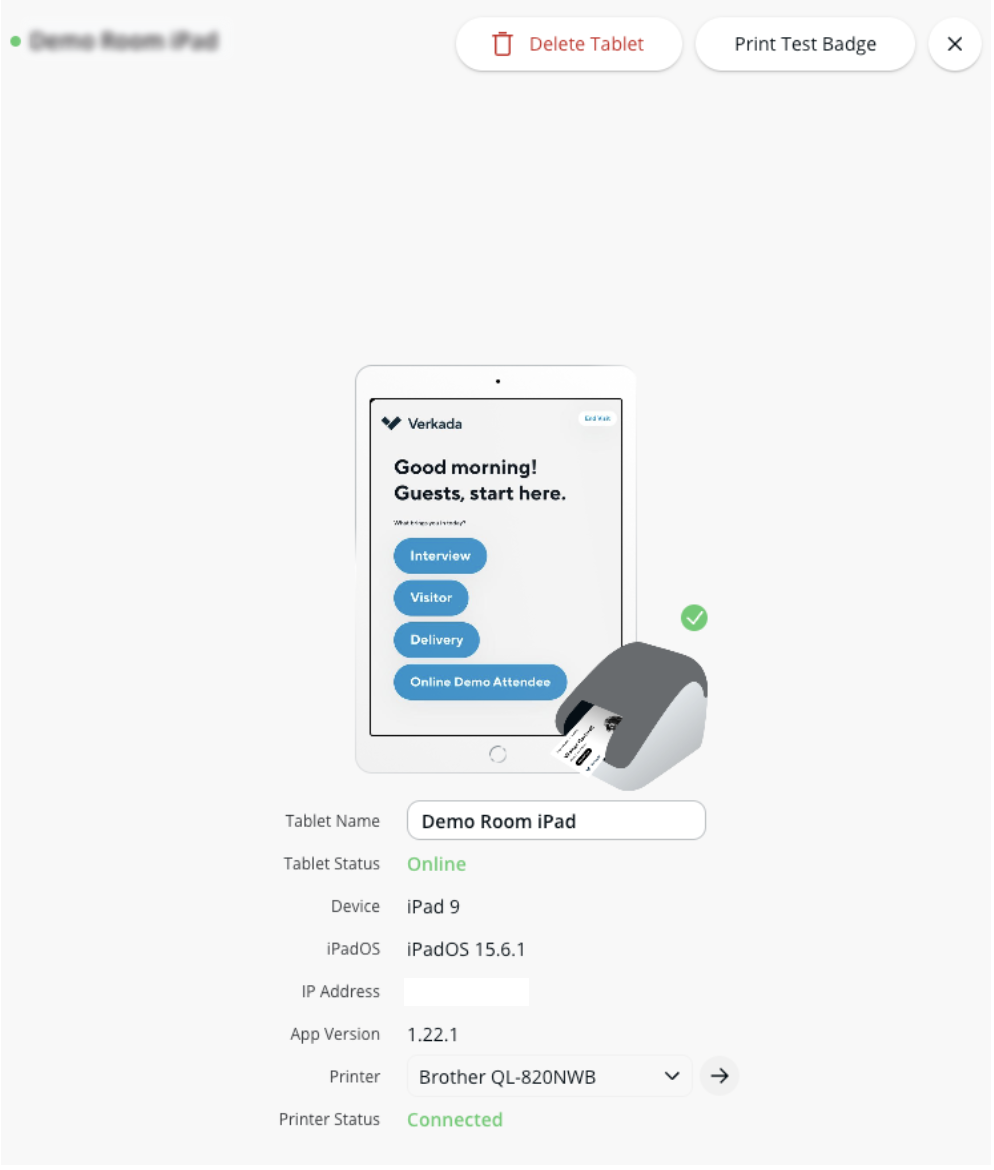
**ゲストダッシュボードにリダイレクトされます。左側のナビゲーションで \[ゲスト設定] > \[サイト] > \[タブレット] をクリックしてタブレットを表示します。**
{% endstep %}
{% endstepper %}
### 既存のサイトから
{% stepper %}
{% step %}
**Verkada Commandで、All Products > Workplace > Guestに移動します。**
{% endstep %}
{% step %}
**左側のナビゲーションで「Guest Settings」をクリックします。**
{% endstep %}
{% step %}
**At the top, select Sites and use the dropdown to select your site.:画面上部で「Sites」を選択し、ドロップダウンからサイトを選択します。**
{% endstep %}
{% step %}
**\[タブレット] > \[タブレットを追加] の下で、タブレットに表示されている6文字のコードを入力し、\[このiPadを追加] をクリックします。**
{% endstep %}
{% step %}
**タブレットはサイト設定ページに表示されます。**
{% endstep %}
{% endstepper %}
### カメラを選択する
フロントまたはリアのiPadカメラで来訪者の写真付きIDをスキャンできます。
{% stepper %}
{% step %}
**Verkada Commandで、All Products > Workplace > Guestに移動します。**
{% endstep %}
{% step %}
**左側のナビゲーションで「Guest Settings」をクリックします。**
{% endstep %}
{% step %}
**画面上部で、Sites > お客様のサイト を選択します。**
{% endstep %}
{% step %}
**\[タブレット] > ご使用のタブレットを選択します。**
{% endstep %}
{% step %}
**\[写真IDスキャン] のドロップダウンからカメラを選択します。**
{% endstep %}
{% endstepper %}
***
{% hint style="info" %}
**実際の操作を見てみたいですか?** 次のビデオをチェックしてください: [ビデオチュートリアル](https://www.youtube.com/watch?v=HdNkDawwGCE).
{% endhint %}