> For the complete documentation index, see [llms.txt](https://help.verkada.com/llms.txt). Markdown versions of documentation pages are available by appending `.md` to page URLs; this page is available as [Markdown](https://help.verkada.com/guest/healthcare/inpatient-visitor-sign-in.md).
# Sign in Visitors with Healthcare Guest Types
Sign in visitors of patients and departments with ease while ensuring facility safety
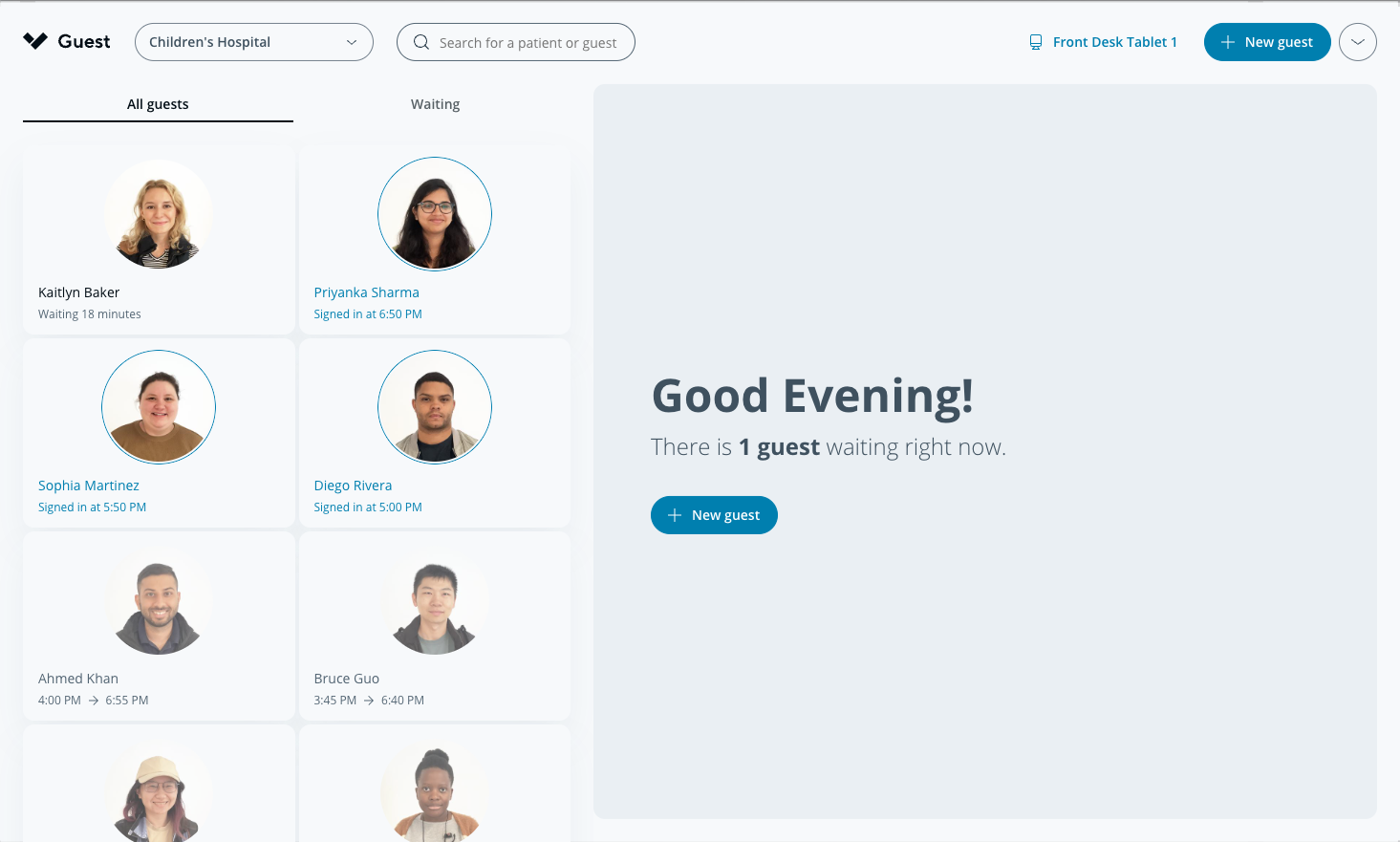
Healthcare Guest Types involve both visitors and front desk team members during check-in. A front desk team member starts the check-in from their desktop, while the visitor completes the required steps on the iPad. The front desk team member then finishes any remaining staff-facing steps from their desktop.
***
## Sign-in process
{% stepper %}
{% step %}
**Visitor signs in on a tablet. This process can be initiated in two ways:**
a. **Guest user:** In the top right of the healthcare portal, click **New guest**.
b. **Visitor:** Tap **returning visitors, tap here** on the tablet. **Note:** This button is not available at secondary checkpoint tablets.
{% endstep %}
{% step %}
**Visitor: Present ID or QR code to the tablet.**
{% hint style="info" %}
This step can be skipped by the Guest user facilitating the visit.
{% endhint %}
{% endstep %}
{% step %}
**Guest user: Verify the *****Full name***** and *****Date of birth***** are completed and are accurate.**
{% endstep %}
{% step %}
**Guest user: Add the visitor’s contact information.**
{% endstep %}
{% step %}
**Guest user: Select Inpatient.**
{% endstep %}
{% step %}
**Guest user: Search for and select the name of the patient. You can do this by searching for the patient’s name or room number.**
{% endstep %}
{% step %}
**(Optional) Guest user: Select the guest’s relationship to the patient.**
{% endstep %}
{% step %}
**Guest user: Click Next.**
{% endstep %}
{% endstepper %}
***
## Waiting
A security screen will be conducted in the background if it is enabled for the Healthcare Guest Type. After the security screen is completed, the visitor will appear on the **Waiting** tab.
While the visitor is waiting, a Guest user can do the following:
* Review the patient’s approved and denied visitor lists.
* Review the number of visitors currently signed in to see the patient.
{% hint style="warning" %}
This number does not include visitors' accounts for those in the **Waiting** stage.
{% endhint %}
* Add a note to the visit.
* Mark the visitor as a guardian. By making this selection, the visitor’s badge will include the **Guardian** indicator.
***
## Complete check-in
There are 3 ways to complete check-in. A Guest user can:
* Sign in the visitor. The visitor may have a badge printed and is counted as currently visiting the patient.
* Cancel the visit.
* Deny Entry.
***
## Verification
An inpatient visitor may be screened at their destination department or point of care to ensure they are in the correct location. See [Healthcare Visitor Verification](/guest/healthcare/healthcare-visitor-verification.md) for more information.
---
# Agent Instructions
This documentation is published with GitBook. GitBook is the documentation platform designed so that both humans and AI agents can read, navigate, and reason over technical content effectively. Learn more at gitbook.com.
## Querying This Documentation
If you need additional information that is not directly available in this page, you can query the documentation by asking a question.
Perform an HTTP GET request on the following URL with the `ask` and `goal` query parameters:
```
GET https://help.verkada.com/guest/healthcare/inpatient-visitor-sign-in.md?ask=&goal=
```
`ask` is the immediate question: it should be specific, self-contained, and written in natural language.
`goal` is what the user is ultimately trying to achieve, the reason they need the answer. Sharing it helps GitBook give you a better, more relevant answer. A goal is most helpful when it describes the outcome the user wants rather than restating the question. For example, with `ask=how do I create an API token`, a goal like `automate deployments from our CI pipeline` lets GitBook tailor the answer to that use case.
The response will contain a direct answer to the question and relevant excerpts and sources from the documentation.
Use this mechanism when the answer is not explicitly present in the current page, you need clarification or additional context, or you want to retrieve related documentation sections.