> For the complete documentation index, see [llms.txt](https://help.verkada.com/llms.txt). Markdown versions of documentation pages are available by appending `.md` to page URLs; this page is available as [Markdown](https://help.verkada.com/guest/es/impresoras/brother-printer-setup-guide/connect-a-brother-printer-with-bluetooth.md).
# Conecta una impresora Brother con Bluetooth
Conecta un iPad con una impresora Brother con Bluetooth para Verkada Guest
Verkada Guest admite la impresión de credenciales con etiqueta para visitantes. La impresora Brother es una impresora de etiquetas monocroma compatible con Verkada Guest. Hay varias formas de conectar un iPad que ejecuta Verkada Guest con una impresora Brother. Usar Bluetooth permite a las organizaciones mantener la impresora Brother fuera de la red.
### Antes de comenzar
Los siguientes modelos de impresora son compatibles para conectarse a un iPad mediante Bluetooth:
* Brother QL820-NWBc (recomendado)
* Brother QL820-NWB
* Brother QL1110-NWBc
* Brother QL1110-NWB
***
## Agregar una impresora Brother a Verkada Guest con Bluetooth
{% hint style="danger" %}
El permiso mínimo requerido para leer y actualizar el código PIN del menú de la impresora es **Administrador del sitio Workplace**.
{% endhint %}
### Obtén el código del menú de la impresora desde Command
Obtén el código PIN del menú de la impresora desde Verkada Command para entrar en el menú de ajustes de tu tableta.
{% stepper %}
{% step %}
**En Verkada Command, ve a Todos los productos > Workplace > Invitado.**
{% endstep %}
{% step %}
**En la navegación de la izquierda, selecciona Configuración de invitados.**
{% endstep %}
{% step %}
**En la parte superior, selecciona Sitios > tu sitio.**
{% endstep %}
{% step %}
**Selecciona Impresoras para ver el código PIN aleatorio del sitio seleccionado. Para crear tu propio código, introduce un código de 4 dígitos y haz clic en Actualizar.**
{% endstep %}
{% endstepper %}
### Conéctate a una impresora Brother con Bluetooth
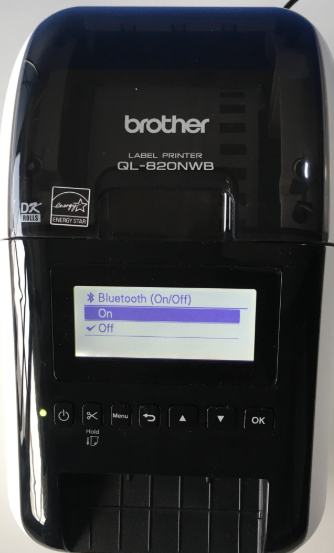
En los modelos Brother QL820-NWB y QL820-NWBc, Bluetooth se puede habilitar directamente desde la interfaz de la impresora.
{% stepper %}
{% step %}
**En la impresora, haz clic en Menú > Bluetooth (6/7) > Bluetooth (ON/OFF) > ON.**
{% endstep %}
{% step %}
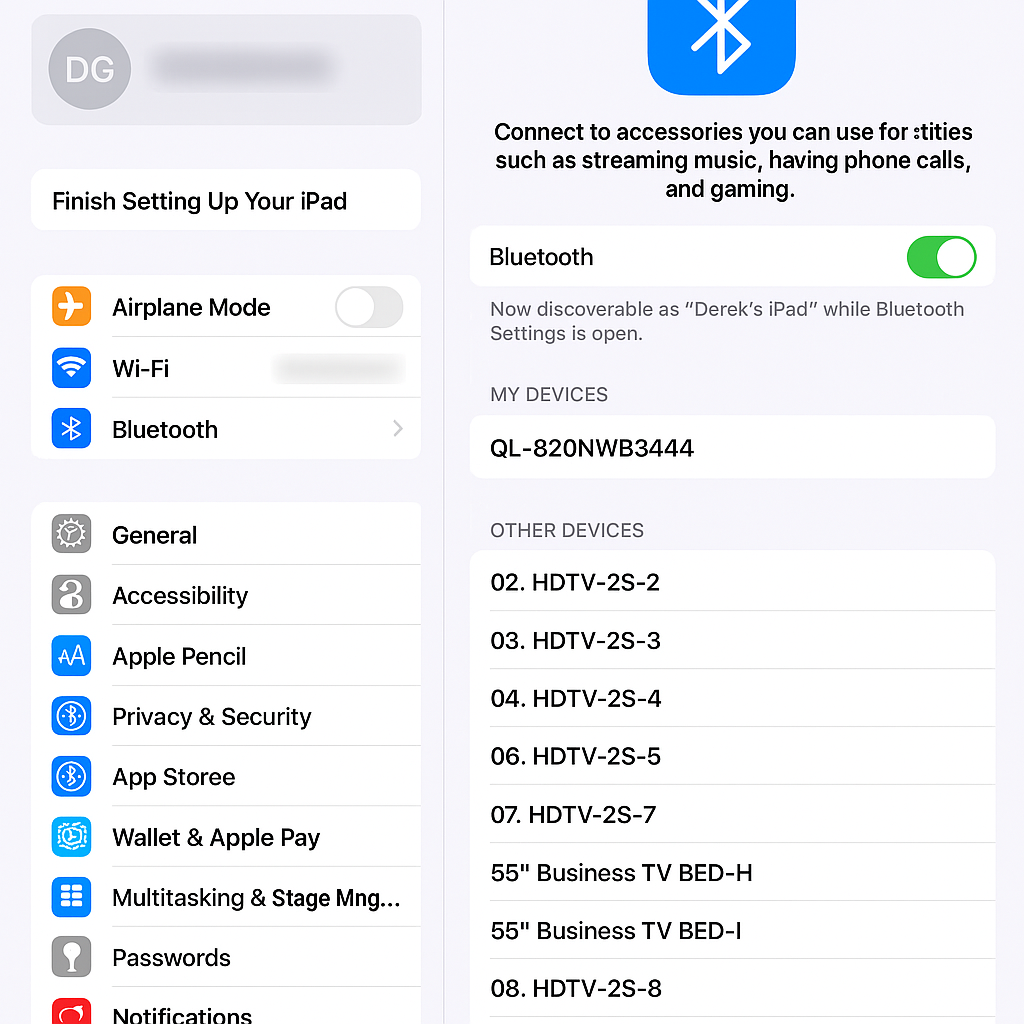
**En el iPad, ve a Ajustes > Bluetooth.**
{% endstep %}
{% step %}
**Toca la opción de la impresora Brother.**
{% endstep %}
{% step %}
**Abre la aplicación Guest, mantén pulsada la esquina inferior derecha durante unos 3 segundos para mostrar el teclado PIN.**
{% endstep %}
{% step %}
**Introduce el PIN de Command para llegar a la página del menú de la impresora. Después de unos segundos, aparecerá una opción de impresora en esta página.**
{% endstep %}
{% step %}
**Toca la opción de la impresora para conectarte.**
{% endstep %}
{% endstepper %}
---
# Agent Instructions
This documentation is published with GitBook. GitBook is the documentation platform designed so that both humans and AI agents can read, navigate, and reason over technical content effectively. Learn more at gitbook.com.
## Querying This Documentation
If you need additional information that is not directly available in this page, you can query the documentation by asking a question.
Perform an HTTP GET request on the following URL with the `ask` and `goal` query parameters:
```
GET https://help.verkada.com/guest/es/impresoras/brother-printer-setup-guide/connect-a-brother-printer-with-bluetooth.md?ask=&goal=
```
`ask` is the immediate question: it should be specific, self-contained, and written in natural language.
`goal` is what the user is ultimately trying to achieve, the reason they need the answer. Sharing it helps GitBook give you a better, more relevant answer. A goal is most helpful when it describes the outcome the user wants rather than restating the question. For example, with `ask=how do I create an API token`, a goal like `automate deployments from our CI pipeline` lets GitBook tailor the answer to that use case.
The response will contain a direct answer to the question and relevant excerpts and sources from the documentation.
Use this mechanism when the answer is not explicitly present in the current page, you need clarification or additional context, or you want to retrieve related documentation sections.