> For the complete documentation index, see [llms.txt](https://help.verkada.com/llms.txt). Markdown versions of documentation pages are available by appending `.md` to page URLs; this page is available as [Markdown](https://help.verkada.com/guest/configuration/meraki-wi-fi-integration-for-guest.md).
# Meraki Wi-Fi Integration for Guest
Issue visitors temporary Wi-Fi credentials automatically
Cisco Meraki is a cloud-based networking platform that provides hardware and software to help businesses manage Wi-Fi access. The Meraki Wi-Fi integration with Verkada Guest enables organizations to grant guests limited access to a Cisco Meraki-powered network.
***
## Supported Meraki SSID settings
Verkada Guest can issue temporary Wi-Fi credentials for Meraki SSIDs which use the following settings:
{% stepper %}
{% step %}
**Security set to Open (no encryption).**
{% endstep %}
{% step %}
**Splash page set to Sign-on with Meraki Cloud Authentication**
{% endstep %}
{% endstepper %}
{% hint style="warning" %}
The Meraki integration does not support hidden SSIDs or SSIDs with varying security and splash page settings. Each guest is assigned a unique username and password for Wi-Fi access.
{% endhint %}
***
## Configuration
{% hint style="danger" %}
The Verkada Guest and Meraki integration requires a Meraki API token generated by a Meraki administrator with Organization Access set to **Full**.
{% endhint %}
{% stepper %}
{% step %}
**In Verkada Command, go to All Products > Workplace > Guest.**
{% endstep %}
{% step %}
**On the left navigation, click Guest Settings.**
{% endstep %}
{% step %}
**Under Organization > Guest Wi-Fi, click Set Up Wi-Fi.**
{% endstep %}
{% step %}
**Select your Meraki region and input the Meraki API token.**
{% endstep %}
{% step %}
**Click Connect.**
{% endstep %}
{% step %}
**Select a Meraki Organization.**
{% endstep %}
{% step %}
**Continue with** [**Connect Meraki networks to Guest sites**](#h_c6ce1dac53)**.**
{% endstep %}
{% endstepper %}
***
## Connect Meraki networks to Guest sites
{% stepper %}
{% step %}
**In Verkada Command, go to All Products > Workplace > Guest.**
{% endstep %}
{% step %}
**On the left navigation, click Guest Settings.**
{% endstep %}
{% step %}
**Under Organization, select Guest Wi-Fi.**
a. Select a site.\
b. Select a **Meraki Network.**\
c. Select a **Meraki SSID**.\
d. Click **Link**.
{% endstep %}
{% endstepper %}
{% hint style="danger" %}
* Only one Meraki Network and SSID can be associated with a Guest site.
* Multiple Guest sites cannot be connected to the same Meraki Network.
{% endhint %}
***
## Guest site Wi-Fi settings
{% hint style="danger" %}
You need at least **Workplace Site Admin** permissions to configure Guest Wi-Fi settings.
{% endhint %}
Once a site is connected to a Meraki Network and SSID, an admin can configure Wi-Fi settings at the site level.
{% stepper %}
{% step %}
**In Verkada Command, go to All Products > Workplace > Guest.**
{% endstep %}
{% step %}
**On the left navigation, click Guest Settings.**
{% endstep %}
{% step %}
**Under Sites, select Guest Wi-Fi.**
{% endstep %}
{% step %}
**(Optional) Toggle on deactivate guest’s Wi-Fi credentials on signout.**
{% endstep %}
{% step %}
**(Optional) Toggle on remove guest from Wi-Fi user list.**
**Note:** This will delete the Meraki Network User profile created for the visitor.
{% endstep %}
{% step %}
**Set the Guest Wi-Fi time limit. This defines the maximum amount of time that a visitor will have network access.**
{% endstep %}
{% endstepper %}
***
## Guest Type settings
{% hint style="danger" %}
You need at least **Workplace Site Admin** permissions to configure guest type settings.
{% endhint %}
Organizations can configure which [Guest Types](/guest/configuration/configure-guest-types.md) can be issued temporary Wi-Fi credentials.
{% stepper %}
{% step %}
**In Verkada Command, go to All Products > Workplace > Guest.**
{% endstep %}
{% step %}
**On the left navigation, click Guest Settings.**
{% endstep %}
{% step %}
**Under Organization > Guest Types, click Manage Guest Types.**
{% endstep %}
{% step %}
**Select an existing guest type or** [**create a new one**](/guest/configuration/configure-guest-types.md)**.**
{% endstep %}
{% step %}
**Select Wi-Fi.**
**Note:** In order to enable Wi-Fi, the **Contact Info** step must be added to the guest type and **require Email**. The guest type cannot be configured as checkout only.
a. Toggle on **Send Guest Wi-Fi Credentials** for guests to receive Wi-Fi credentials and instructions via email.\
b. (Optional) Toggle on **Guest** **SMS** for visitors to receive Wi-Fi credentials via text.**Note**: The **Contact Info** step must require a phone number in order to send guests Wi-Fi credentials via text.\
c. (Optional) Toggle on **Host** to send guest Wi-Fi credentials to hosts.
{% endstep %}
{% endstepper %}
***
## Manage visitor Wi-Fi access
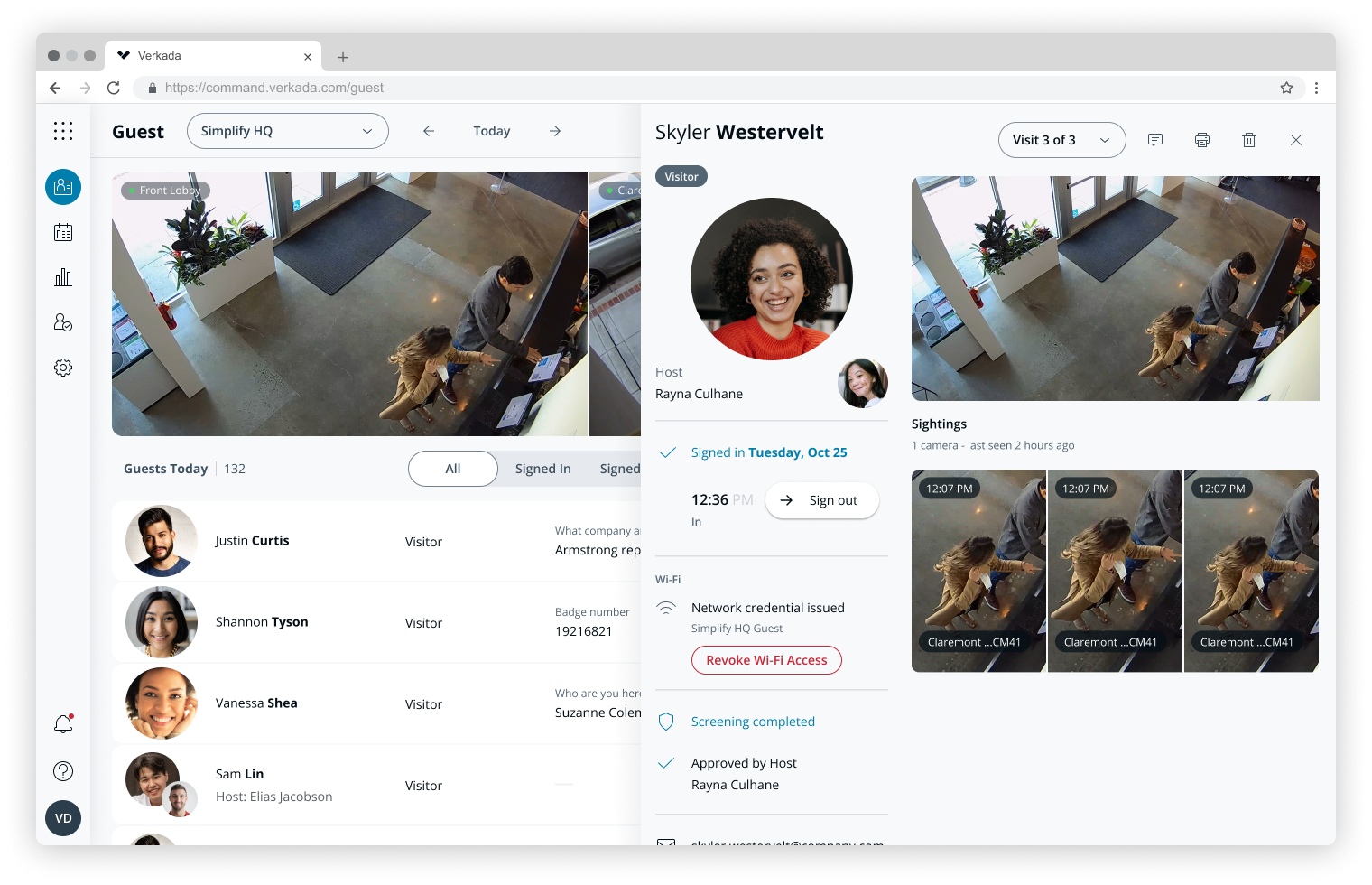
Visit details show which visitors received Wi-Fi credentials and the network they can access. Click [**Revoke Access**](#h_cd25ae37c4) to suspend access at any time in the visit details.
{% hint style="warning" %}
Guest does not display the visitor’s Wi-Fi password.
{% endhint %}
### Remove the Meraki Integration
{% hint style="danger" %}
You need at least **Workplace Site Viewer** permissions to configure Guest Wi-Fi settings.
{% endhint %}
Removing the Meraki integration disconnects all Meraki Networks and SSIDs from Verkada Guest sites. This will also revoke Wi-Fi access for all signed-in guests.
{% stepper %}
{% step %}
**In Verkada Command, go to All Products > Workplace > Guest.**
{% endstep %}
{% step %}
**On the left navigation, click Guest Settings.**
{% endstep %}
{% step %}
**Under Organization > Guest Wi-Fi, click Manage Integration.**
{% endstep %}
{% step %}
**Click Remove and then confirm the selection.**
{% endstep %}
{% endstepper %}
{% hint style="warning" %}
* If **Remove guest from Wi-Fi user list** is toggled on for the Guest site, **Revoke Access** will also delete the Meraki Network User profile. Signing out the guest will also revoke access if this setting is enabled.
* Wi-Fi credentials issued by Guest are valid only for one SSID, defined by the site’s connection settings. Visitors to multiple Guest sites will receive different Wi-Fi instructions and passwords at each site. Returning visitors will receive a new password each time they sign in.
{% endhint %}
***
## FAQ
Can invited visitors be issued temporary Wi-Fi credentials?
Yes, invited visitors can receive temporary Wi-Fi credentials. Wi-Fi credentials will only be issued once the visitor is signed in.
Can global Guest Types be configured to receive temporary Wi-Fi credentials?
Yes, global Guest Types can be configured to issue temporary Wi-Fi credentials. To enable this, each site using the global guest type must be connected to a Meraki SSID. Wi-Fi access is based on the settings of the site the visitor checks into.
Will visitors always get an email with Wi-Fi instructions?
Yes, visitors will always receive an email from Meraki with Wi-Fi instructions.
Why am I not receiving email or SMS credentials when testing the Meraki Guest Wi-Fi integration?
The integration does not create, update, or delete Wi-Fi credentials for existing non-guest accounts in Meraki. If you use an email already tied to a non-guest Meraki user, you will not receive credentials. To test or use the integration, sign in with a new email address not associated with an existing non-guest account.
I don’t see an option to connect my Guest site to a particular SSID.
Be sure that the SSID follows the [settings supported for the integration](/guest/configuration/meraki-wi-fi-integration-for-guest.md). This integration applies to wireless networks only. Hidden SSIDs are not supported.
Does Verkada save Wi-Fi passwords?
No, Verkada does not store any Meraki network user passwords.
Can Command users see the Meraki API token?
No, the Meraki API token is only visible to the admin during the initial setup and cannot be viewed again in Command.
***
{% hint style="info" %}
**Prefer to see it in action?** Check out the [video tutorial](https://www.youtube.com/watch?v=qWNnEE_pXmQ\&list=PL3USUWfBbtdLlBz1UQGJvEwyJdYByqbQm\&index=15).
{% endhint %}
---
# Agent Instructions
This documentation is published with GitBook. GitBook is the documentation platform designed so that both humans and AI agents can read, navigate, and reason over technical content effectively. Learn more at gitbook.com.
## Querying This Documentation
If you need additional information that is not directly available in this page, you can query the documentation by asking a question.
Perform an HTTP GET request on the following URL with the `ask` and `goal` query parameters:
```
GET https://help.verkada.com/guest/configuration/meraki-wi-fi-integration-for-guest.md?ask=&goal=
```
`ask` is the immediate question: it should be specific, self-contained, and written in natural language.
`goal` is what the user is ultimately trying to achieve, the reason they need the answer. Sharing it helps GitBook give you a better, more relevant answer. A goal is most helpful when it describes the outcome the user wants rather than restating the question. For example, with `ask=how do I create an API token`, a goal like `automate deployments from our CI pipeline` lets GitBook tailor the answer to that use case.
The response will contain a direct answer to the question and relevant excerpts and sources from the documentation.
Use this mechanism when the answer is not explicitly present in the current page, you need clarification or additional context, or you want to retrieve related documentation sections.