> For the complete documentation index, see [llms.txt](https://help.verkada.com/llms.txt). Markdown versions of documentation pages are available by appending `.md` to page URLs; this page is available as [Markdown](https://help.verkada.com/guest/configuration/guest-events/verkada-guest-events-outlook-add-in.md).
# Verkada Guest Events Outlook Add-in
Let employees invite visitors via Verkada Guest directly from Outlook
The Verkada Guest Events add-in lets employees schedule events from Outlook and link them to Verkada Guest. Guest automatically collects visitor information before the event.
***
## Enable the Verkada Guest Events Add-in
Microsoft has different ways for organizations to deploy an add-in to users. This article covers how an add-in can be deployed for organizations that support [centralized deployment](https://learn.microsoft.com/en-us/microsoft-365/admin/manage/manage-deployment-of-add-ins?view=o365-worldwide).
{% hint style="danger" %}
You must have a **Microsoft Exchange Admin** role to install and manage Microsoft Office add-ins.
{% endhint %}
{% stepper %}
{% step %}
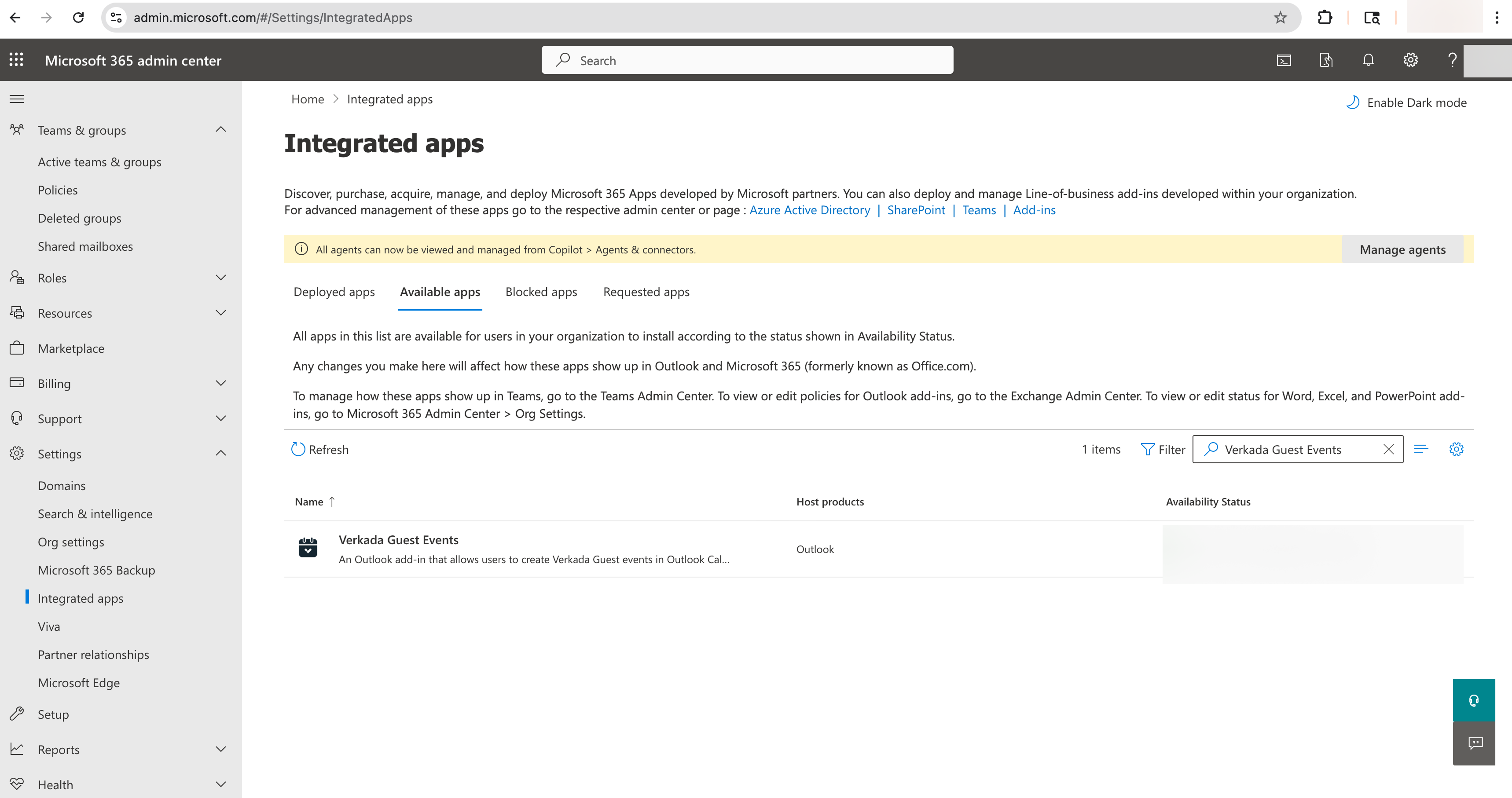
**Deploy the Verkada Guest Events add-in on the** [**Microsoft 365 Admin Center**](https://admin.microsoft.com/#/Settings/IntegratedApps).
1. Under **Available Apps**, search for **Verkada Guest Events**. Select the app.
2. Select **Deploy app.**
3. In **Configuration**, Select **Next.**
{% endstep %}
{% step %}
**Select users for the add-in. Choose from:**
a. Entire organization
b. Specific users/groups
c. Just me
{% endstep %}
{% step %}
**Finish the deployment:**
a. Select **Next** and select **Accept permissions.**
b. Select **Next** and select **Finish deployment.**
{% endstep %}
{% endstepper %}
***
## Log in to the Verkada Guest Event Add-in
{% hint style="danger" %}
An employee must be listed as a **Host** in Guest to use the Outlook add-in.
{% endhint %}
On the initial setup and after future logouts, employees can log in to the Outlook Add-in by:
{% stepper %}
{% step %}
**In Outlook, create a new meeting and select more options.**
{% endstep %}
{% step %}
**Open the Verkada Guest Events Add-in.**
1. Under **My Apps**, open the **Verkada Guest Events** Add-in.
2. Select **Log In.**
{% endstep %}
{% step %}
**Choose a login method.**
In the pop-up window, enter your email and log in using either SSO or a one-time password.
{% endstep %}
{% endstepper %}
Once logged in, an employee can begin creating events in Outlook.
***
## Create Guest Events in Outlook
{% stepper %}
{% step %}
**In Outlook, create a new meeting and select More options.**
{% endstep %}
{% step %}
**Title the meeting, add attendees, add a location, and add a description.**
{% endstep %}
{% step %}
**Under My Apps, open the Verkada Guest Events Add-in.**
{% endstep %}
{% step %}
**Set up the Guest Event:**
1. Choose a Guest Site
2. Choose a Guest Type
3. (Optional) Enable an RSVP Link
4. (Optional) [Allow open registration on site](/guest/configuration/guest-events/accept-walk-in-attendees-for-guest-events.md)
{% endstep %}
{% step %}
**Click Save Verkada Guest Event.**
{% endstep %}
{% endstepper %}
***
## Update Guest Events in Outlook
Employees can modify an existing Outlook meeting to:
* Update the invitee list
* Update the event name
* Update the event description
* Update the event end time
* Update the event address
* Enable/disable the RSVP Link
* Enable/disable open registration onsite
{% hint style="danger" %}
Changing the Guest site, Guest Type, and the event start time to an earlier time will void all registrations, and a new registration email is immediately sent to all invitees. **All invitees must re-register.**
{% endhint %}
To save any changes from an Outlook meeting to Verkada Guest:
{% stepper %}
{% step %}
**Open the Verkada Guest Events Add-in.**
{% endstep %}
{% step %}
**Update the Guest Event.**
1. Select **Edit.**
2. Choose **Update Verkada Guest Event.**
{% endstep %}
{% endstepper %}
***
## FAQ
How can I deploy Microsoft Office Add-ins?
Refer to Microsoft's documentation around deploying add-ins:
* [Deploy add-ins in the Microsoft 365 admin center](https://learn.microsoft.com/en-us/microsoft-365/admin/manage/office-addins?view=o365-worldwide#deploy-your-office-add-ins)
* [Deploy and manage Office Add-ins through the integrated apps portal](https://learn.microsoft.com/en-us/microsoft-365/admin/manage/office-addins?view=o365-worldwide#deploy-your-office-add-ins)
How can I control which users can use the Verkada Guest Events add-in?
When deploying an add-in, Microsoft Exchange Admins can select applicable users and groups. These users and groups can be changed later.
A user must be a [Host](/guest/configuration/manage-host-lists-in-guest.md) in Verkada Guest to sign in and use the Verkada Guest Events add-in on Outlook.
What should I do if the Verkada Guest Events add-in doesn’t have sufficient permissions?
If the Verkada Guest Events add-in indicates that required app permissions are missing, Microsoft admins can adjust permissions by:
1. Log in to [Microsoft Entra Admin Center](https://entra.microsoft.com/).
2. Select **Enterprise Apps.**
3. Under **All Applications**, select **Verkada Guest Events.**
4. Under Security, select **Permissions.**
5. Click **Grant Admin Consent**.
---
# Agent Instructions
This documentation is published with GitBook. GitBook is the documentation platform designed so that both humans and AI agents can read, navigate, and reason over technical content effectively. Learn more at gitbook.com.
## Querying This Documentation
If you need additional information that is not directly available in this page, you can query the documentation by asking a question.
Perform an HTTP GET request on the following URL with the `ask` and `goal` query parameters:
```
GET https://help.verkada.com/guest/configuration/guest-events/verkada-guest-events-outlook-add-in.md?ask=&goal=
```
`ask` is the immediate question: it should be specific, self-contained, and written in natural language.
`goal` is what the user is ultimately trying to achieve, the reason they need the answer. Sharing it helps GitBook give you a better, more relevant answer. A goal is most helpful when it describes the outcome the user wants rather than restating the question. For example, with `ask=how do I create an API token`, a goal like `automate deployments from our CI pipeline` lets GitBook tailor the answer to that use case.
The response will contain a direct answer to the question and relevant excerpts and sources from the documentation.
Use this mechanism when the answer is not explicitly present in the current page, you need clarification or additional context, or you want to retrieve related documentation sections.