> For the complete documentation index, see [llms.txt](https://help.verkada.com/llms.txt). Markdown versions of documentation pages are available by appending `.md` to page URLs; this page is available as [Markdown](https://help.verkada.com/guest/configuration/guest-events/sign-in-invited-guests-at-an-intercom.md).
# Sign in Invited Guests at an Intercom
Give invited visitors more ways of signing in
Organizations can make sign-in more flexible with Intercom sign-in, which lets invited visitors check in directly at a Verkada intercom. This is ideal for outdoor check-ins, drivers arriving at gates, and similar use cases.
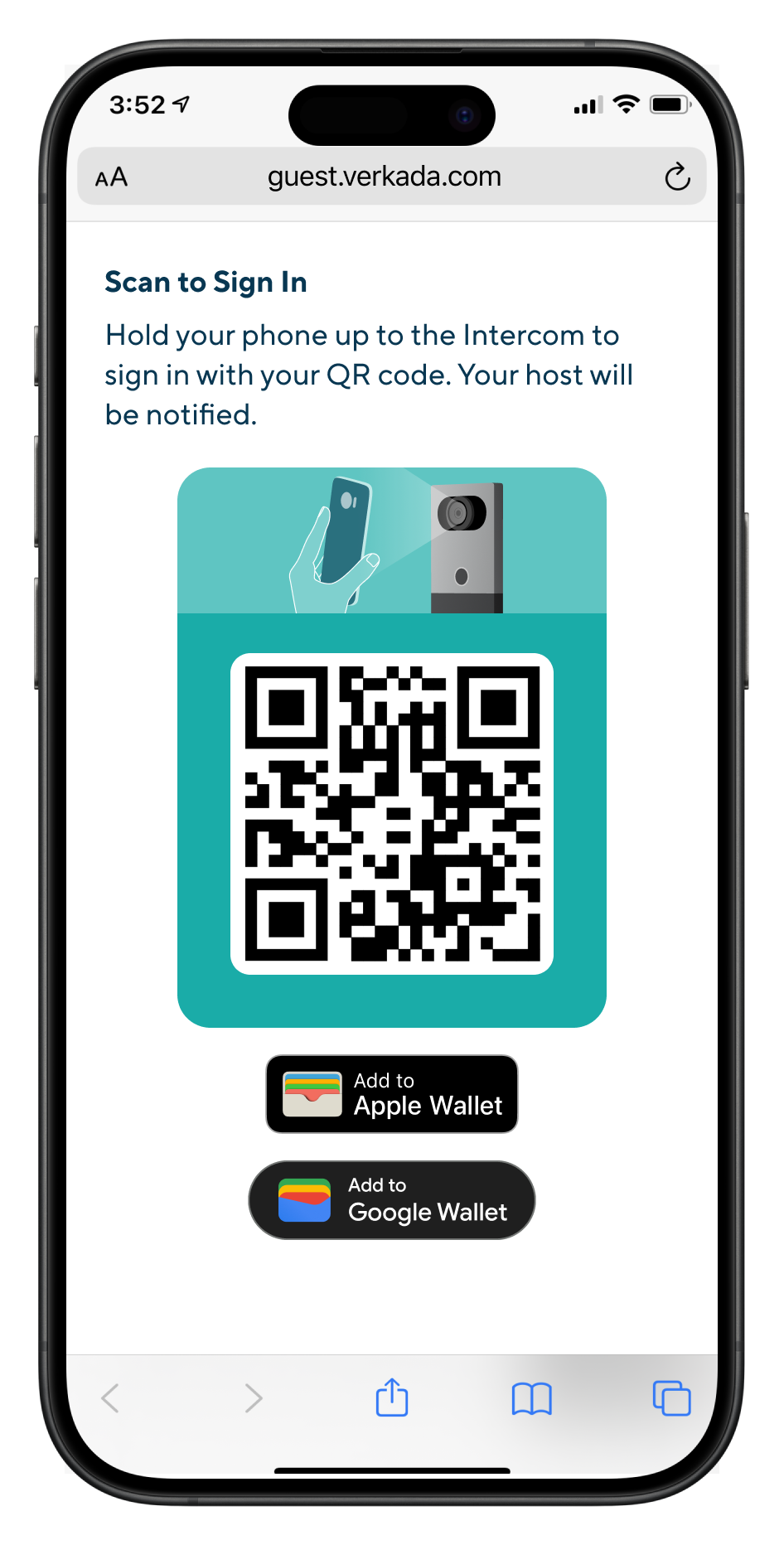
Hosts can [create an event](/guest/configuration/guest-events.md) in Verkada Guest using a Guest Type configured for Intercom sign-in. After an invited visitor registers and is approved, they’ll receive a Guest Portal link where they can download a mobile wallet pass or QR code.
Visitors can scan their mobile wallet pass or QR code at the intercom on the day of the event to check in.
{% hint style="warning" %}
Visitors can sign in at any time during the event day and will receive reminder notifications with their Guest Portal link before the event starts.
{% endhint %}
***
## Configuration
{% hint style="danger" %}
You need at least **Workplace Site Admin** role to configure Intercom Sign-in.
{% endhint %}
{% stepper %}
{% step %}
**In Verkada Command, go to All Products > Workplace >**  **Guest.**
{% endstep %}
{% step %}
**On the left navigation, click Guest Settings.**
{% endstep %}
{% step %}
**Under Sites, select Guest Types.**
{% endstep %}
{% step %}
**Choose an existing Guest Type or** [**create a new one**](/guest/configuration/configure-guest-types.md)**.**
{% endstep %}
{% step %}
**Enable Guest Pass, and enable Intercom sign-in for invites.**
{% endstep %}
{% endstepper %}
{% hint style="danger" %}
The [Guest Type’s Visibility Controls](/guest/configuration/configure-guest-types/control-guest-type-visibility.md) must have **Invites** enabled.
{% endhint %}
***
## Support intercom door unlock at sign-in
{% hint style="danger" %}
You need a minimum Access Control role of **Access Site Manager *****and*** a minimum Workplace role of **Workplace Site Admin** to configure a guest type with door access.
{% endhint %}
Organizations can allow invited visitors to both sign in and unlock a door with a single QR scan at a Verkada intercom. QR code unlock at an intercom is only supported for two door mode configurations:
* **Directly to the intercom**
* **Paired to a Verkada door**
A Guest Type must be configured for [Intercom Sign-in](#h_eb0039178d) and must also be associated with a [Visit Access Type](/access-control/users-and-credentials/add-a-user-to-the-verkada-access-system/visitor-access-visit-access-type.md) that:
{% stepper %}
{% step %}
**Has** [**QR Codes**](/guest/configuration/door-access-for-guests.md) **enabled**
{% endstep %}
{% step %}
**Includes intercom doors**
{% endstep %}
{% endstepper %}
{% hint style="warning" %}
Invited visitors can unlock doors up to 30 minutes before the event starts.
{% endhint %}
---
# Agent Instructions
This documentation is published with GitBook. GitBook is the documentation platform designed so that both humans and AI agents can read, navigate, and reason over technical content effectively. Learn more at gitbook.com.
## Querying This Documentation
If you need additional information that is not directly available in this page, you can query the documentation by asking a question.
Perform an HTTP GET request on the following URL with the `ask` and `goal` query parameters:
```
GET https://help.verkada.com/guest/configuration/guest-events/sign-in-invited-guests-at-an-intercom.md?ask=&goal=
```
`ask` is the immediate question: it should be specific, self-contained, and written in natural language.
`goal` is what the user is ultimately trying to achieve, the reason they need the answer. Sharing it helps GitBook give you a better, more relevant answer. A goal is most helpful when it describes the outcome the user wants rather than restating the question. For example, with `ask=how do I create an API token`, a goal like `automate deployments from our CI pipeline` lets GitBook tailor the answer to that use case.
The response will contain a direct answer to the question and relevant excerpts and sources from the documentation.
Use this mechanism when the answer is not explicitly present in the current page, you need clarification or additional context, or you want to retrieve related documentation sections.
**Guest.**
{% endstep %}
{% step %}
**On the left navigation, click Guest Settings.**
{% endstep %}
{% step %}
**Under Sites, select Guest Types.**
{% endstep %}
{% step %}
**Choose an existing Guest Type or** [**create a new one**](/guest/configuration/configure-guest-types.md)**.**
{% endstep %}
{% step %}
**Enable Guest Pass, and enable Intercom sign-in for invites.**
{% endstep %}
{% endstepper %}
{% hint style="danger" %}
The [Guest Type’s Visibility Controls](/guest/configuration/configure-guest-types/control-guest-type-visibility.md) must have **Invites** enabled.
{% endhint %}
***
## Support intercom door unlock at sign-in
{% hint style="danger" %}
You need a minimum Access Control role of **Access Site Manager *****and*** a minimum Workplace role of **Workplace Site Admin** to configure a guest type with door access.
{% endhint %}
Organizations can allow invited visitors to both sign in and unlock a door with a single QR scan at a Verkada intercom. QR code unlock at an intercom is only supported for two door mode configurations:
* **Directly to the intercom**
* **Paired to a Verkada door**
A Guest Type must be configured for [Intercom Sign-in](#h_eb0039178d) and must also be associated with a [Visit Access Type](/access-control/users-and-credentials/add-a-user-to-the-verkada-access-system/visitor-access-visit-access-type.md) that:
{% stepper %}
{% step %}
**Has** [**QR Codes**](/guest/configuration/door-access-for-guests.md) **enabled**
{% endstep %}
{% step %}
**Includes intercom doors**
{% endstep %}
{% endstepper %}
{% hint style="warning" %}
Invited visitors can unlock doors up to 30 minutes before the event starts.
{% endhint %}
---
# Agent Instructions
This documentation is published with GitBook. GitBook is the documentation platform designed so that both humans and AI agents can read, navigate, and reason over technical content effectively. Learn more at gitbook.com.
## Querying This Documentation
If you need additional information that is not directly available in this page, you can query the documentation by asking a question.
Perform an HTTP GET request on the following URL with the `ask` and `goal` query parameters:
```
GET https://help.verkada.com/guest/configuration/guest-events/sign-in-invited-guests-at-an-intercom.md?ask=&goal=
```
`ask` is the immediate question: it should be specific, self-contained, and written in natural language.
`goal` is what the user is ultimately trying to achieve, the reason they need the answer. Sharing it helps GitBook give you a better, more relevant answer. A goal is most helpful when it describes the outcome the user wants rather than restating the question. For example, with `ask=how do I create an API token`, a goal like `automate deployments from our CI pipeline` lets GitBook tailor the answer to that use case.
The response will contain a direct answer to the question and relevant excerpts and sources from the documentation.
Use this mechanism when the answer is not explicitly present in the current page, you need clarification or additional context, or you want to retrieve related documentation sections.