> For the complete documentation index, see [llms.txt](https://help.verkada.com/llms.txt). Markdown versions of documentation pages are available by appending `.md` to page URLs; this page is available as [Markdown](https://help.verkada.com/guest/configuration/configure-guest-types/pin-guest-check-in-steps-and-configure-guest-passes.md).
# Pin Guest Check-in Steps and Configure Guest Passes
Expedite the sign-in process without compromising security
Verkada Guest offers several tools to help organizations curate a quick check-in for known or returning visitors. Guest Types can be configured with pins so that previously completed sign-in steps may be skipped. Guest Passes utilize pins to provide a streamlined sign-in process via a mobile wallet pass.
{% hint style="warning" %}
Data retention settings can affect pinned checked-in steps. See [Manage Data Retention in Guest](/guest/configuration/manage-data-retention-in-guest.md) for more information.
{% endhint %}
***
## Configure pins
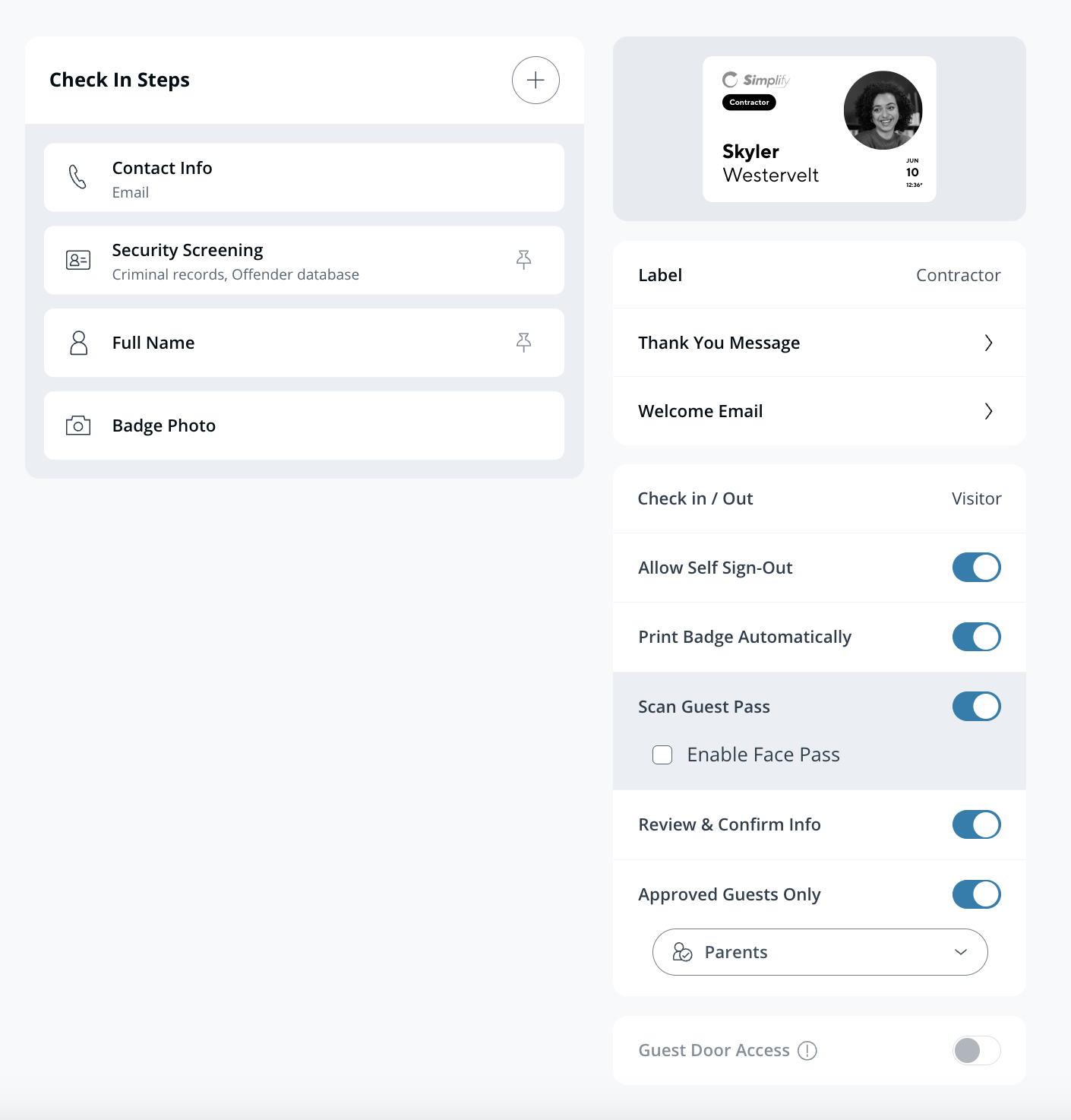
Pins allow visitors to bypass previously completed sign-in steps. Pinned steps will automatically populate with the information a visitor provided on their most recent visit. Verkada Guest recognizes returning visitors by contact information, **Guest Pass**, and **Face Pass.**
{% stepper %}
{% step %}
**In Verkada Command, go to All Products > Workplace >**  **Guest.**
{% endstep %}
{% step %}
**On the left navigation, click Guest Settings.**
{% endstep %}
{% step %}
**Under Organization > Guest Types click Manage Guest Types.**
{% endstep %}
{% step %}
**Select a Guest Type to configure.**
{% endstep %}
{% step %}
**Select the check box next to a sign-in step to pin it.**
{% endstep %}
{% endstepper %}
Pins recall information a visitor provided on a previous visit or from an [approved list application](/guest/configuration/approved-lists-for-guest.md). Steps that are not pinned must be completed each visit.
{% hint style="warning" %}
Pins are only configurable for Guest Types that require contact information.
{% endhint %}
For Standard Guest Types, the following steps may be pinned:
* **Security Screening**
* **Full Name**
* **Host**
* **Guest Responses**
* **Documents**
* **Capture a Photo**
All pinned steps except for **Security Screening** will indefinitely retain information from the previous visit.
The security screening step will retain pertinent visitor information to conduct screens for 90 days, after which this step must be completed again. The security screen will only automatically reuse information from a previous ID scan for sign-ins on the Guest iPad app. This information is retained only if the visitor opts in during the initial scan.
***
## Guest Passes
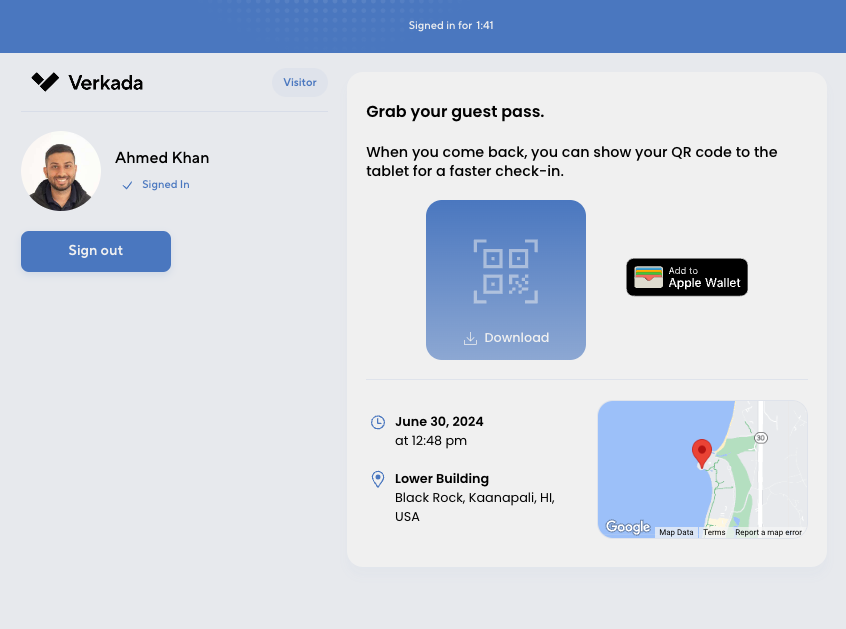
Guest Passes help accelerate the sign-in process while maintaining security. A Guest Pass is a mobile wallet pass containing a QR code that visitors can scan on an iPad when they arrive. Scanning the Guest Pass allows visitors to skip pinned sign-in steps. They are available for returning visitors, visitors who applied and were added to an [approved list](/guest/configuration/approved-lists-for-guest.md), and patient visitors.
A single Guest Pass QR code can be used to sign into multiple guest types. Sign-in steps that a visitor has not completed previously must be completed when they are on-site. A Guest pass will expire if unused for more than one year.
### Requirements for Guest passes
Guest Passes are supported on Apple Wallet and Google Wallet. To support sign-in with Guest Passes:
* Guest Type must be configured with a contact information step.
* The **Guest Pass** toggle must be enabled.
### Download Guest Passes
After a successful signing in, visitors are sent a link where they can download Guest Passes.
Visitors who applied and were added to an approved list will receive an email with a link to download a Guest Pass.
---
# Agent Instructions
This documentation is published with GitBook. GitBook is the documentation platform designed so that both humans and AI agents can read, navigate, and reason over technical content effectively. Learn more at gitbook.com.
## Querying This Documentation
If you need additional information that is not directly available in this page, you can query the documentation by asking a question.
Perform an HTTP GET request on the following URL with the `ask` and `goal` query parameters:
```
GET https://help.verkada.com/guest/configuration/configure-guest-types/pin-guest-check-in-steps-and-configure-guest-passes.md?ask=&goal=
```
`ask` is the immediate question: it should be specific, self-contained, and written in natural language.
`goal` is what the user is ultimately trying to achieve, the reason they need the answer. Sharing it helps GitBook give you a better, more relevant answer. A goal is most helpful when it describes the outcome the user wants rather than restating the question. For example, with `ask=how do I create an API token`, a goal like `automate deployments from our CI pipeline` lets GitBook tailor the answer to that use case.
The response will contain a direct answer to the question and relevant excerpts and sources from the documentation.
Use this mechanism when the answer is not explicitly present in the current page, you need clarification or additional context, or you want to retrieve related documentation sections.
**Guest.**
{% endstep %}
{% step %}
**On the left navigation, click Guest Settings.**
{% endstep %}
{% step %}
**Under Organization > Guest Types click Manage Guest Types.**
{% endstep %}
{% step %}
**Select a Guest Type to configure.**
{% endstep %}
{% step %}
**Select the check box next to a sign-in step to pin it.**
{% endstep %}
{% endstepper %}
Pins recall information a visitor provided on a previous visit or from an [approved list application](/guest/configuration/approved-lists-for-guest.md). Steps that are not pinned must be completed each visit.
{% hint style="warning" %}
Pins are only configurable for Guest Types that require contact information.
{% endhint %}
For Standard Guest Types, the following steps may be pinned:
* **Security Screening**
* **Full Name**
* **Host**
* **Guest Responses**
* **Documents**
* **Capture a Photo**
All pinned steps except for **Security Screening** will indefinitely retain information from the previous visit.
The security screening step will retain pertinent visitor information to conduct screens for 90 days, after which this step must be completed again. The security screen will only automatically reuse information from a previous ID scan for sign-ins on the Guest iPad app. This information is retained only if the visitor opts in during the initial scan.
***
## Guest Passes
Guest Passes help accelerate the sign-in process while maintaining security. A Guest Pass is a mobile wallet pass containing a QR code that visitors can scan on an iPad when they arrive. Scanning the Guest Pass allows visitors to skip pinned sign-in steps. They are available for returning visitors, visitors who applied and were added to an [approved list](/guest/configuration/approved-lists-for-guest.md), and patient visitors.
A single Guest Pass QR code can be used to sign into multiple guest types. Sign-in steps that a visitor has not completed previously must be completed when they are on-site. A Guest pass will expire if unused for more than one year.
### Requirements for Guest passes
Guest Passes are supported on Apple Wallet and Google Wallet. To support sign-in with Guest Passes:
* Guest Type must be configured with a contact information step.
* The **Guest Pass** toggle must be enabled.
### Download Guest Passes
After a successful signing in, visitors are sent a link where they can download Guest Passes.
Visitors who applied and were added to an approved list will receive an email with a link to download a Guest Pass.
---
# Agent Instructions
This documentation is published with GitBook. GitBook is the documentation platform designed so that both humans and AI agents can read, navigate, and reason over technical content effectively. Learn more at gitbook.com.
## Querying This Documentation
If you need additional information that is not directly available in this page, you can query the documentation by asking a question.
Perform an HTTP GET request on the following URL with the `ask` and `goal` query parameters:
```
GET https://help.verkada.com/guest/configuration/configure-guest-types/pin-guest-check-in-steps-and-configure-guest-passes.md?ask=&goal=
```
`ask` is the immediate question: it should be specific, self-contained, and written in natural language.
`goal` is what the user is ultimately trying to achieve, the reason they need the answer. Sharing it helps GitBook give you a better, more relevant answer. A goal is most helpful when it describes the outcome the user wants rather than restating the question. For example, with `ask=how do I create an API token`, a goal like `automate deployments from our CI pipeline` lets GitBook tailor the answer to that use case.
The response will contain a direct answer to the question and relevant excerpts and sources from the documentation.
Use this mechanism when the answer is not explicitly present in the current page, you need clarification or additional context, or you want to retrieve related documentation sections.