> For the complete documentation index, see [llms.txt](https://help.verkada.com/llms.txt). Markdown versions of documentation pages are available by appending `.md` to page URLs; this page is available as [Markdown](https://help.verkada.com/guest/configuration/configure-guest-types/design-a-visitor-badge-in-guest.md).
# Design a Visitor Badge in Guest
Customize the information and visual cues featured on visitor badges
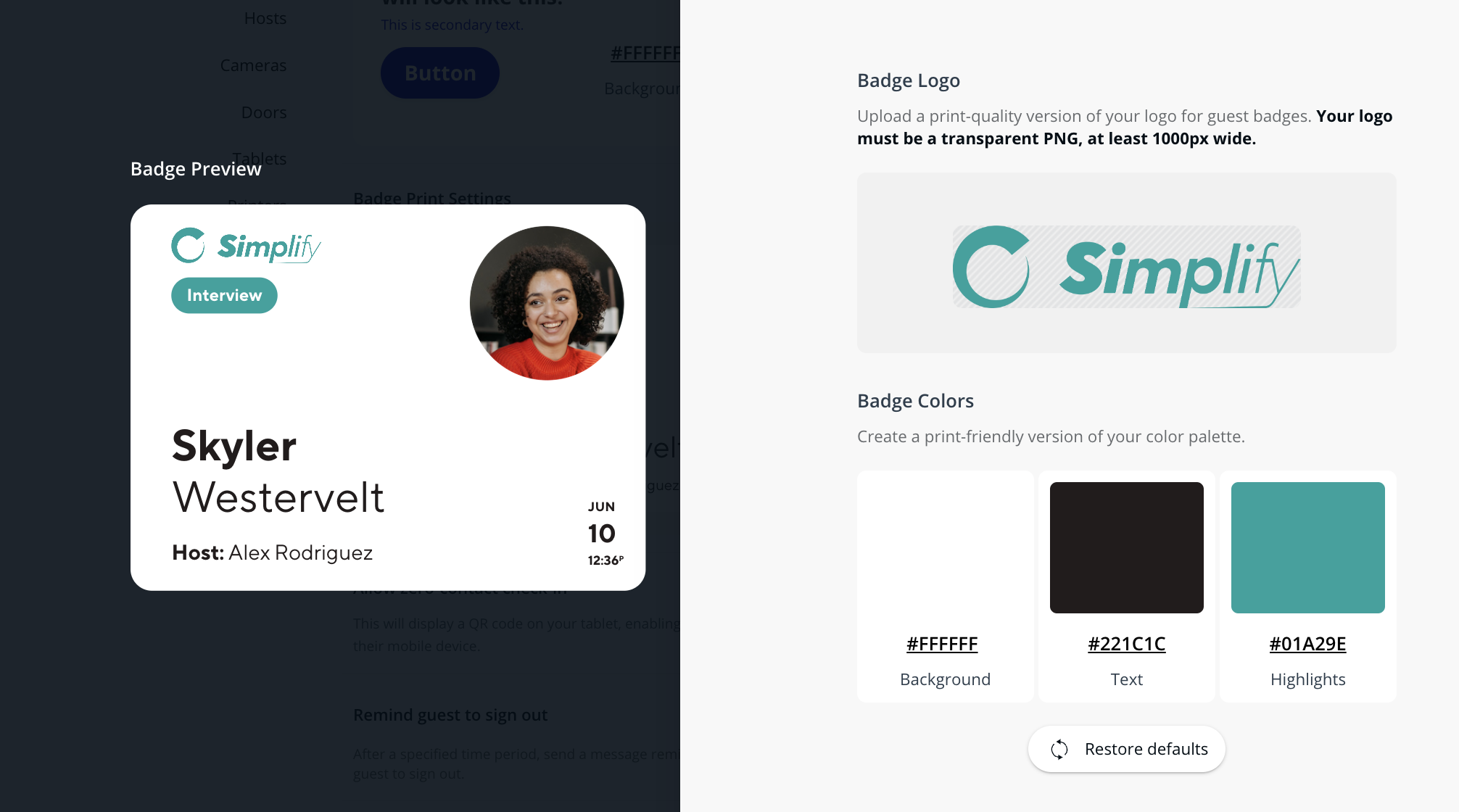
Visitor badges are important indicators that help organizations track visitors. With a range of customization options, organizations can use visitor badges to clearly present valuable information.
* Visitor badges can be configured in the [Basic Designer](#basic-designer)
* Visitor badges can be highly customized in the [Advanced Designer](#advanced-designer)
***
## Configure a badge
{% hint style="warning" %}
A visitor badge is configured at the Guest Type level.
{% endhint %}
{% stepper %}
{% step %}
**In Verkada Command, go to All Products > Workplace > Guest.**
{% endstep %}
{% step %}
**On the left navigation, click Guest Settings.**
a. Under **Organization** **> Guest Types,** click **Manage Guest Types.**\
b. (Optional) At the top, select **Sites** and select a site to create a visitor badge for a Guest Type in an individual site.
{% endstep %}
{% step %}
**Select the desired Guest Type.**
{% endstep %}
{% step %}
**Click on the badge to modify badge settings.**
{% endstep %}
{% endstepper %}
### Set site-specific badge colors and logo
By default, the badge uses the organization-level text, colors, and logo unless site-specific colors and logos have been configured. To set text colors and a logo used for a specific site’s badge:
{% stepper %}
{% step %}
**In Verkada Command, go to All Products > Guest.**
{% endstep %}
{% step %}
**On the left navigation, click Guest Settings.**
{% endstep %}
{% step %}
**Under Sites > Details, navigate to Badge Print Settings.**
{% endstep %}
{% step %}
**Click on the badge to modify badge settings.**
{% endstep %}
{% endstepper %}
***
## Basic Mode
Badges can be easily customized in the Basic Mode Designer. In this mode, badges may include the following information:
* **Guest Name**
* **Host Name**
* **Badge Photo**: the photo a visitor captures at sign-in
* **Guest’s Response**: the response a visitor provides to a selected question
### Badge design rules
Badge design rules allow guest responses to multiple-choice questions to influence badge design. Multiple-choice questions can be associated with the following parameters:
* Orientation
* Border Style
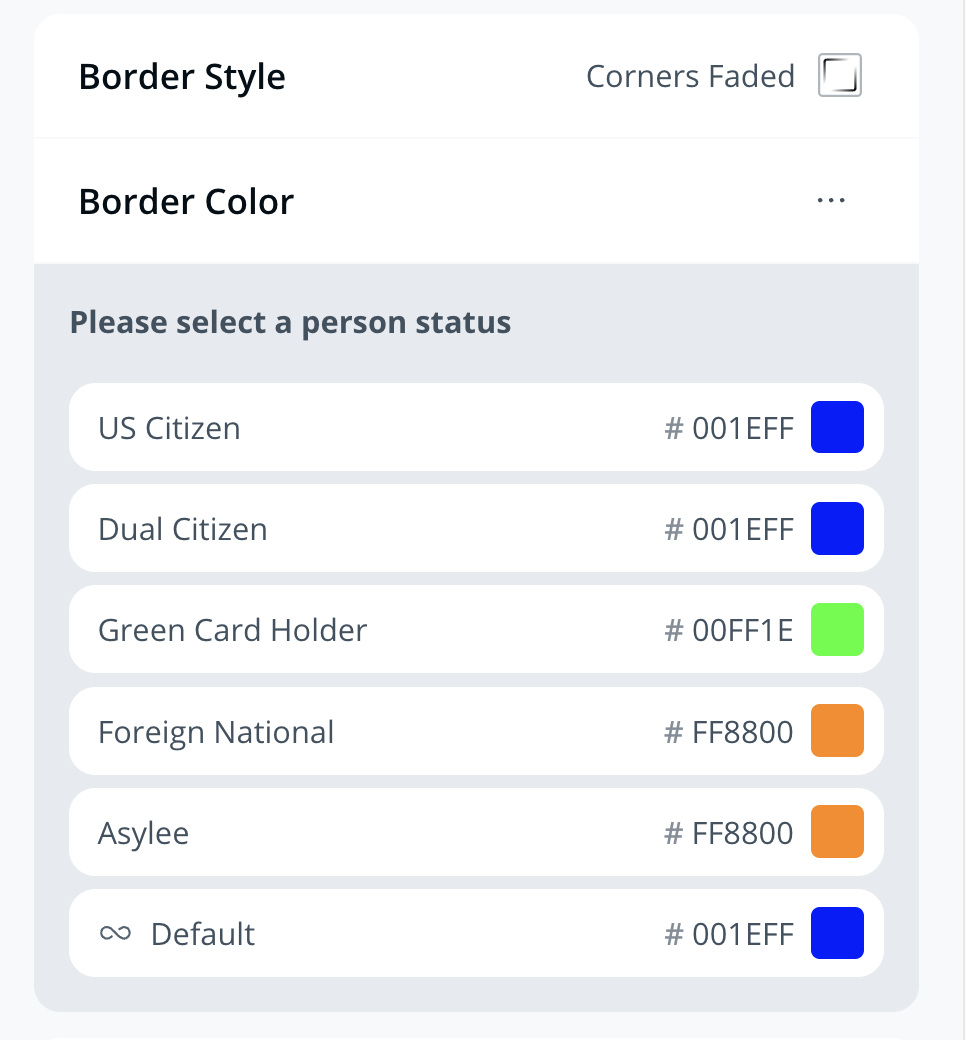
* Border Color
Multiple choice questions that are Guest Type steps and those part of a [Questionnaire](/guest/configuration/guest-documents/guest-questionnaires.md) may be used for badge design rules. A parameter condition will be set for each multiple-choice-question response.
A default option with any badge design rule covers the parameter configuration whenever the associated multiple-choice question is unanswered or an "Other" field is selected.
A badge’s orientation, border color, and border style may be customized for any Guest Type. A color printer or a [Brother printer loaded with two-tone paper](/guest/printers/brother-printer-setup-guide/two-tone-printing-for-the-brother-printer.md) must be in the Guest site to customize the border color.
{% hint style="danger" %}
A border style must be set before the border color can be configured.
{% endhint %}
### Preview badge design
The badge preview window will display possible badge designs that adhere to the rules set. Use the **Rules** **Print Guide** to print or save a PDF that outlines badge design rules.
***
## Advanced Mode
Advanced Mode enables more extensive badge customization. Badges made with Advanced Designer can feature the following components:
1. **Guest Name**
2. **Site Name**
3. **Guest Type**
4. **Site Logo**
5. **Host Name**
6. **Badge Photo**
7. **Date**
8. **Images:** Admins can upload .jpg and .png images and place them on the badge
9. **Text:** Admins can include special text on the badge
10. **Guest's Responses:** The response a visitor provides to a selected question
Admins can move, scale, and delete any of these components.
### Configuration
{% stepper %}
{% step %}
**In Verkada Command, go to All Products > Workplace > Guest.**
{% endstep %}
{% step %}
**On the left navigation, click Guest Settings.**
a. Under **Organization** **> Guest Types,** click **Manage Guest Types.**\
b. (Optional) At the top, select **Sites** and select a site to create a visitor badge for a Guest Type in an individual site.
{% endstep %}
{% step %}
**Select the desired Guest Type.**
{% endstep %}
{% step %}
**Click on badge settings.**
{% endstep %}
{% step %}
**Toggle Advanced Mode ON.**
{% endstep %}
{% endstepper %}
{% hint style="danger" %}
The Guest app must be on version 2.17.0 or later to print badges made with Advanced Mode.
{% endhint %}
### Badge design rules in Advanced Mode
Badge design rules in Advanced Designer can apply to:
1. Orientation
2. Border Style
3. Border Color
4. Background
5. Text
6. Images
***
## FAQ
Can I associate a multiple-choice question with a badge design rule?
Yes, badge design rules must be associated with multiple-choice questions that only allow a single response, and the multiple-choice question option **Allow Multiple Responses** must be disabled.
What are the requirements for the badge logo?
The badge logo must be a transparent PNG file with a width of at least 1000 pixels but no more than 5000 pixels and a minimum height of 200 pixels.
Can I resize a badge text, image, or logo?
Yes, badge content can be resized with Advanced Mode.
***
{% hint style="info" %}
**Prefer to see it in action?** Check out the [video tutorial](https://www.youtube.com/watch?v=NZBiwBRBky4).
{% endhint %}
---
# Agent Instructions
This documentation is published with GitBook. GitBook is the documentation platform designed so that both humans and AI agents can read, navigate, and reason over technical content effectively. Learn more at gitbook.com.
## Querying This Documentation
If you need additional information that is not directly available in this page, you can query the documentation by asking a question.
Perform an HTTP GET request on the following URL with the `ask` and `goal` query parameters:
```
GET https://help.verkada.com/guest/configuration/configure-guest-types/design-a-visitor-badge-in-guest.md?ask=&goal=
```
`ask` is the immediate question: it should be specific, self-contained, and written in natural language.
`goal` is what the user is ultimately trying to achieve, the reason they need the answer. Sharing it helps GitBook give you a better, more relevant answer. A goal is most helpful when it describes the outcome the user wants rather than restating the question. For example, with `ask=how do I create an API token`, a goal like `automate deployments from our CI pipeline` lets GitBook tailor the answer to that use case.
The response will contain a direct answer to the question and relevant excerpts and sources from the documentation.
Use this mechanism when the answer is not explicitly present in the current page, you need clarification or additional context, or you want to retrieve related documentation sections.