> For the complete documentation index, see [llms.txt](https://help.verkada.com/llms.txt). Markdown versions of documentation pages are available by appending `.md` to page URLs; this page is available as [Markdown](https://help.verkada.com/guest/configuration/approved-lists-for-guest.md).
# Approved Lists for Guest
Use approved lists to streamline visitor checkin to your organization
An approved list is a versatile tool that can help organizations simplify checking in regular visitors. Organizations can configure guest types to ensure only visitors on an approved list can sign in. Guests can be added to the approved list through an application or by a CSV upload.
***
## Create an Approved List
{% hint style="danger" %}
* You need **Org Admin** permissions to create and manage Global Approved Lists.
* You need **Workplace Site Admin** permissions to create and manage site-level Approved Lists.
{% endhint %}
{% stepper %}
{% step %}
**In Verkada Command, go to All Products > Workplace > Guest.**
{% endstep %}
{% step %}
**In the left navigation, click Approved Lists.**
{% endstep %}
{% step %}
**In the top right, click New List.**
a. Enter a unique name for the list.\
b. Select the site the list will apply to, or choose **Global** to create a list that can be used by all sites.\
c. Click **Create.**
{% endstep %}
{% endstepper %}
***
## Link an Approved List to a Guest Type
Organizations can link Approved Lists to certain Guest Types so that only authorized visitors can sign in successfully.
{% stepper %}
{% step %}
**In Verkada Command, go to All Products > Workplace > Guest.**
{% endstep %}
{% step %}
**On the left navigation, click Guest Settings.**
{% endstep %}
{% step %}
**Under Organization > Guest Types, click Manage Guest Types.**
{% endstep %}
{% step %}
**Select the Guest type you want to edit.**
{% endstep %}
{% step %}
**Check the box next to Approved Guests Only.**
{% endstep %}
{% step %}
**Select the Approved List from the drop-down.**
{% endstep %}
{% step %}
**Click in the top right corner to save the changes.**
{% endstep %}
{% endstepper %}
{% hint style="danger" %}
Guest types **must** require an email in order to add an Approved List.
{% endhint %}
***
## Create an Approved List application
One way to add visitors to an Approved List is through an application. Admins can configure an application to collect relevant information from prospective Approved List members. Each Approved List application has a unique public URL that prospects can use to apply.
{% stepper %}
{% step %}
**In Verkada Command, go to All Products > Workplace > Guest.**
{% endstep %}
{% step %}
**In the left navigation, click Approved Lists.**
{% endstep %}
{% step %}
**Select a list to edit.**
{% endstep %}
{% step %}
**On the right, click Create Application.**
{% endstep %}
{% step %}
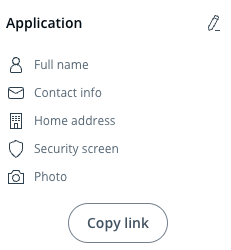
**Customize the application steps, which may include:**
* Contact information
* Security screen
* Documents
* Videos
* Open Response Questions
* Multiple Choice Questions
* Address
* File Upload
* Capture a photo
{% endstep %}
{% step %}
**(Optional) Customize admin steps:**
Approved List profiles can also include admin-facing steps for tracking additional applicant information. Applicants do not complete these steps. Instead, Command admins can complete and modify them. The following can be configured as admin steps:
* Open Response Questions
* Multiple Choice Questions
* File Upload
{% endstep %}
{% step %}
**Click in the top right corner to save the changes**
{% endstep %}
{% step %}
**The application URL can be copied from the application menu and distributed as needed.**
{% endstep %}
{% endstepper %}
### Upload approved visitors via CSV
Organizations can manually add members to an Approved List by uploading a CSV.
{% stepper %}
{% step %}
**In Verkada Command, go to All Products > Workplace > Guest.**
{% endstep %}
{% step %}
**In the left navigation, click Approved Lists.**
{% endstep %}
{% step %}
**Select a list to edit.**
{% endstep %}
{% step %}
**On the right, click Upload List.**
{% endstep %}
{% step %}
**Select a CSV file to upload.**
{% endstep %}
{% endstepper %}
{% hint style="warning" %}
You can use multiple CSV files to add visitors, but uploads must be done one file at a time.
{% endhint %}
### Configure Auto-Expiration
Admins can set Approved List members with an expiration date, after which they will be removed from the list. Organizations can also configure a list-wide policy for how long Approved List members are authorized.
{% stepper %}
{% step %}
**In Verkada Command, go to All Products > Workplace > Guest.**
{% endstep %}
{% step %}
**In the left navigation, click Approved Lists.**
{% endstep %}
{% step %}
**In the bottom right, click Expire.**
{% endstep %}
{% step %}
**Set the auto-expiration time period.**
{% endstep %}
{% step %}
**(Optional) Enable expiration reminders that advise visitors to reapply to the approved list.**
{% endstep %}
{% endstepper %}
***
## Manage applications
{% hint style="danger" %}
* You need **Org Admin** permissions to approve, reject, and delete Global Approved List applications.
* You need **Guest Site Admin** permissions to approve, reject, and delete site-level Approved List applications.
{% endhint %}
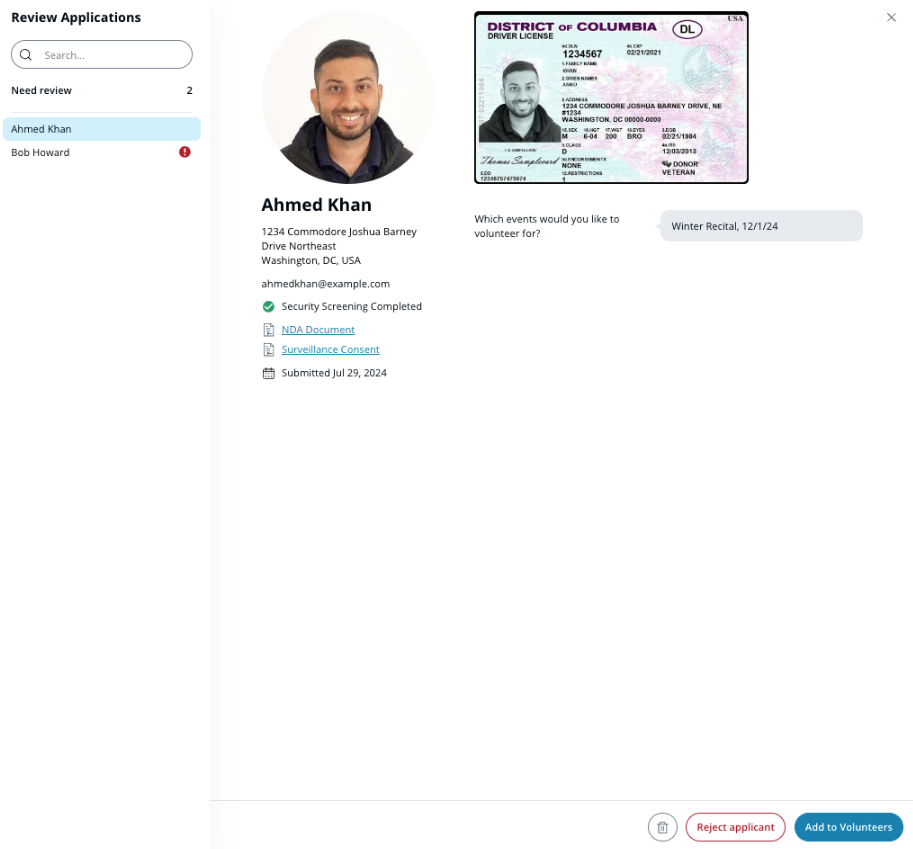
Applications must be reviewed before they are added to an approved list. Applications can be reviewed by clicking the application counter at the top right.
This menu lists all applications pending review. Users can approve, reject, or delete each application. If a security screening is required, the results appear here. The screen uses the applicant’s full name and date of birth. Reviewers should verify that this information matches the uploaded ID before approving the applicant.
Users who are configured as reviewers for an Approved List will be notified daily of pending applications.
Applicants are notified by email when their application is approved or rejected. Rejected applications can be viewed from the counter in the top right of the Approved List page. If needed, you can return a rejected application to the Review menu by clicking **Undo**.
***
## Manage Approved List members
Approved List Members can be searched by name from the search bar at the top of the page. Each entry in an Approved List displays the member's name, the date added to the list, the Command user who added the member, and the date of their last security screen. Member details are available by clicking on a member.
### Delete a member
{% stepper %}
{% step %}
**In Verkada Command, go to All Products > Workplace > Guest.**
{% endstep %}
{% step %}
**In the left navigation, click Approved Lists.**
{% endstep %}
{% step %}
**Select a list to edit.**
{% endstep %}
{% step %}
**Click to the right of the member entry.**
{% endstep %}
{% step %}
**Select Delete.**
{% endstep %}
{% endstepper %}
### Security Screens
Approved List members can be screened against government databases and deny lists at any time.
**Screen a visitor**
{% stepper %}
{% step %}
**In Verkada Command, go to All Products > Guest**
{% endstep %}
{% step %}
**In the left navigation, click Approved Lists.**
{% endstep %}
{% step %}
**Select a list to edit.**
{% endstep %}
{% step %}
**Click to the right of the visitor entry.**
{% endstep %}
{% step %}
**Select Screen this guest. If the visitor was added to the list through an application, they will be screened against the same databases screened when they applied.**
{% endstep %}
{% endstepper %}
**Screen all visitors**
{% stepper %}
{% step %}
**In Verkada Command, go to All Products > Workplace > Guest.**
{% endstep %}
{% step %}
**In the left navigation, click Approved Lists.**
{% endstep %}
{% step %}
**Select a list to edit.**
{% endstep %}
{% step %}
**On the right, click Screen Guests.**
{% endstep %}
{% step %}
**Select the databases to screen against and click Run Security Screening.**
{% endstep %}
{% endstepper %}
{% hint style="warning" %}
Changes made in this menu update the databases used for Security Screening for future applications.
{% endhint %}
Members who return results from the security screen must be reviewed before their status on the approved list is renewed. The results from these security screens are viewed in the [Review Applications](#h_ab9a078c8e) window.
***
## Data Retention
Applicant-provided information, including responses, signed documents, contact information, and address, is saved indefinitely. The retention of ID photos is defined by the Guest org setting **Retention of Saved Identification Info**. This setting can only be modified by Org Admins.
Applications that elicit security screen results must be reviewed within 30 days.
Applications with security screen results that are not reviewed within 30 days may not be added to an Approved List.
Once an application is approved, a member's date of birth is retained. Verkada Guest stores this date to perform precise security screens.
***
{% hint style="info" %}
**Prefer to see it in action?** Check out the [video tutorial](https://www.youtube.com/watch?v=5oqAGm89pHE).
{% endhint %}
---
# Agent Instructions
This documentation is published with GitBook. GitBook is the documentation platform designed so that both humans and AI agents can read, navigate, and reason over technical content effectively. Learn more at gitbook.com.
## Querying This Documentation
If you need additional information that is not directly available in this page, you can query the documentation by asking a question.
Perform an HTTP GET request on the following URL with the `ask` and `goal` query parameters:
```
GET https://help.verkada.com/guest/configuration/approved-lists-for-guest.md?ask=&goal=
```
`ask` is the immediate question: it should be specific, self-contained, and written in natural language.
`goal` is what the user is ultimately trying to achieve, the reason they need the answer. Sharing it helps GitBook give you a better, more relevant answer. A goal is most helpful when it describes the outcome the user wants rather than restating the question. For example, with `ask=how do I create an API token`, a goal like `automate deployments from our CI pipeline` lets GitBook tailor the answer to that use case.
The response will contain a direct answer to the question and relevant excerpts and sources from the documentation.
Use this mechanism when the answer is not explicitly present in the current page, you need clarification or additional context, or you want to retrieve related documentation sections.