> For the complete documentation index, see [llms.txt](https://help.verkada.com/llms.txt). Markdown versions of documentation pages are available by appending `.md` to page URLs; this page is available as [Markdown](https://help.verkada.com/government-solutions/single-sign-on-sso/government-solutions-identity-providers/microsoft-entra-id-saml-integration-government-solutions.md).
# Microsoft Entra ID SAML Integration
Configure SSO and user provisioning with Microsoft Entra ID (Azure AD) for your Government Solutions organization
Verkada Command has the ability to integrate with Microsoft Entra ID in two ways:
* Security Assertion Markup Language (SAML)
* System for Cross-Domain Identity Management (SCIM)
**SAML** handles authentication, allowing Microsoft Entra ID to manage access to Command, just as it manages access to other Software-as-a-Service (SaaS) applications already integrated with your Microsoft Entra ID tenant. This means you can integrate Command into your existing identity framework and authorize users in line with your current policies.
**SCIM** allows you to leverage your existing users and groups in Microsoft Entra ID and synchronize them with Command. This allows you to retain the current central IdP and configure permissions in Command using your existing users and groups.
***
### Before you begin
For a successful integration, make sure you have the following:
* Admin access to your Microsoft Entra ID tenant
* Generate a [client-ID](/government-solutions/single-sign-on-sso/government-solutions-identity-providers.md#generate-client-id)
***
{% tabs %}
{% tab title="SAML" %}
## Set up SAML in Microsoft Entra ID
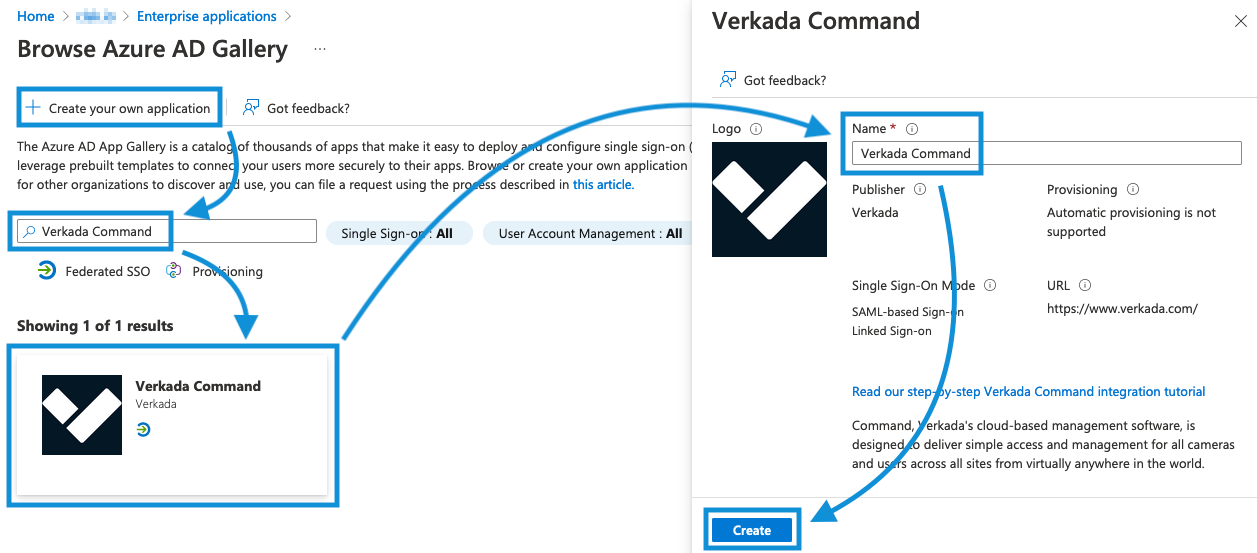
Verkada Command is available as a gallery application in the Microsoft Entra ID marketplace and can be used with Microsoft Entra ID Free, P1, and P2 licenses.
{% stepper %}
{% step %}
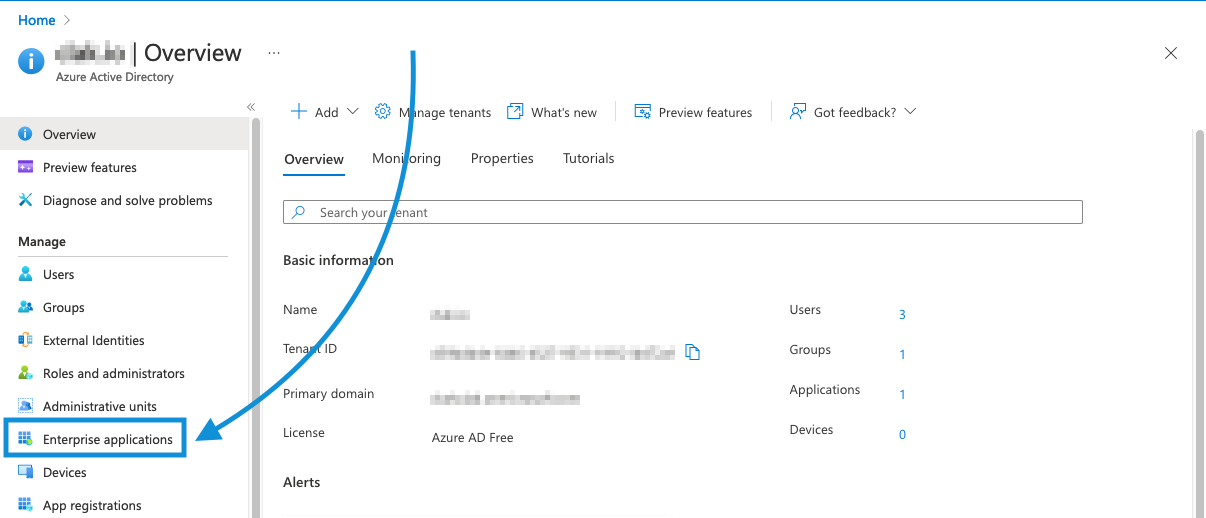
**Add Verkada Command as an enterprise application in your Microsoft Entra ID directory: Go to your Microsoft Entra ID overview page and select Enterprise applications.**