# Microsoft Entra ID SAML 통합

Verkada Command는 Security Assertion Markup Language(SAML)를 사용하여 Microsoft Entra ID와 통합할 수 있습니다.

SAML은 인증 측면을 처리하여, Microsoft Entra ID를 사용해 Command에 대한 액세스를 관리할 수 있게 해줍니다. 이는 이미 Microsoft Entra ID 테넌트에 통합된 다른 서비스형 소프트웨어(SaaS) 애플리케이션의 액세스를 관리하는 방식과 동일합니다. 즉, 기존 ID 프레임워크에 Command를 포함시키고 현재 정책에 따라 사용자를 승인할 수 있습니다.

***

### 시작하기 전에

성공적인 통합을 위해 다음 항목이 준비되어 있는지 확인하세요:

* Microsoft Entra ID 테넌트에 대한 관리자 액세스
* 다음 항목을 생성합니다 [client-ID](/government-solutions/ko/sso/id.md#generate-client-id)

***

## Microsoft Entra ID에서 SAML 설정

Verkada Command는 Microsoft Entra ID 마켓플레이스의 갤러리 애플리케이션으로 제공되며, Microsoft Entra ID Free, P1, P2 라이선스와 함께 사용할 수 있습니다.

{% stepper %}
{% step %}
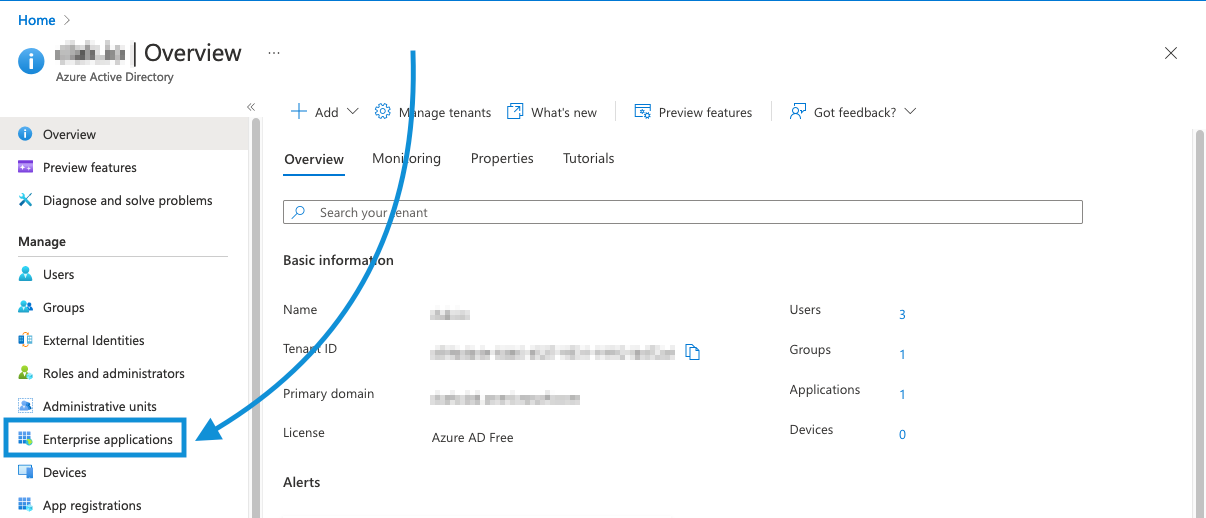
**Microsoft Entra ID 디렉터리에 Verkada Command를 엔터프라이즈 애플리케이션으로 추가합니다: Microsoft Entra ID 개요 페이지로 이동한 다음 엔터프라이즈 애플리케이션을 선택합니다.**

<div align="left" data-with-frame="true"><img src="/files/51f71b1155d39101d4ec18f1fbf963942b7a1b67" alt="" width="563"></div>
{% endstep %}

{% step %}
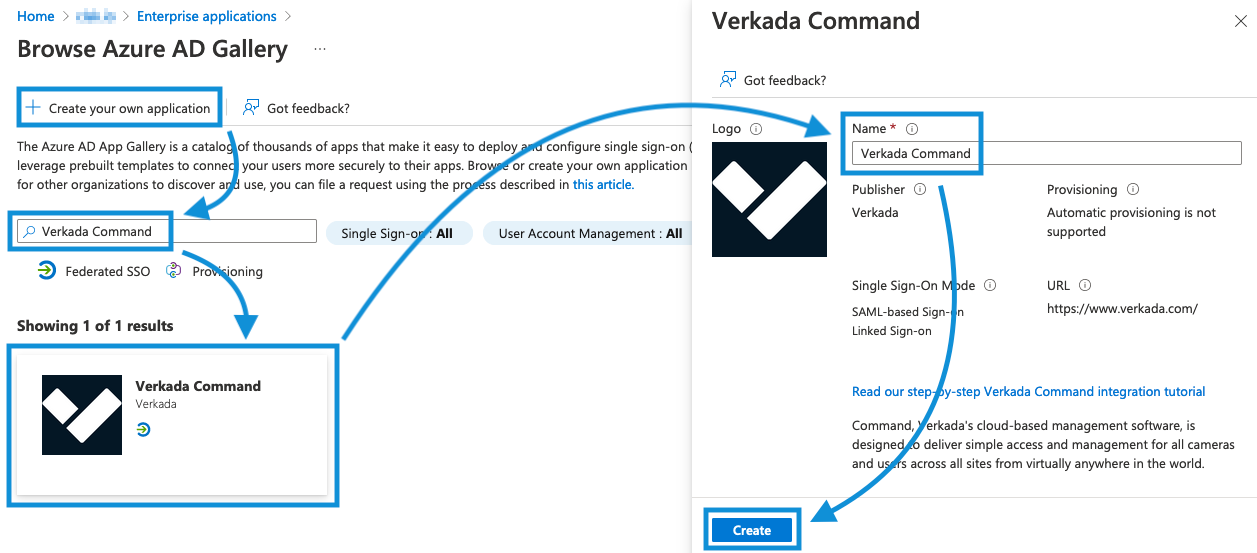
**페이지 상단에서 새 애플리케이션을 선택하고 Verkada Command를 검색합니다.**
{% endstep %}

{% step %}
**Verkada Command를 선택하고 만들기를 클릭합니다.&#x20;*****애플리케이션을 귀하의*****&#x20;Microsoft Entra ID&#x20;*****테넌트에*****.**

<div align="left" data-with-frame="true"><img src="/files/21ec5bf7aaa01b285ee4bf0568c004b66e64177b" alt="" width="563"></div>

추가하는 데 몇 분이 걸릴 수 있으니 잠시 기다리세요.\
​
{% endstep %}

{% step %}
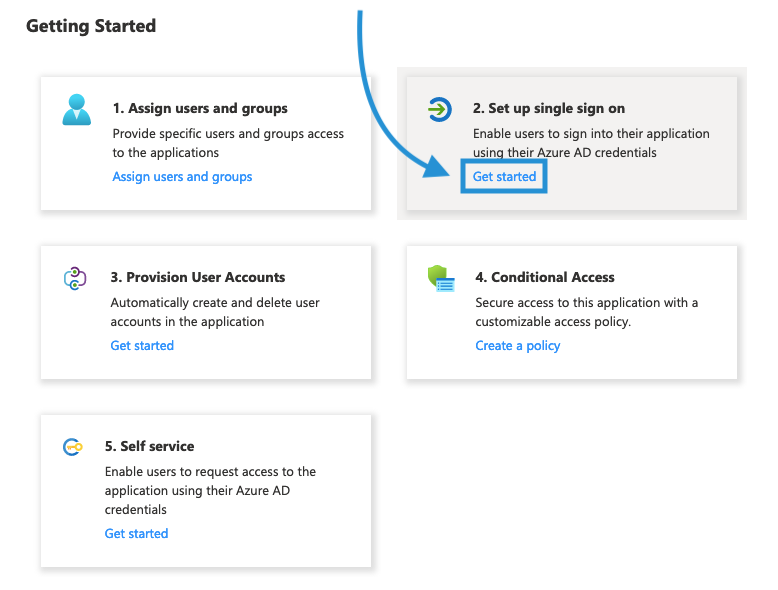
**단일 로그인 설정에서 시작하기를 클릭합니다.**

<div align="left" data-with-frame="true"><img src="/files/687685156abb68f28c708b62c5a862773dfa8663" alt="" width="389"></div>
{% endstep %}

{% step %}
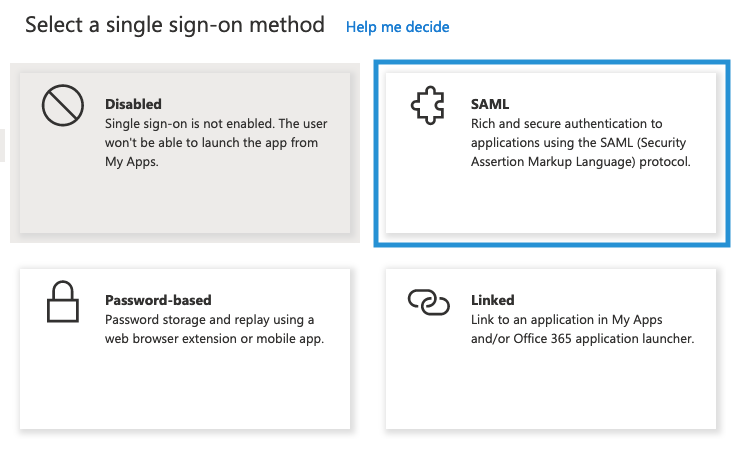
**단일 로그인 방법으로 SAML을 선택합니다.**

<div align="left" data-with-frame="true"><img src="/files/eaed295d10d80a8843de8404346c913e5fad4190" alt="" width="563"></div>
{% endstep %}

{% step %}
**필요한 경우 편집을 클릭하여 SAML 연결을 추가로 구성합니다.**
{% endstep %}

{% step %}
**다음 필드를 구성합니다. Microsoft Entra ID에 추가하기 전에 각 URL의 끝에 클라이언트 ID를 추가해야 합니다. 아래 참고 사항 아래의 예를 참조하세요.**

a. 다음에 대해 **식별자**: [https://saml.prod-govus-pine.verkadagov.com/saml/sso](https://saml.prod-govus-pine.verkadagov.com/saml/sso/)\
b. 다음에 대해 **회신 URL**: <https://saml.prod-govus-pine.verkadagov.com/saml/sso>\
c. 다음에 대해 **로그인 URL**: <https://saml.prod-govus-pine.verkadagov.com/saml/login>
{% endstep %}

{% step %}
**저장을 클릭합니다.**
{% endstep %}

{% step %}
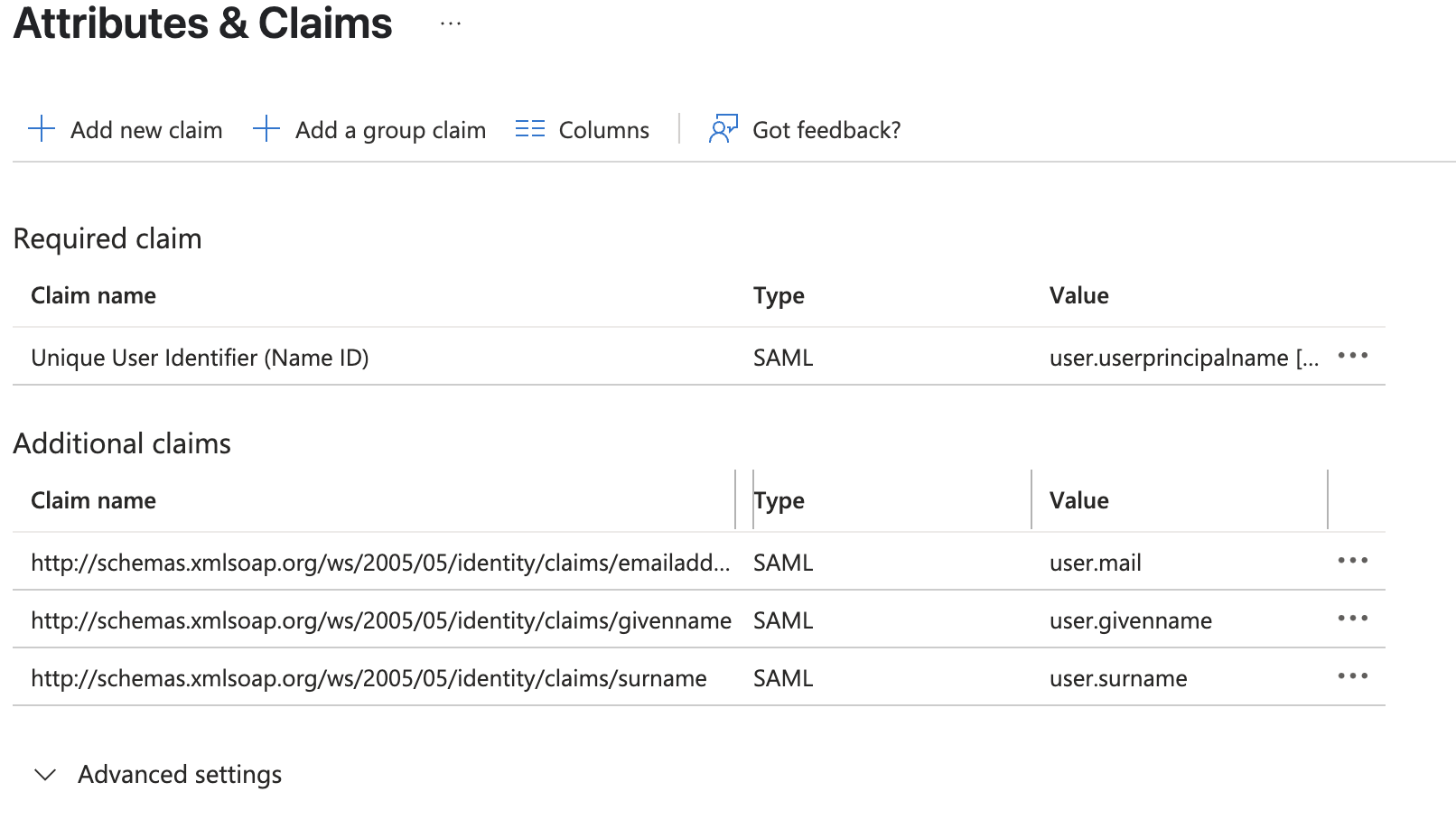
**특성 및 클레임에서 편집을 클릭하여 다음 특성과 일치시킵니다:**

<div align="left" data-with-frame="true"><img src="/files/f83b6e9b762b4900b5e3a6a5ce103c36285dcded" alt=""></div>

{% hint style="warning" %}
이메일에 다른 원본 특성을 사용하는 경우, 사용하려는 원본 특성에 따라 특성을 구성하세요.
{% endhint %}
{% endstep %}

{% step %}
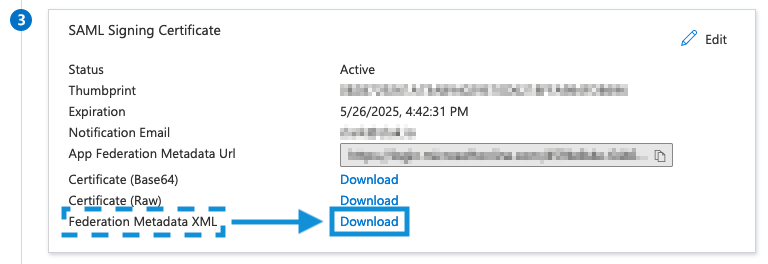
**SAML 서명 인증서 > 페더레이션 메타데이터 XML에서 다운로드를 클릭합니다. Command에 업로드할 XML 파일을 저장합니다.**

<div align="left" data-with-frame="true"><img src="/files/f0dec01fe95ac846792f5bb9bf4e72437f2d454d" alt=""></div>

{% hint style="info" %}
다음에 나타나는 대화 상자에는 통합이 완료된 후 사용할 수 있는 도구가 포함되어 있습니다.
{% endhint %}
{% endstep %}

{% step %}
**Verkada Command로 이동하여** [**구성을 완료하세요**](/government-solutions/ko/sso/id.md#command-configuration)**.**
{% endstep %}
{% endstepper %}

***

### Microsoft Entra ID에서 SAML 연결 테스트

{% stepper %}
{% step %}
**Command에서 XML 메타데이터 파일을 업로드한 후, Microsoft Entra ID 계정에서 테스트를 클릭하여 통합을 확인합니다. 이 작업은 Command 계정이 있는 모든 사용자에게 알림을 보내 조직에 가입하도록 초대합니다.**

<div align="left" data-with-frame="true"><img src="/files/ee3cee37d7e279d9112bb8ff1264d4a1a24ed9b8" alt="" width="563"></div>
{% endstep %}

{% step %}
**현재 사용자로 로그인하여 로그인합니다. 모든 것이 올바르게 설정되었다면 Command 플랫폼으로 리디렉션되어야 합니다.**
{% endstep %}

{% step %}
**Command에 대한 액세스를 확인하려면 단일 로그인으로 로그인합니다.**
{% endstep %}
{% endstepper %}

{% hint style="warning" %}
현재 Microsoft Entra ID는 앱 액세스를 위한 중첩 그룹을 지원하지 않습니다. 할당되려면 모든 사용자가 그룹의 직접 구성원이어야 합니다.
{% endhint %}

***

### 모바일 애플리케이션으로 로그인

{% hint style="info" %}
Android 및 iOS Command 앱은 SAML 기반 로그인을 지원합니다.
{% endhint %}

{% stepper %}
{% step %}
**Command 앱을 엽니다.**
{% endstep %}

{% step %}
**이메일 주소 입력란에 이메일을 입력하고 다음을 클릭합니다.**
{% endstep %}

{% step %}
**로그인 과정을 완료하기 위해 IdP(Microsoft Entra ID)로 리디렉션되어야 합니다.**
{% endstep %}
{% endstepper %}


---

# Agent Instructions: Querying This Documentation

If you need additional information that is not directly available in this page, you can query the documentation dynamically by asking a question.

Perform an HTTP GET request on the current page URL with the `ask` query parameter:

```
GET https://help.verkada.com/government-solutions/ko/sso/id/microsoft-entra-id-saml-integration-government-solutions.md?ask=<question>
```

The question should be specific, self-contained, and written in natural language.
The response will contain a direct answer to the question and relevant excerpts and sources from the documentation.

Use this mechanism when the answer is not explicitly present in the current page, you need clarification or additional context, or you want to retrieve related documentation sections.