# Microsoft Entra ID SAML 統合

Verkada Command は Security Assertion Markup Language（SAML）を使用して Microsoft Entra ID と統合できます。

SAML は認証の側面を担い、Microsoft Entra ID を使用して Command へのアクセスを管理できるようにします。これは、すでに Microsoft Entra ID テナントに統合されている他の Software as a Service（SaaS）アプリケーションへのアクセスを管理するのと同じ方法です。つまり、Command を既存の ID フレームワークに組み込み、現在のポリシーに従ってユーザーを認可できます。

***

### 開始する前に

統合を成功させるには、以下を用意してください。

* Microsoft Entra ID テナントへの管理者アクセス
* 生成する [client-ID](/government-solutions/ja/shingurusainon-sso/government-solutions-no-idpurobaida.md#generate-client-id)

***

## Microsoft Entra ID で SAML を設定する

Verkada Command は Microsoft Entra ID マーケットプレースのギャラリーアプリケーションとして利用でき、Microsoft Entra ID Free、P1、P2 ライセンスで使用できます。

{% stepper %}
{% step %}
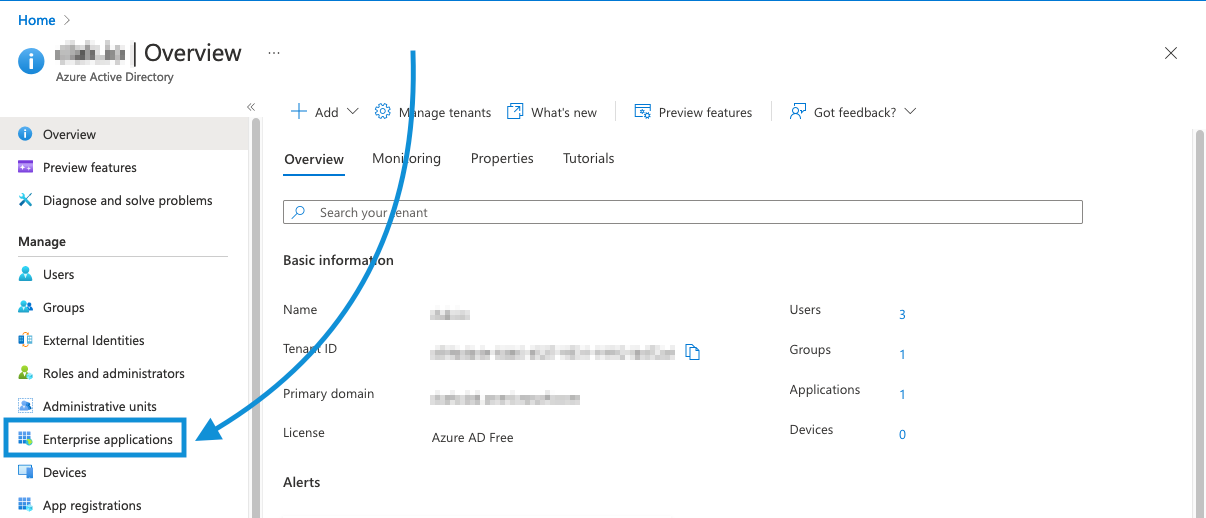
**Microsoft Entra ID ディレクトリで Verkada Command をエンタープライズ アプリケーションとして追加します。Microsoft Entra ID の概要ページに移動し、\[Enterprise applications] を選択します。**

<div align="left" data-with-frame="true"><img src="/files/60c243e12d60b73a5de2befe879adb97a1c7d211" alt="" width="563"></div>
{% endstep %}

{% step %}
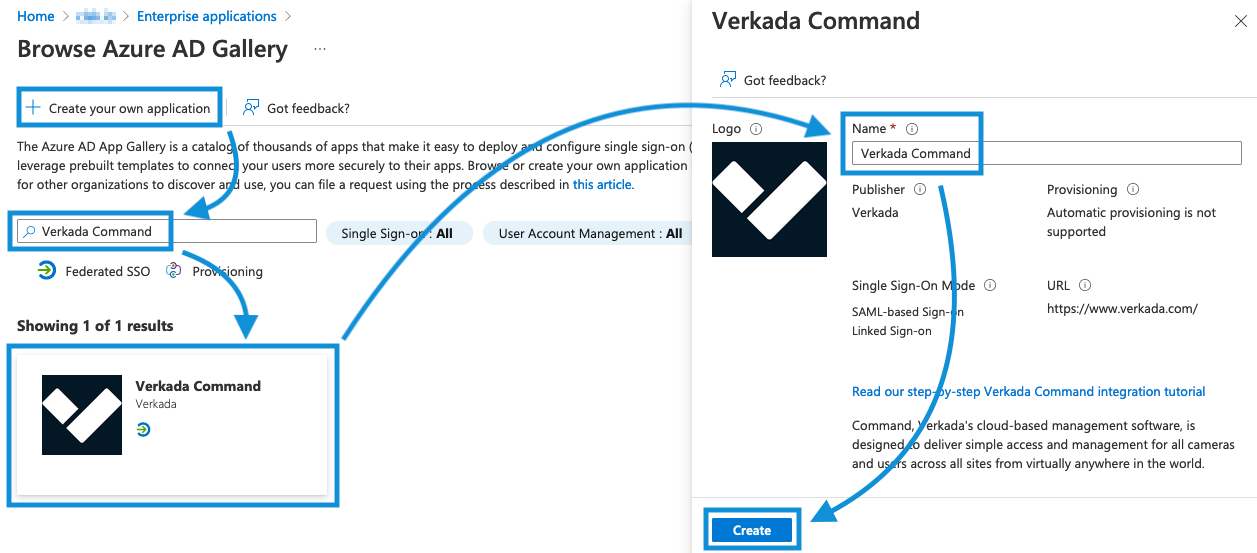
**ページ上部で \[New Application] を選択し、Verkada Command を検索します。**
{% endstep %}

{% step %}
**Verkada Command を選択し、\[Create] をクリックします。&#x20;*****アプリケーションを追加するには数分かかる場合があるので、しばらくお待ちください。*****&#x20;Microsoft Entra ID&#x20;*****テナント*****.**

<div align="left" data-with-frame="true"><img src="/files/8b721d91540c8b14a777631a0504c1838880756a" alt="" width="563"></div>

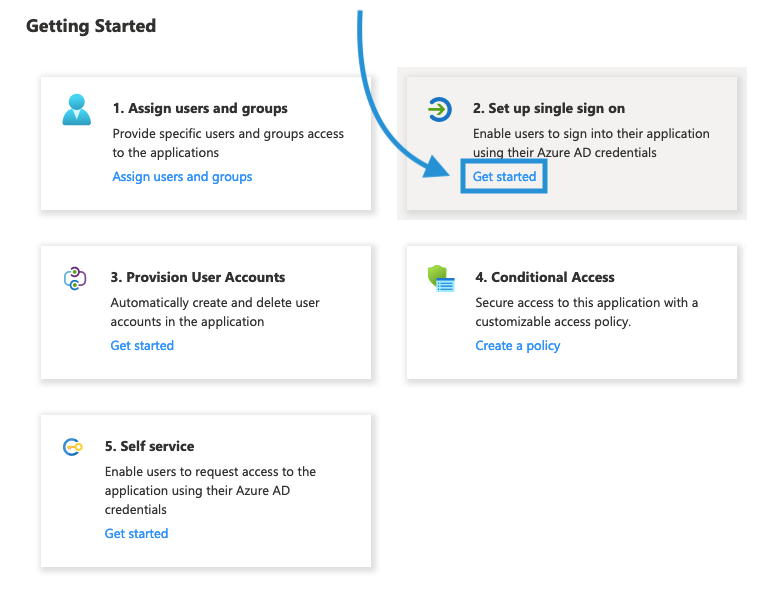
ページが更新されると、以下に示すようなメニューが表示されます。\
​
{% endstep %}

{% step %}
**\[Set up single sign-on] で \[Get started] をクリックします。**

<div align="left" data-with-frame="true"><img src="/files/9e07844d7b37d4c7923e639d22888b0d90742b78" alt="" width="389"></div>
{% endstep %}

{% step %}
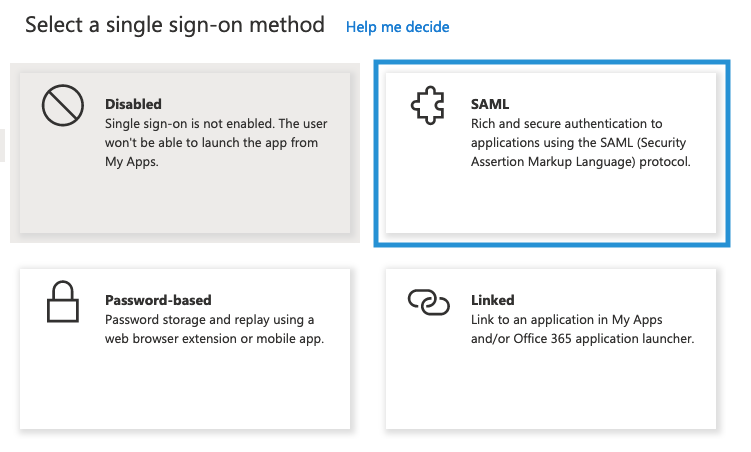
**シングル サインオン方式として SAML を選択します。**

<div align="left" data-with-frame="true"><img src="/files/6e41837751ef32f06f6b88337e7b7516059c7962" alt="" width="563"></div>
{% endstep %}

{% step %}
**必要に応じて、\[Edit] をクリックして SAML 接続をさらに構成します。**
{% endstep %}

{% step %}
**以下のフィールドを設定します。Microsoft Entra ID に追加する前に、各 URL の末尾に client ID を追加する必要があります。注記の下の例を参照してください。**

a. **Identifier**: [https://saml.prod-govus-pine.verkadagov.com/saml/sso](https://saml.prod-govus-pine.verkadagov.com/saml/sso/)\
b. **Reply URL**: <https://saml.prod-govus-pine.verkadagov.com/saml/sso>\
c. **Sign on URL**: <https://saml.prod-govus-pine.verkadagov.com/saml/login>
{% endstep %}

{% step %}
**\[Save] をクリックします。**
{% endstep %}

{% step %}
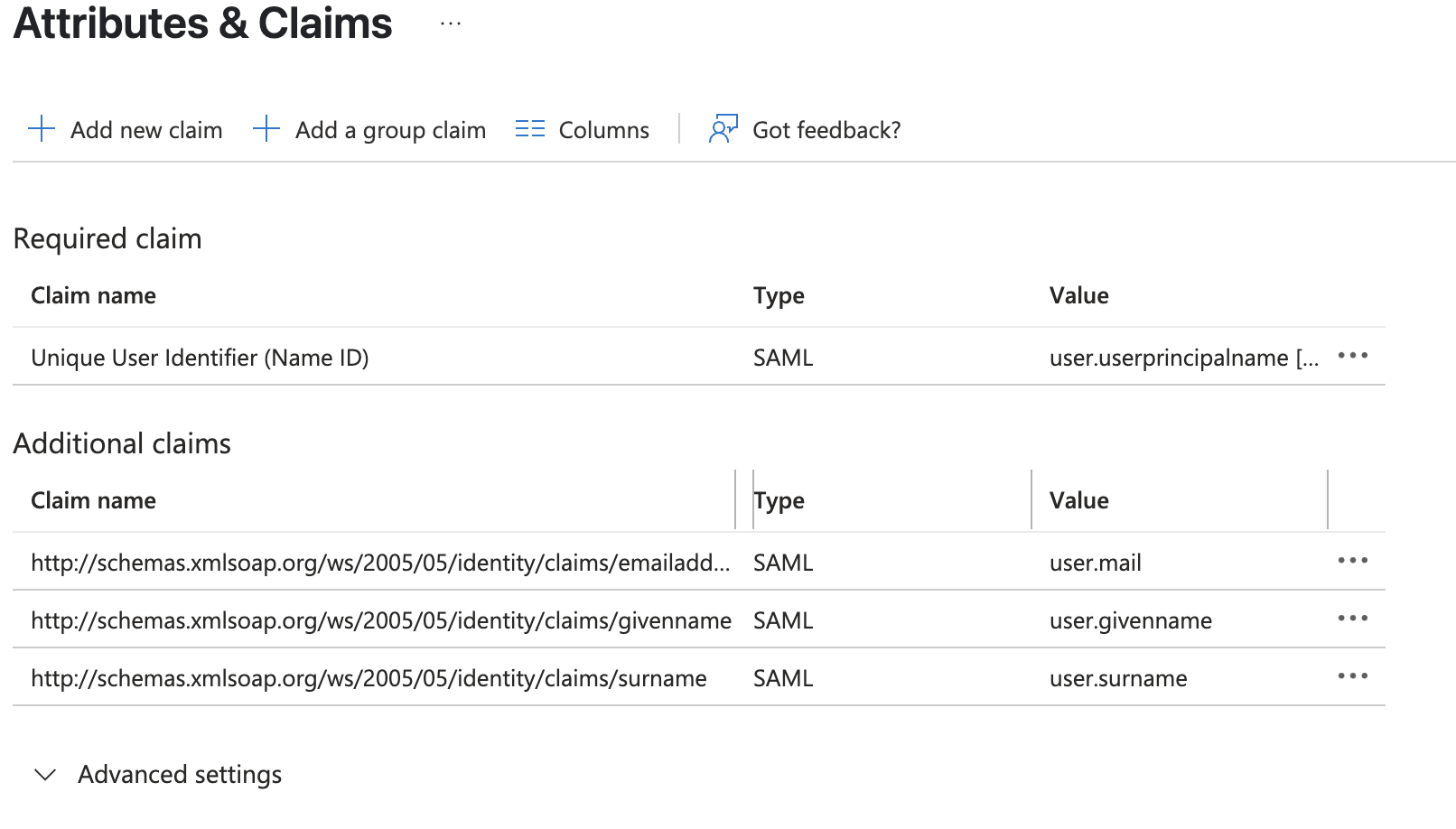
**\[Attributes & Claims] で \[Edit] をクリックし、以下の属性に合わせます。**

<div align="left" data-with-frame="true"><img src="/files/8e6383cf0bf1ef4ba989a9d697f57abc40cb6f1a" alt=""></div>

{% hint style="warning" %}
メールに別のソース属性を使用する場合は、使用するソース属性に応じて属性を設定してください。
{% endhint %}
{% endstep %}

{% step %}
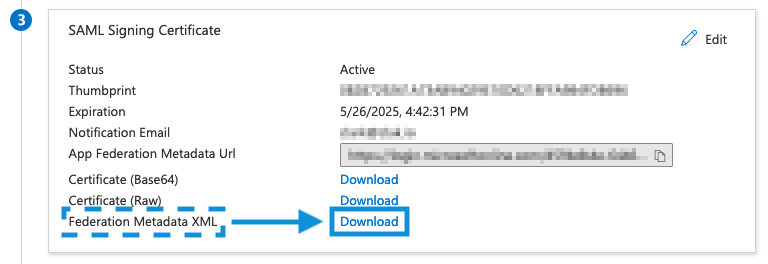
**\[SAML Signing Certificate] > \[Federation Metadata XML] で \[Download] をクリックします。Command にアップロードするために XML ファイルを保存します。**

<div align="left" data-with-frame="true"><img src="/files/c97e543bb6017f955ccbde406f6b167d3a9b0fc9" alt=""></div>

{% hint style="info" %}
次に表示されるダイアログには、統合完了後に使用できるツールが含まれています。
{% endhint %}
{% endstep %}

{% step %}
**Verkada Command に戻って** [**設定を完了する**](/government-solutions/ja/shingurusainon-sso/government-solutions-no-idpurobaida.md#command-configuration)**.**
{% endstep %}
{% endstepper %}

***

### Microsoft Entra ID で SAML 接続をテストする

{% stepper %}
{% step %}
**Command に XML メタデータファイルをアップロードしたら、Microsoft Entra ID アカウントで \[Test] をクリックして統合を確認します。この操作により、Command アカウントを持つすべてのユーザーに通知が送信され、組織への招待が行われます。**

<div align="left" data-with-frame="true"><img src="/files/bb9b53f2b02d8c179ad15a06004e557f19346a80" alt="" width="563"></div>
{% endstep %}

{% step %}
**現在のユーザーとしてサインインでログインします。すべてが正しく設定されていれば、Command プラットフォームにリダイレクトされるはずです。**
{% endstep %}

{% step %}
**シングル サインオンでログインし、Command へのアクセスを確認します。**
{% endstep %}
{% endstepper %}

{% hint style="warning" %}
現在、Microsoft Entra ID はアプリへのアクセスに対してネストされたグループをサポートしていません。割り当てるには、すべてのユーザーがグループの直接メンバーである必要があります。
{% endhint %}

***

### モバイルアプリケーションからログインする

{% hint style="info" %}
Android および iOS の Command アプリは、SAML ベースのログインをサポートしています。
{% endhint %}

{% stepper %}
{% step %}
**Command アプリを開きます。**
{% endstep %}

{% step %}
**メールアドレス欄にメールアドレスを入力し、\[Next] をクリックします。**
{% endstep %}

{% step %}
**ログイン प्रक्रियाを完了するために、IdP（Microsoft Entra ID）へリダイレクトされるはずです。**
{% endstep %}
{% endstepper %}


---

# Agent Instructions: Querying This Documentation

If you need additional information that is not directly available in this page, you can query the documentation dynamically by asking a question.

Perform an HTTP GET request on the current page URL with the `ask` query parameter:

```
GET https://help.verkada.com/government-solutions/ja/shingurusainon-sso/government-solutions-no-idpurobaida/microsoft-entra-id-saml-integration-government-solutions.md?ask=<question>
```

The question should be specific, self-contained, and written in natural language.
The response will contain a direct answer to the question and relevant excerpts and sources from the documentation.

Use this mechanism when the answer is not explicitly present in the current page, you need clarification or additional context, or you want to retrieve related documentation sections.