> For the complete documentation index, see [llms.txt](https://help.verkada.com/llms.txt). Markdown versions of documentation pages are available by appending `.md` to page URLs; this page is available as [Markdown](https://help.verkada.com/command/security/privacy-and-security-disclosure/privacy-and-security-checklist.md).
# Privacy and Security Checklist
Learn actions that your organization can take to ensure the highest level of security
To help make transparency, privacy, and compliance simpler for our customers, you can use a privacy and security checklist, along with the [Privacy and Security disclosure](/command/security/privacy-and-security-disclosure.md). Using this feature, you can communicate which products and features are being used in their organization.
***
## Access the Privacy and Security checklist
{% stepper %}
{% step %}
**In Verkada Command, go to All Products > Admin.**
{% endstep %}
{% step %}
**Under Org Settings, select Security & Logs.**
{% endstep %}
{% step %}
**Select Security Checklist.**
{% endstep %}
{% step %}
**On the Privacy & Security Checklist page, you can access the list of actions (see the table below) to ensure that Verkada Command is configured at the highest level of security.**
{% hint style="warning" %}
Some items are automatically marked complete once the task is complete.
{% endhint %}
| | |
| -------------------------------------------------------------------------------------------------------------------------------------------------------------------------------------------------- | ----------------------------------------------------------------------------------------------------------------------------------------------------------------------------------------------------------------------------------------------------------------------------- |
| **Setting** | **Action in Command** |
| [**Enforce 2FA**](/command/security/authentication-overview/two-factor-authentication.md) | Requires users in your organization to set up and use 2FA when logging in via a password.
Toggle on this enforcement in Admin > Privacy & Security > Authentication & User Management.
|
| **Review Session Duration** | Set the amount of time a user’s session lasts before having to log in again.
Review the configured session duration in Admin > Privacy & Security > Session Timeout.
|
| [**Set Up and Enable SSO**](https://github.com/verkada/Verkada-Support-Docs/blob/main/en/command/single-sign-on-sso/authentication-and-provisioning-overview.md) | 1.
Configure SSO as an authentication method for your users.
2.
Complete the Run Login Test step to enable it (for enhanced security, make SSO required).
|
| [**Set Up SCIM**](/command/security/identity-providers/scim-token-management.md) | Configure SCIM to provision and manage your users and groups through Okta or Microsoft Entra ID identity management. |
| [**Add Primary Key Contact**](/command/organization-settings/manage-your-admin-page-settings/manage-contacts.md) | Add a [primary contact](https://command.verkada.com/admin/org-settings/org-details) who serves as the designated point of contact for general communications. |
| [**Add Billing Key Contact**](/command/organization-settings/manage-your-admin-page-settings/manage-contacts.md) | Add a [billing contact](https://command.verkada.com/admin/org-settings/org-details) who serves as the designated point of contact for billing-related communications. |
| [**Add Security Key Contact**](/command/organization-settings/manage-your-admin-page-settings/manage-contacts.md) | Add a [security contact](https://command.verkada.com/admin/org-settings/org-details) who serves as the designated point of contact for security-related communications. |
| **Review Users** | Ensure your [users list](https://command.verkada.com/admin/users) and user roles are up to date and remove any users if necessary. |
| [**Review Groups**](/command/users-and-permissions/manage-users-in-your-organization/manage-command-groups.md) | Ensure each user is added to the [group(s)](https://command.verkada.com/admin/groups) that grants the correct permissions. |
| [**Review Default Image and Video Data Location**](/command/security/privacy-and-security-disclosure/set-a-default-or-camera-specific-location-for-image-and-video-data-storage-and-processing.md) | 1.
Set the default geographic region where camera video and image data will be stored.
2.
Review the configured location in Admin > Privacy & Security > Data Residency.
|
| **Confirm Appropriate Notice** | Confirm that:
All physical sites have appropriate signage with regard to camera recordings.
The company receives appropriate consent from employees and guests.
|
| **Review People Analytics Notice** | Review and accept the Analytics Terms and Conditions, found in the **Admin > Cameras > Analytics**. |
| [**Review Audit Logs**](/command/organization-settings/manage-your-admin-page-settings/manage-and-view-audit-logs.md) | Review the [logged actions](https://command.verkada.com/admin/privacy-security/audit-log) of Command users in your organization to check for irregular activity. |
| {% endstep %} | |
| {% endstepper %} | |
***
## Dismiss an action from the checklist
If a specific action does not pertain to your organization, you can dismiss it from the list.
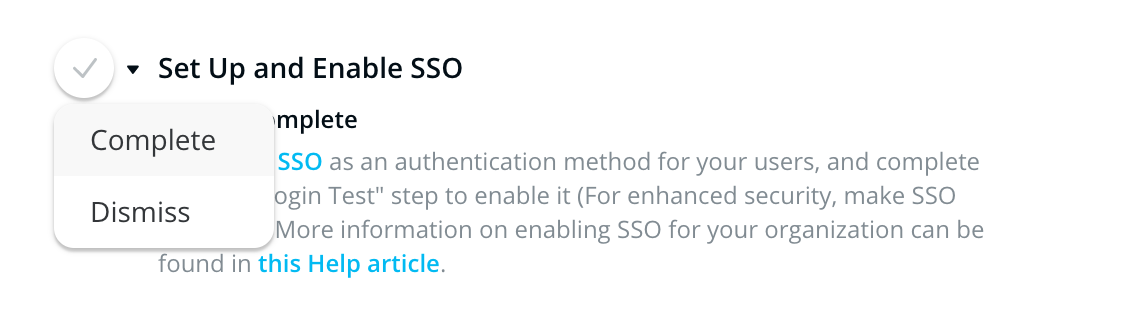
Next to the action item, click the checkmark and select **Complete** or **Dismiss**. If it has a dropdown arrow next to the item name, it does not count toward your completion percentage.
***
{% hint style="info" %}
**Prefer to see it in action?** Check out the [video tutorial](https://www.youtube.com/watch?v=vme3YdOdhsE).
{% endhint %}
---
# Agent Instructions
This documentation is published with GitBook. GitBook is the documentation platform designed so that both humans and AI agents can read, navigate, and reason over technical content effectively. Learn more at gitbook.com.
## Querying This Documentation
If you need additional information that is not directly available in this page, you can query the documentation by asking a question.
Perform an HTTP GET request on the following URL with the `ask` and `goal` query parameters:
```
GET https://help.verkada.com/command/security/privacy-and-security-disclosure/privacy-and-security-checklist.md?ask=&goal=
```
`ask` is the immediate question: it should be specific, self-contained, and written in natural language.
`goal` is what the user is ultimately trying to achieve, the reason they need the answer. Sharing it helps GitBook give you a better, more relevant answer. A goal is most helpful when it describes the outcome the user wants rather than restating the question. For example, with `ask=how do I create an API token`, a goal like `automate deployments from our CI pipeline` lets GitBook tailor the answer to that use case.
The response will contain a direct answer to the question and relevant excerpts and sources from the documentation.
Use this mechanism when the answer is not explicitly present in the current page, you need clarification or additional context, or you want to retrieve related documentation sections.