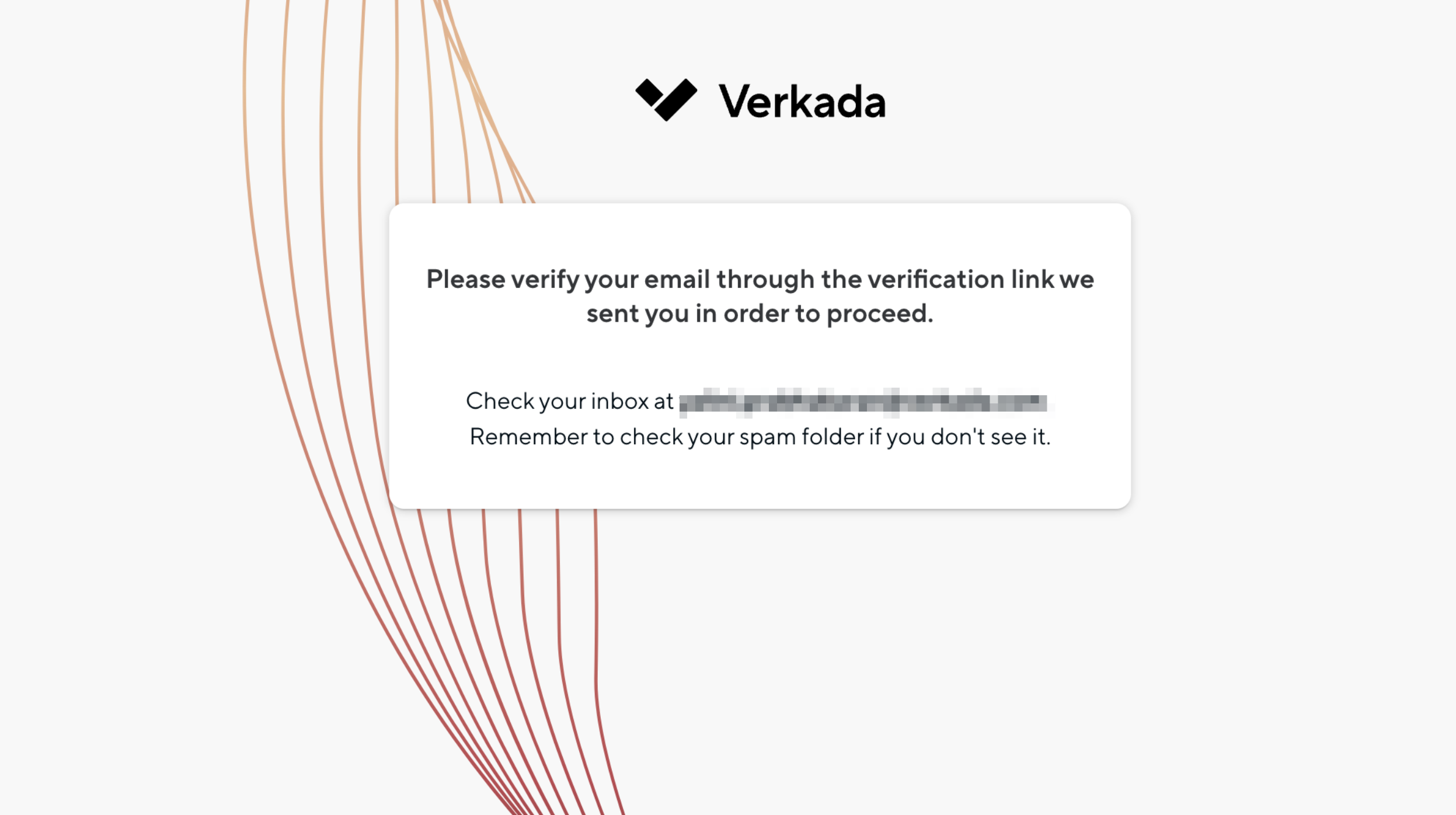
> For the complete documentation index, see [llms.txt](https://help.verkada.com/llms.txt). Markdown versions of documentation pages are available by appending `.md` to page URLs; this page is available as [Markdown](https://help.verkada.com/command/security/authentication-overview/verify-your-verkada-command-account.md).
# Verify Your Account
Learn how to verify your Verkada Command account and the email for your account
To enhance the security of your Command account, Verkada requires that all Command users have verified email addresses. Verifying your email ensures you receive all notifications and emails related to your Verkada Command account, including configured alerts.
***
## Verify your email
{% hint style="danger" %}
You must verify your email to receive any configured alerts in your org.
{% endhint %}
{% stepper %}
{% step %}
**Log in to your Verkada Command account.**
{% endstep %}
{% step %}
**At the bottom left, select your organization name.**
* If you see a **green checkmark** by your email, your email is verified.
* If not verified, click **Verify Email**.