> For the complete documentation index, see [llms.txt](https://help.verkada.com/llms.txt). Markdown versions of documentation pages are available by appending `.md` to page URLs; this page is available as [Markdown](https://help.verkada.com/command/organization-settings/integrations/verkada-splunk-integration.md).
# Splunk
Learn how to set up the Verkada Splunk integration
Splunk is a software platform that helps organizations search, monitor, and analyze data from various third-party sources. Verkada allows users to build out efficient workflows to push information from their Command organizations into their Splunk instances through a built-in integration.
When you integrate Verkada with Splunk, it allows you to centralize and analyze your video surveillance data within the broader context of your operational data, which enables better insights and decision-making. You can use this implementation to bring in people and vehicle counts across all cameras in your organization, including device notifications.
{% hint style="danger" %}
Before you begin, you must have:
* An active Splunk instance with Admin access. Learn more about [Roles and Permissions for Command](/command/users-and-permissions/roles-and-permissions-for-command.md).
* Org Admin permissions to your Verkada organization.
* A valid Verkada API key. Learn how to [generate a Verkada API key](https://apidocs.verkada.com/reference/quick-start-guide)
{% endhint %}
There are 2 ways you can set up the integration:
* [Download and install the Splunk Enterprise software](#h_c45403a4de)
* [Download and install the software on Splunkbase](#h_7b8e057156)
***
## Download and install the Splunk Enterprise software
{% stepper %}
{% step %}
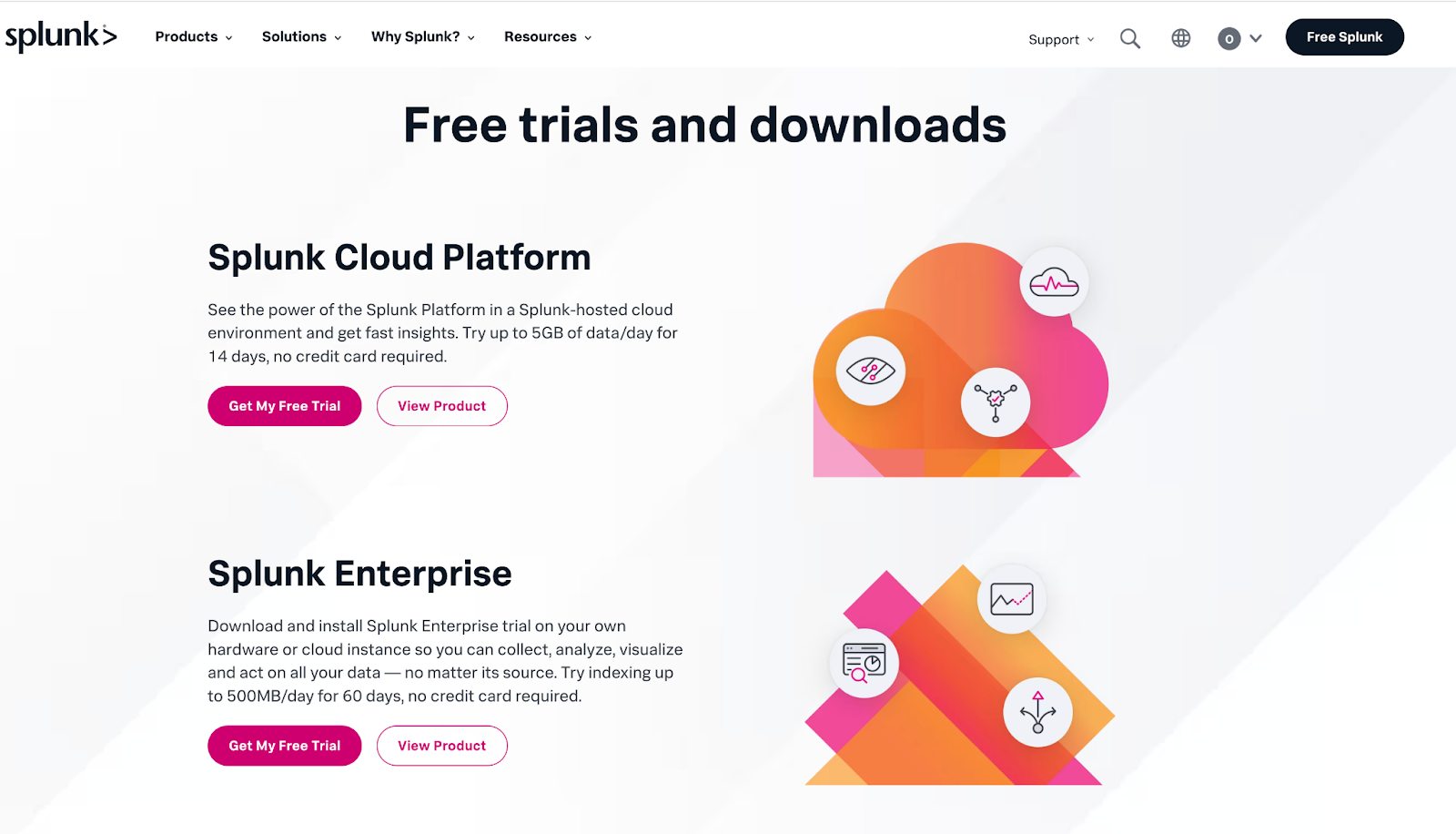
**Download the Splunk Enterprise software at** [**https://www.splunk.com/en\_us/download.html**](https://www.splunk.com/en_us/download.html)**. If you already have a Splunk Enterprise account installed and setup, proceed to step 4.**
{% endstep %}
{% step %}
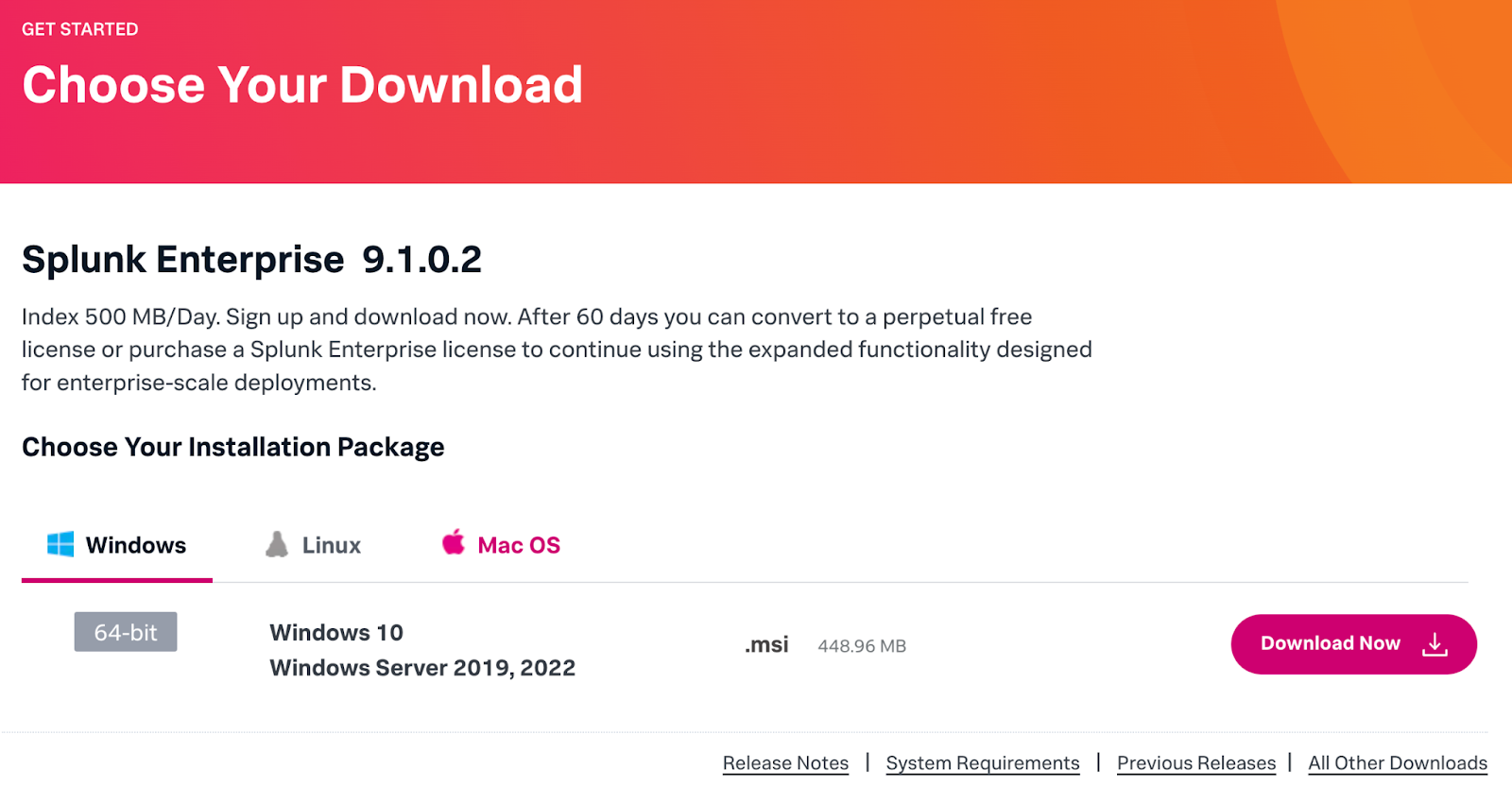
**Select the corresponding installation package, depending on the operating system you are running (Windows, Linux, or MacOS). We recommend downloading the .dmg package for an easier setup process.**
{% endstep %}
{% step %}
**Once the Splunk Enterprise package is installed, open the application. You should be redirected to a Terminal or PowerShell window where you can create your account credentials (username and password).**
\
**Important**: Keep these credentials. You need them (later) to log in to Splunk and set up the Verkada integration. Once you create your account, you should receive an email to verify your account. Be sure to check your inbox and complete this step before moving forward with the setup process.
{% endstep %}
{% step %}
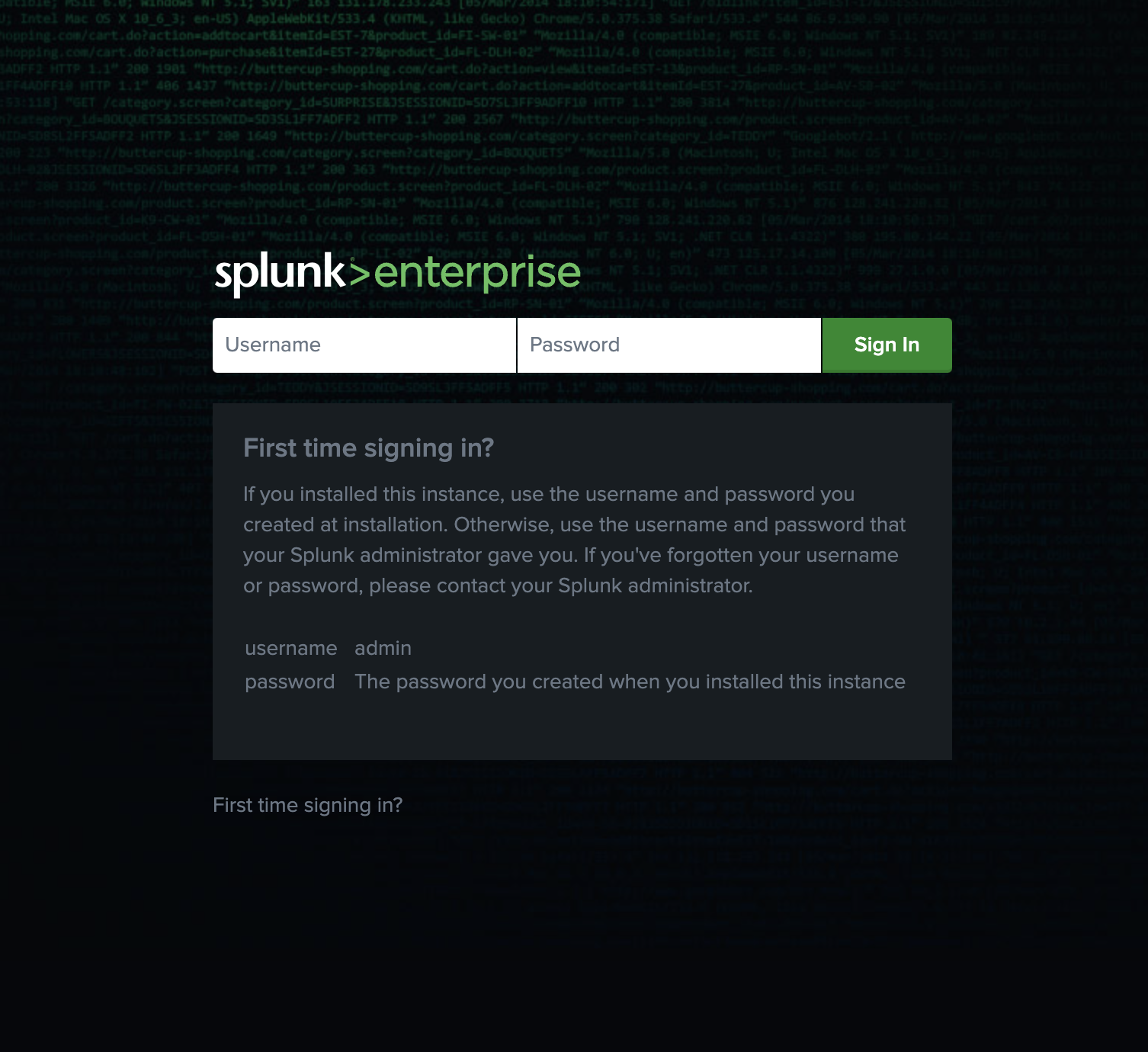
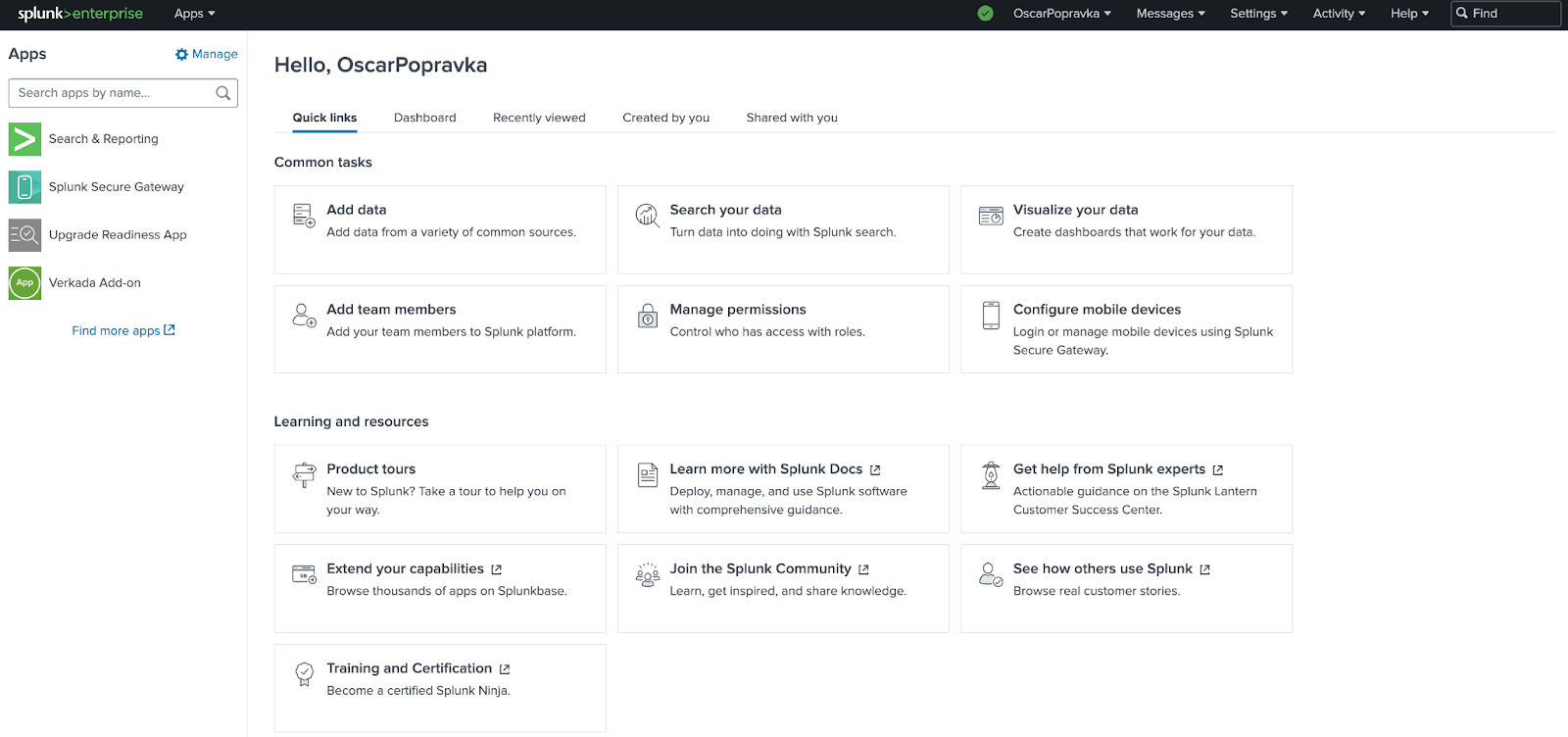
**The Splunk application should open automatically after setting your username and password. Log in using the credentials you set up in step 3. If the Splunk Enterprise window does not open, navigate to the following URL to log in:**
\
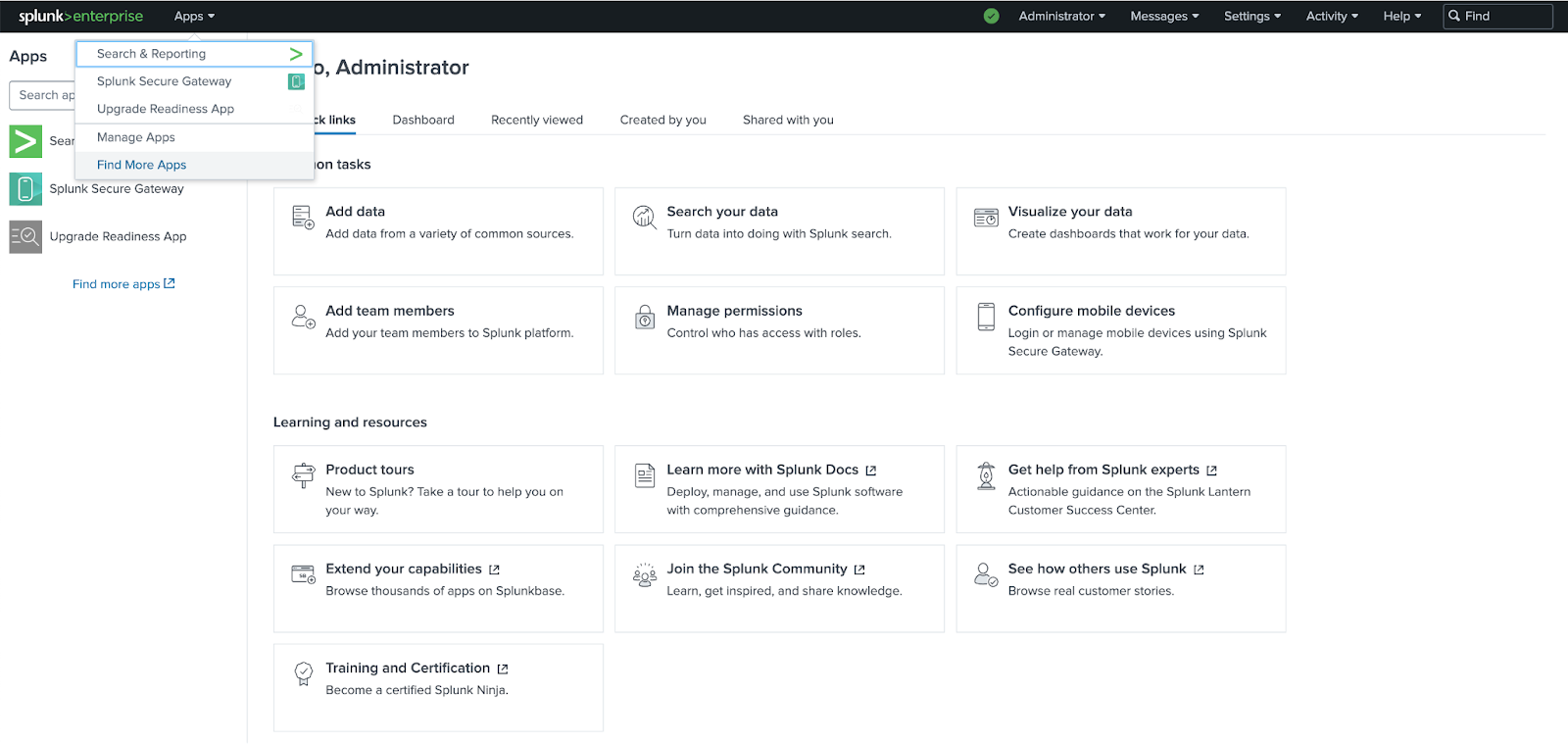
The Splunk homepage is where all of your applications for various integrations, including Verkada, are managed and configured.
{% endstep %}
{% step %}
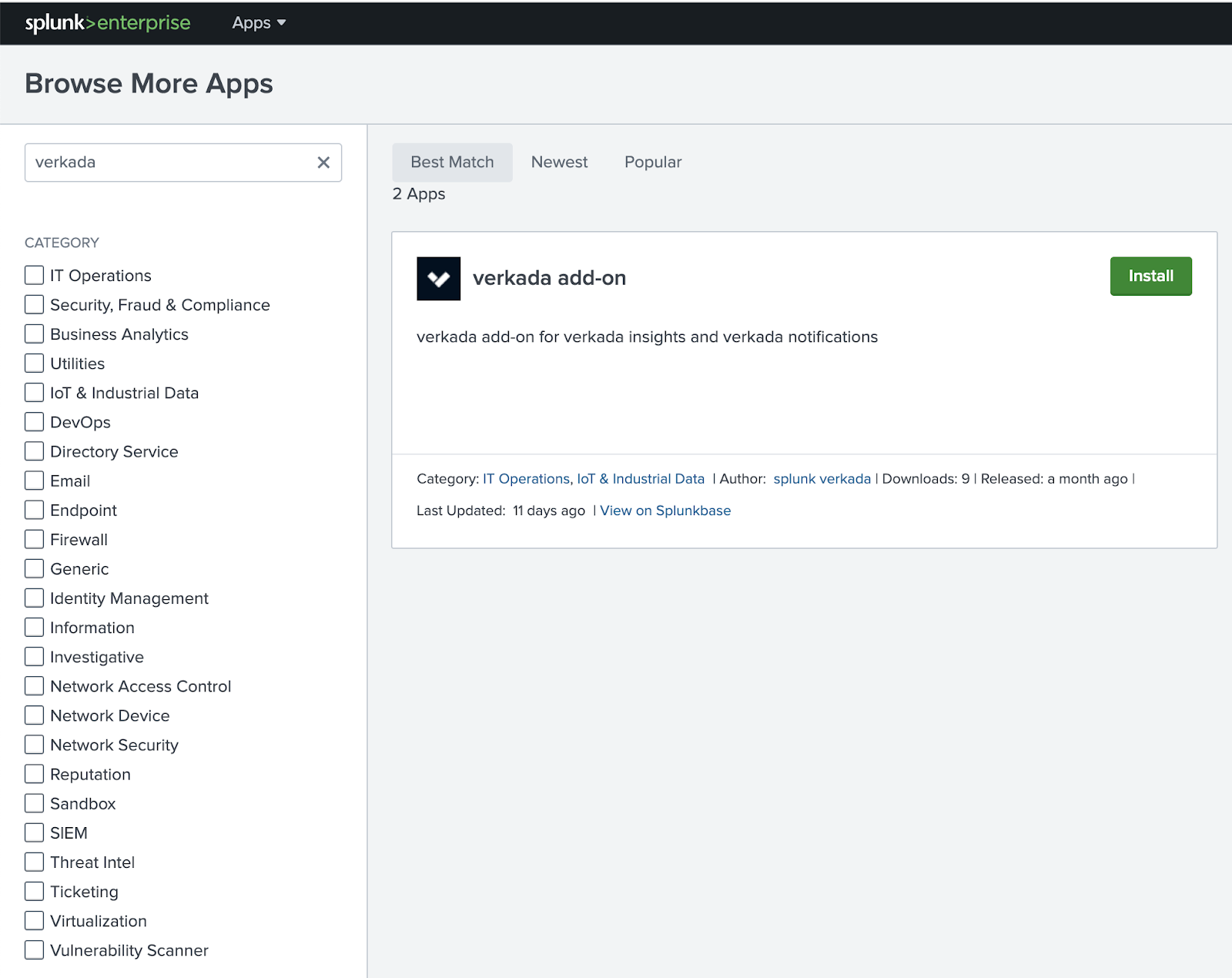
**At the top left, click the Apps dropdown and select Find more apps.**
{% endstep %}
{% step %}
**On Browse More Apps:**
a. In the search box, enter **Verkada**. This returns 2 applications.\
b. Install the Verkada application that has been most recently updated (**verkada add-on**).\
c. Click **Install** for the Verkada app.
{% endstep %}
{% step %}
**On Login and Install:**
1. Enter your Splunk account credentials to verify your account.
{% hint style="info" %}
These credentials are different from those created in step 3. To install the app, use the email and password used to log in to your general Splunk account. ().
{% endhint %}
2. Click **Agree and Install**.
{% endstep %}
{% endstepper %}
***
## Download and install the software on Splunkbase
If the [above install method](#h_c45403a4de) does not work, there is an alternative way described here.
{% stepper %}
{% step %}
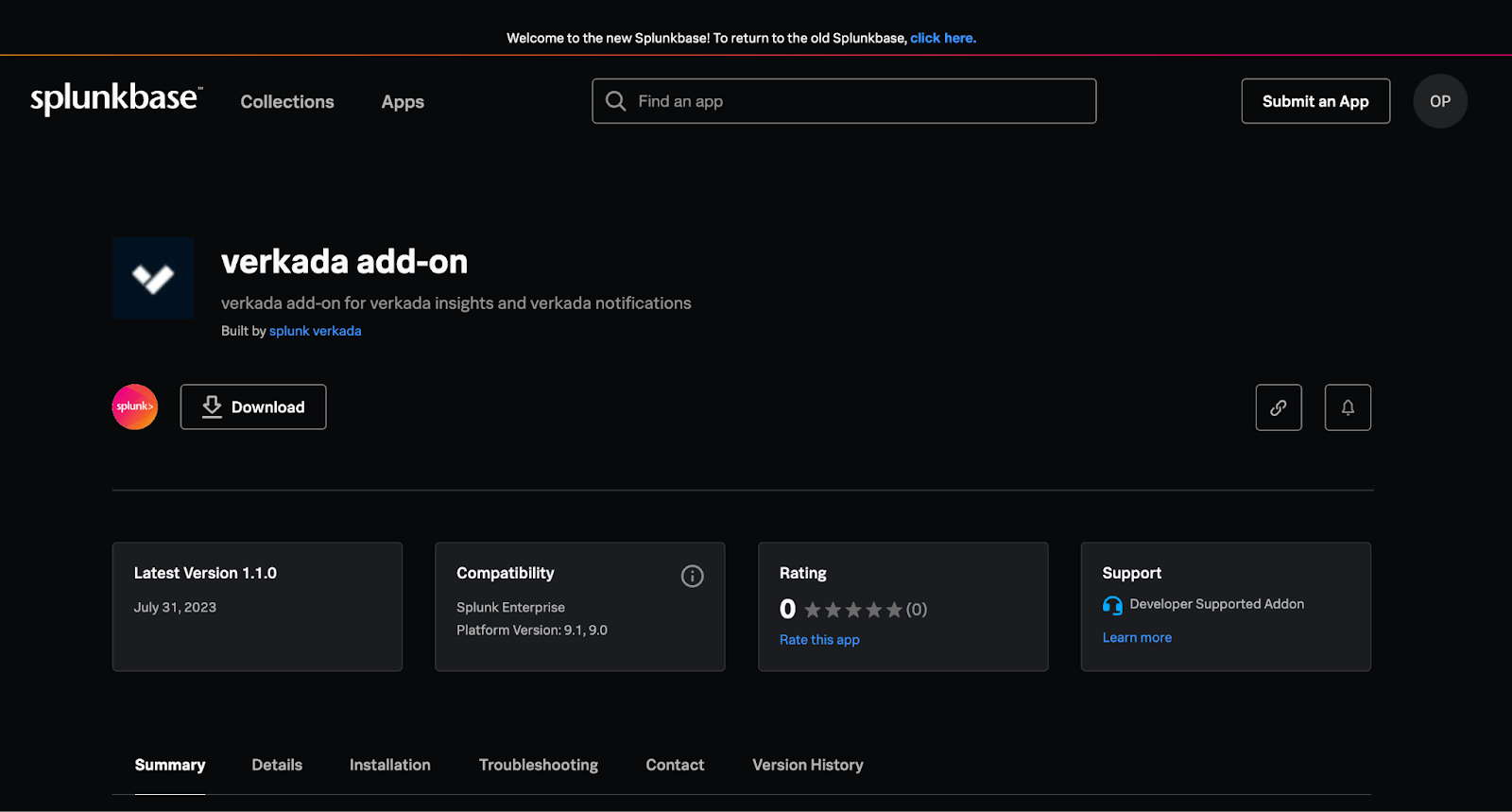
**Download the app at** [**https://splunkbase.splunk.com/app/6971**](https://splunkbase.splunk.com/app/6971)**.**
{% endstep %}
{% step %}
**Click Download to download the Verkada add-on application.**
{% endstep %}
{% step %}
**When the package is downloaded:**
a. Go back to your Splunk Enterprise account.\
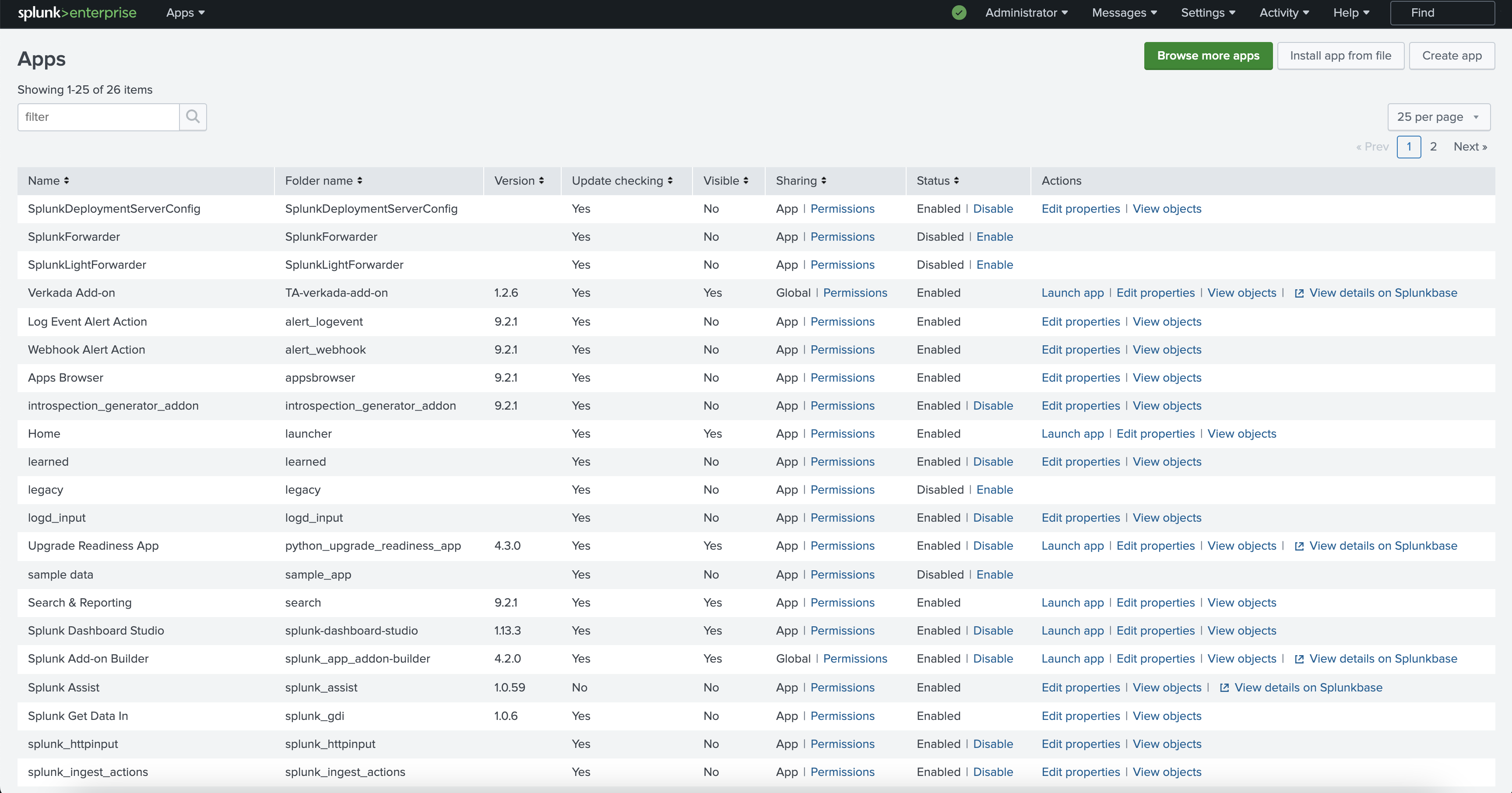
b. Under the **Apps** dropdown, select **Manage Apps**.
{% endstep %}
{% step %}
**On Manage Apps, at the top right, click Install app from file.**
{% endstep %}
{% step %}
**You are then redirected to a new page that prompts you to choose the install file for the application you want to add to your Splunk instance.**
{% endstep %}
{% step %}
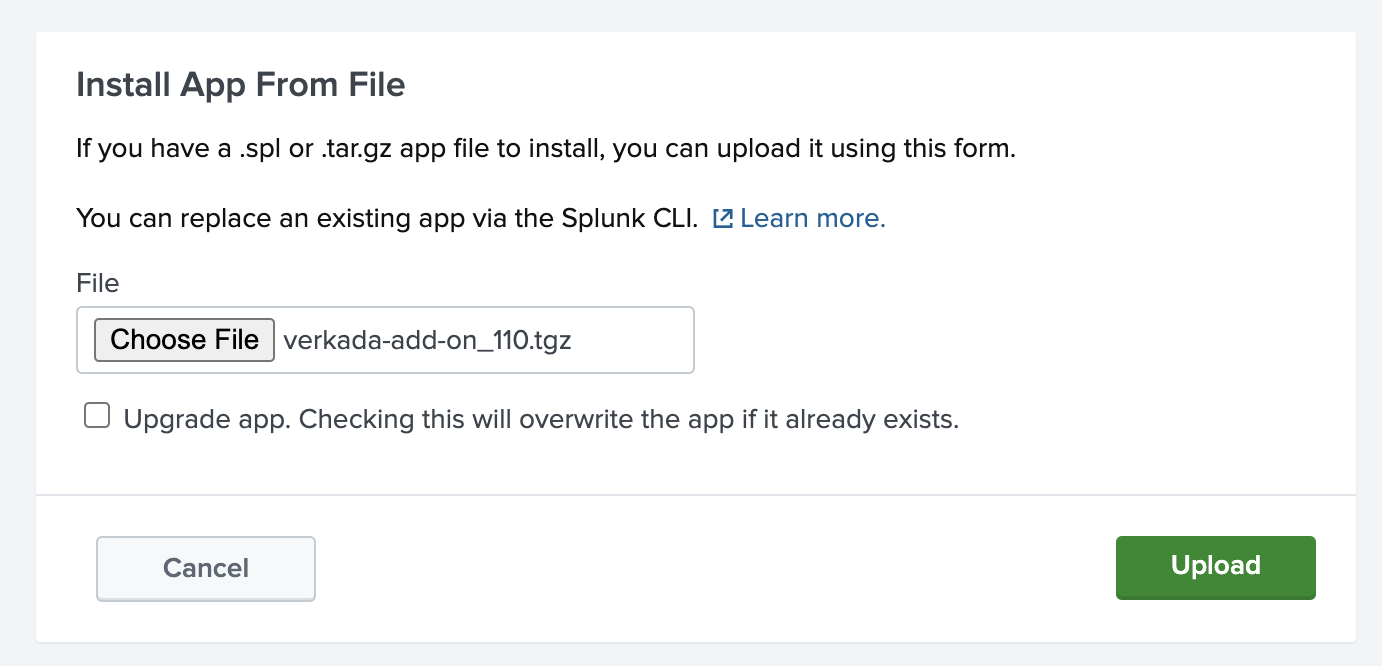
**On Install App From File:**
a. Click **Choose File**.\
b. In your **Downloads** folder, find the recently downloaded file (**verkada-add-on\_126.tgz**).\
c. Select the file and click **Upload**.
{% endstep %}
{% step %}
**Once the app is downloaded, under Apps, you should see the Verkada Add-On tab on your homepage.**
{% endstep %}
{% step %}
**Click the Verkada Add-On tab. This redirects you to a new page which is where you can set up and manage your Verkada integration.**
{% endstep %}
{% step %}
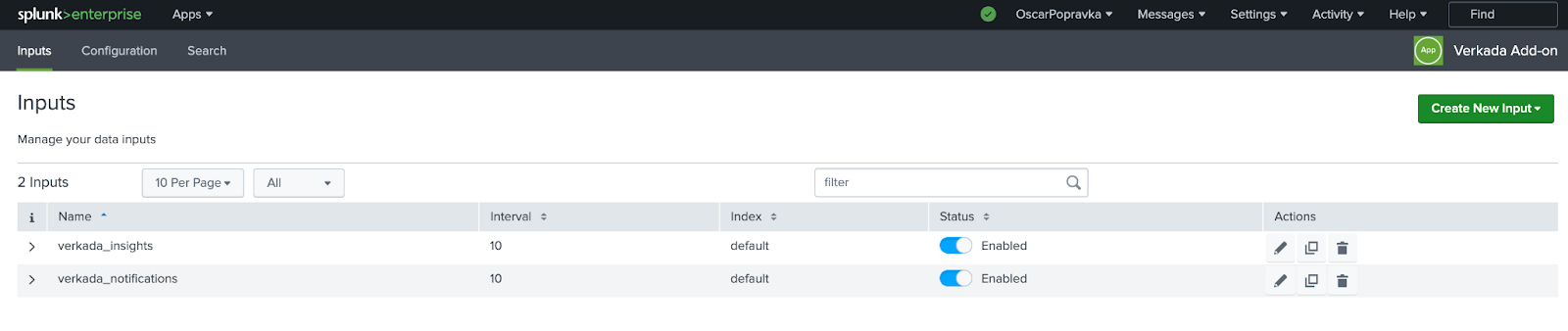
**On your Verkada App page, at the top right, click Add Input. This allows you to create 2 different types of inputs:**
* **verkada\_insights** provides the object-detection information for each camera in your organization. At regularly scheduled intervals, it displays the count for both people and vehicles that were detected, and the associated timestamp for those counts.
* **verkada\_notifications** provides the full list of all notifications generated by your Verkada devices.
{% endstep %}
{% step %}
**Depending on your use case with Verkada’s Splunk integration, create a new input for verkada\_insights, verkada\_notifications, or both.**
{% hint style="warning" %}
To generate results for both options, you need to create 2 separate inputs for each feature.\
{% endhint %}
{% endstep %}
{% step %}
**Once you have selected your input, you are prompted to enter the following settings:**
a. Unique name for your data input\
b. Time interval (in seconds) for each processed input\
c. Index (recommended **default**)\
d. Your Verkada Command organization ID\
e. Your [Verkada API key](https://apidocs.verkada.com/reference/quick-start-guide).\
f. Click **Add**.
{% endstep %}
{% step %}
**Once you have added this new data input, you can see it under the Verkada app’s Input tab, with the corresponding name that you created in step 11.**
{% endstep %}
{% step %}
**Verify that the integration is successful:**
a. Go to the **Search** tab.\
b. Enter **source="verkada\_insights"** or **source="verkada\_notifications"**, depending on the data input you configured.
{% endstep %}
{% endstepper %}
***
## Troubleshooting
When updating from version 1.1.0 to version 1.2.6, there may be some new inputs which may not show up immediately. If this is the case, please follow the steps below to resolve the issue:
* Restart your Splunk instance and log back into your account.
* If all 3 inputs are still not showing up, delete and reinstall the Verkada Add-On App:
1. Navigate to your Splunk Application directory.
2. Delete the folder `SPLUNK_HOME/etc/apps/TA-verkada-add-on`.
{% hint style="info" %}
You may need to restart your Splunk instance for the change to take effect.
{% endhint %}
3. Proceed back to step 1 of this setup guide to download the Verkada Add-On application from Splunk.
4. You should now see the new inputs under the Verkada application.
There may be other common issues that could lead to errors in data pulling:
* Expired Verkada API key.
* Incorrect Command Organization ID
For a more detailed view and understanding of ongoing integration issues, users can access the full Splunk logs located in `SPLUNK_HOME/var/log/splunk`. You can adjust the logging level in the add-on configuration tab.
---
# Agent Instructions
This documentation is published with GitBook. GitBook is the documentation platform designed so that both humans and AI agents can read, navigate, and reason over technical content effectively. Learn more at gitbook.com.
## Querying This Documentation
If you need additional information that is not directly available in this page, you can query the documentation by asking a question.
Perform an HTTP GET request on the following URL with the `ask` and `goal` query parameters:
```
GET https://help.verkada.com/command/organization-settings/integrations/verkada-splunk-integration.md?ask=&goal=
```
`ask` is the immediate question: it should be specific, self-contained, and written in natural language.
`goal` is what the user is ultimately trying to achieve, the reason they need the answer. Sharing it helps GitBook give you a better, more relevant answer. A goal is most helpful when it describes the outcome the user wants rather than restating the question. For example, with `ask=how do I create an API token`, a goal like `automate deployments from our CI pipeline` lets GitBook tailor the answer to that use case.
The response will contain a direct answer to the question and relevant excerpts and sources from the documentation.
Use this mechanism when the answer is not explicitly present in the current page, you need clarification or additional context, or you want to retrieve related documentation sections.