> For the complete documentation index, see [llms.txt](https://help.verkada.com/llms.txt). Markdown versions of documentation pages are available by appending `.md` to page URLs; this page is available as [Markdown](https://help.verkada.com/command/licensing/manage-your-licenses/license-groups.md).
# License Groups
Learn how to set up and manage license groups in Verkada Command
All licensing in your Command organization typically co-terminates on a single expiration date. This limits your ability to distribute licenses across sites, budgets, or departments with different renewal dates and budget cycles.
License groups let you organize licenses and devices by site, region, or cost center, providing flexibility, improved visibility, and easier administration. Each group has its own renewal date and license capacity while remaining part of the same Command organization.
{% hint style="info" %}
We recommend starting with [Manage Licenses](/command/licensing/manage-your-licenses.md) to learn how organization-wide license management works if you are new to Verkada licensing.
{% endhint %}
***
### What is a license group?
License groups enable you to organize licenses into separate groups based on your specific needs, providing enhanced visibility, simplified administration, and support for internal budgeting, particularly for larger organizations with multiple departments or independently managed buildings.
Each license group serves as a container for Org Admins to organize licenses by site, budget, or cost center. Rather than managing all licenses at the organization level, you must assign them to specific groups, each with its own renewal date, while keeping everything within a single organization.
{% hint style="warning" %}
Licenses within each group still co-term to a single expiration date.
{% endhint %}
***
## Unassigned licenses
All unassigned licenses and sites are managed in the **Unassigned Licenses** section of the License Group dashboard. This section lets you review and assign unassigned resources to specific license groups, improving license management.
Licenses in this section continue to burn individually and are not co-termed with other groups until assigned. Sites display their creation date and a countdown of days remaining before their licenses begin co-terming.
***
## Default license group
All licenses are added to the default license group called *Group 1.* You can move licenses once you [create new groups](#h_721299d040). You can also rename the default group to reflect its purpose, such as a region or department.
***
## Enable license groups
{% stepper %}
{% step %}
**In Command, go to All Products > Admin.**
{% endstep %}
{% step %}
**Under Org Settings, select Feature Manager.**
{% endstep %}
{% step %}
**Under Administration, select Enable next to License Groups.**
{% endstep %}
{% endstepper %}
***
## Create a license group
{% hint style="danger" %}
You need Org Admin permissions to create a license group.
{% endhint %}
{% stepper %}
{% step %}
**In Command, go to All Products > Admin.**
{% endstep %}
{% step %}
**Under Org Settings, select Licenses & Renewals.**
{% endstep %}
{% step %}
**Select License Groups.**
{% endstep %}
{% step %}
**At the top, click** :plus: **Groups.**
You can create a new license group or create one from a site.
{% endstep %}
{% step %}
**Create a new group:**
1. Select **Create New License Group.**
2. Enter a name for the group.
3. Click :check: to create the group.
{% endstep %}
{% step %}
**Create a group from a site.**
1. Select **Create License Groups from Sites.**
2. Select a site and click **Create.**
{% endstep %}
{% endstepper %}
***
## Claim a new license key to a group
You can assign new purchases to the appropriate license group when you claim your license key. You can [find the license key](/command/licensing/manage-your-licenses/find-and-add-license-keys-to-command.md) in your Verkada order email.
{% stepper %}
{% step %}
**In Command, go to All Products > Admin.**
{% endstep %}
{% step %}
**Under Org Settings, select Licenses & Renewals.**
{% endstep %}
{% step %}
**Select License Keys.**
{% endstep %}
{% step %}
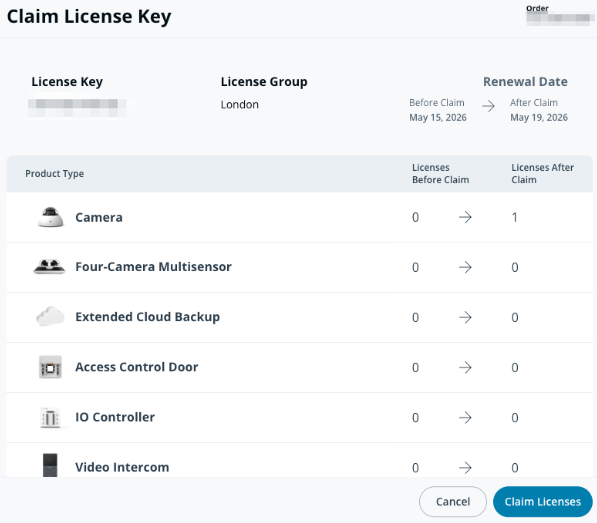
**In the top right, click Claim.**
1. Enter the license key from your order email and click **Next**.
2. Review the license key details and click **Claim**.
3. Select your license group and click **Next**.
4. You’ll see a preview of how the license will be co-terminated within the license group. Click **Claim Licenses** to confirm.
{% endstep %}
{% endstepper %}
{% hint style="info" %}
You can transfer license keys between license groups to match capacity with your devices and sites.
{% endhint %}
***
## Add an existing license key to a group
{% stepper %}
{% step %}
**In Command, go to All Products > Admin.**
{% endstep %}
{% step %}
**Under Org Settings, select Licenses & Renewals.**
{% endstep %}
{% step %}
**Select License Keys.**
1. Select the checkbox next to your license key.
2. At the top right, click **Move.**
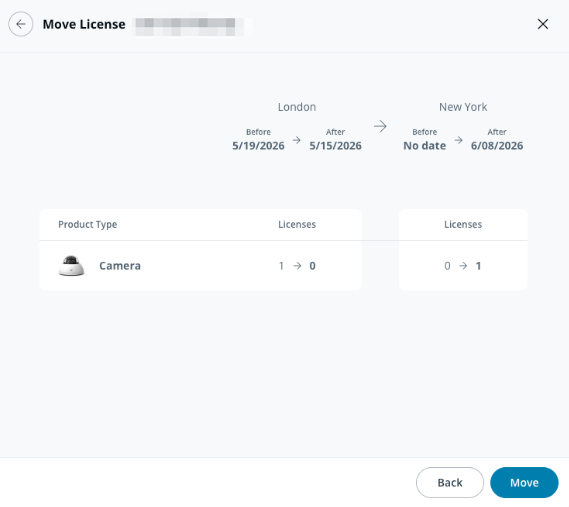
3. Review the license key overview and click **Move.**
4. Select a license group and click **Next.**
5. Review the summary of how the active devices will be updated and their impact on the original group. Click **Move** to confirm.
{% endstep %}
{% endstepper %}
***
## Manage license group renewals
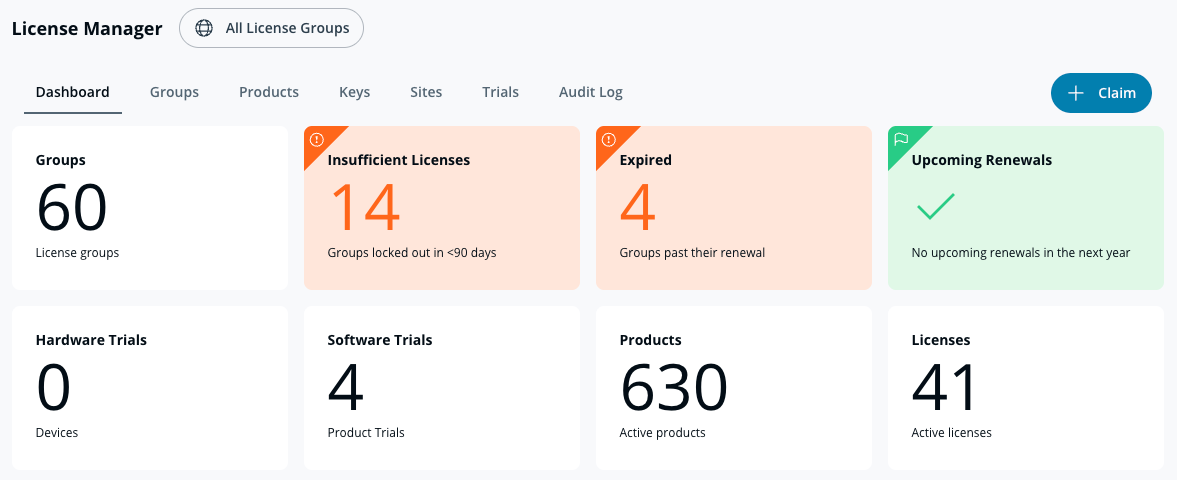
You can manage license groups from the **All License Groups** tab, which shows an overview of each group and its upcoming renewal date. Each group handles the renewal of its assigned licenses.
{% stepper %}
{% step %}
**In Command, go to All Products > Admin.**
{% endstep %}
{% step %}
**Under Org Settings, select Licenses & Renewals.**
{% endstep %}
{% step %}
**Select License Groups.**
1. Select a license group.
2. Here you can view all the product types in the group and their compliance state.
{% endstep %}
{% endstepper %}
***
## Link an existing site to a license group
You must assign existing sites to license groups to link their devices with the corresponding licenses, allowing you to track active device counts against each group’s license capacity. All devices in a site linked to a license group will have their licenses co-terminated.
{% hint style="warning" %}
A site can only be assigned to one license group, while a license group can contain multiple sites.
{% endhint %}
{% stepper %}
{% step %}
**In Command, go to All Products > Admin.**
{% endstep %}
{% step %}
**Under Org Settings, select Licenses & Renewals.**
{% endstep %}
{% step %}
**Select Sites.**
1. Select a site with an Unassigned license group.
2. At the top right, click **Move.**
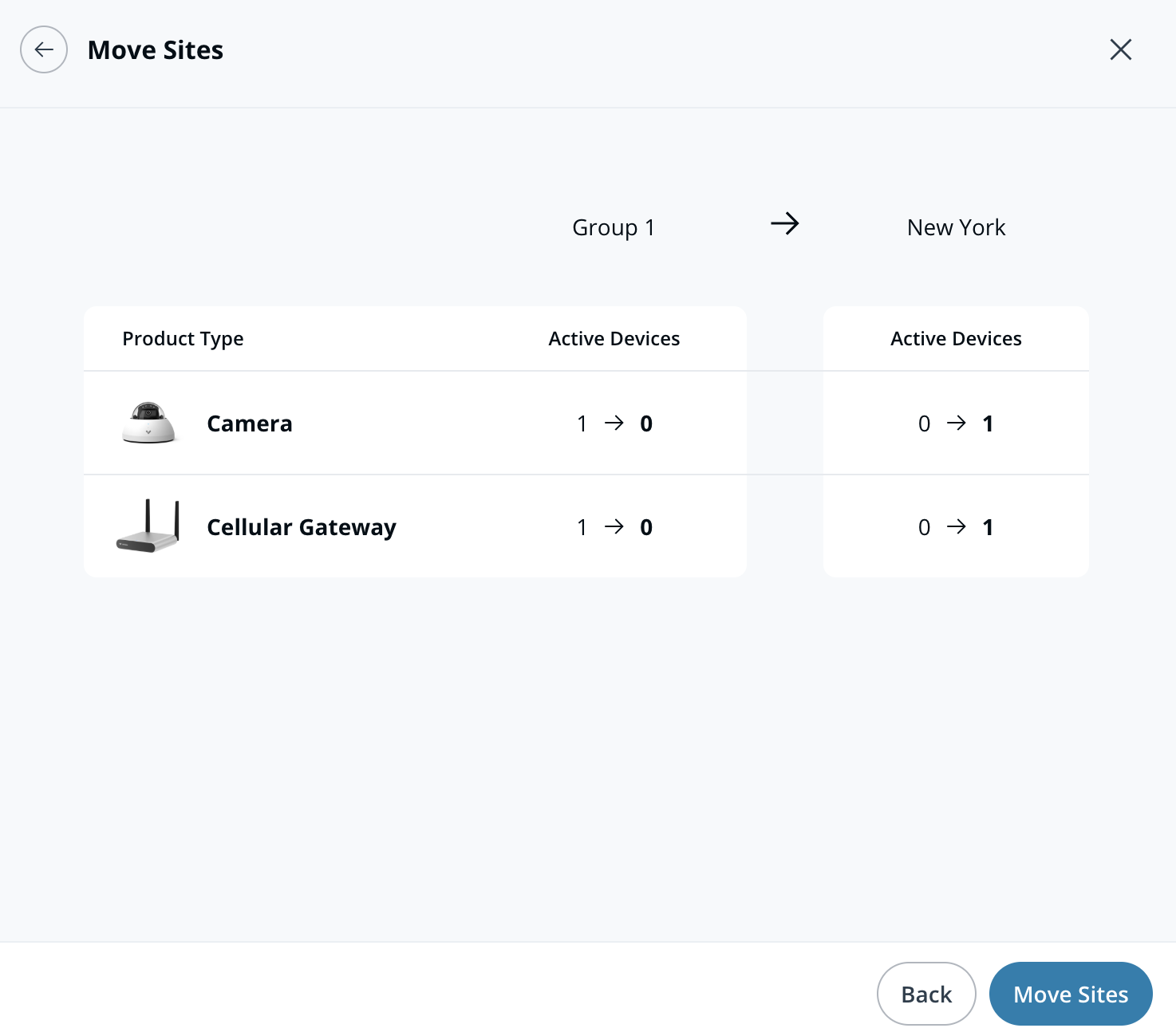
3. Select a license group and click **Next.**
4. Review the summary of how the active devices will be updated and its impact on the original group. Click **Move Sites** to confirm.
{% endstep %}
{% endstepper %}
{% hint style="warning" %}
Moving a site and its devices to a new License Group updates the active device counts. Licenses are not moved automatically, so you must transfer license keys separately to keep device counts and license capacity aligned.
{% endhint %}
***
## Split license keys
License key splitting lets you divide a single license key into multiple keys to allocate capacity across license groups more precisely. This is useful for aligning historical bulk orders with your organizational structure.
### How it works
* You can split one license key into two new keys.
* Splitting automatically unclaims the original key; you must manually claim the new keys to the appropriate license groups.
* Split keys inherit the original order number and creation date.
* The system calculates proportional credit allocation for each split key, preserving the total credit count.
### Split a license key
{% stepper %}
{% step %}
**In Command, go to All Products > Admin.**
{% endstep %}
{% step %}
**Under Org Settings, select Licenses & Renewals.**
{% endstep %}
{% step %}
**Select License Keys.**
{% endstep %}
{% step %}
**Next to the license key you want to split, click** :shuffle:**.**
1. Enter the quantities to allocate to each new license key, then click **Next**.
2. Select the license group for each new license key and click **Next.**
3. Review the new allocations and click **Confirm Split.**
{% endstep %}
{% endstepper %}
***
## License group enforcement and access restrictions
When a license group becomes non-compliant due to expiration or exceeding license capacity, the linked sites and their devices, including any sub-sites, become inaccessible to users.
This enforcement affects only the non-compliant license group and its associated sites and devices, not the entire organization. License groups operate independently for access and compliance, minimizing disruption across the broader organization.
***
## FAQ
Can a site be assigned to multiple license groups?
No. Each site can be assigned to only one license group at a time, but a license group can include multiple sites.
Can I remove a license key from a group?
You can’t fully remove a license key from a group, but you can reassign it to a different license group at any time.
What happens if I move a site without transferring its corresponding licenses?
Devices move with the site, updating device counts in the license groups. Licenses remain in the original license group until moved manually, so you must transfer license keys to maintain compliance.
---
# Agent Instructions
This documentation is published with GitBook. GitBook is the documentation platform designed so that both humans and AI agents can read, navigate, and reason over technical content effectively. Learn more at gitbook.com.
## Querying This Documentation
If you need additional information that is not directly available in this page, you can query the documentation by asking a question.
Perform an HTTP GET request on the following URL with the `ask` and `goal` query parameters:
```
GET https://help.verkada.com/command/licensing/manage-your-licenses/license-groups.md?ask=&goal=
```
`ask` is the immediate question: it should be specific, self-contained, and written in natural language.
`goal` is what the user is ultimately trying to achieve, the reason they need the answer. Sharing it helps GitBook give you a better, more relevant answer. A goal is most helpful when it describes the outcome the user wants rather than restating the question. For example, with `ask=how do I create an API token`, a goal like `automate deployments from our CI pipeline` lets GitBook tailor the answer to that use case.
The response will contain a direct answer to the question and relevant excerpts and sources from the documentation.
Use this mechanism when the answer is not explicitly present in the current page, you need clarification or additional context, or you want to retrieve related documentation sections.