> For the complete documentation index, see [llms.txt](https://help.verkada.com/llms.txt). Markdown versions of documentation pages are available by appending `.md` to page URLs; this page is available as [Markdown](https://help.verkada.com/command/ko/organization-settings/integrations/set-up-verkada-alerts-for-slack-and-teams.md).
# 메시징 플랫폼 알림
Verkada를 선호하는 메시징 플랫폼과 연동하여 통신 채널에서 직접 알림을 받아보세요. 이러한 연동을 통해 사용자는 Person of Interest 이벤트, AI 기반 알림, 문 강제 개방 이벤트, TVOC 알림 등 Verkada Command에서 생성되는 모든 알림을 받을 수 있습니다!
***
{% tabs %}
{% tab title="Slack" %}
{% stepper %}
{% step %}
**Command에서 모든 제품 > 관리자로 이동합니다.**
{% endstep %}
{% step %}
**왼쪽 탐색 메뉴에서 Org Settings > Verkada API and Integrations를 선택합니다.**
{% endstep %}
{% step %}
**Integrations에서 Add Integration을 클릭합니다.**
{% endstep %}
{% step %}
**Slack을 선택합니다.**
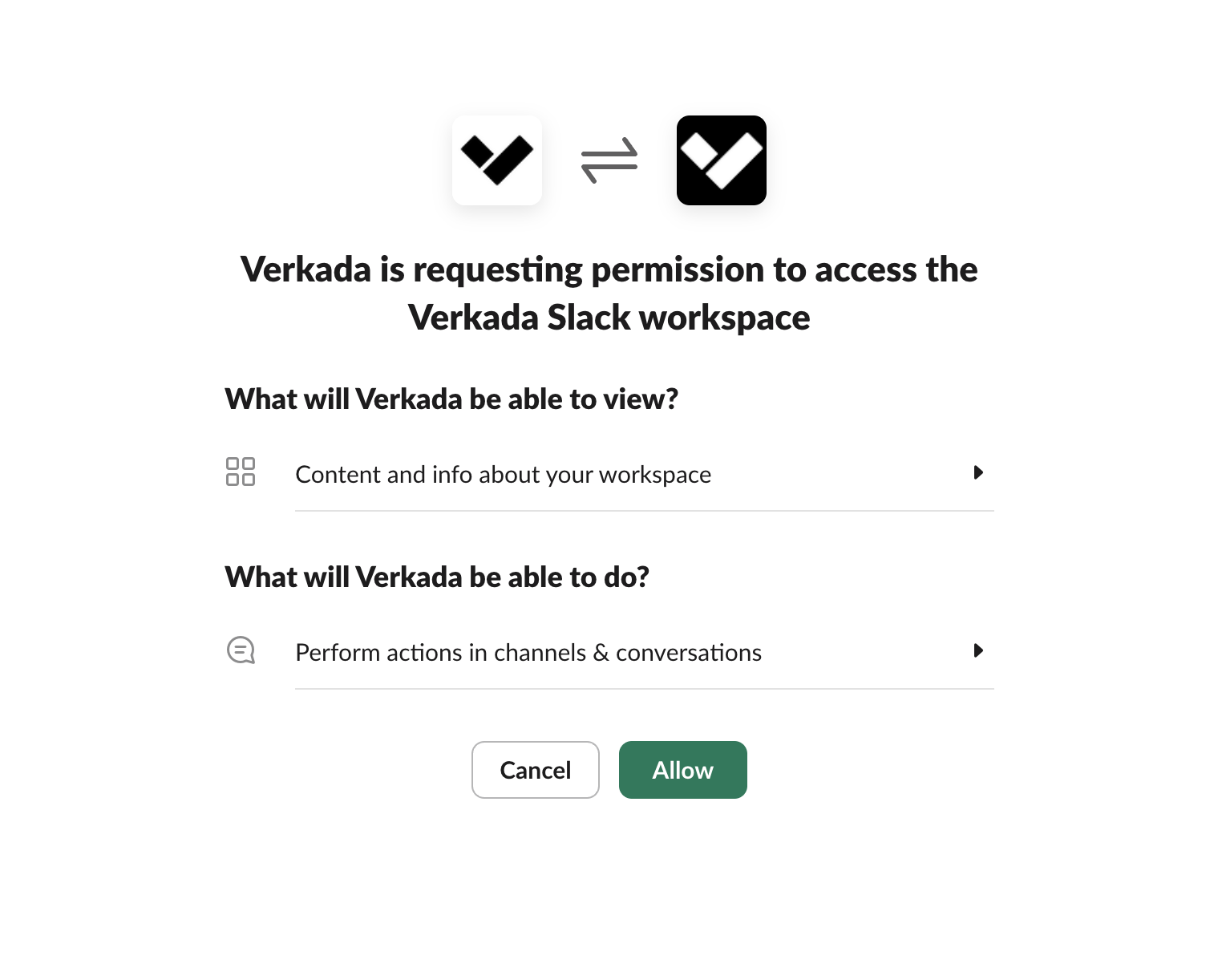
a. 이렇게 하면 Slack 인증 페이지로 이동합니다. Verkada Command 계정을 현재 워크스테이션에서 로그인해 있는 Slack 계정과 연결합니다.\
b. 이 연동에 필요한 요청 권한을 검토한 다음 **허용을 클릭합니다.**
{% endstep %}
{% step %}
**새 알림을 생성하거나 기존 알림을 편집할 때, 사용자는 이제 구성한 알림의 수신자로 자신의 Slack 계정을 추가할 수 있습니다. 이러한 알림은 알림을 구성한 사용자에게 직접 전송됩니다.**
{% hint style="info" %}
참조하세요 [Verkada 제품 전반에서 알림 생성](/command/ko/organization-settings/create-alerts-across-verkada-products.md) 를 참조하세요.
{% endhint %}
{% endstep %}
{% endstepper %}
{% endtab %}
{% tab title="Microsoft Teams" %}
{% hint style="danger" %}
다음을 수행해야 합니다. [타사 앱에 대한 권한을 사용 설정해야 합니다](https://learn.microsoft.com/en-us/microsoftteams/manage-apps) Verkada 연동을 설정하기 전에 Teams 플랫폼에 설치할 수 있습니다.
{% endhint %}
{% stepper %}
{% step %}
**Command에서 모든 제품 > 관리자로 이동합니다.**
{% endstep %}
{% step %}
**왼쪽 탐색 메뉴에서 Org Settings > Verkada API and Integrations를 선택합니다.**
{% endstep %}
{% step %}
**Integrations에서 Add Integration을 클릭합니다.**
{% endstep %}
{% step %}
**Microsoft Teams를 선택합니다.**
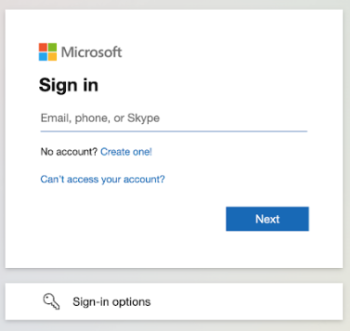
a. 이렇게 하면 Microsoft Teams 로그인 페이지로 이동합니다. Microsoft 계정과 연결된 이메일 주소와 비밀번호를 입력합니다.
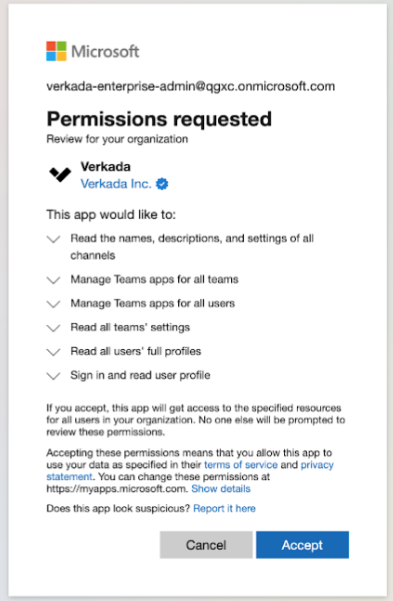
b. 이 연동에 필요한 요청 권한을 검토한 다음 **수락**.
{% endstep %}
{% step %}
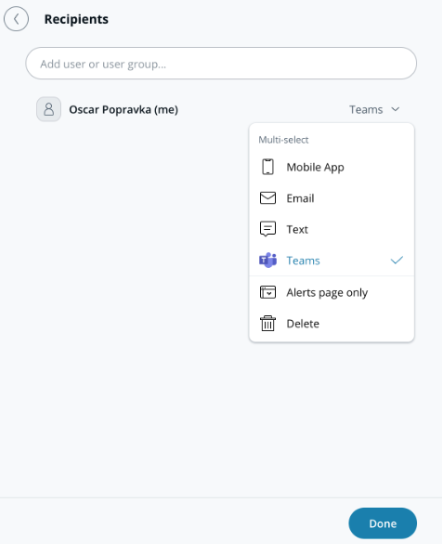
**새 알림을 생성하거나 기존 알림을 편집할 때, 사용자는 이제 구성한 알림의 수신자로 자신의 Microsoft Teams 계정을 추가할 수 있습니다. 이러한 알림은 알림을 구성한 사용자에게 직접 전송됩니다.**
{% hint style="info" %}
참조하세요 [Verkada 제품 전반에서 알림 생성](/command/ko/organization-settings/create-alerts-across-verkada-products.md) 를 참조하세요.
{% endhint %}
{% endstep %}
{% endstepper %}
{% endtab %}
{% endtabs %}
---
# Agent Instructions
This documentation is published with GitBook. GitBook is the documentation platform designed so that both humans and AI agents can read, navigate, and reason over technical content effectively. Learn more at gitbook.com.
## Querying This Documentation
If you need additional information that is not directly available in this page, you can query the documentation by asking a question.
Perform an HTTP GET request on the following URL with the `ask` and `goal` query parameters:
```
GET https://help.verkada.com/command/ko/organization-settings/integrations/set-up-verkada-alerts-for-slack-and-teams.md?ask=&goal=
```
`ask` is the immediate question: it should be specific, self-contained, and written in natural language.
`goal` is what the user is ultimately trying to achieve, the reason they need the answer. Sharing it helps GitBook give you a better, more relevant answer. A goal is most helpful when it describes the outcome the user wants rather than restating the question. For example, with `ask=how do I create an API token`, a goal like `automate deployments from our CI pipeline` lets GitBook tailor the answer to that use case.
The response will contain a direct answer to the question and relevant excerpts and sources from the documentation.
Use this mechanism when the answer is not explicitly present in the current page, you need clarification or additional context, or you want to retrieve related documentation sections.