> For the complete documentation index, see [llms.txt](https://help.verkada.com/llms.txt). Markdown versions of documentation pages are available by appending `.md` to page URLs; this page is available as [Markdown](https://help.verkada.com/command-connector/ja/she-ding/configure-two-ethernet-ports-for-command-connector.md).
# Command Connector の 2 つのイーサネットポートを設定する
Command Connector の第2インターフェースを設定する
Command Connectorは、2つのインターフェースを使用して動作するように設定できます。これにより、1つのネットワークインターフェースでインターネットに接続し、もう1つでローカルのカメラネットワークに直接接続できます。
{% hint style="danger" %}
Command Connector は、で定義されているプライベート IP アドレスをサポートします。 [RFC 1918](https://datatracker.ietf.org/doc/rfc1918/)。これは、RFCで指定されている10.0.0.0/8、172.16.0.0/12、192.168.0.0/16などのプライベートIP範囲のみが、Command Connectorインターフェースと互換性があることを意味します。
{% endhint %}
### 始める前に
* Command Connectorを、以下へのアクセスがあるネットワークに接続します [Verkadaエンドポイント](/command-connector/ja/hajimeni/command-connector-network-settings.md) を、1つのEthernetポートのみを使用して。
* Verkada Commandに到達できるようにし、最新のファームウェアに更新します。
* 設定を開始する前に、接続されているEthernetポートが1つだけであることを確認してください。
* 静的IPが設定されている場合は、2つ目のポートを設定する前にCommand ConnectorをDHCPに戻してください。
***
## 構成
{% hint style="danger" %}
のみ [サイト管理者](/verkada-cameras/ja/hajimeni/roles-and-permissions-for-cameras.md) が静的 IP 構成を有効化または変更できます。
{% endhint %}
{% stepper %}
{% step %}
**Verkada Command で、All Products > Devices に移動します。**
{% endstep %}
{% step %}
**構成する Command Connector を選択します。**
{% endstep %}
{% step %}
**右側の[設定]をクリックします。**
{% endstep %}
{% step %}
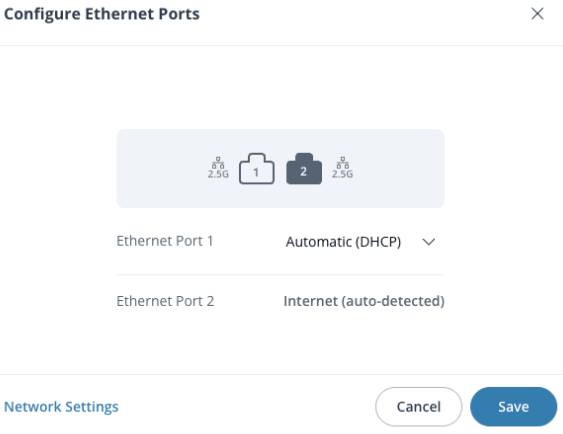
**[一般]>[Ethernetポート]の下で、ドロップダウンをクリックし、[Dual]を選択します。**
{% endstep %}
{% step %}
**Command Connectorは、現在接続されているポートを自動的に検出し、インターネットポートとして割り当てます。**
**重要:** この手順では、意図したインターネットポートのみが接続されていることを確認してください。
{% endstep %}
{% step %}
**デフォルトでは、2つ目のポートはDHCPに設定されます。2つ目のポートに静的IPを設定するには、[Manual]を選択します。**
{% endstep %}
{% step %}
**[保存]をクリックして設定プロセスを開始します。(最大30秒かかる場合があります。)**
{% endstep %}
{% step %}
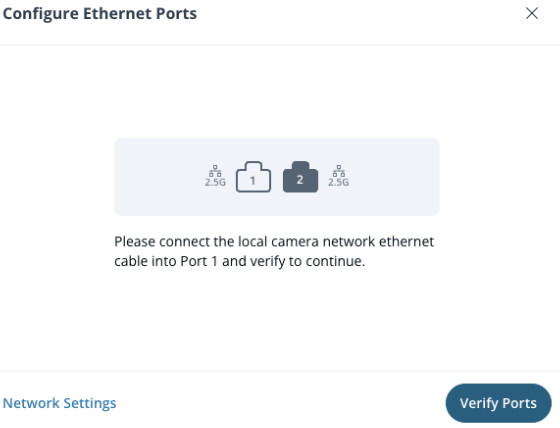
**保存したら、2本目のEthernetケーブルをCommand Connectorに接続し、[ポートを確認]をクリックします。**
{% endstep %}
{% endstepper %}
{% hint style="warning" %}
* インターネット側のポートは、以下を使用して動作する必要があります **DHCP**.
* カメラネットワークポートは、以下のいずれかを使用して動作できます **DHCP** または **静的IP**.
{% endhint %}
***
## トラブルシューティング
誤ってCommand Connectorからインターネットポートを外してしまった場合、どのポートがインターネットアクセス用に割り当てられているかを簡単に特定できます:
{% stepper %}
{% step %}
**Verkada Commandで、[All Products]>[Cameras]に移動します。**
{% endstep %}
{% step %}
**構成する Command Connector を選択します。**
{% endstep %}
{% step %}
**右側で、設定 をクリックします。**
{% endstep %}
{% step %}
**下にスクロールして、[一般]>[Ethernetポート]を開きます。**
{% endstep %}
{% step %}
**このページには、割り当てられたインターネットポートが表示されます。通信を復旧するには、Ethernetケーブルを再接続してください。**
{% endstep %}
{% endstepper %}
---
# Agent Instructions
This documentation is published with GitBook. GitBook is the documentation platform designed so that both humans and AI agents can read, navigate, and reason over technical content effectively. Learn more at gitbook.com.
## Querying This Documentation
If you need additional information that is not directly available in this page, you can query the documentation by asking a question.
Perform an HTTP GET request on the following URL with the `ask` and `goal` query parameters:
```
GET https://help.verkada.com/command-connector/ja/she-ding/configure-two-ethernet-ports-for-command-connector.md?ask=&goal=
```
`ask` is the immediate question: it should be specific, self-contained, and written in natural language.
`goal` is what the user is ultimately trying to achieve, the reason they need the answer. Sharing it helps GitBook give you a better, more relevant answer. A goal is most helpful when it describes the outcome the user wants rather than restating the question. For example, with `ask=how do I create an API token`, a goal like `automate deployments from our CI pipeline` lets GitBook tailor the answer to that use case.
The response will contain a direct answer to the question and relevant excerpts and sources from the documentation.
Use this mechanism when the answer is not explicitly present in the current page, you need clarification or additional context, or you want to retrieve related documentation sections.