> For the complete documentation index, see [llms.txt](https://help.verkada.com/llms.txt). Markdown versions of documentation pages are available by appending `.md` to page URLs; this page is available as [Markdown](https://help.verkada.com/command-connector/ja/she-ding/configure-a-non-verkada-ptz-pan-tilt-zoom-camera.md).
# 非Verkada PTZ(パン・チルト・ズーム)カメラを設定する
Command Connector を使用して非Verkada PTZカメラを設定する
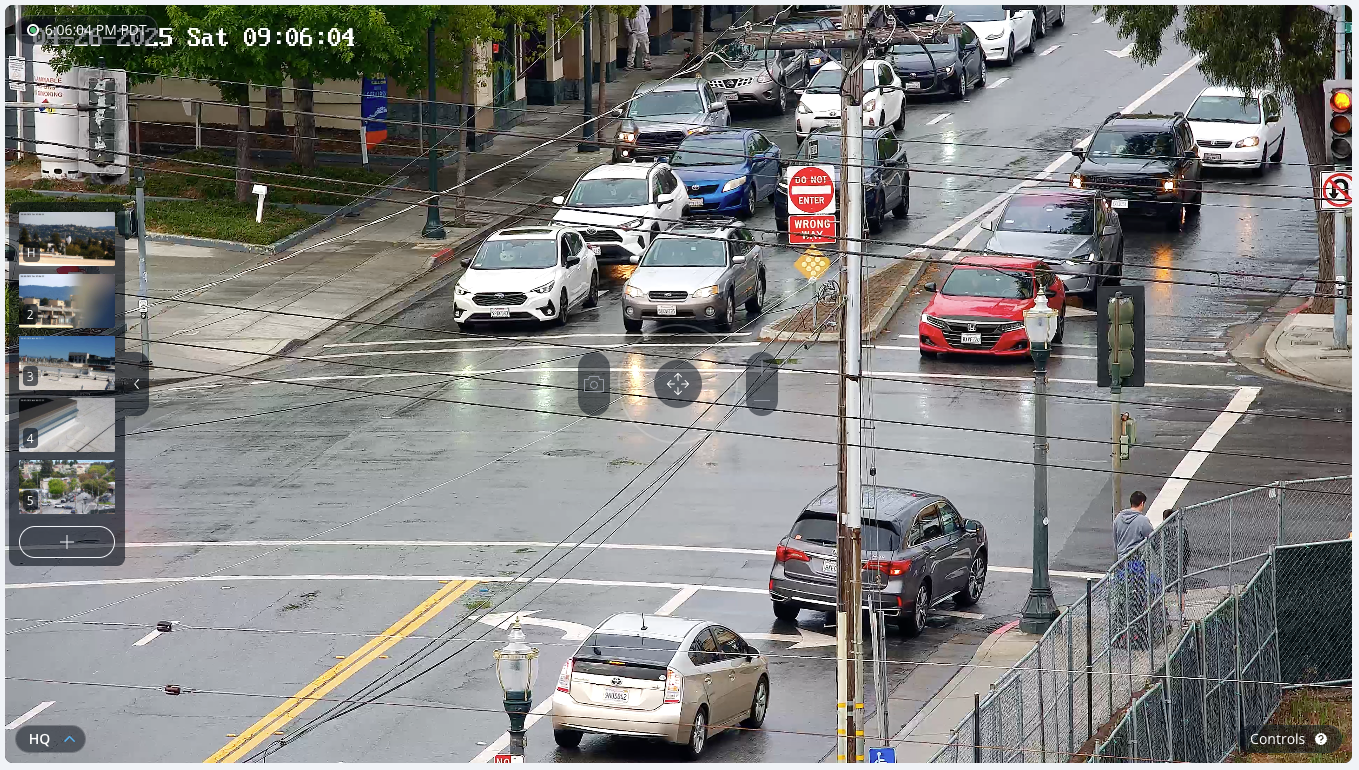
Command Connector を使用すると、ONVIF Profile S をサポートする非Verkada PTZ(パン・チルト・ズーム)カメラを追加して制御できます。これにより、オペレーターは Verkada Command から直接カメラの動きを制御できます。
{% hint style="warning" %}
PTZ カメラには H.264 エンコードが必要です。動画のストリーミング機能中は、PTZ チャネルのコーデックは H.264 のままです。
{% endhint %}
{% hint style="warning" %}
カメラを追加し [Command Connector に](/command-connector/ja/she-ding/add-a-non-verkada-camera-to-a-command-connector.md) から始めてください。
{% endhint %}
***
## 設定
{% hint style="danger" %}
必要です [Site Admin](/verkada-cameras/ja/hajimeni/roles-and-permissions-for-cameras.md) 権限があれば、カメラ設定を変更できます。
{% endhint %}
{% stepper %}
{% step %}
**Verkada Command で、\[All Products] > \[カメラ] に移動します。**
{% endstep %}
{% step %}
**設定する非Verkadaカメラを選択します。**
{% endstep %}
{% step %}
**右側で、\[Settings] をクリックします。**
{% endstep %}
{% step %}
**\[General] > \[Camera Type] で、ドロップダウンをクリックし、\[PTZ Camera] を選択します。**
{% endstep %}
{% step %}
**カメラフィードに戻り、非Verkada PTZ の PTZ コントロール オーバーレイを表示します。**
{% endstep %}
{% endstepper %}
{% hint style="warning" %}
* Command Connector から送信される PTZ コマンドは、ONVIF Profile S の PTZ サービスに依存します。
* Sentry Mode や Contextual Triggers などの高度な PTZ 操作には、Verkada PTZ が必要です。
{% endhint %}
---
# Agent Instructions
This documentation is published with GitBook. GitBook is the documentation platform designed so that both humans and AI agents can read, navigate, and reason over technical content effectively. Learn more at gitbook.com.
## Querying This Documentation
If you need additional information that is not directly available in this page, you can query the documentation by asking a question.
Perform an HTTP GET request on the following URL with the `ask` and `goal` query parameters:
```
GET https://help.verkada.com/command-connector/ja/she-ding/configure-a-non-verkada-ptz-pan-tilt-zoom-camera.md?ask=&goal=
```
`ask` is the immediate question: it should be specific, self-contained, and written in natural language.
`goal` is what the user is ultimately trying to achieve, the reason they need the answer. Sharing it helps GitBook give you a better, more relevant answer. A goal is most helpful when it describes the outcome the user wants rather than restating the question. For example, with `ask=how do I create an API token`, a goal like `automate deployments from our CI pipeline` lets GitBook tailor the answer to that use case.
The response will contain a direct answer to the question and relevant excerpts and sources from the documentation.
Use this mechanism when the answer is not explicitly present in the current page, you need clarification or additional context, or you want to retrieve related documentation sections.