> For the complete documentation index, see [llms.txt](https://help.verkada.com/llms.txt). Markdown versions of documentation pages are available by appending `.md` to page URLs; this page is available as [Markdown](https://help.verkada.com/classic-alarms/installation/set-up-the-bk11bk21-alarm-keypad.md).
# Set Up the BK11/BK21 Alarm Keypad
Install and mount the BK11/BK21 Alarms keypads
{% hint style="success" %}
Verkada announced the global End of Sale (August 1, 2026) and End of Life (August 1, 2027) for Classic Alarms. Eligible customers can upgrade to New Alarms at no charge through January 31, 2027. Visit [Verkada.com/alarms/upgrade](https://www.verkada.com/alarms/upgrade) to get started.
{% endhint %}
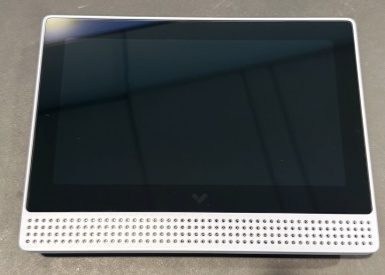
The Verkada [BK11/BK21 alarm keypad](https://docs.verkada.com/docs/alarm-keypad-overview.pdf) is multi-functional where you can arm/disarm with a key code, view live camera feeds and device status, and connect wireless intrusion sensors (**BK21 only**). No extra hardware needed.
### Requirements
* The BK11/BK21 requires Power over Ethernet (PoE) (IEEE 802.3af) for power and network connectivity.
* The BK11/BK21 includes a mounting bracket and associated mounting hardware for ease of install. This **must** be mounted horizontally (landscape mode).
{% hint style="info" %}
Stage the alarm keypad and test its functionality before mounting.
{% endhint %}
***
### Before you begin
For testing purposes, place the system in **Test Mode**.
### What’s included
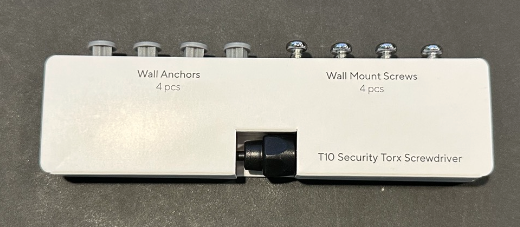
* **BK11/21 Alarm keypad**
* **Mounting screws**
***
## Installation
{% stepper %}
{% step %}
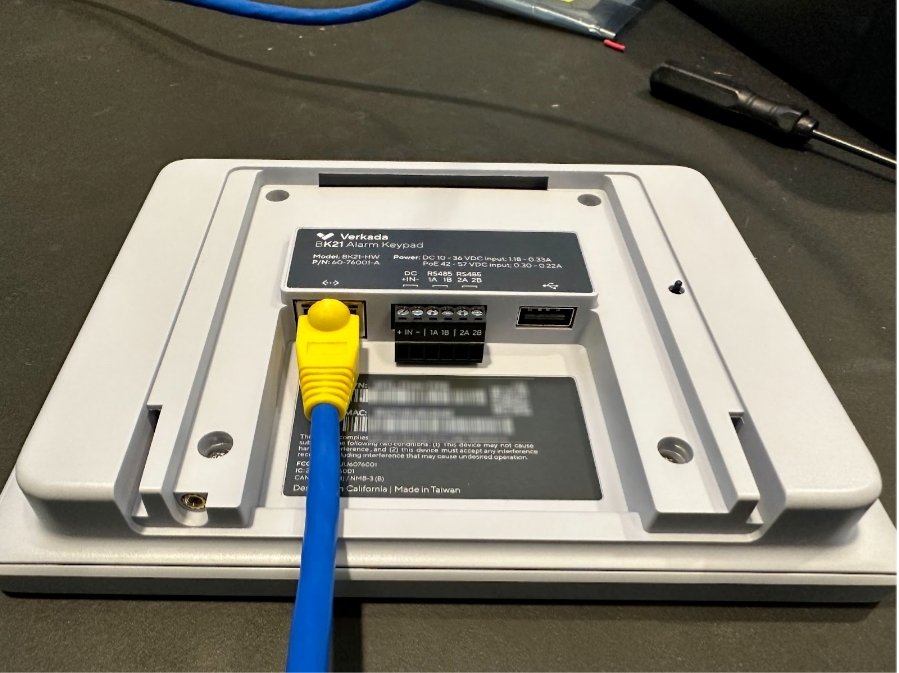
**Attach an Ethernet cable to the BK11/BK21 (located in the back).**
{% endstep %}
{% step %}
**In Verkada Command, add the BK11/BK21 serial number or order number. This number is used to add to an alarm site. Learn more about how to** [**Add a Device to Your Command Account**](/command/organization-settings/add-a-device-to-your-command-organization.md)**.**
{% endstep %}
{% step %}
**Verify that the Alarm keypad power is on and is online in Command.**
\
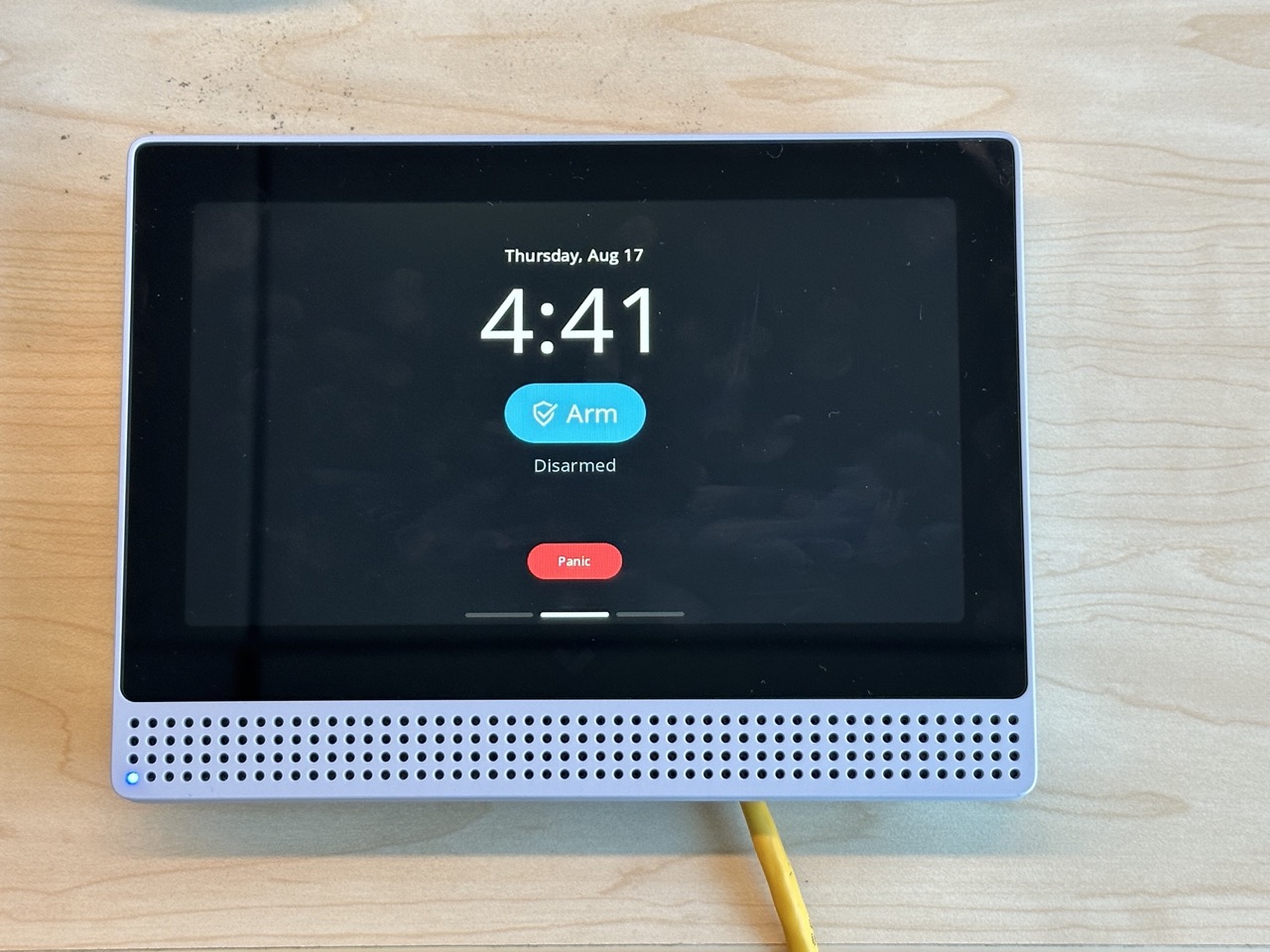
The image below shows the default landing (Home) screen for the BK11/BK21. You use this screen to view/change the **Arm/Disarm** status, the date and time, and to use the **Panic** functionality.\
{% endstep %}
{% step %}
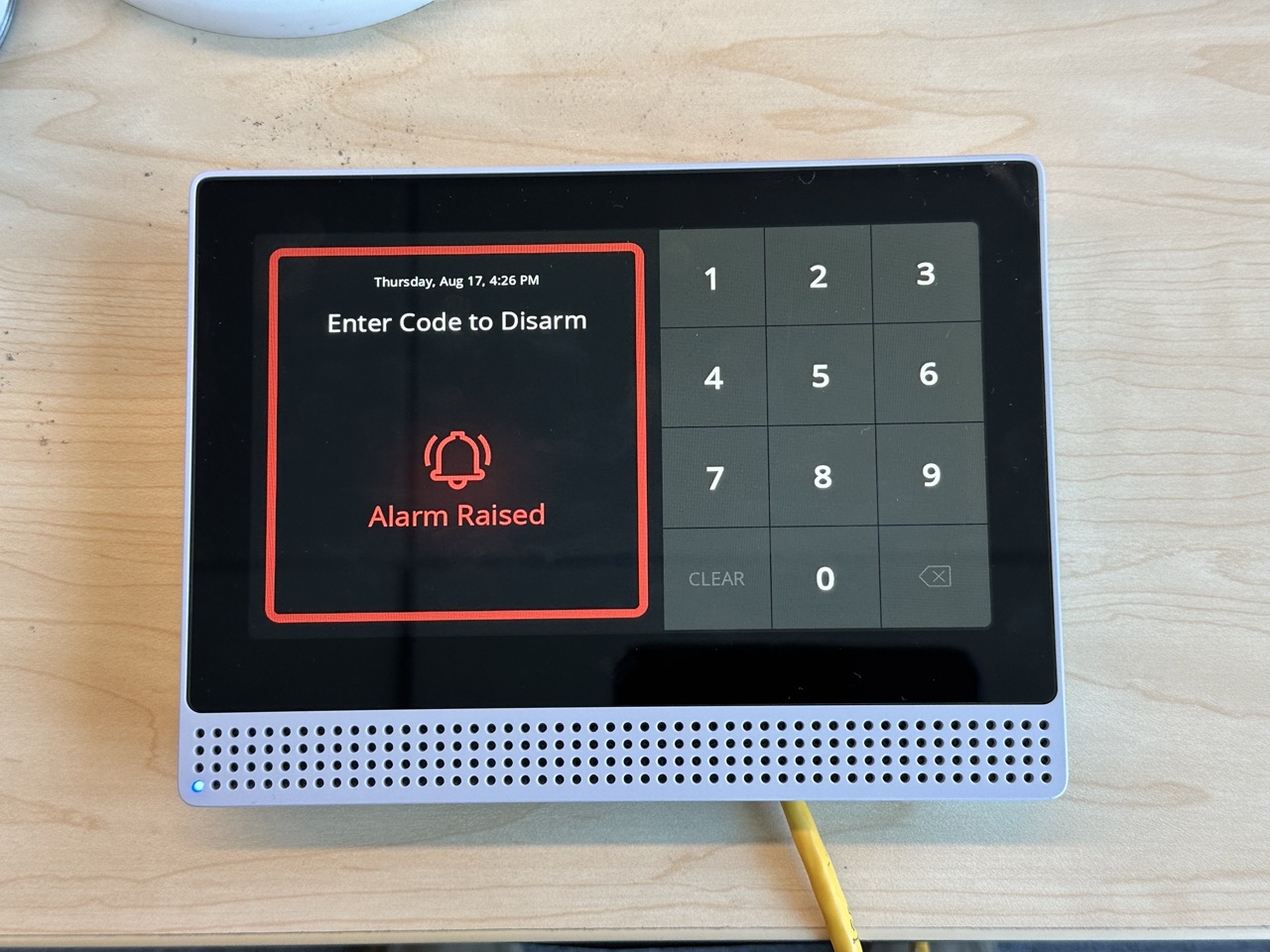
**Both the keypad and Web Command should be showing an Alarm status. Disregard this status: *****enter your key code or manually resolve in Web Command*****.**
{% endstep %}
{% step %}
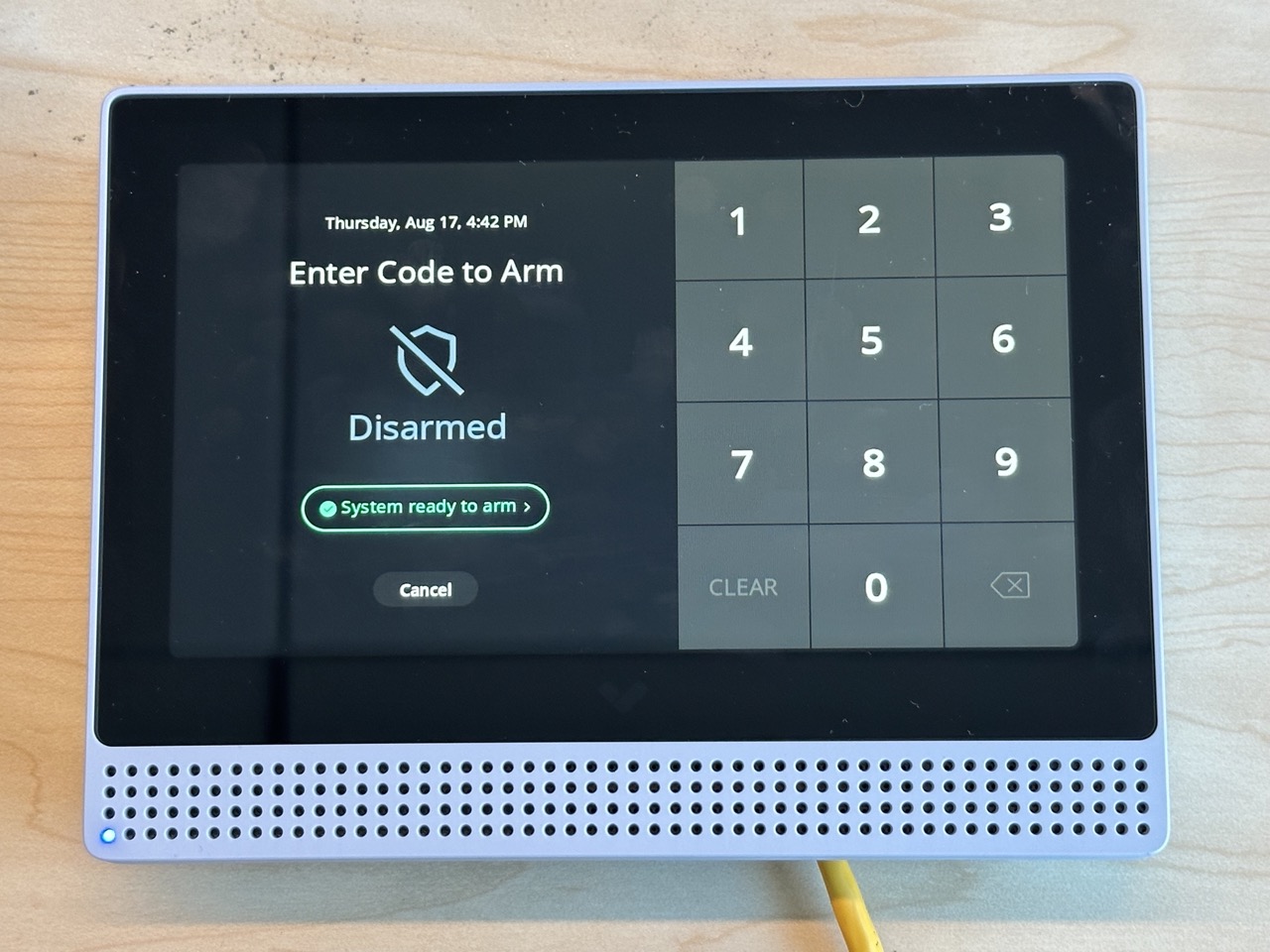
**Press Arm to test the arm/disarm functionality. You can utilize your user-generated (random) code or, under General Codes, use a generic code.**
\
The first image below shows the keypad screen where you are redirected when you press **Arm** on the Home screen. You can also use this screen to enter your code to arm/disarm the site (second image).
{% endstep %}
{% step %}
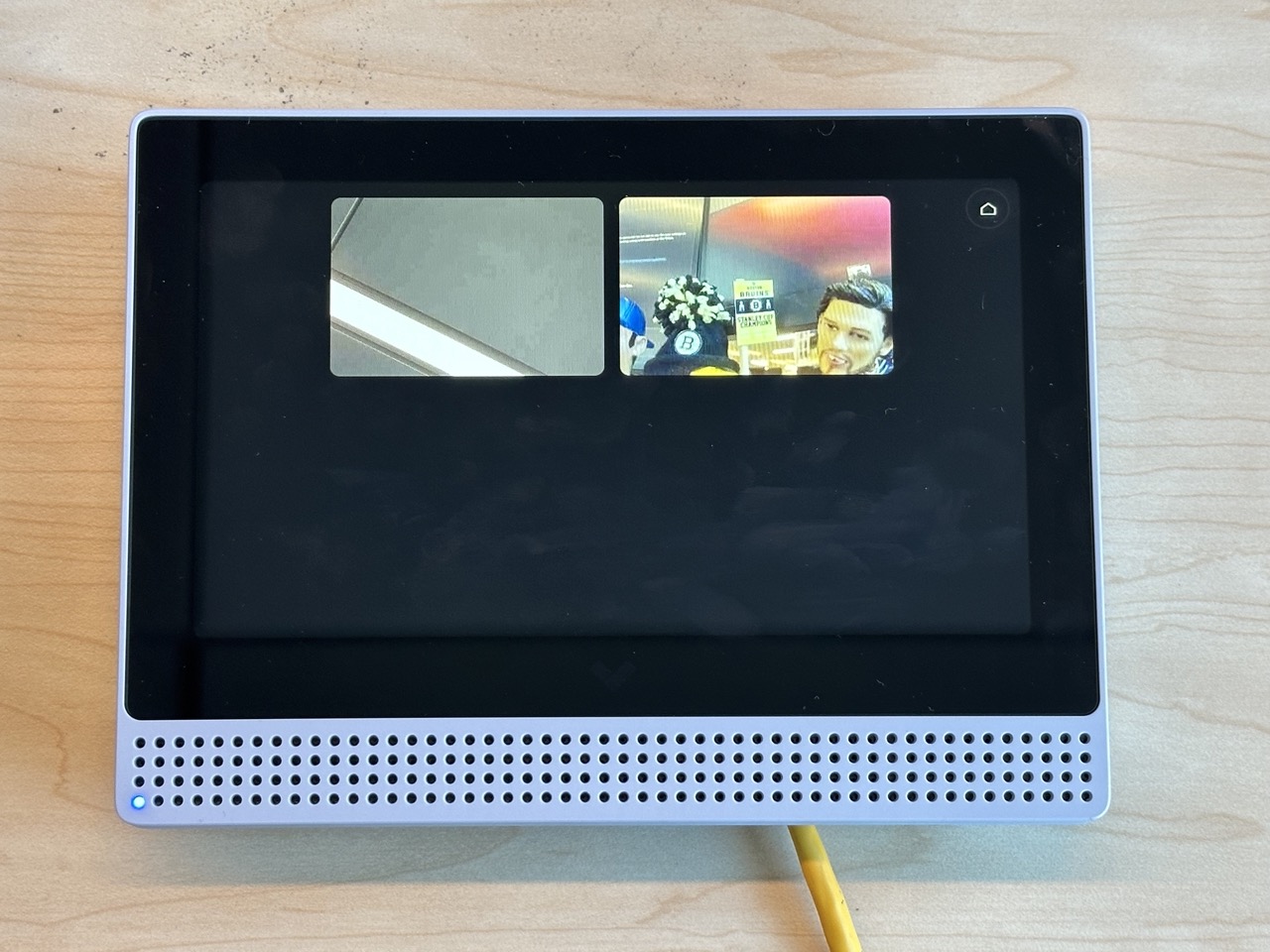
**If you have live cameras in the same site, from the Home screen > swipe left to view the live stream of available cameras and tap them. Ensure that the Enable Cameras streams on Device toggle is on (on the Alarm Site settings for this screen to be visible).**
{% endstep %}
{% step %}
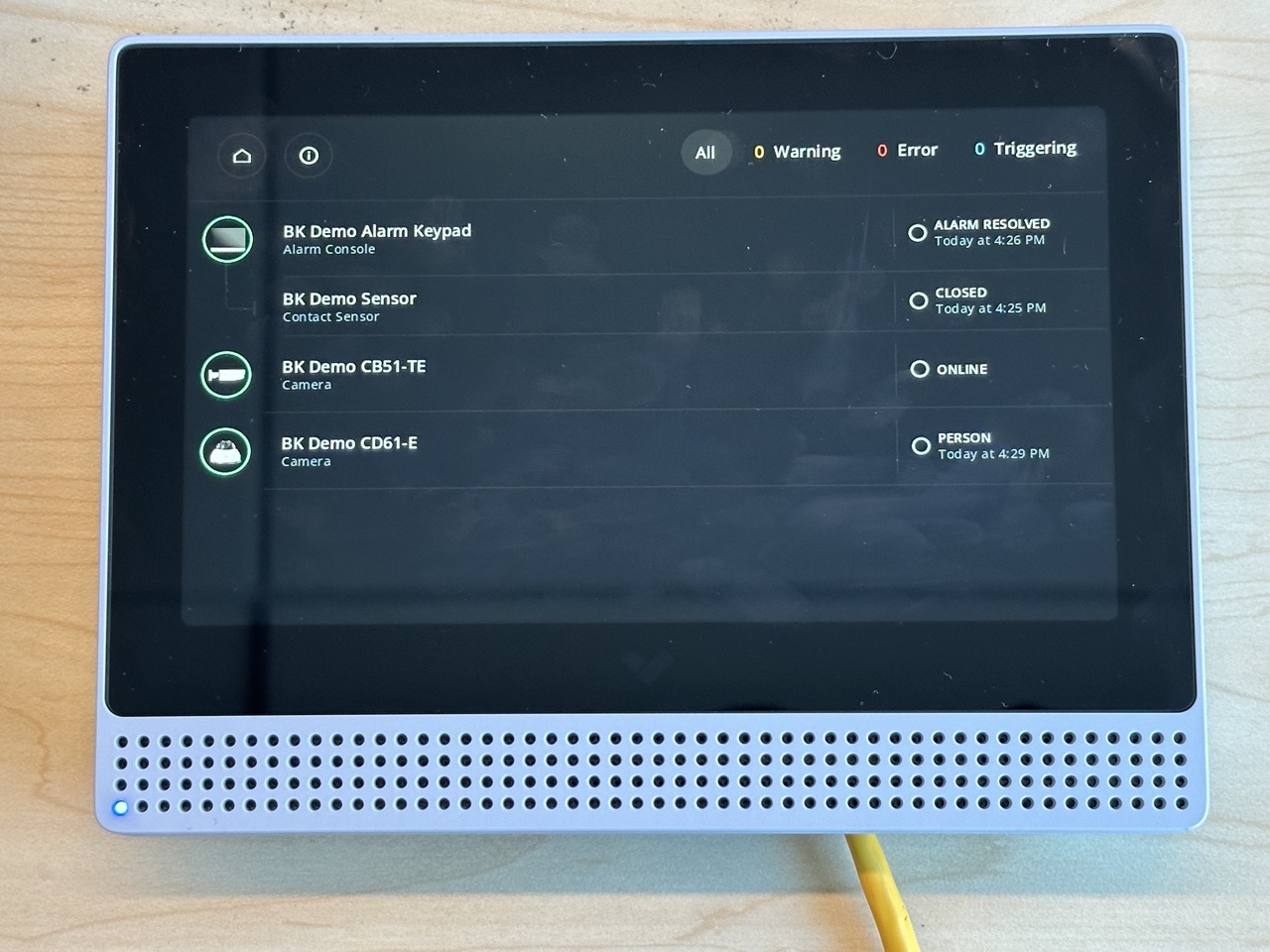
**If you have other devices in your alarm site, from the Home screen > swipe right to:**
a. View a list of devices in their current statuses. (If you have a BK21, it should show the wireless sensors that have connected to the keypad).\
b. At the top right, you can filter devices by **All**, **Warning**, **Error**, or **Triggering**.\
c. Press the **information** (i) icon to view additional information, such as **Name**, **Serial Number**, **MAC address**, and current **IP address**.\
d. Tap a device to expand and view past event logs for that device.
{% endstep %}
{% endstepper %}
{% hint style="warning" %}
Follow the [install guide](https://docs.verkada.com/docs/bk11-bk21-quick-start-guide.pdf) to mount your keypad after testing the functionality.
{% endhint %}
***
## Command configuration
{% stepper %}
{% step %}
**In Verkada Command, add the BK11/BK21 serial number or order number. This number is used to add to an Alarm site. Learn more about how to** [**Add a Device to Your Command Account**](/command/organization-settings/add-a-device-to-your-command-organization.md)**.**
{% endstep %}
{% step %}
**Select the Alarm Site Settings > Arm/Disarm settings and add any required key codes. You can utilize your user-generated (random) code or, under General Codes, use a generic code.**
{% endstep %}
{% step %}
**Under Alarm Site Settings > Console & Keypad > Video.**
Toggle to turn on **Enable Other Camera Streams on Device** to view camera live streams on the BK11/BK21 device.
{% endstep %}
{% step %}
**Under Alarm Site Settings > Console & Keypad > Audio.**
Toggle to turn on **Arm/Disarm Announcement**, **Alarm Trigger Announcement**, **Alarm Raised Announcement**, or **Door Chime** to use those features for the BK11/BK21 device.
{% endstep %}
{% step %}
**In Command, you can also adjust the volume and brightness of the screen and view the device details.**
{% endstep %}
{% endstepper %}
---
# Agent Instructions
This documentation is published with GitBook. GitBook is the documentation platform designed so that both humans and AI agents can read, navigate, and reason over technical content effectively. Learn more at gitbook.com.
## Querying This Documentation
If you need additional information that is not directly available in this page, you can query the documentation by asking a question.
Perform an HTTP GET request on the following URL with the `ask` and `goal` query parameters:
```
GET https://help.verkada.com/classic-alarms/installation/set-up-the-bk11bk21-alarm-keypad.md?ask=&goal=
```
`ask` is the immediate question: it should be specific, self-contained, and written in natural language.
`goal` is what the user is ultimately trying to achieve, the reason they need the answer. Sharing it helps GitBook give you a better, more relevant answer. A goal is most helpful when it describes the outcome the user wants rather than restating the question. For example, with `ask=how do I create an API token`, a goal like `automate deployments from our CI pipeline` lets GitBook tailor the answer to that use case.
The response will contain a direct answer to the question and relevant excerpts and sources from the documentation.
Use this mechanism when the answer is not explicitly present in the current page, you need clarification or additional context, or you want to retrieve related documentation sections.