> For the complete documentation index, see [llms.txt](https://help.verkada.com/llms.txt). Markdown versions of documentation pages are available by appending `.md` to page URLs; this page is available as [Markdown](https://help.verkada.com/classic-alarms/installation/alarm-setup-and-install-best-practices/set-up-your-wireless-alarm-devices.md).
# Set Up Your Wireless Alarm Devices
Configure, test, and install your Verkada wireless alarms devices
{% hint style="success" %}
Verkada announced the global End of Sale (August 1, 2026) and End of Life (August 1, 2027) for Classic Alarms. Eligible customers can upgrade to New Alarms at no charge through January 31, 2027. Visit [Verkada.com/alarms/upgrade](https://www.verkada.com/alarms/upgrade) to get started.
{% endhint %}
{% hint style="success" %}
This article is a guide for classic Alarms. Refer to this [article](/new-alarms/configuration/wireless-alarms-devices.md) if you have new Alarms. See [New Alarms vs Classic Alarms](/new-alarms/getting-started/new-alarms-vs-classic-alarms.md) if you are unsure which version of Alarms you have.
{% endhint %}
***
The Verkada wireless hub and sensors communicate over a proprietary sub-GHz wireless communication protocol. This custom protocol operates at 915 MHz (US, Canada)/868 MHz (UK, EU), and was built from the ground up to maximize security, range, and battery life.
Our wireless signals are encrypted using AES-128. Through direct sequence spread spectrum (DSSS) technology, Verkada’s technology prevents signal jamming and other attacks, which can impact competitor systems.
***
## Wireless specs
| SKU | Description | Line of Sight | Typical Office | Battery Life | Power |
| ----------------------------------------------------------------------- | ----------- | --------------------------- | --------------- | ------------ | ------------------- |
| [BR31](https://docs.verkada.com/docs/br31-quick-start-guide.pdf) | Door | 1,000 ft
(304.8m)
| 200 ft (61.26m) | Up to 10 yrs | 2x CR123A |
| [BR32](https://docs.verkada.com/docs/br32-quick-start-guide.pdf) | Motion | 1,000 ft
(304.8m)
| 200 ft (61.26m) | Up to 5 yrs | 2x CR123A |
| [BR33](https://docs.verkada.com/docs/br33-quick-start-guide.pdf) | Panic | 1,000 ft
(304.8m)
| 200 ft (61.26m) | Up to 5 yrs | 1x CR123A |
| [BR34](https://docs.verkada.com/docs/br34-quick-start-guide.pdf) | Glass | 1,000 ft
(304.8m)
| 200 ft (61.26m) | Up to 2 yrs | 1x CR123A |
| [BR35](https://docs.verkada.com/docs/br35-quick-start-guide.pdf) | Leak | 1,000 ft
(304.8m)
| 200 ft (61.26m) | Up to 5 yrs | 1x CR123A |
| [BX21](https://docs.verkada.com/docs/wireless-relay-bx21-datasheet.pdf) | Relay | 1,000 ft
(304.8m)
| 200 ft (61.26m) | N/A | 12/24v power supply |
***
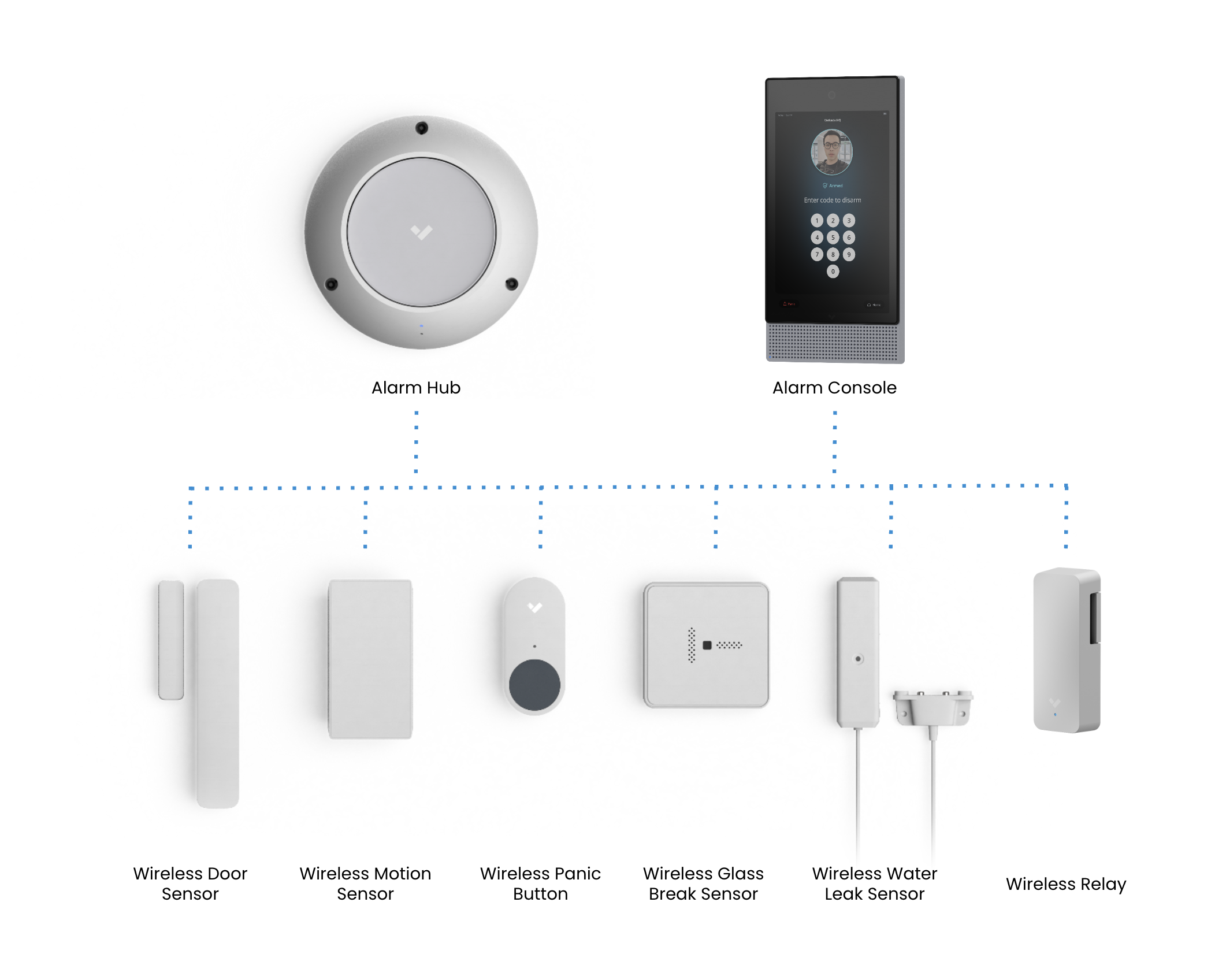
## Wireless Alarms devices
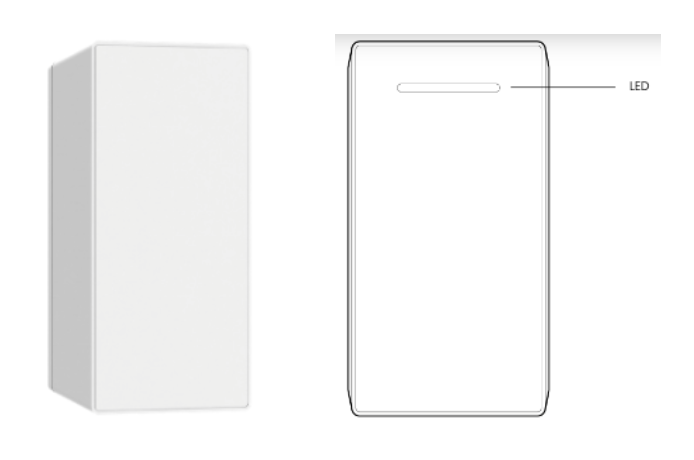
BH61 wireless alarm hub
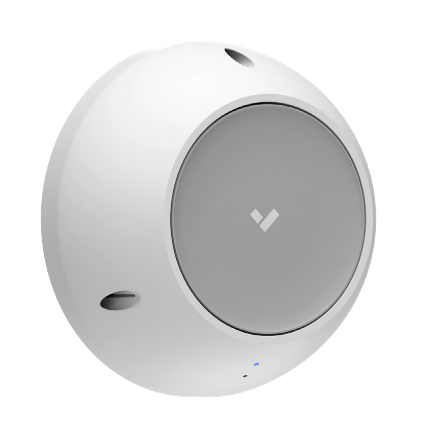
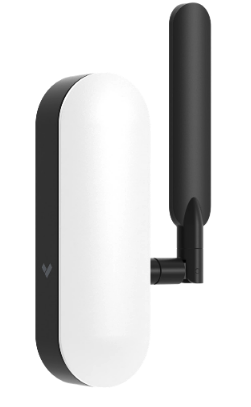
The [BH61 wireless alarm hub](https://docs.verkada.com/docs/wireless-intrusion-overview.pdf#page=2) supports up to 60 wireless Verkada sensors. The typical unobstructed line-of-site range is up to 1,000 ft (304.8m) and up to 200 ft (61.26m) in typical office environments. The hub comes with a built-in backup battery to keep the system powered up to 12 hours in the event of a power loss.
**Install the BH61**
{% hint style="info" %}
The BH61 is omnidirectional and performs best you mount the it at ceiling and install as close to the center of the building/floor as possible for maximum coverage.
{% endhint %}
* Have 1 hub per floor of a building.
* A typical office environment consists of:
* 5–7 walls, with materials consisting of drywall or wood.
* Coverage is 200 ft (61.26m) from the hub.
* Range is highly variable with building materials consisting of concrete or metal.
**Test the BH61**
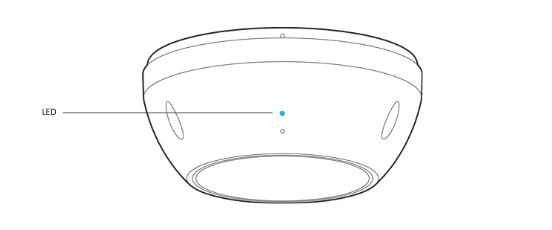
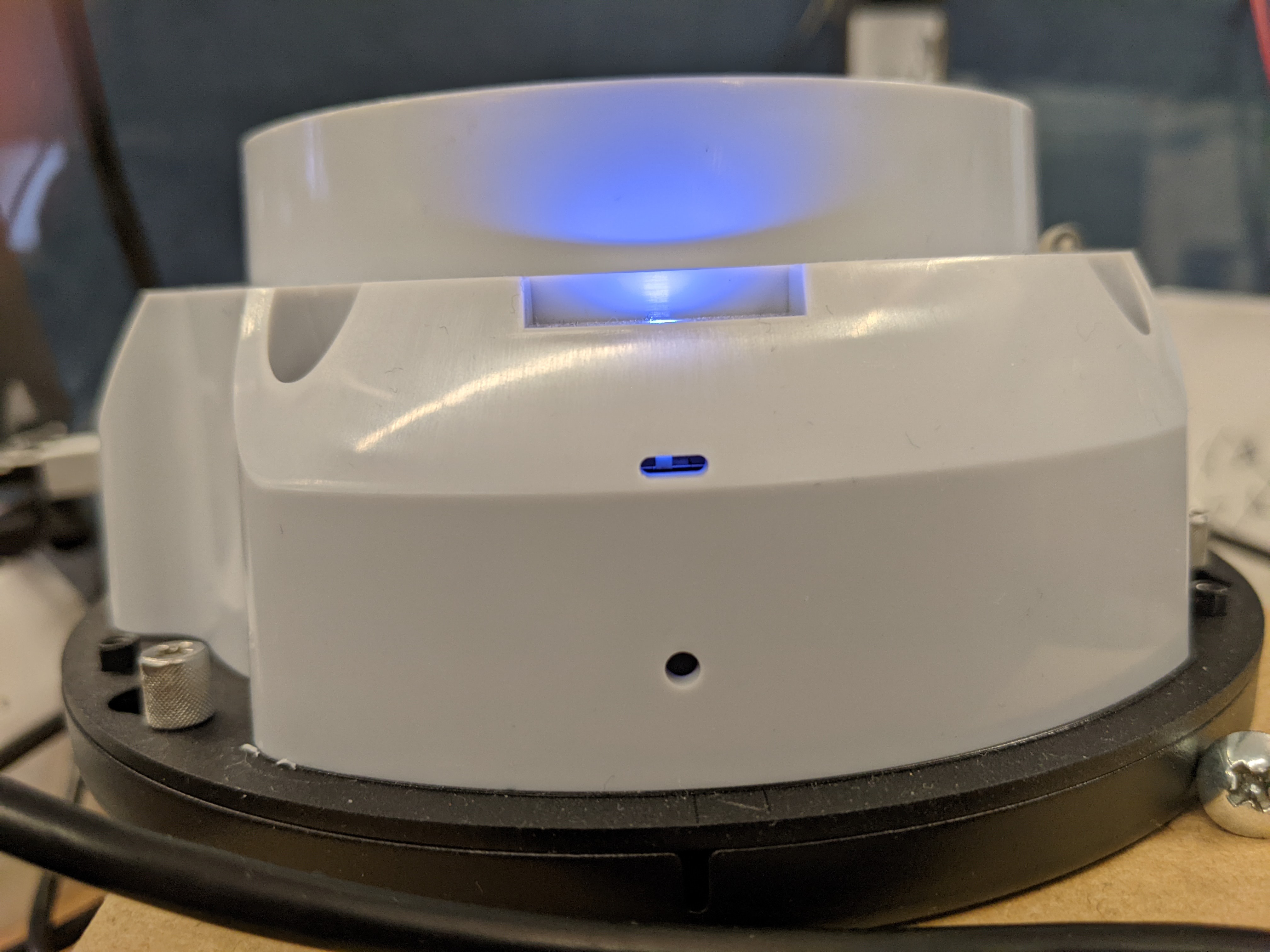
In **normal operation**, the LED signifies:
* **Solid orange**—Hub is on and booting up.
* **Flashing orange**—Hub is updating firmware.
* **Flashing blue**—Hub can receive events, but cannot reach the server.
* **Solid blue**—Hub is running, connected, and receiving events.
{% hint style="danger" %}
The BH61 alarm hub contains a dip switch on the front of the device under the white plastic cover. You must set this dip switch to the left for the device to power on.
 {% endhint %}
BR31 wireless door sensor
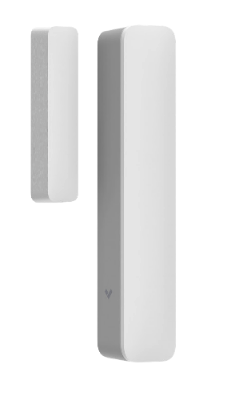
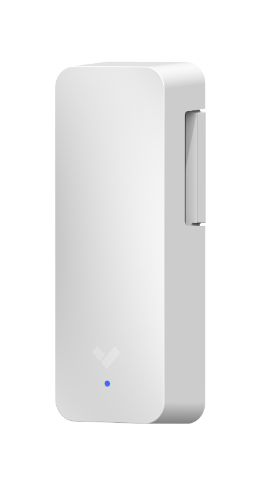
The [BR31 wireless door sensor](https://docs.verkada.com/docs/wireless-intrusion-overview.pdf#page=4) is powered by 2 CR123A lithium batteries and has a battery life of up to 10 years. Configurable door gap width up to 2 in (5cm) to support different installation requirements.
An optional configuration as a universal transmitter allows you to use internally wired input terminals to convert signals from a separate 2-wire sensor into wireless signals that can be received by the BH61 wireless hub.
**Install the BR31**
{% hint style="info" %}
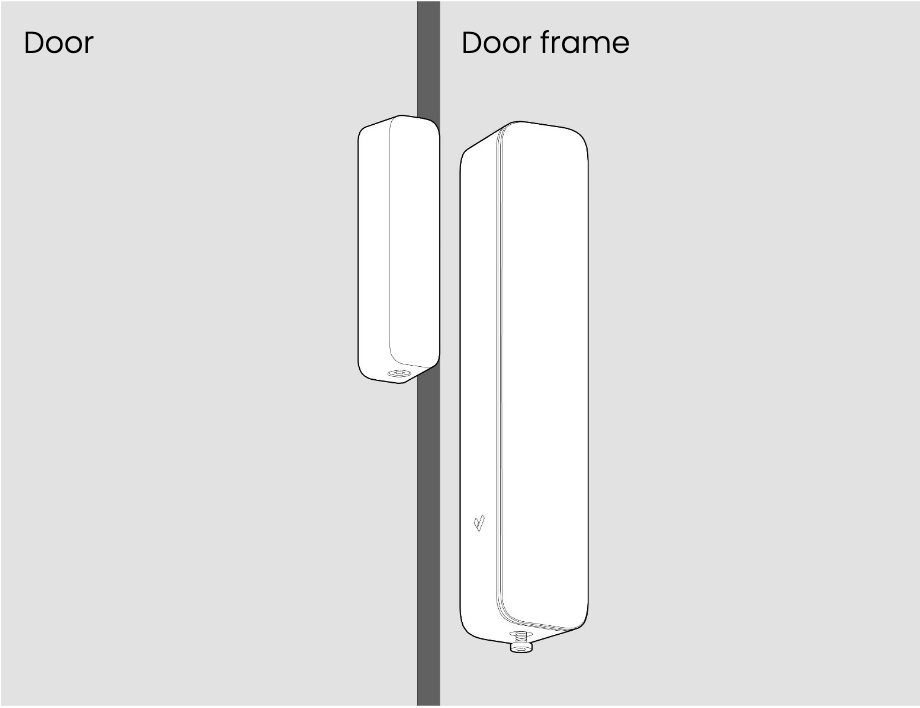
Mount the magnet (left) on surfaces that experience movements, such as the door and the door sensor (right) on stationary surfaces, such as the door frame.
{% endhint %}
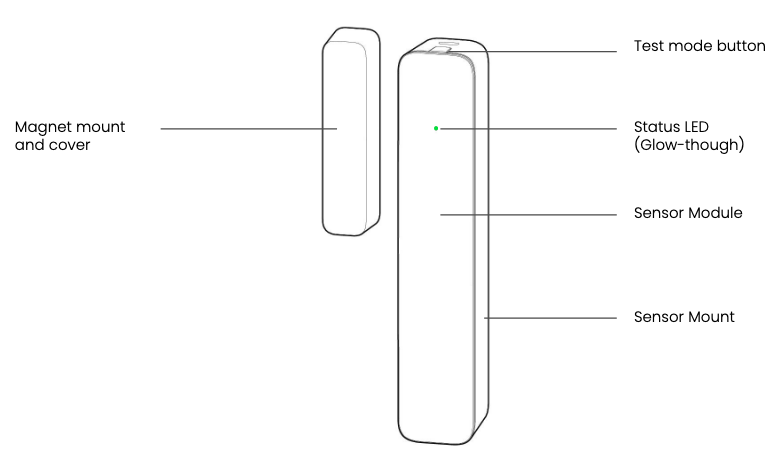
* Position the magnet near the top of the wireless sensor where the status LED and test mode button reside for ideal operation.
{% hint style="danger" %}
You must position the door sensor as referenced below. Any other type of magnet positioning will induce false positive open/closed events
{% endhint %}
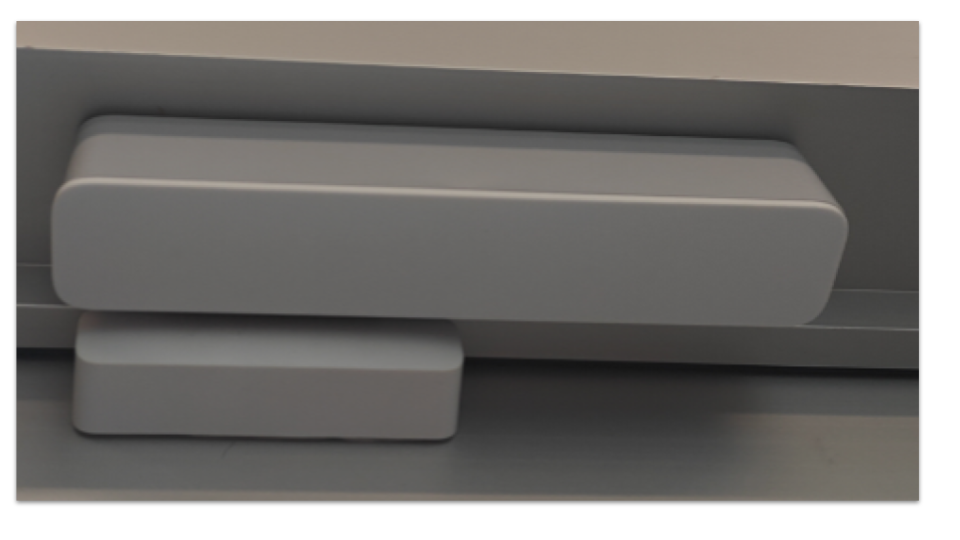
Below is an example of improper installation as the magnet is facing toward the sensor.
* Configure the range between the magnet and door sensor up to 2 inches:
1. Under the **Alarms** site, click **Devices**.
2. Select a device.
3. On the right, click :ellipsis: > **Edit Sensor**.
4. On the pop-up that appears, configure the sensitivity. The higher number indicates that the magnet can be further away, while a lower number indicates that the magnet can be closer.\
**Required**. Once changed, you **must** open and close the door to change its state so that the sensor can reflect the change made in Verkada Command.\
* (Optional) Configure additional settings, as necessary:
* **Universal Transmitter Mode**—Toggle on and select the **Normal State** to transmit any signal wired into the sensor back to the wireless hub.
* **Door Held Open**—When enabled, only door held open (DHO) events trigger an alarm.
* **No Entry Delay**—When this device triggers an alarm, any delays are ignored.
* **Panic Mode**—When this is activated, it raises an alarm when both armed and disarmed. It skips video verification and any entry delay.
**Test the BR31**
Click the top button to enable test mode. After 10 minutes in test mode, the device returns to normal operation. In test mode, the green LED:Turns on when the sensor is separated from the magnet (door open)Turns off when the sensor is brought close to the magnet (door close)While in normal operation, the green LED:Does not turn on when the sensor is separated from the magnetFlashes rapidly 2 to 3 times every 2 minutes to indicate low battery
BR32 wireless motion sensor
The [BR32 wireless motion sensor](https://docs.verkada.com/docs/wireless-intrusion-overview.pdf#page=5) is powered by 2 CR123A lithium batteries and has a battery life of up to 5 years. The sensor uses passive infrared (PIR) to detect changes in infrared light with a 90° horizontal field of view and 35 ft (10m) detection range. Pet/animal-resistant up to 80 lb (36 kg).
**Install the BR32**
{% hint style="info" %}
For ideal coverage, install the motion sensor 6 ft (1.8m) from the floor in the corner of a room, and with the LED on the top.
{% endhint %}
Check the proper orientation by the top arrow inside the back cover.
**Test the BR32**
After installing the batteries, the motion sensor goes into walk test mode. After 10 minutes in test mode, the device returns to normal operation. In test mode, the green LED:
* Turns on when motion is detected
* Turns off after 5 seconds pass with no detected motion
While in **normal operation**, the green LED:
* **Does not** turn on when motion is detected
* Flashes rapidly 2 times every 2 minutes to indicate low battery
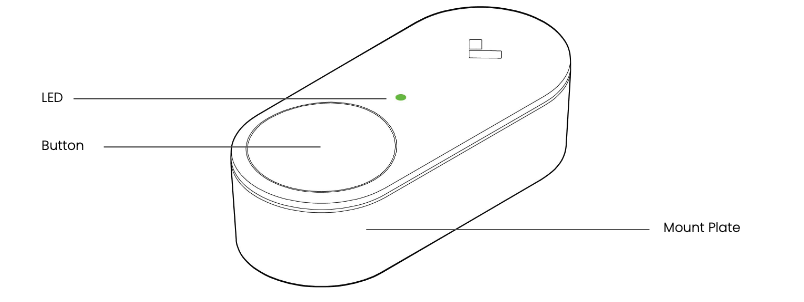
BR33 wireless panic button
The [BR33 wireless panic button](https://docs.verkada.com/docs/wireless-intrusion-overview.pdf#page=6) is powered by a 1 CR123A lithium battery and has a battery life of up to 5 years. Allows for custom alarm actions configurable in Command. Supports both wall/desk mounting only. The LED provides immediate feedback on whether a panic signal was successfully received by the hub.
**Install the BR33**
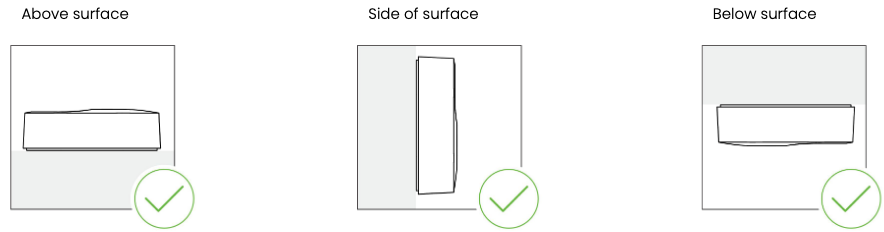
You can mount the BR33 panic button above, side, below, or worn as a pendant with the built-in loop on the mounting plate.
**Test the BR33 panic button**
* During **normal operation**, the green LED:
* Blinks green at button press to signify that it has reached out to the hub and is awaiting a response
* Solid green LED at button press to signify that the panic message has been received by the hub.
* Flashes rapidly 3 times every 2 minutes to indicate low battery.
* **Silent Mode**—Disables alarm outputs and console alerts.
BR34 wireless glass break sensor
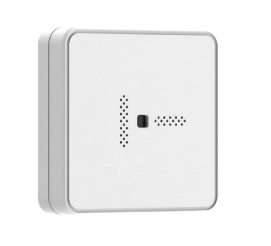
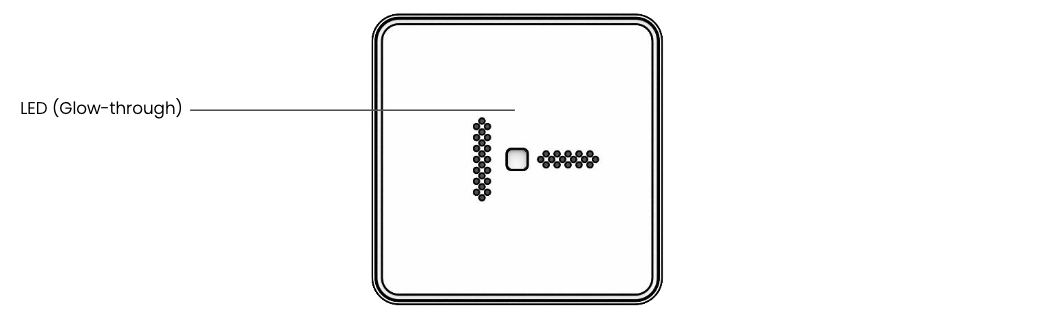
The [BR34 wireless glass break sensor](https://docs.verkada.com/docs/wireless-intrusion-overview.pdf#page=7) is powered by a 1 CR123A lithium battery and has a battery life of up to 2 years. The sensor uses dual detection to reduce false positives by requiring both impact and successive shattering frequencies to trigger an alarm with a detection range up to 15 ft (5m).
**Install the BR34**
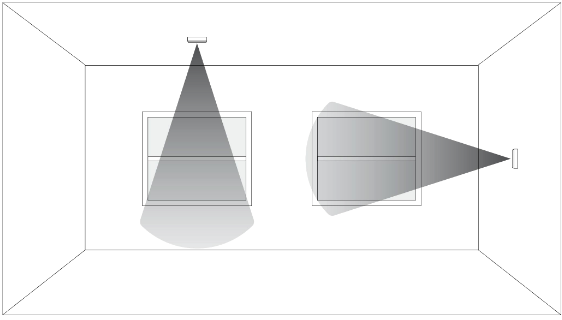
You can mount the BR33 on the ceiling or wall with a line-of-sight distance of no more than 15 ft (5m) from the window(s) that you want to protect.
{% hint style="info" %}
**Recommended**. To avoid false positives, install the glass break sensors in areas without excessive vibrations.
{% endhint %}
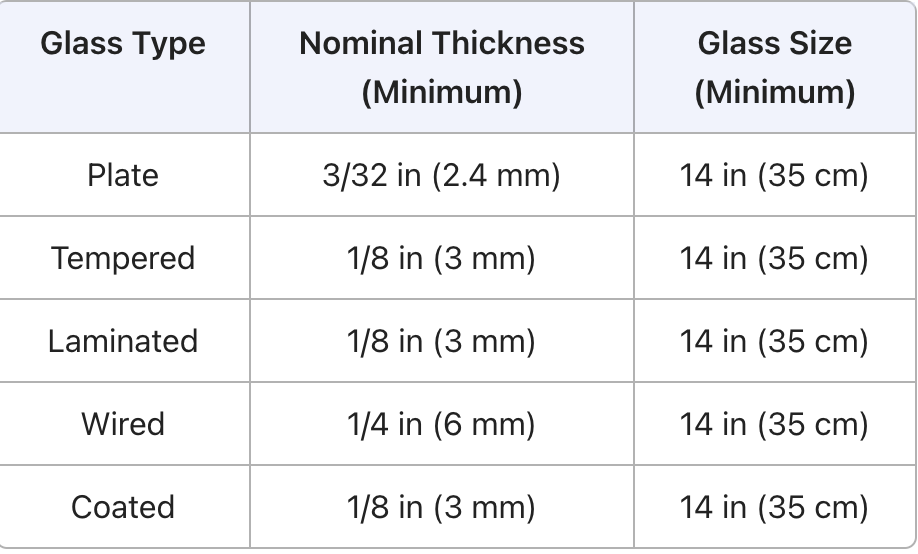
**Protected glass types**
{% hint style="warning" %}
The minimum size for all types is 14 in (35 cm) square; glass must be framed in the wall or mounted in a barrier at least 36 in (91 cm) wide. Protected only if both plates in the unit are broken.
{% endhint %}
**Test the BR34**
{% hint style="info" %}
Purchase the Honeywell Intellisense FG-701 Microflex tester to verify sensor operation.
{% endhint %}
1. Set the tester to **Test** and **Flex** mode.
2. In Flex mode, the FG-701 Microflex tester listens for a low-frequency “flex” signal before emitting a glass-break audio burst.
3. Position the FG-701 within 118 in (3 m) of the BR34 glass break sensor, with the speaker facing the sensor.
4. Press the red **Start** button. The simulator activates and enters an 8-second armed period.
5. Strike a nearby wall, table, surface, or the tester itself to generate the flex signal.
6. Confirm detection on the BR34 sensor:
1. A solid green LED indicates a detected glass break and turns off after 5 seconds.
2. The LED flashes rapidly 3 times every 2 minutes to indicate low battery.
BR35 wireless water sensor
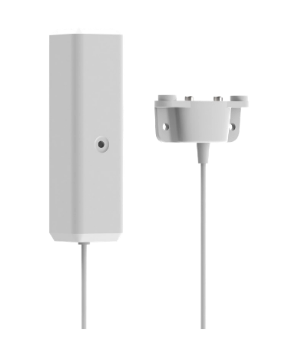
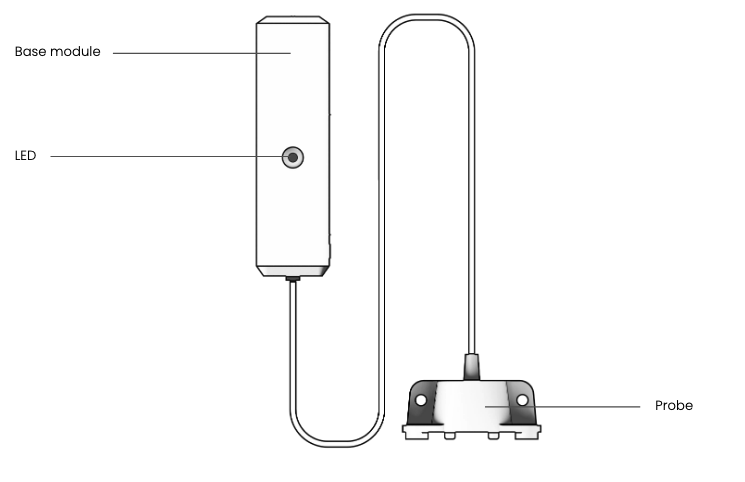
The [BR35 wireless water leak sensor](https://docs.verkada.com/docs/wireless-intrusion-overview.pdf#page=8) is powered by a CR123A lithium battery and has a battery life of up to 5 years. The sensor has a 7 ft (2.1m)-extended probe that allows for precise placement in areas at risk for water leaks.
**Install the BR35**
{% hint style="info" %}
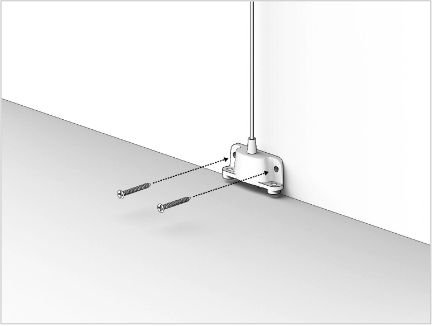
For ideal coverage, install the base module in the open with as little obstruction from the sensor to the wireless hub as possible. Install the probe on the floor where water will accumulate.\
{% endhint %}
**Test the BR35**
You can test the operation of the water sensor by shorting the 2 metal contacts at the end of the probe with a conductive material, such as water, a metal screwdriver, or your thumb (place the edge of your thumb on the farthest contact and allow the base of your thumb to touch the closest contact to complete the circuit).
During normal operation, the green LED:
* Turns on when water is detected. It stays on as long as the water is detected.
* Turns off when no water is detected.
* Flashes rapidly 3 times every 2 minutes to indicate low battery.
BX21 wireless relay
The [BX21 wireless relay](https://www.verkada.com/docs/wireless-relay-setup-guide/) is powered by an external 12/24 volt power source. The sensor allows you to control sirens or strobes when an alarm is raised. Optionally, the BX21 can be configured as a universal transmitter that allows you to use internally wired input terminals to convert signals from a separate 2-wire sensor into wireless signals that can be received by the [BH61 wireless hub](/classic-alarms/installation/alarm-setup-and-install-best-practices/set-up-your-wireless-alarm-devices.md).
**Install the BX21**
Mount the BX21 (vertically or horizontally) with the included screws or adhesive tape.Connect the siren/strobe to NC or NO and COM.Connect a power source to the positive and negative terminals.
**Test the BX21**
To test the functionality of the relay, use the included Allen key to push the test button. When you hold down the test button, the relay outputs to the end device, confirming functionality.
**Configure the wireless output**
Go to your alarm site **Settings > Alarm Responses > Wireless Relay Outputs > Add Output**.
Cellular backup module
The ACC-CEL-LTE [cellular backup module](https://docs.verkada.com/docs/cellular-module-overview.pdf) is a plug-and-play solution that is powered by a USB 2.0 connection to the BP41 alarm panel or BH61 wireless alarm hub. This module provides a multiple network LTE connection (AT\&T and T-Mobile) with automatic failover to the best available network. An unlimited data plan for alarm signaling is included in the license.
**Install the cellular backup module**
The cellular backup module plugs into the [BH61 wireless hub](/classic-alarms/installation/alarm-setup-and-install-best-practices/set-up-your-wireless-alarm-devices.md) or [BP41 wired alarm panel](https://docs.verkada.com/docs/alarm-panel-overview.pdf) via USB and is plug-and-play.
Mount the cellular module and position the antenna in a way that provides the greatest signal strength and minimizes obstruction.Test the module. You can test cellular failover capabilities by simply unplugging the Ethernet cable from the BP41 alarm panel or BH61 alarm hub.\
Note: Please allow the hub at least 30 minutes to charge its internal battery before testing.\
Mount the cellular module and position the antenna in a way that provides the greatest signal strength and minimizes obstruction.
**Test the module**
Unplug the Ethernet cable from the BP41 alarm panel or BH61 alarm hub to test cellular failover capabilities.Check that the hub LED should transition from solid blue to blinking blue, and finally back to solid blue.Initiate a trigger from any wireless sensor device and check if Command has received the event.
***
## Mute device and tamper events on wireless sensors
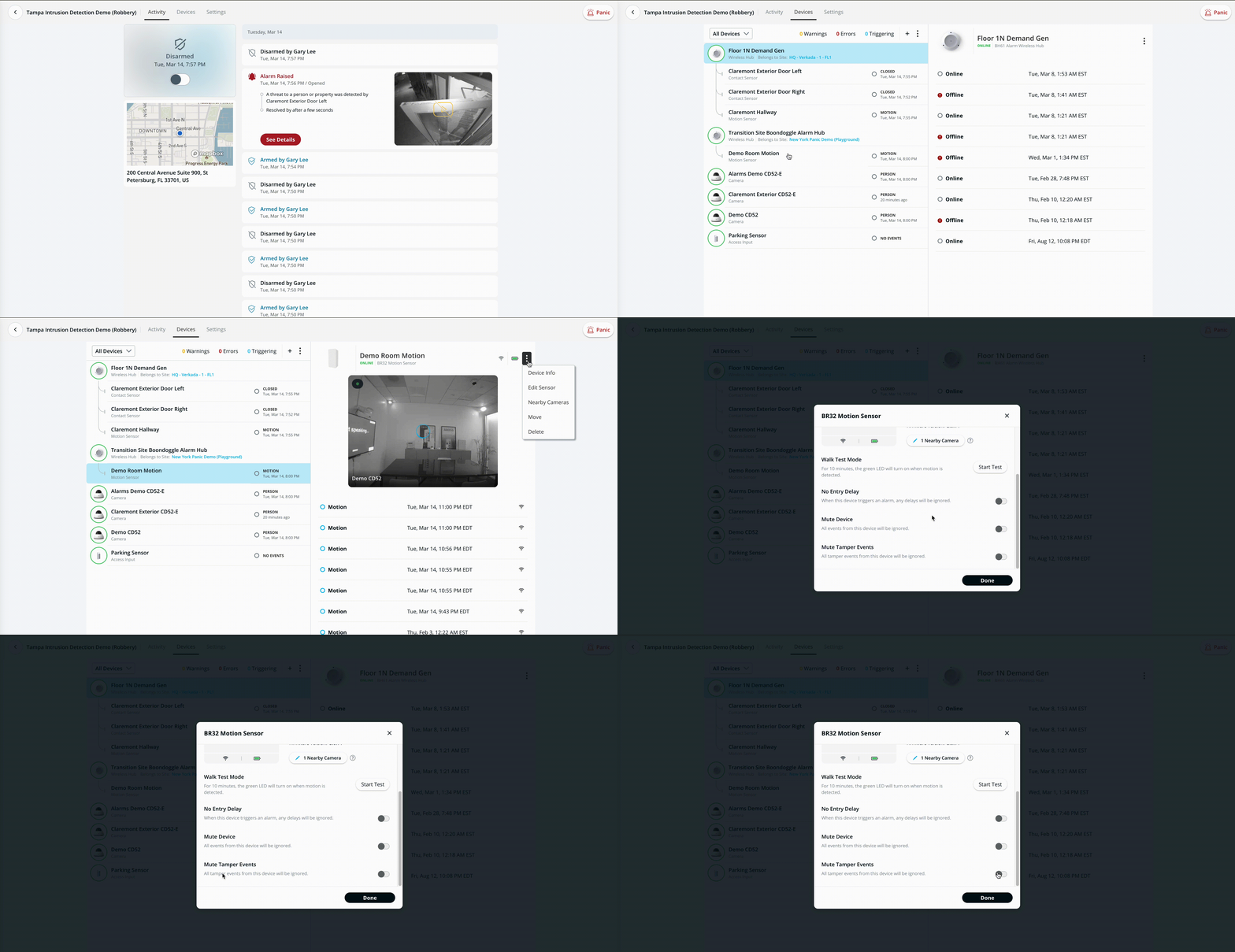
All wireless sensors now have the capability to mute to the events and tamper events. To configure this for the sensor, navigate to the device in the alarms site.
{% stepper %}
{% step %}
**In Verkada Command, go to All Products > Alarms.**
{% endstep %}
{% step %}
**Select your alarm site.**
{% endstep %}
{% step %}
**Click Devices.**
{% endstep %}
{% step %}
**On Devices, select your sensor, click and select Edit Sensor.**
{% endstep %}
{% step %}
**On the popup, toggle the settings, as needed. These are useful if there may be a fault in the install and you want to have the device not raise an alarm. Use the toggle instead of moving the sensor to a separate site or removing the sensor from command.**