> For the complete documentation index, see [llms.txt](https://help.verkada.com/llms.txt). Markdown versions of documentation pages are available by appending `.md` to page URLs; this page is available as [Markdown](https://help.verkada.com/air-quality/sensor-data/manage-your-sensor-dashboard.md).
# Manage Your Sensor Dashboard
Learn how to set up, view, modify, share, and delete your sensor dashboards
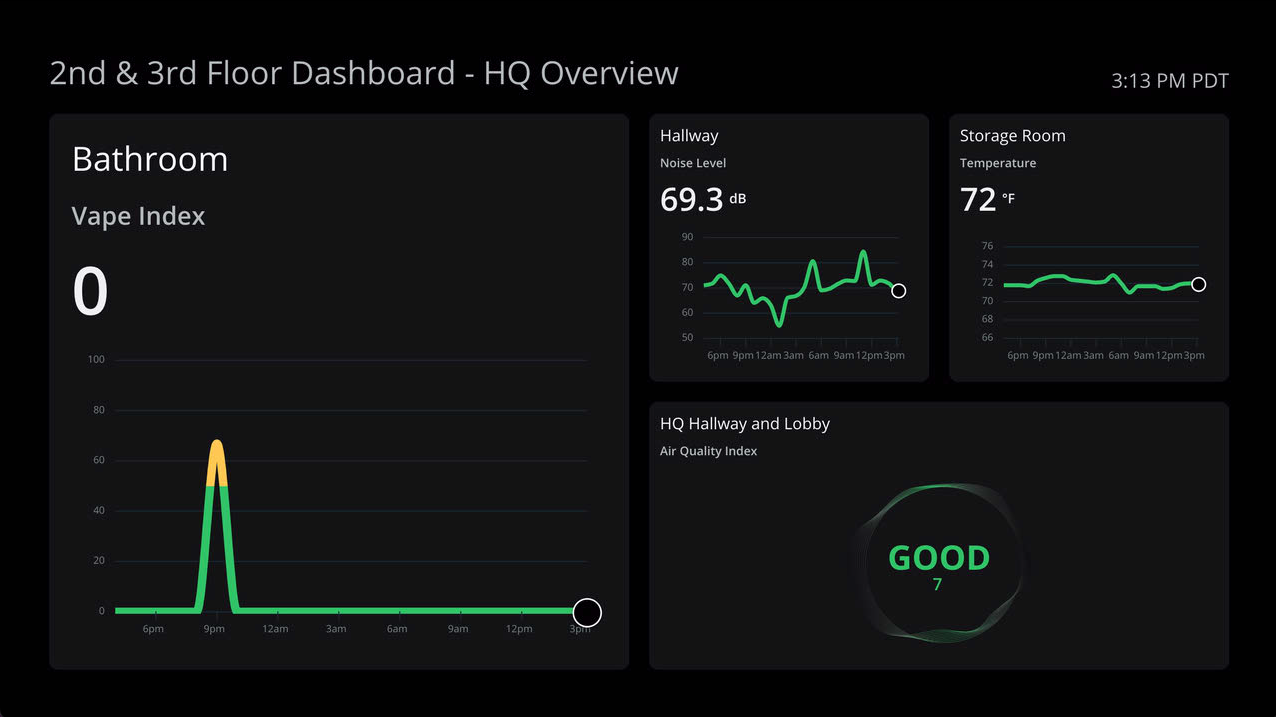
Verkada’s [Air Quality Sensors](https://docs.verkada.com/docs/air-quality-sensors-overview.pdf) dashboards enable you to easily view, analyze, and display sensor data across all of your sensors within your environments on a smart display or status screen. You can easily access these dashboards from an external device through the air quality dashboard live links. You can also share and pair dashboards with any browser-compatible device.
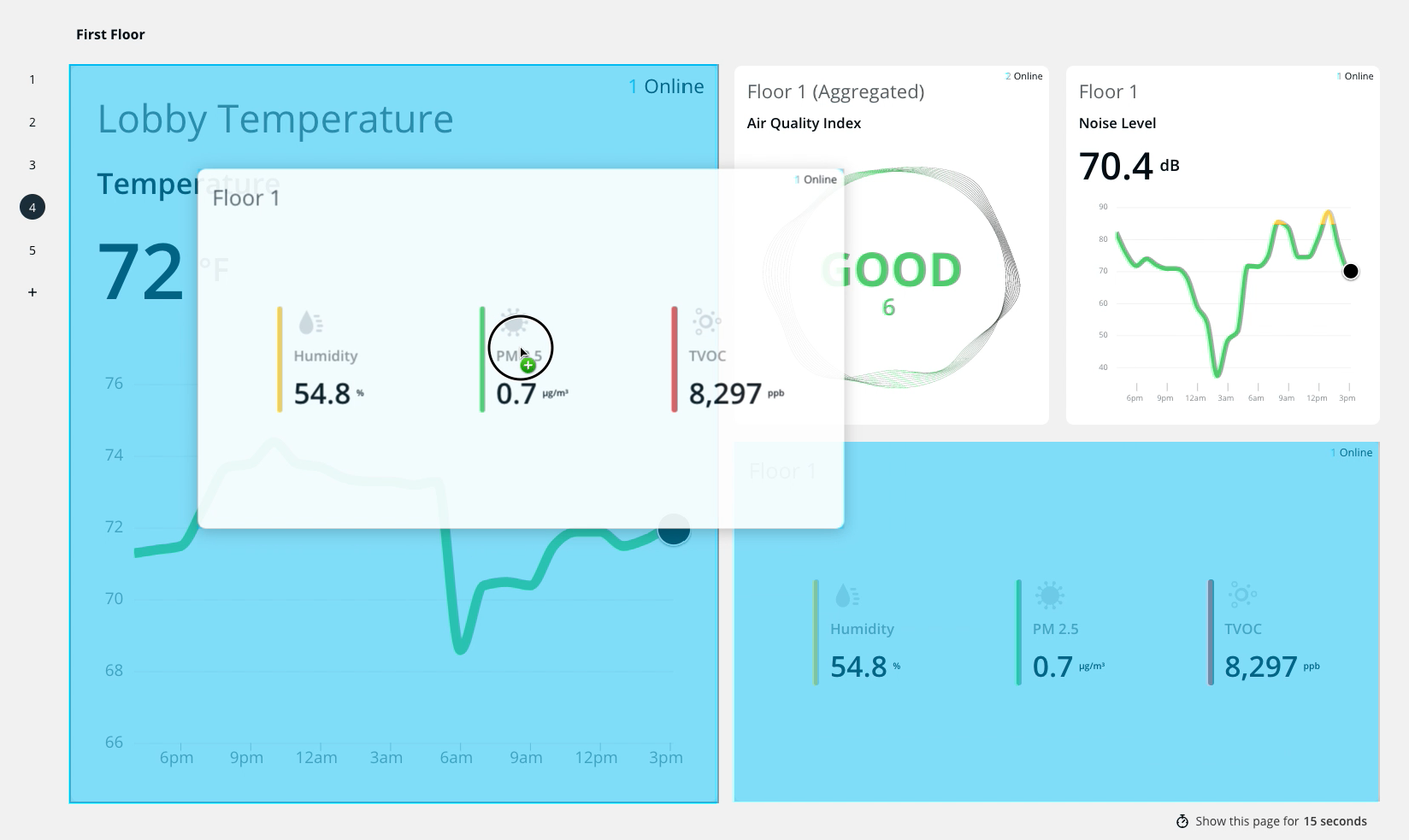
Using different tiles, you can add multiple view types to pages in your dashboard and automatically cycle through them in Verkada Command or on a monitor.
The hierarchy for sensor dashboards is **dashboards** > **pages** > **tiles**. You can have multiple dashboards in your organization, each with multiple pages, and each page can contain multiple tiles.
***
## Configure your sensor dashboard
{% stepper %}
{% step %}
**In Verkada Command, go to All Products > Air Quality.**
{% endstep %}
{% step %}
**On the left navigation, click Dashboards.**
{% endstep %}
{% step %}
**At the top right, click Add Dashboard.**
1. Enter a unique name.
2. Click **Save.**
{% endstep %}
{% step %}
**On the Tiles tab, add up to six tiles per page:**
1. Select a tile type:
* **Time-Series Line Graph:** Displays live data and 24 hours of historical data for a single sensor reading
* **Sensor Readings:** Displays multiple live numeric values from a single sensor device
* **Metric:** Displays a single aggregated metric across sensor devices
* **Gauge:** Displays a color-coded value relative to customizable thresholds
* **List:** Displays a table of aggregated metrics across sensor devices
2. Configure the tile:\
a. Select a tile option.\
b. Enter a unique name.\
c. Select a sensor.\
d. At the top, click **Customize Data** to adjust tile settings.\
e. Click **Done**.
{% endstep %}
{% step %}
**At the top, click Layout to choose the best layout for your tiles, and click Done.**
{% endstep %}
{% step %}
**In the top right, click Done to close the tile menu, then click Done again to close the configuration window.**
{% endstep %}
{% endstepper %}
***
## Page configuration
{% stepper %}
{% step %}
###
{% endstep %}
{% step %}
**Set page rotation:**
1. At the bottom right, click **Show this page for 15 seconds** to adjust how long you want the page to display when viewing in full-screen mode.
2. Choose from 10s, 15s, 30s, 1m, and 5m intervals.
{% endstep %}
{% step %}
**On the left, select** :plus: **to add a new page.**
{% hint style="warning" %}
You can add up to 10 pages per dashboard.
{% endhint %}
{% endstep %}
{% step %}
**Edit a tile:**
1. Hover over a tile and click **Edit Tile.**
2. Edit the settings as needed.
3. Click **Done** when finished.
{% endstep %}
{% step %}
**Drag and drop tiles to rearrange them.**
{% endstep %}
{% step %}
**Delete a tile:**
Hover over a tile and click **Delete Tile.**
{% endstep %}
{% step %}
**Delete a page:**
1. Hover over a page number, then click .
2. Click :trash: next to a page to delete.
3. Click :x: to close the menu.
{% endstep %}
{% step %}
**Delete the dashboard:**
1. In the top right, click **Delete.**
2. Click **Delete** again to confirm.
{% endstep %}
{% endstepper %}
***
## View a sensor dashboard
{% stepper %}
{% step %}
**In Verkada Command, go to All Products > Air Quality.**
{% endstep %}
{% step %}
**On the left navigation, click Dashboards.**
{% endstep %}
{% step %}
**Select a dashboard to view.**
{% endstep %}
{% step %}
**At the top right, click View to enter full-screen.**
{% hint style="info" %}
The data displayed updates every one (1) minute. This is a default setting and cannot be changed. Pages rotate based on the preset time you configured in the setup flow.
{% endhint %}
{% endstep %}
{% step %}
**At the top right, click X to exit or press the Esc key on your keyboard.**
{% endstep %}
{% endstepper %}
***
## Share a dashboard
{% stepper %}
{% step %}
**In Verkada Command, go to All Products > Air Quality.**
{% endstep %}
{% step %}
**Select a dashboard to view.**
{% endstep %}
{% step %}
**At the top right, click Share.**
1. Set the duration for the link.
2. Click **Create.**
{% hint style="warning" %}
Maximum link duration is 52 weeks.
{% endhint %}
{% endstep %}
{% step %}
**Once created, you can:**
* Rename a link and see how much time is left until it expires.
* Click [**Pair TV**](#pair-a-dashboard) to pair the link to a smart display.
* Click **Send Link** to share the code via email, SMS, or by contact.
* Click **Copy Link** to copy the link to your clipboard.
{% endstep %}
{% step %}
**Click Done when finished.**
{% endstep %}
{% endstepper %}
### Manage shared links
You can manage shared links, [just like cameras](/verkada-cameras/video-streaming-and-sharing/sharing-video.md), as follows:
{% stepper %}
{% step %}
**In Verkada Command, go to All Products > Admin.**
{% endstep %}
{% step %}
**Under Org Settings, scroll to Manage Shared Links.**
{% endstep %}
{% endstepper %}
Alternatively, for quick access in the dashboard, go to **Share > Manage Shared Links** to be redirected to this page.
***
## Pair a dashboard
Dashboard pairing enables rapid deployment of Air Quality dashboards on smart TVs and displays that would otherwise be difficult to access via a link or keyboard. Pairing works by sharing a **Live Link** based on a successful synchronization, as described above.
{% hint style="warning" %}
Pairing a dashboard is currently only supported in US-based organizations.
{% endhint %}
{% hint style="info" %}
Anyone with access to the link (in the dashboard address bar) can open the dashboard on a different device. Ensure that the URL is hidden by default on your smart device, or on full screen if this is a security concern for you.
{% endhint %}
{% stepper %}
{% step %}
**In Verkada Command, go to All Products > Air Quality.**
{% endstep %}
{% step %}
**Select a dashboard to view.**
{% endstep %}
{% step %}
**At the top right, click Pair.**
1. Set the duration for the link.
2. On your display, go to vkda.co/pair.
3. Enter the pairing code from your display to access the dashboard.
4. Click **Pair.**
{% hint style="warning" %}
Maximum link duration is 52 weeks.
{% endhint %}
{% endstep %}
{% endstepper %}
### Manage paired links
You can manage paired links as follows:
{% stepper %}
{% step %}
**In Verkada Command, go to All Products > Admin.**
{% endstep %}
{% step %}
**Under Org Settings, scroll to Manage Shared Links.**
{% endstep %}
{% endstepper %}
Alternatively, for quick access in the dashboard, go to **Share > Manage Shared Links** to be redirected to this page.
***
## FAQs
Who can create, edit and remove a dashboard?
[Org Admins](/air-quality/getting-started/roles-and-permissions-for-air-quality-sensors.md) can create, edit, and remove dashboards. They must also be a [Site Admin](/air-quality/getting-started/roles-and-permissions-for-air-quality-sensors.md) for the sites where the sensors are located. If you don’t have Site Admin permissions, you can’t view the tiles created in the dashboard. Learn more about the [Roles and Permissions for Air Quality Sensors](/air-quality/getting-started/roles-and-permissions-for-air-quality-sensors.md).
Who can view a dashboard?
A [Site Viewer](/air-quality/getting-started/roles-and-permissions-for-air-quality-sensors.md) can view dashboards; however, they can only see the sensors in their site(s). If they don’t have permission to view a sensor in the dashboard, the value is be empty.
You can also share and pair dashboards with live links just like cameras. See [Manage shared links](/air-quality/sensor-data/manage-your-sensor-dashboard.md) (above).
{% hint style="warning" %}
**Note**: Verkada supports multiple dashboards per organization. Dashboards are created per organization, not per user.
{% endhint %}
How often does the dashboard data update or refresh?
The data that is displayed on the dashboard updates every one (1) minute. This is a default setting and cannot be changed.
Can I share my dashboard publicly?
Yes! You can now share dashboard with live links just like cameras. See [Manage shared links](/air-quality/sensor-data/manage-your-sensor-dashboard.md) (above).
How do I display the dashboard on a larger screen?
To display the dashboard on a larger screen (TV or monitor), there must be a computer connected to the display, and that computer must be logged in to Verkada Command. From there, you can navigate to the dashboard and click **Live**, which will display the live view on the connected display.
Do the sensor tiles integrate with a Verkada Viewing Station or camera grid?
No, at this time, the sensor tiles and dashboard are standalone.
Can I add cameras to my sensor dashboards?
Currently, you can only add sensor information to sensor dashboards.
---
# Agent Instructions
This documentation is published with GitBook. GitBook is the documentation platform designed so that both humans and AI agents can read, navigate, and reason over technical content effectively. Learn more at gitbook.com.
## Querying This Documentation
If you need additional information that is not directly available in this page, you can query the documentation by asking a question.
Perform an HTTP GET request on the following URL with the `ask` and `goal` query parameters:
```
GET https://help.verkada.com/air-quality/sensor-data/manage-your-sensor-dashboard.md?ask=&goal=
```
`ask` is the immediate question: it should be specific, self-contained, and written in natural language.
`goal` is what the user is ultimately trying to achieve, the reason they need the answer. Sharing it helps GitBook give you a better, more relevant answer. A goal is most helpful when it describes the outcome the user wants rather than restating the question. For example, with `ask=how do I create an API token`, a goal like `automate deployments from our CI pipeline` lets GitBook tailor the answer to that use case.
The response will contain a direct answer to the question and relevant excerpts and sources from the documentation.
Use this mechanism when the answer is not explicitly present in the current page, you need clarification or additional context, or you want to retrieve related documentation sections.