> For the complete documentation index, see [llms.txt](https://help.verkada.com/llms.txt). Markdown versions of documentation pages are available by appending `.md` to page URLs; this page is available as [Markdown](https://help.verkada.com/air-quality/sensor-data/audio-recording-with-the-sv25.md).
# Audio Recording with the SV25
Learn the SV25’s capability to audio record for special applications
The Verkada [SV25](https://docs.verkada.com/docs/air-quality-sensors-overview.pdf) Air Quality Sensor has audio recording capability, providing up to 365 days of audio on SV25s, allowing you to easily review, save, and download audio clips directly from Verkada Command.
| | | |
| --------------- | ------------------- | ----------- |
| **Model (SKU)** | **Audio Retention** | **Storage** |
| SV25 | **90 Days** | 32 GB |
| SV25-128 | **365 Days** | 128 GB |
Audio recording pairs natively with the other sensor readings on the SV25 and Verkada cameras and other devices, giving important context into your environment.
With audio recording, SV25, you can protect, monitor, and manage your environments across a range of use cases, including:
* Adding audio context and verification to noise and motion alerts
* As a tool to comply with state regulations that require audio recording in specific school settings
***
## Enable audio
Org Admins want visibility and control over which devices make use of audio recording. To help address these needs, Verkada has implemented processes to help ensure that audio recording is deployed in a way that respects individual privacy.
### Globally
{% hint style="danger" %}
You need Org Admin permissions to enable Senor Audio globally.
{% endhint %}
{% stepper %}
{% step %}
**In Verkada Command, go to All Products > Admin.**
{% endstep %}
{% step %}
**In the left navigation, select Privacy & Security.**
{% endstep %}
{% step %}
**Select Feature Manager.**
{% endstep %}
{% step %}
**On Air Quality > Sensor Audio, select Enable.**
{% endstep %}
{% endstepper %}
{% hint style="warning" %}
When Org Admins disable Sensor Audio globally, the system deletes all audio currently recorded on sensors. Audio recordings are stored locally on the device, not in the cloud, and can be downloaded through Command when needed for investigations.
{% endhint %}
***
## Per device
{% hint style="danger" %}
You need Org Admin permissions to enable audio on an SV25. By default, all audio recording capabilities are disabled**.**
{% endhint %}
{% stepper %}
{% step %}
**In Verkada Command, go to All Products > Air Quality.**
{% endstep %}
{% step %}
**Select your sensor.**
{% endstep %}
{% step %}
**At the top right, click**  **.**
{% endstep %}
{% step %}
**Under Audio, you can enable:**
* **Live Audio:** users can listen to a live audio stream from the device
* **Recorded Audio:** the device will continuously record audio, and users can playback the recordings
{% hint style="warning" %}
To record audio, you must also have live audio enabled.
{% endhint %}
After you enable these settings, the device refreshes, and sensor readings are unavailable for about 10 seconds. The device always refreshes when either setting changes.
{% endstep %}
{% step %}
**Click Apply to save the changes.**
{% endstep %}
{% step %}
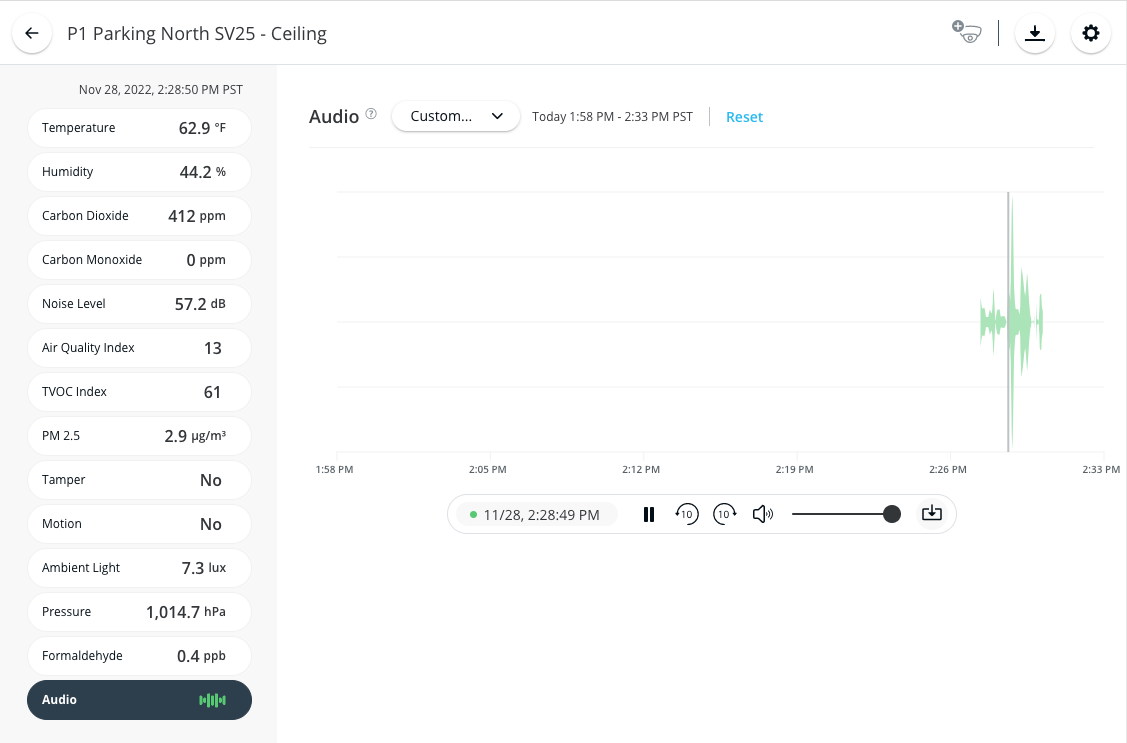
**The device now displays an Audio pill at the bottom of the list of enabled sensors. If only live audio is enabled, the Audio pill shows live audio only and does not include historical audio.**
{% hint style="warning" %}
The Audio view displays a waveform graph based on noise levels detected by the noise-level sensor, which operates independently of audio recording. As a result, you may still see a waveform that reflects ambient noise even when audio recording is turned off or when a recorded segment is missing or unavailable.
{% endhint %}
{% endstep %}
{% step %}
**To play audio, select a time window and click** :play: **under the graph.**
The Verkada Command tab must remain active in your browser for audio to continue playing for both historic and live feeds. Switching to another tab stops your audio playback.
{% endstep %}
{% endstepper %}
***
## Download a segment of audio
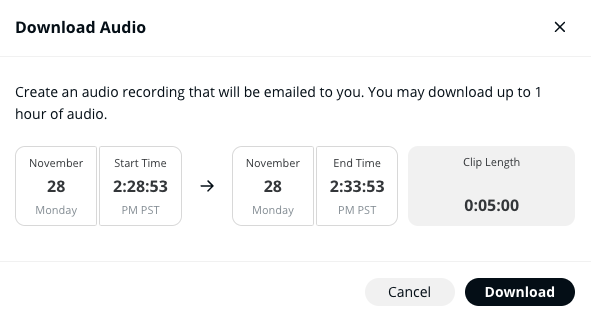
When you download an audio segment, Verkada does not store the requested audio clip in the cloud, as it does with camera archives. Instead, the system delivers the clip only by email. If you delete the email containing the audio archive, you cannot recover that archive.
{% stepper %}
{% step %}
**In Verkada Command, go to All Products > Air Quality.**
{% endstep %}
{% step %}
**Select your sensor > Audio.**
{% endstep %}
{% step %}
**On the audio service bar, click** :download:**.**
{% endstep %}
{% step %}
**Define the span of time and click Download to have a copy of that clip sent to your email.**
{% hint style="warning" %}
For security reasons, the **Download** button does not allow direct file downloads.
{% endhint %}
{% endstep %}
{% endstepper %}
***
## Delete audio
If you want to erase recorded audio, you can delete historical audio. If you want to stop recording, you can disable live audio in the device settings.
{% stepper %}
{% step %}
**In Verkada Command, go to All Products > Air Quality.**
{% endstep %}
{% step %}
**Select your sensor.**
{% endstep %}
{% step %}
**At the top right, click** **.**
{% endstep %}
{% step %}
**Under Audio, you can disable:**
* **Live Audio:** users can no longer listen to a live audio stream from the device
* **Recorded Audio:** the device will stop recording audio, and delete any stored audio recordings
{% endstep %}
{% step %}
**Click Apply to save the changes.**
{% endstep %}
{% endstepper %}
---
# Agent Instructions
This documentation is published with GitBook. GitBook is the documentation platform designed so that both humans and AI agents can read, navigate, and reason over technical content effectively. Learn more at gitbook.com.
## Querying This Documentation
If you need additional information that is not directly available in this page, you can query the documentation by asking a question.
Perform an HTTP GET request on the following URL with the `ask` and `goal` query parameters:
```
GET https://help.verkada.com/air-quality/sensor-data/audio-recording-with-the-sv25.md?ask=&goal=
```
`ask` is the immediate question: it should be specific, self-contained, and written in natural language.
`goal` is what the user is ultimately trying to achieve, the reason they need the answer. Sharing it helps GitBook give you a better, more relevant answer. A goal is most helpful when it describes the outcome the user wants rather than restating the question. For example, with `ask=how do I create an API token`, a goal like `automate deployments from our CI pipeline` lets GitBook tailor the answer to that use case.
The response will contain a direct answer to the question and relevant excerpts and sources from the documentation.
Use this mechanism when the answer is not explicitly present in the current page, you need clarification or additional context, or you want to retrieve related documentation sections.
**.**
{% endstep %}
{% step %}
**Under Audio, you can enable:**
* **Live Audio:** users can listen to a live audio stream from the device
* **Recorded Audio:** the device will continuously record audio, and users can playback the recordings
{% hint style="warning" %}
To record audio, you must also have live audio enabled.
{% endhint %}
After you enable these settings, the device refreshes, and sensor readings are unavailable for about 10 seconds. The device always refreshes when either setting changes.
{% endstep %}
{% step %}
**Click Apply to save the changes.**
{% endstep %}
{% step %}
**The device now displays an Audio pill at the bottom of the list of enabled sensors. If only live audio is enabled, the Audio pill shows live audio only and does not include historical audio.**
{% hint style="warning" %}
The Audio view displays a waveform graph based on noise levels detected by the noise-level sensor, which operates independently of audio recording. As a result, you may still see a waveform that reflects ambient noise even when audio recording is turned off or when a recorded segment is missing or unavailable.
{% endhint %}
{% endstep %}
{% step %}
**To play audio, select a time window and click** :play: **under the graph.**
The Verkada Command tab must remain active in your browser for audio to continue playing for both historic and live feeds. Switching to another tab stops your audio playback.
{% endstep %}
{% endstepper %}
***
## Download a segment of audio
When you download an audio segment, Verkada does not store the requested audio clip in the cloud, as it does with camera archives. Instead, the system delivers the clip only by email. If you delete the email containing the audio archive, you cannot recover that archive.
{% stepper %}
{% step %}
**In Verkada Command, go to All Products > Air Quality.**
{% endstep %}
{% step %}
**Select your sensor > Audio.**
{% endstep %}
{% step %}
**On the audio service bar, click** :download:**.**
{% endstep %}
{% step %}
**Define the span of time and click Download to have a copy of that clip sent to your email.**
{% hint style="warning" %}
For security reasons, the **Download** button does not allow direct file downloads.
{% endhint %}
{% endstep %}
{% endstepper %}
***
## Delete audio
If you want to erase recorded audio, you can delete historical audio. If you want to stop recording, you can disable live audio in the device settings.
{% stepper %}
{% step %}
**In Verkada Command, go to All Products > Air Quality.**
{% endstep %}
{% step %}
**Select your sensor.**
{% endstep %}
{% step %}
**At the top right, click** **.**
{% endstep %}
{% step %}
**Under Audio, you can disable:**
* **Live Audio:** users can no longer listen to a live audio stream from the device
* **Recorded Audio:** the device will stop recording audio, and delete any stored audio recordings
{% endstep %}
{% step %}
**Click Apply to save the changes.**
{% endstep %}
{% endstepper %}
---
# Agent Instructions
This documentation is published with GitBook. GitBook is the documentation platform designed so that both humans and AI agents can read, navigate, and reason over technical content effectively. Learn more at gitbook.com.
## Querying This Documentation
If you need additional information that is not directly available in this page, you can query the documentation by asking a question.
Perform an HTTP GET request on the following URL with the `ask` and `goal` query parameters:
```
GET https://help.verkada.com/air-quality/sensor-data/audio-recording-with-the-sv25.md?ask=&goal=
```
`ask` is the immediate question: it should be specific, self-contained, and written in natural language.
`goal` is what the user is ultimately trying to achieve, the reason they need the answer. Sharing it helps GitBook give you a better, more relevant answer. A goal is most helpful when it describes the outcome the user wants rather than restating the question. For example, with `ask=how do I create an API token`, a goal like `automate deployments from our CI pipeline` lets GitBook tailor the answer to that use case.
The response will contain a direct answer to the question and relevant excerpts and sources from the documentation.
Use this mechanism when the answer is not explicitly present in the current page, you need clarification or additional context, or you want to retrieve related documentation sections.