> For the complete documentation index, see [llms.txt](https://help.verkada.com/llms.txt). Markdown versions of documentation pages are available by appending `.md` to page URLs; this page is available as [Markdown](https://help.verkada.com/air-quality/sensor-data/air-quality-sensor-settings.md).
# Air Quality Sensor Settings
Learn how to change your air quality sensor settings
Verkada’s [Air Quality Sensors](https://www.verkada.com/air-quality/sensors#overview) are all-in-one devices for monitoring environmental changes in your physical space. You can configure the device to display which sensor data you want to monitor, and set custom alerts for when certain thresholds are exceeded. You can also get [alert notifications](/air-quality/events-and-alerts/configure-air-quality-event-alerts.md) in real-time, allowing for fast and proactive responses.
***
## Edit settings
{% stepper %}
{% step %}
**In Verkada Command, go to All Products > Air Quality.**
{% endstep %}
{% step %}
**Select the sensor you want to modify.**
{% endstep %}
{% step %}
**At the top right, click Settings.**
{% endstep %}
{% step %}
**Under General, configure the settings, as needed for each category:**
* [**General**](#h_0a5d18a6b6)
* [**Camera**](#h_c7300020c4)
* [**Sensors and Triggers**](#h_1905a9e65c)
* [**BACnet**](#h_6c10de28ca)
* [**Device**](#h_4f03494ca1)
{% endstep %}
{% step %}
**Click Apply to save.**
{% endstep %}
{% endstepper %}
### General
| Field | How to Configure |
| ------------------- | --------------------------------------------------------------------------------------------------------------------------------------------------------------------------------------------------------------------------------------------------------------------------------------------------------------------------------------------------------------------------------------------------------------------------------------------------------------------------- |
| **Name** | Create a unique name for the sensor. |
| **Site** | Just like Verkada cameras, you can add sensors to a site or subsite to define permissions.
To add an air quality sensor to a site:
- Next to Site, click Change.
- Select your preferred site.
- Click Apply.
|
| **Zone** | Using sensor zones, you can group air quality sensors together in zones to treat a collective of devices as one.
To add an air quality sensor to a zone:
- Next to Zone, click Change.
- Select a zone.
- Click Apply.
|
| **Location** | To set the location of the air quality sensor:
- Next to Location, click Change.
- When you see the map and search bar, enter an address or move the map to set the set location.
- Click Apply.
|
| **Thumbnail** | You can add a thumbnail to:
Help identify your sensor on the Air Quality home page.
Update the image on the Air Quality home page and the device’s page.
To add a thumbnail to your air quality sensor:
Click Select Thumbnail where you can upload an image from your desktop.
To remove the thumbnail, click Remove Thumbnail.
|
| **Serial Number** | Unique identifier for your sensor, used to claim the device to your Command organization. |
| **Sensor Timezone** | To **change the timezone** where the sensor data is located, as specified under **Location**. |
### Camera
On **Edit Settings**, select **Camera** to add a context camera to your sensor. This provides visibility into the environment it is monitoring.
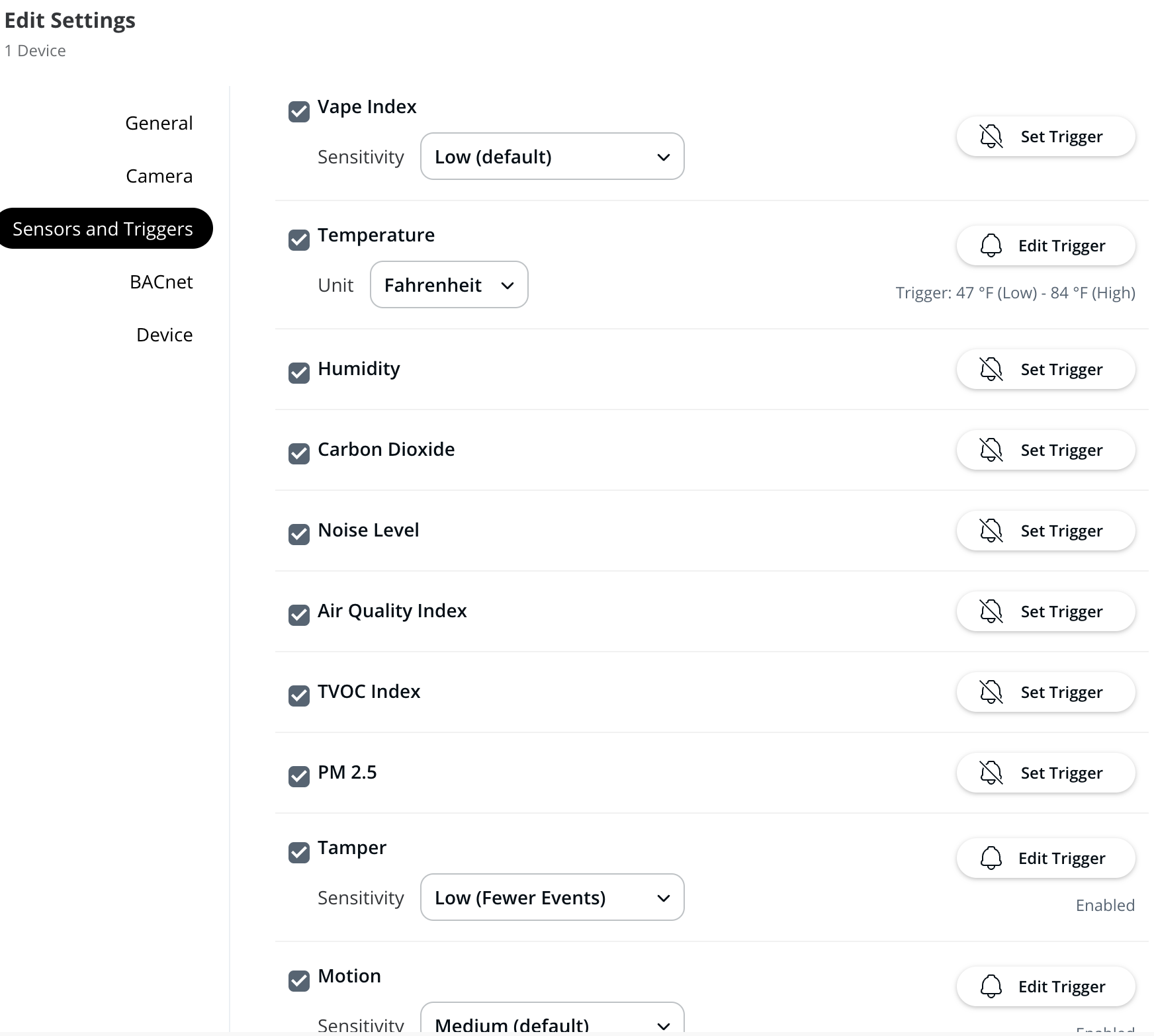
### Sensors and triggers
{% hint style="warning" %}
Not all air quality sensor versions include all sensor readings. You can only see readings available for your device’s model.
{% endhint %}
#### Enable sensor readings
{% stepper %}
{% step %}
**On Edit Settings, click Sensors and Triggers to configure.**
{% endstep %}
{% step %}
**Check the box next to the sensor reading you want to enable. When a reading is active, it has a black checkmark next to it. Learn more about** [**sensor readings**](/air-quality/sensor-data/air-quality-sensor-readings.md)**.**
{% endstep %}
{% endstepper %}
#### Disable sensor readings
To disable a reading, uncheck the box. The checkmark inside the checkbox disappears. Learn more about [sensor readings](/air-quality/sensor-data/air-quality-sensor-readings.md).
#### View temperature readings in Celsius
On **Edit Settings** > **Sensors and Triggers**, go to **Temperature**, click the **Unit** dropdown to switch to Celsius.
{% hint style="warning" %}
This setting is **changed for all users** who can view this sensor.
{% endhint %}
#### Adjust motion sensitivity
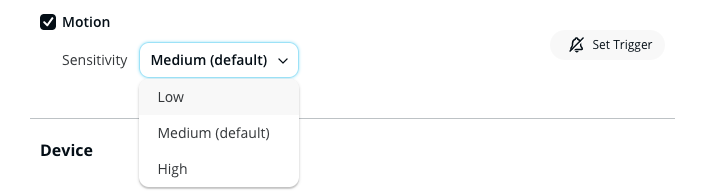
If your sensor is installed near an air conditioning unit (too sensitive) or far from the ground (not sensitive enough), it can affect motion sensitivity. If you notice irregular motion events, we recommend adjusting the motion sensitivity to better accommodate the device.
On **Edit Settings** > **Sensors and Triggers**, go to **Motion**, click the **Sensitivity** dropdown to select **Low**, **Medium** (default), or **High**.
### BACnet
{% stepper %}
{% step %}
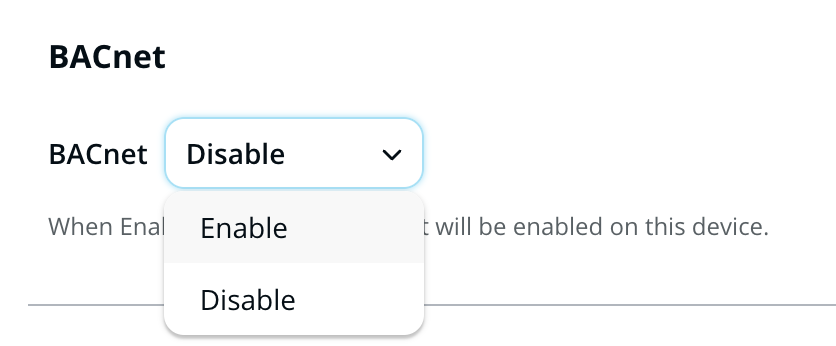
**On Edit Settings > BACnet.**
{% endstep %}
{% step %}
**Click the dropdown and select Enable or Disable, as needed. When you enable, BACnet/IP support is enabled for this device. Learn more about** [**BACnet for Verkada sensors**](/air-quality/configuration/bacnet-for-verkada-air-quality-sensors.md)**.**
{% endstep %}
{% endstepper %}
***
### Device
#### Device IP
Verkada SV20 series ([SV21](https://docs.verkada.com/docs/air-quality-sensors-overview.pdf), [SV23](https://docs.verkada.com/docs/air-quality-sensors-overview.pdf), [SV25](https://docs.verkada.com/docs/air-quality-sensors-overview.pdf)) Air Quality Sensors provide the option to [configure/assign a static IP](/air-quality/configuration/configure-static-ip-addresses-for-air-quality-sensors-sv20-series-only.md) to ensure that your air quality sensor devices maintain consistent network communication without relying on dynamic IP allocation protocols, such as the Dynamic Host Configuration Protocol (DHCP).
To configure a static IP address on a sensor device, the device must initially connect to Command and update to the latest firmware using DHCP. Once the device’s update process is complete, it has the ability to receive the new static IP configuration. Learn more about [Static IP configuration for Air Quality Sensor Devices](/air-quality/configuration/configure-static-ip-addresses-for-air-quality-sensors-sv20-series-only.md).
#### Identify your sensor
{% stepper %}
{% step %}
**On Edit Settings > Device.**
{% endstep %}
{% step %}
**Click Identify to locate the sensor in a room:**
* Have the [SV11](https://www.verkada.com/sensors/sv11/) flash blue and orange
* Have the [SV21](https://docs.verkada.com/docs/air-quality-sensors-overview.pdf), [SV23](https://docs.verkada.com/docs/air-quality-sensors-overview.pdf), and [SV25](https://docs.verkada.com/docs/air-quality-sensors-overview.pdf) flash orange rapidly for a short amount of time
{% endstep %}
{% endstepper %}
#### Reboot a sensor device
{% stepper %}
{% step %}
**On Edit Settings > Device.**
{% endstep %}
{% step %}
**Click Reboot.**
{% hint style="warning" %}
You can only reboot the device when it can maintain a connection to the Verkada Command backend. Devices that blink blue or white (and, in some cases, orange status lights) cannot be remotely rebooted this way.
{% endhint %}
{% endstep %}
{% endstepper %}
#### Delete a sensor device
{% stepper %}
{% step %}
**On Edit Settings > Device.**
{% endstep %}
{% step %}
**Click Delete.**
{% endstep %}
{% step %}
**Enter the verification code to confirm your request.**
{% endstep %}
{% endstepper %}
{% hint style="warning" %}
Deleting the device from your organization unclaims the device, and anyone who has the serial number can claim it in their organization. This also wipes all sensor data and resets the device back to factory defaults.
{% endhint %}
#### Offline notifications
You can set notifications for when the sensor goes offline:
{% stepper %}
{% step %}
**On Edit Settings > Device.**
{% endstep %}
{% step %}
**Under Offline Notifications, click Create Alert. Learn more about how to** [**create alerts**](/verkada-cameras/analytics/create-camera-event-alerts.md)**.**
{% endstep %}
{% endstepper %}
---
# Agent Instructions
This documentation is published with GitBook. GitBook is the documentation platform designed so that both humans and AI agents can read, navigate, and reason over technical content effectively. Learn more at gitbook.com.
## Querying This Documentation
If you need additional information that is not directly available in this page, you can query the documentation by asking a question.
Perform an HTTP GET request on the following URL with the `ask` and `goal` query parameters:
```
GET https://help.verkada.com/air-quality/sensor-data/air-quality-sensor-settings.md?ask=&goal=
```
`ask` is the immediate question: it should be specific, self-contained, and written in natural language.
`goal` is what the user is ultimately trying to achieve, the reason they need the answer. Sharing it helps GitBook give you a better, more relevant answer. A goal is most helpful when it describes the outcome the user wants rather than restating the question. For example, with `ask=how do I create an API token`, a goal like `automate deployments from our CI pipeline` lets GitBook tailor the answer to that use case.
The response will contain a direct answer to the question and relevant excerpts and sources from the documentation.
Use this mechanism when the answer is not explicitly present in the current page, you need clarification or additional context, or you want to retrieve related documentation sections.