> For the complete documentation index, see [llms.txt](https://help.verkada.com/llms.txt). Markdown versions of documentation pages are available by appending `.md` to page URLs; this page is available as [Markdown](https://help.verkada.com/air-quality/ja/she-ding/bulk-edit-air-quality-sensor-settings.md).
# 空気質センサー設定の一括編集
センサー設定とアラートしきい値をすばやく編集する方法を学ぶ
Verkada Command プラットフォームを使用すると、Verkada のグループを編集できます [空気質センサー](/air-quality/ja/sensdta/air-quality-sensor-settings.md) およびそれぞれの設定を一度に編集できます。
***
## センサーを一括選択
{% stepper %}
{% step %}
**Verkada Command で、\[すべての製品] > \[デバイス] に移動します。**
{% endstep %}
{% step %}
**変更したい空気質センサーを選択します。**
{% endstep %}
{% step %}
**デバイスタイプでフィルターをかけます: 空気質。**
{% hint style="warning" %}
一括編集できるのは、 **空気質** が、選択されているデバイスタイプがそれだけの場合に限られます。
{% endhint %}
{% endstep %}
{% step %}
**更新したい各センサーの横のチェックボックスをオンにします。**
または、上部の黒いボックス(白い縦線付き)をクリックして **すべての** のデバイスを **サイト内の** または **組織**.
{% endstep %}
{% endstepper %}
***
## センサー設定を一括編集
{% stepper %}
{% step %}
**デバイスを選択したら、右上の \[設定を編集] をクリックします。**
{% hint style="warning" %}
モバイルブラウザーまたは低解像度のモニターで表示している場合、これは歯車アイコンのみで表示されることがあります。
{% endhint %}
{% endstep %}
{% step %}
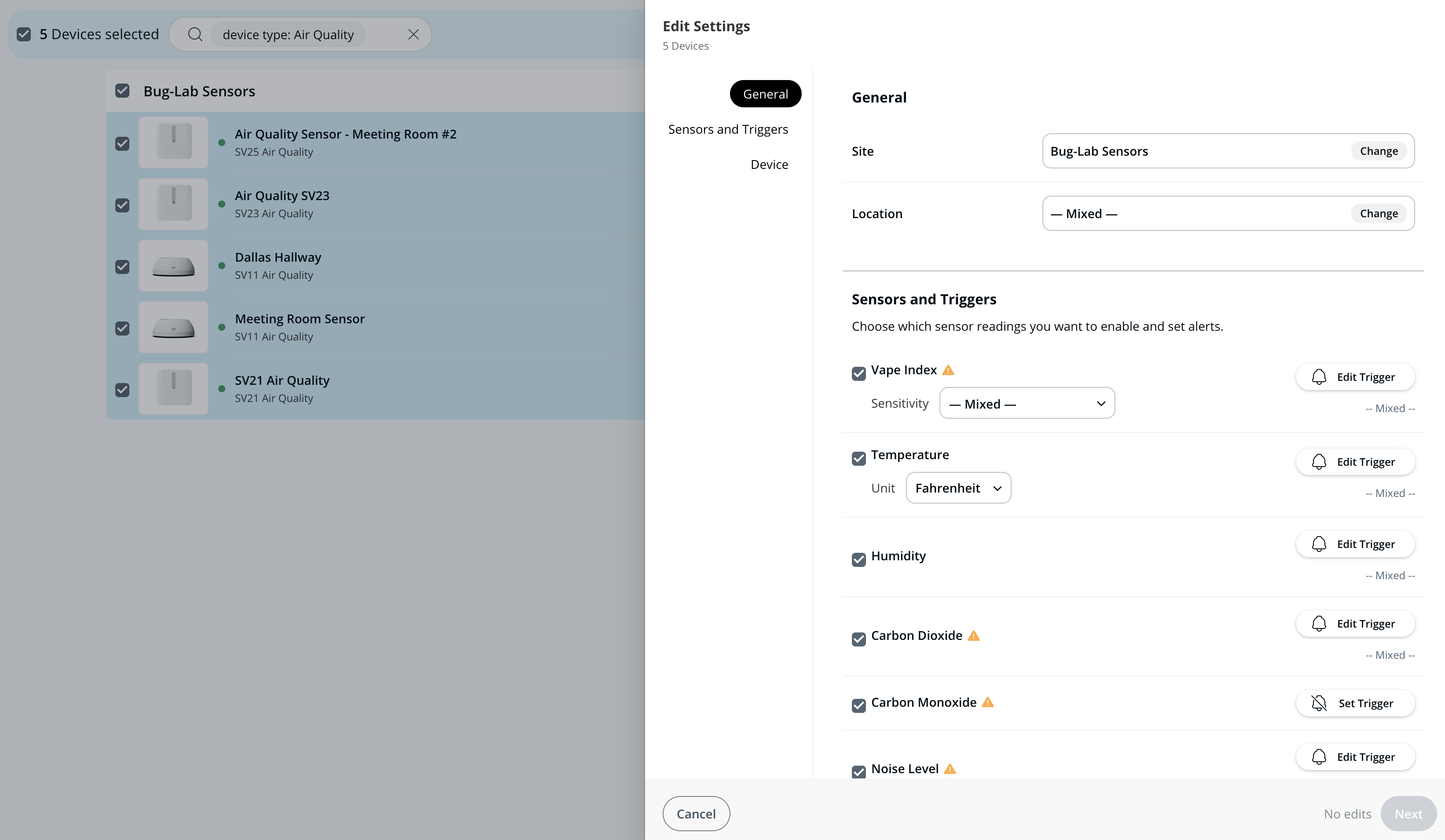
**[設定を編集]では、Site、Location、Sensors と Triggers(アラートしきい値)、通知設定、およびオフライン通知を変更できます。詳細は** [**空気質センサーの設定**](/air-quality/ja/sensdta/air-quality-sensor-settings.md) **の設定詳細をご覧ください。**
{% hint style="warning" %}
パラメータが選択したすべてのデバイスで同じ場合は、設定値が表示されます。デバイスごとに値が異なる場合は、次のように表示されます。 **混在**.
{% endhint %}
{% endstep %}
{% step %}
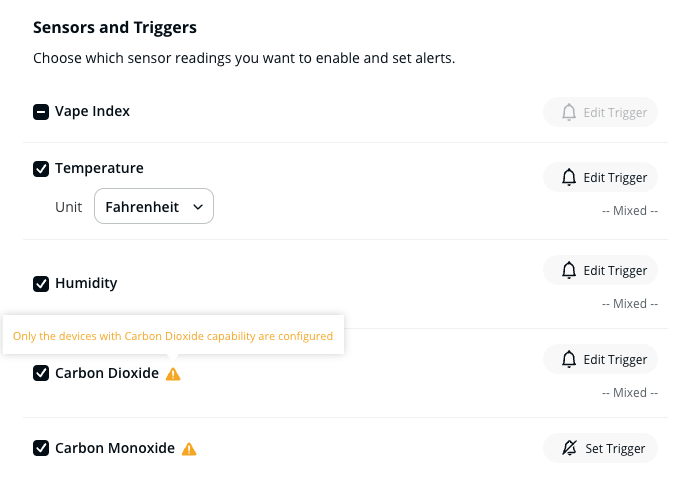
**一部のデバイスモデルは、異なるセンサー機能をサポートしています。選択したデバイス全体で、利用可能なすべてのセンサー設定を引き続き編集できます。機能の異なるデバイスを混在して選択した場合、システムはそのセンサーが存在するすべてのデバイスに変更を適用します。**
{% endstep %}
{% step %}
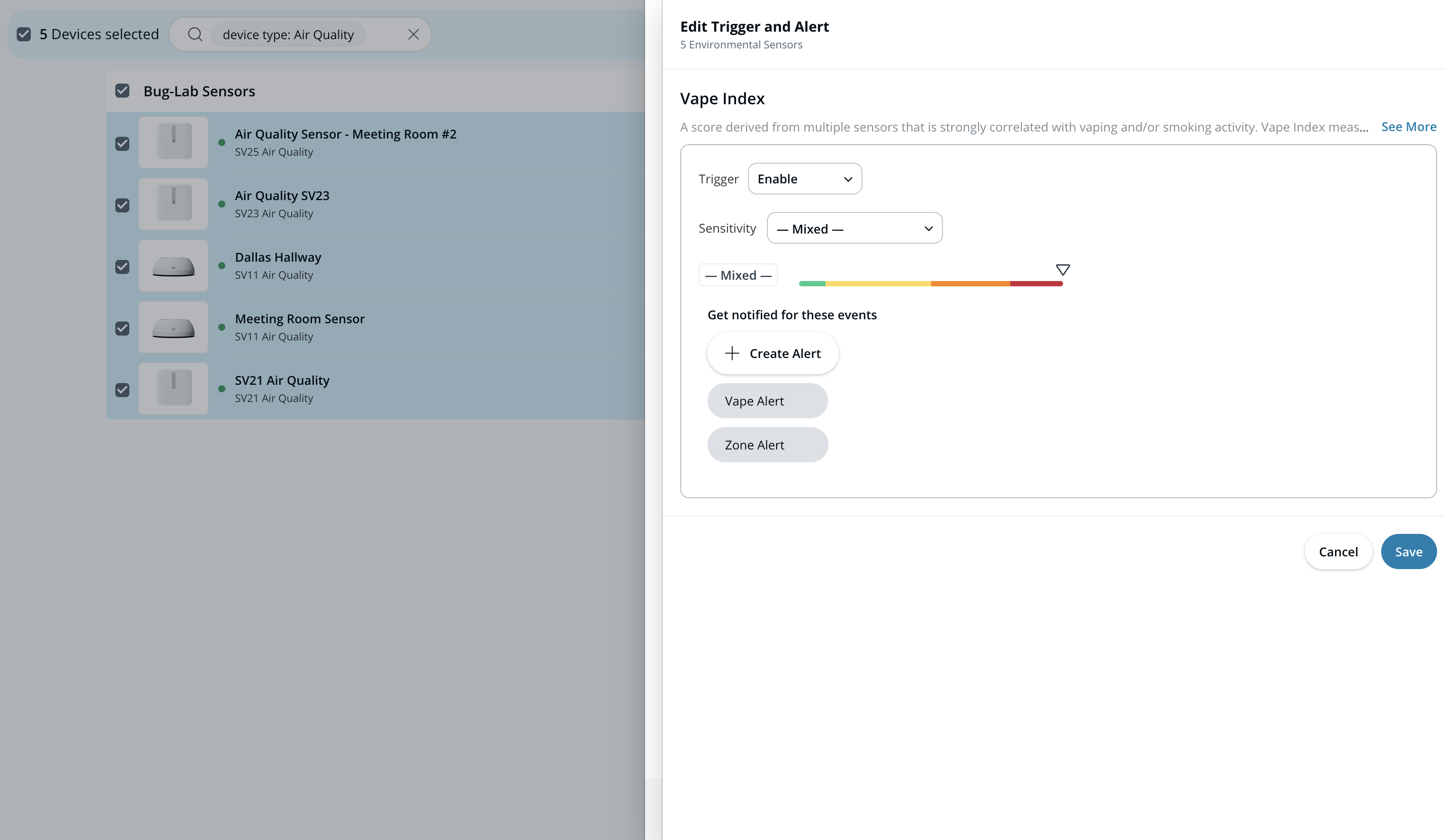
**(任意)選択したデバイスに、アラートを生成するトリガーを設定します:**
1. クリックして **トリガーを設定** または **トリガーを編集** センサーの測定値に対して。
2. を設定します。 **しきい値** と **イベントトリガー**.
3. (任意)クリックします [**[アラートを作成]**](/air-quality/ja/ibento-arto/configure-air-quality-event-alerts.md) このトリガーのアラートを設定するには。
4. クリックして **保存** 変更を適用するには。
{% hint style="info" %}
デバイスを一括編集する場合、あなたが編集者として表示されるアラートの一覧が表示されます。 [組織管理者](/command/ja/yzto/roles-and-permissions-for-command.md) はすべてのアラートを表示できます。
{% endhint %}
{% endstep %}
{% step %}
**変更が確定したら、\[次へ] をクリックします。**
{% endstep %}
{% step %}
**確認を求められたら、これから行う変更を確認し、\[適用] > \[完了] をクリックします。**
{% hint style="info" %}
複数のデバイスを一度に変更する場合、この手順には時間がかかることがあります。変更の適用中は、このページを終了したり離れたりしないでください。この手順中にページを離れたり終了したりすると、変更が部分的にしか適用されない場合があります。
{% endhint %}
{% endstep %}
{% endstepper %}
---
# Agent Instructions
This documentation is published with GitBook. GitBook is the documentation platform designed so that both humans and AI agents can read, navigate, and reason over technical content effectively. Learn more at gitbook.com.
## Querying This Documentation
If you need additional information that is not directly available in this page, you can query the documentation by asking a question.
Perform an HTTP GET request on the following URL with the `ask` and `goal` query parameters:
```
GET https://help.verkada.com/air-quality/ja/she-ding/bulk-edit-air-quality-sensor-settings.md?ask=&goal=
```
`ask` is the immediate question: it should be specific, self-contained, and written in natural language.
`goal` is what the user is ultimately trying to achieve, the reason they need the answer. Sharing it helps GitBook give you a better, more relevant answer. A goal is most helpful when it describes the outcome the user wants rather than restating the question. For example, with `ask=how do I create an API token`, a goal like `automate deployments from our CI pipeline` lets GitBook tailor the answer to that use case.
The response will contain a direct answer to the question and relevant excerpts and sources from the documentation.
Use this mechanism when the answer is not explicitly present in the current page, you need clarification or additional context, or you want to retrieve related documentation sections.