> For the complete documentation index, see [llms.txt](https://help.verkada.com/llms.txt). Markdown versions of documentation pages are available by appending `.md` to page URLs; this page is available as [Markdown](https://help.verkada.com/air-quality/events-and-alerts/configure-air-quality-event-alerts/create-a-person-of-interest-for-air-quality-sensors.md).
# Create a Person of Interest for Air Quality sensors
Learn how to create a POI from Air Quality sensor alerts
Verkada cameras allow you to create a Person of Interest (POI) using one or more photos of a person’s face. When paired with an Air Quality sensor, cameras can help identify and track nearby individuals during specific air quality alerts.
{% hint style="danger" %}
* The camera paired to the sensor must have People Analytics enabled to support POI creation and people tracking from Air Quality sensors.
* Sensor readings must be configured with triggers to generate events. See [Air Quality Sensor Settings](/air-quality/sensor-data/air-quality-sensor-settings.md) for more information.
{% endhint %}
***
## Enable Air Quality People Insights
To activate People Insights on your Air Quality sensors, you first need to activate the feature for your organization.
{% stepper %}
{% step %}
**In Verkada Command, go to All Products > Admin.**
{% endstep %}
{% step %}
**In the left navigation, select Feature Manager.**
{% endstep %}
{% step %}
**Under Air Quality > Sensor People Insights, select Enabled from the dropdown menu.**
{% endstep %}
{% endstepper %}
***
## Create a Person of Interest profile
### People analytics page
{% hint style="warning" %}
You can create a Person of Interest profile from the People page. Organizations with POI profiles already created will automatically start tracking Air Quality POI. See [Create a Person of Interest](/verkada-cameras/analytics/people-analytics/create-a-person-of-interest.md) for more information.
{% endhint %}
### Air Quality events page
{% stepper %}
{% step %}
**In Verkada Command, go to All Products > Air Quality.**
{% endstep %}
{% step %}
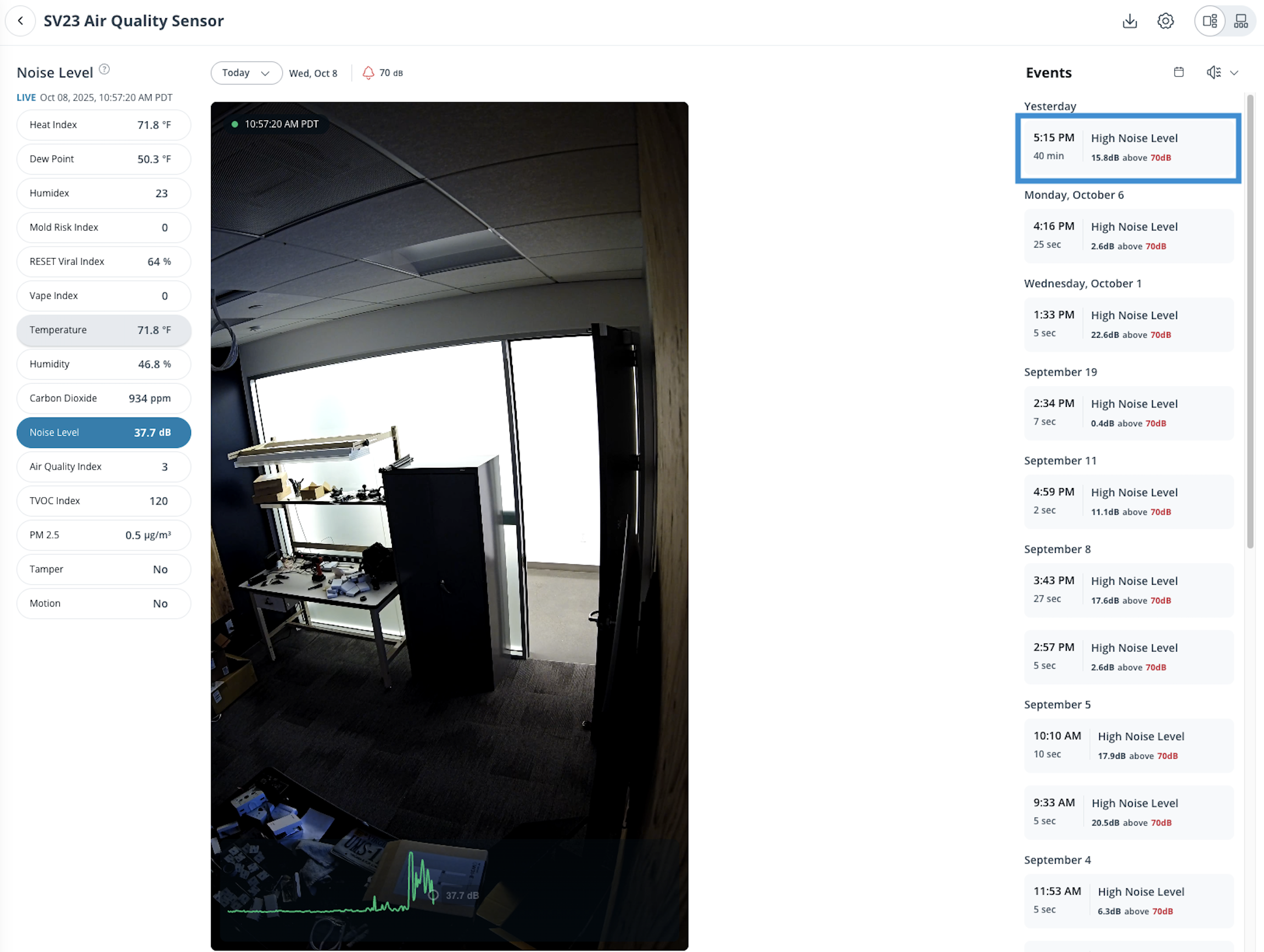
**Select your sensor, then choose an event on the right to view the individuals detected during that event.**
{% endstep %}
{% step %}
**Thumbnails will populate on the right. Click** :ellipsis: **in the bottom right of the image you want to make a POI.**
a. Select **Add Person of Interest**.\
b. Name the POI.\
c. Click **Create.**
{% endstep %}
{% step %}
**You can now view profiles and their associated air quality events from the People Insights tab in the left navigation.**
{% endstep %}
{% endstepper %}
{% hint style="warning" %}
POI event footage follows the camera’s retention period. For example, if a camera has 30-day retention, POI event clips will no longer be available after that period.
{% endhint %}
***
## Remove a POI profile
{% stepper %}
{% step %}
**In Verkada Command, go to All Products > Cameras.**
{% endstep %}
{% step %}
**On the left navigation, click People.**
{% endstep %}
{% step %}
**On the left, under People Lists, select the list the POI profile is in.**
{% endstep %}
{% step %}
**Click the photo of the POI you want to manage.**
{% endstep %}
{% step %}
**Click next to their name and select Remove this person.**
{% endstep %}
{% endstepper %}
---
# Agent Instructions
This documentation is published with GitBook. GitBook is the documentation platform designed so that both humans and AI agents can read, navigate, and reason over technical content effectively. Learn more at gitbook.com.
## Querying This Documentation
If you need additional information that is not directly available in this page, you can query the documentation by asking a question.
Perform an HTTP GET request on the following URL with the `ask` and `goal` query parameters:
```
GET https://help.verkada.com/air-quality/events-and-alerts/configure-air-quality-event-alerts/create-a-person-of-interest-for-air-quality-sensors.md?ask=&goal=
```
`ask` is the immediate question: it should be specific, self-contained, and written in natural language.
`goal` is what the user is ultimately trying to achieve, the reason they need the answer. Sharing it helps GitBook give you a better, more relevant answer. A goal is most helpful when it describes the outcome the user wants rather than restating the question. For example, with `ask=how do I create an API token`, a goal like `automate deployments from our CI pipeline` lets GitBook tailor the answer to that use case.
The response will contain a direct answer to the question and relevant excerpts and sources from the documentation.
Use this mechanism when the answer is not explicitly present in the current page, you need clarification or additional context, or you want to retrieve related documentation sections.