> For the complete documentation index, see [llms.txt](https://help.verkada.com/llms.txt). Markdown versions of documentation pages are available by appending `.md` to page URLs; this page is available as [Markdown](https://help.verkada.com/air-quality/events-and-alerts/air-quality-event-analytics.md).
# Air Quality Event Analytics
Learn how to track and monitor Verkada air quality sensor alert trends across your organization
Verkada’s [air quality sensors](https://docs.verkada.com/docs/air-quality-sensors-overview.pdf) are designed to give you the ability to monitor environments for abnormal conditions automatically and in real time. With sensor analytics, you can track and monitor alert trends, environmental trends, and behaviors across your organization, at the site and device levels.
***
## Access event analytics
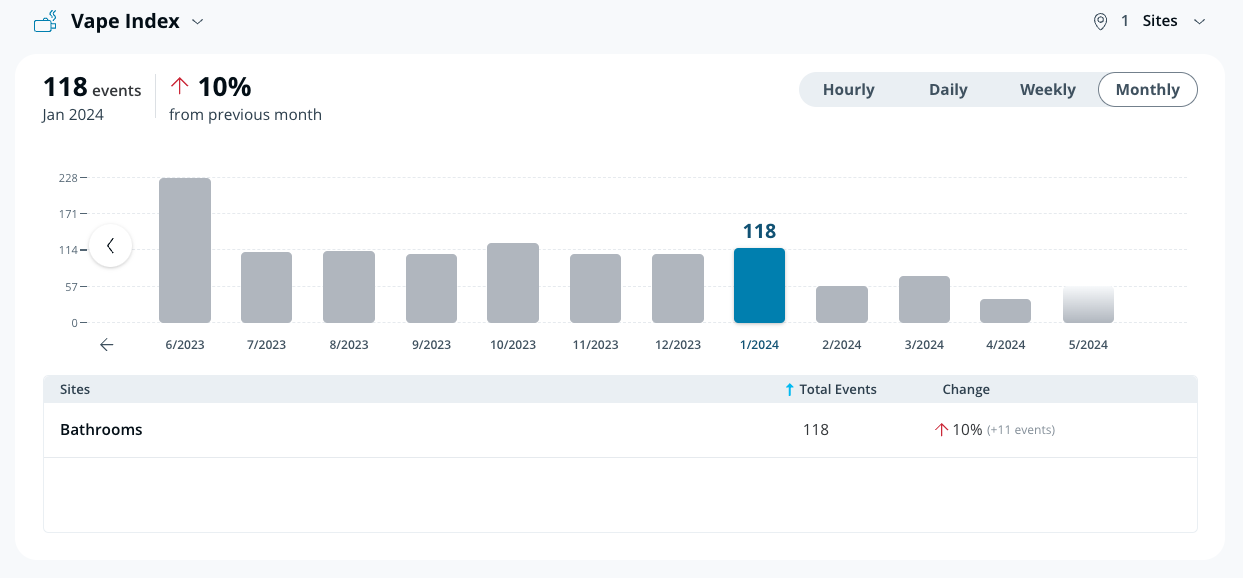
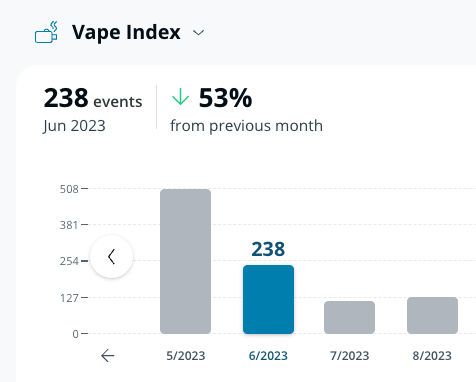
The **Event Analytics** page makes it easier to view and analyze your sensor data. You can now specify which readings to evaluate to see how many alerts are generated on a daily, weekly, or monthly basis. The page has an easy-to-use graph to help identify trends and a table to show the count of total alerts and associated changes.
{% stepper %}
{% step %}
**In Verkada Command, go to All Products > Air Quality.**
{% endstep %}
{% step %}
**On the left navigation, click Analytics.**
{% endstep %}
{% step %}
**On Event Analytics:**
a. Click the sensor reading dropdown and choose which reading you want to view. You can select from any of the [Air Quality sensor readings](/air-quality/sensor-data/air-quality-sensor-readings.md) available; however, only alerts on configured and supported devices contribute to the data.\
b. Click the **timeframe** dropdown (by default, **Weekly** is selected) and choose which timeframe you want to view.
* **Hourly**—Shows an hour-by-hour view of the selected day.
* **Daily**—Shows a day-by-day view of the past 12 days.
* **Weekly**—Shows a week-by-week view for the past 12 weeks.
* **Monthly**—Shows a month-by-month view for the past 12 months.
g. Click the **sites** dropdown (by default, **All Sites** is selected), and individually select the sites you want to review. If you’re only interested in a portion of the devices in the sites, we recommend that you create a new subsite for those devices.
{% endstep %}
{% endstepper %}
### Understand the analytics table
Within the detailed view:
* You see a breakdown of how your selected sites have performed over the time interval selected compared to their previous performance.
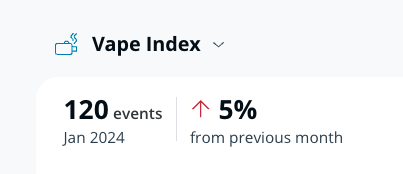
* At the top left, you see a composite summary of the reading for all selected sites over the time interval selected. You may also select a new sensor reading to analyze.
* You can select any of the columns to be the active tab.
* **Totals Alerts** show the sum of all alerts for the selected time interval.
* The number above the column and in the summary section on the top left of the page is the total sum of the **Totals Alerts** for all sites.
* **Change** shows the change as a percentage relative to the selected time interval.
* A **red upward arrow** indicates an uptick in alerts over the measured period.
* A **green downward arrow** indicates a decrease in alerts over the measured period.
* No change over time is expressed as 0%.
* An increase from zero events in the reference column is considered undefined (division by zero) and is expressed as –%.
* The most alerts can increase over time is infinite, with a 2x increase corresponding to a 100% change.
* Most alerts can decrease over time, and the rate of decrease is finite, converging to 0%, where a 2x decrease corresponds to a 50% change.
---
# Agent Instructions
This documentation is published with GitBook. GitBook is the documentation platform designed so that both humans and AI agents can read, navigate, and reason over technical content effectively. Learn more at gitbook.com.
## Querying This Documentation
If you need additional information that is not directly available in this page, you can query the documentation by asking a question.
Perform an HTTP GET request on the following URL with the `ask` and `goal` query parameters:
```
GET https://help.verkada.com/air-quality/events-and-alerts/air-quality-event-analytics.md?ask=&goal=
```
`ask` is the immediate question: it should be specific, self-contained, and written in natural language.
`goal` is what the user is ultimately trying to achieve, the reason they need the answer. Sharing it helps GitBook give you a better, more relevant answer. A goal is most helpful when it describes the outcome the user wants rather than restating the question. For example, with `ask=how do I create an API token`, a goal like `automate deployments from our CI pipeline` lets GitBook tailor the answer to that use case.
The response will contain a direct answer to the question and relevant excerpts and sources from the documentation.
Use this mechanism when the answer is not explicitly present in the current page, you need clarification or additional context, or you want to retrieve related documentation sections.