> For the complete documentation index, see [llms.txt](https://help.verkada.com/llms.txt). Markdown versions of documentation pages are available by appending `.md` to page URLs; this page is available as [Markdown](https://help.verkada.com/air-quality/configuration/configure-static-ip-addresses-for-air-quality-sensors-sv20-series-only.md).
# Configure Static IP Addresses for Air Quality Sensors (SV20 Series Only)
Learn how to configure static IP addresses for Verkada Air Quality Sensors
Verkada Air Quality Sensors provide the option to configure/assign a static IP to ensure that your air quality sensor devices maintain consistent network communication without relying on dynamic IP allocation protocols, such as the Dynamic Host Configuration Protocol (DHCP).
#### **Only the SV20 series models support Static IP:**
* SV21
* SV23
* SV25
* SV25-128
*The SV11 does **NOT** support static IP.*
{% hint style="danger" %}
Verkada devices support RFC 1918 private IP addresses. This means that only private IP ranges specified in the RFC, such as 10.0.0.0/8, 172.16.0.0/12, and 192.168.0.0/16, are compatible with the static IP configuration feature.
{% endhint %}
### Before you begin
To configure a static IP address on a sensor device, it must initially connect to Command and update to the latest firmware using DHCP. Once the update process is complete, the device can receive the new static IP configuration.
***
## Configure a static IP address
{% hint style="danger" %}
You need [Site Admins](/verkada-cameras/getting-started/roles-and-permissions-for-cameras.md) permissions to enable this feature or modify static IP configurations.
{% endhint %}
{% stepper %}
{% step %}
**In Verkada Command, go to All Products > Air Quality.**
{% endstep %}
{% step %}
**Select a sensor to configure.**
{% endstep %}
{% step %}
**At the top right, click**  **.**
{% endstep %}
{% step %}
**Under Device > Device IP, click the dropdown and select Manual.**
{% endstep %}
{% step %}
**Under Manual, enter the static IP addressing information.**
{% endstep %}
{% step %}
**Click Apply to save the configuration. This change is immediately applied to the sensor interface.**
{% endstep %}
{% endstepper %}
### Recovery mechanisms
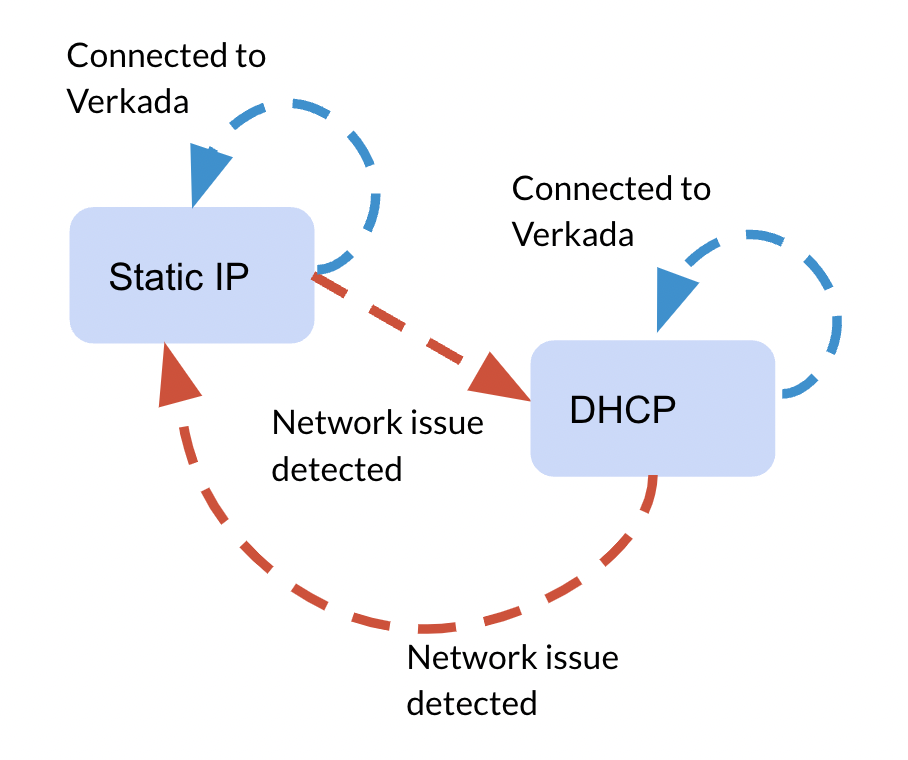
Sensors have a recovery mechanism in case of configuration mistakes or network changes. The device performs the following checks at regular intervals to ensure connectivity. If any of these tests fail, the device falls back to the DHCP operation.
| Recovery Mechanism | How to Perform this Task |
| ------------------------------------------------------------------- | ----------------------------------------------------------------------------------------------------------------------------------------------------------------------------------------------------------------------------------------------------------------------------------------------------------------------- |
| **On the subnet, verify there is no duplicate IP conflict** | Send Address Resolution Protocol (ARP) requests for the configured sensor IP. If the sensor receives an ARP request, the reply it considers it as a duplicate IP conflict. |
| **Verify there is a default gateway** | Send ARP requests for the configured gateway IP. If no reply is received by the sensor, the gateway is considered unreachable. The device on the network with the configured IP of the gateway. |
| **DNS resolution is operational for Verkada domains** | Perform Domain Name Server (DNS) lookups for Verkada domains. In case the device doesn’t receive a response from any of the domains, this test fails. |
| **SSL/TLS sessions can be established with the required endpoints** | Send HyperText Transfer Protocol Secure (HTTPS) requests to the Verkada endpoints required for sensor operation. In case the device is unable to perform a Transport Layer Security (TLS) handshake with any of the endpoints, or in case there is any error while performing this handshake, this makes the test fail. |
### Endpoints for DNS tests
The following list of endpoints is used for DNS tests, as these are critical for sensor device operation. For a full list of endpoints, see [Air Quality Sensor Network Settings](/air-quality/getting-started/air-quality-sensor-network-settings.md).
```
api.control.verkada.com - TCP/443
relay.control.verkada.com - TCP/443
index.control.verkada.com - TCP/443
firmware.control.verkada.com - TCP/443
update.control.verkada.com - TCP/443
```
### Endpoint for TLS tests
For TLS tests, only the **api.control.verkada.com** endpoint is used. If the sensor is unable to establish a TLS connection with this endpoint, it falls back to DHCP operation.
### Troubleshoot workflow
{% stepper %}
{% step %}
**If the sensor encounters any issues during these checks, it attempts to revert to its default DHCP configuration and perform the connectivity tests listed above.**
{% endstep %}
{% step %}
**If the DHCP connection fails, the sensor retries using the static IP configuration.**
{% endstep %}
{% step %}
**If the sensor fails to connect again using its static IP configuration, it alternates between static IP and DHCP operations in an exponential backoff, ranging from 20 seconds to 1 hour.**
{% endstep %}
{% endstepper %}
{% hint style="warning" %}
* If the sensor successfully connects to Verkada Command using DHCP, it continues to operate on DHCP until it is rebooted—via Command or by power cycling the sensor.
* Bulk configuration for static IP addressing is not supported for sensor devices.
{% endhint %}
---
# Agent Instructions
This documentation is published with GitBook. GitBook is the documentation platform designed so that both humans and AI agents can read, navigate, and reason over technical content effectively. Learn more at gitbook.com.
## Querying This Documentation
If you need additional information that is not directly available in this page, you can query the documentation by asking a question.
Perform an HTTP GET request on the following URL with the `ask` and `goal` query parameters:
```
GET https://help.verkada.com/air-quality/configuration/configure-static-ip-addresses-for-air-quality-sensors-sv20-series-only.md?ask=&goal=
```
`ask` is the immediate question: it should be specific, self-contained, and written in natural language.
`goal` is what the user is ultimately trying to achieve, the reason they need the answer. Sharing it helps GitBook give you a better, more relevant answer. A goal is most helpful when it describes the outcome the user wants rather than restating the question. For example, with `ask=how do I create an API token`, a goal like `automate deployments from our CI pipeline` lets GitBook tailor the answer to that use case.
The response will contain a direct answer to the question and relevant excerpts and sources from the documentation.
Use this mechanism when the answer is not explicitly present in the current page, you need clarification or additional context, or you want to retrieve related documentation sections.
**.**
{% endstep %}
{% step %}
**Under Device > Device IP, click the dropdown and select Manual.**
{% endstep %}
{% step %}
**Under Manual, enter the static IP addressing information.**
{% endstep %}
{% step %}
**Click Apply to save the configuration. This change is immediately applied to the sensor interface.**
{% endstep %}
{% endstepper %}
### Recovery mechanisms
Sensors have a recovery mechanism in case of configuration mistakes or network changes. The device performs the following checks at regular intervals to ensure connectivity. If any of these tests fail, the device falls back to the DHCP operation.
| Recovery Mechanism | How to Perform this Task |
| ------------------------------------------------------------------- | ----------------------------------------------------------------------------------------------------------------------------------------------------------------------------------------------------------------------------------------------------------------------------------------------------------------------- |
| **On the subnet, verify there is no duplicate IP conflict** | Send Address Resolution Protocol (ARP) requests for the configured sensor IP. If the sensor receives an ARP request, the reply it considers it as a duplicate IP conflict. |
| **Verify there is a default gateway** | Send ARP requests for the configured gateway IP. If no reply is received by the sensor, the gateway is considered unreachable. The device on the network with the configured IP of the gateway. |
| **DNS resolution is operational for Verkada domains** | Perform Domain Name Server (DNS) lookups for Verkada domains. In case the device doesn’t receive a response from any of the domains, this test fails. |
| **SSL/TLS sessions can be established with the required endpoints** | Send HyperText Transfer Protocol Secure (HTTPS) requests to the Verkada endpoints required for sensor operation. In case the device is unable to perform a Transport Layer Security (TLS) handshake with any of the endpoints, or in case there is any error while performing this handshake, this makes the test fail. |
### Endpoints for DNS tests
The following list of endpoints is used for DNS tests, as these are critical for sensor device operation. For a full list of endpoints, see [Air Quality Sensor Network Settings](/air-quality/getting-started/air-quality-sensor-network-settings.md).
```
api.control.verkada.com - TCP/443
relay.control.verkada.com - TCP/443
index.control.verkada.com - TCP/443
firmware.control.verkada.com - TCP/443
update.control.verkada.com - TCP/443
```
### Endpoint for TLS tests
For TLS tests, only the **api.control.verkada.com** endpoint is used. If the sensor is unable to establish a TLS connection with this endpoint, it falls back to DHCP operation.
### Troubleshoot workflow
{% stepper %}
{% step %}
**If the sensor encounters any issues during these checks, it attempts to revert to its default DHCP configuration and perform the connectivity tests listed above.**
{% endstep %}
{% step %}
**If the DHCP connection fails, the sensor retries using the static IP configuration.**
{% endstep %}
{% step %}
**If the sensor fails to connect again using its static IP configuration, it alternates between static IP and DHCP operations in an exponential backoff, ranging from 20 seconds to 1 hour.**
{% endstep %}
{% endstepper %}
{% hint style="warning" %}
* If the sensor successfully connects to Verkada Command using DHCP, it continues to operate on DHCP until it is rebooted—via Command or by power cycling the sensor.
* Bulk configuration for static IP addressing is not supported for sensor devices.
{% endhint %}
---
# Agent Instructions
This documentation is published with GitBook. GitBook is the documentation platform designed so that both humans and AI agents can read, navigate, and reason over technical content effectively. Learn more at gitbook.com.
## Querying This Documentation
If you need additional information that is not directly available in this page, you can query the documentation by asking a question.
Perform an HTTP GET request on the following URL with the `ask` and `goal` query parameters:
```
GET https://help.verkada.com/air-quality/configuration/configure-static-ip-addresses-for-air-quality-sensors-sv20-series-only.md?ask=&goal=
```
`ask` is the immediate question: it should be specific, self-contained, and written in natural language.
`goal` is what the user is ultimately trying to achieve, the reason they need the answer. Sharing it helps GitBook give you a better, more relevant answer. A goal is most helpful when it describes the outcome the user wants rather than restating the question. For example, with `ask=how do I create an API token`, a goal like `automate deployments from our CI pipeline` lets GitBook tailor the answer to that use case.
The response will contain a direct answer to the question and relevant excerpts and sources from the documentation.
Use this mechanism when the answer is not explicitly present in the current page, you need clarification or additional context, or you want to retrieve related documentation sections.