> For the complete documentation index, see [llms.txt](https://help.verkada.com/llms.txt). Markdown versions of documentation pages are available by appending `.md` to page URLs; this page is available as [Markdown](https://help.verkada.com/air-quality/configuration/air-quality-sensor-calibration.md).
# Air Quality Sensor Calibration
Learn how you (as an advanced user) can calibrate your Verkada Air Quality Sensors
Verkada [Air Quality Sensors](https://docs.verkada.com/docs/air-quality-sensors-overview.pdf) provide a range of readings that help you gain more insight into your building or monitor areas where video monitoring is not allowed. The available data depends on the sensor model.
You can use Verkada sensors to monitor temperature, humidity, carbon dioxide, and other environmental conditions throughout indoor spaces to identify possible impacts on human health or asset performance.
The Verkada Air Quality Sensor calibration interface:
* Allows you to calibrate your sensors to your specification needs and easily download a certificate to verify compliance.
* Provides another level of actionability and verification to the rich data collected by Verkada sensors.
{% hint style="warning" %}
Verkada sensors are factory-calibrated and rated to the specified accuracy in the [SV20 Series Air Quality Sensor](https://docs.verkada.com/docs/air-quality-sensors-overview.pdf) overview for at least 10 years.
{% endhint %}
***
## Calibrate a Verkada sensor
The temperature and humidity sensors onboard Verkada sensors are individually tested and calibrated. To ensure their continued accuracy, recalibration using an external reference device is necessary.
For the calibration, Verkada uses transfer standards, which are subject to a scheduled calibration procedure. The reference used to calibrate the transfer standards is traceable to the National Institute of Standards and Technology (NIST) through an ISO/IEC 17025-accredited laboratory.
{% hint style="danger" %}
You need Org Admin and Site Admin permissions for the site to calibrate a sensor.
{% endhint %}
### Enable sensor calibration globally
{% stepper %}
{% step %}
**In Verkada Command, go to All Products > Admin.**
{% endstep %}
{% step %}
**In the left navigation, select Privacy & Security.**
{% endstep %}
{% step %}
**Select Feature Manager.**
{% endstep %}
{% step %}
**On Air Quality > Sensor Calibration, select Enable.**
{% endstep %}
{% endstepper %}
### Configuration
{% stepper %}
{% step %}
**In Command, go to All Products > Air Quality.**
{% endstep %}
{% step %}
**On the left navigation, click Calibration.**
{% endstep %}
{% step %}
**On Sensor Calibration, use the dropdown to select the reading you want to calibrate.**
{% endstep %}
{% step %}
**Click the sensor device you want to calibrate. Using a reference device, take a reading by holding it next to your sensor.**
{% hint style="info" %}
The closer you are to the sensor, the more accurate your calibration is.
{% endhint %}
1. Enter this reading in the **Reference Reading** field.
2. If you see an "Offset exceeds range" warning, it means the device is reading a value outside its typical accuracy. We recommend that you check your reference device and ensure you have properly followed the installation guidelines.
3. If you see the "Offset limit reached" warning, this means you’ve reached the offset limit for the reading. Either your reference device is incorrect, or your sensor may not be operating properly. Contact [Verkada Support](https://www.verkada.com/contact/) for assistance.
{% endstep %}
{% step %}
**Click Refresh immediately after taking your reference reading to get the current raw reading from your sensor.**
{% endstep %}
{% step %}
**Review your calibration profile and click Next.**
{% endstep %}
{% step %}
**(Optional) Check the Download Calibration Report box to download a PDF of your calibration report.**
{% endstep %}
{% step %}
**Click Apply to confirm your calibration.**
A calibration event is then permanently stored in the audit log, and the offset is immediately applied to your sensor.
{% endstep %}
{% endstepper %}
***
## View calibration history
Verkada stores all calibration events, certificates, and calibration history for each device.
{% stepper %}
{% step %}
**In Command, go to All Products > Air Quality.**
{% endstep %}
{% step %}
**On the left navigation, click Calibration.**
{% endstep %}
{% step %}
**On Sensor Calibration, use the dropdown to select the reading you want to view.**
{% endstep %}
{% step %}
**Hover over a device, then on the right, click**  **> View Calibration History.**
The history log shows the following:
* What event took place (Factory Reset | Calibration)
* The date when the event occurred
* The offset that was applied
* The reference reading that was taken during that calibration
* The certificate number for that calibration
* The user who made the change
{% endstep %}
{% endstepper %}
***
## Download calibration certificate
You may need to download a calibration certificate to provide to a third party. You can do this during the calibration process, or retrieve it later using the calibration page.
{% hint style="warning" %}
Downloading a calibration certificate creates an audit entry in the [org-wide audit log](/command/organization-settings/manage-your-admin-page-settings/manage-and-view-audit-logs.md).
{% endhint %}
{% stepper %}
{% step %}
**In Command, go to All Products > Air Quality.**
{% endstep %}
{% step %}
**On the left navigation, click Calibration.**
{% endstep %}
{% step %}
**On Sensor Calibration, use the dropdown to select the reading you want to view.**
{% endstep %}
{% step %}
**Hover over a device, then on the right, click**
**> View Calibration History.**
The history log shows the following:
* What event took place (Factory Reset | Calibration)
* The date when the event occurred
* The offset that was applied
* The reference reading that was taken during that calibration
* The certificate number for that calibration
* The user who made the change
{% endstep %}
{% endstepper %}
***
## Download calibration certificate
You may need to download a calibration certificate to provide to a third party. You can do this during the calibration process, or retrieve it later using the calibration page.
{% hint style="warning" %}
Downloading a calibration certificate creates an audit entry in the [org-wide audit log](/command/organization-settings/manage-your-admin-page-settings/manage-and-view-audit-logs.md).
{% endhint %}
{% stepper %}
{% step %}
**In Command, go to All Products > Air Quality.**
{% endstep %}
{% step %}
**On the left navigation, click Calibration.**
{% endstep %}
{% step %}
**On Sensor Calibration, use the dropdown to select the reading you want to view.**
{% endstep %}
{% step %}
**Hover over a device, then on the right, click**  **to download the calibration report.**
{% endstep %}
{% step %}
**The file will be saved to your default downloads folder.**
{% endstep %}
{% endstepper %}
***
## Reset calibration
Command allows you to use the factory calibration settings or reset your sensor to factory defaults if a calibration profile is no longer needed.
{% hint style="warning" %}
When you reset a sensor back to factory calibration settings, it creates an entry in the sensor’s calibration history.
{% endhint %}
{% stepper %}
{% step %}
**In Command, go to All Products > Air Quality.**
{% endstep %}
{% step %}
**On the left navigation, click Calibration.**
{% endstep %}
{% step %}
**On Sensor Calibration, use the dropdown to select the reading you want to view.**
{% endstep %}
{% step %}
**Hover over a device, then on the right, click** **> Reset Factory Settings.**
{% endstep %}
{% step %}
**Click Reset to confirm.**
{% endstep %}
{% endstepper %}
***
## FAQ
**to download the calibration report.**
{% endstep %}
{% step %}
**The file will be saved to your default downloads folder.**
{% endstep %}
{% endstepper %}
***
## Reset calibration
Command allows you to use the factory calibration settings or reset your sensor to factory defaults if a calibration profile is no longer needed.
{% hint style="warning" %}
When you reset a sensor back to factory calibration settings, it creates an entry in the sensor’s calibration history.
{% endhint %}
{% stepper %}
{% step %}
**In Command, go to All Products > Air Quality.**
{% endstep %}
{% step %}
**On the left navigation, click Calibration.**
{% endstep %}
{% step %}
**On Sensor Calibration, use the dropdown to select the reading you want to view.**
{% endstep %}
{% step %}
**Hover over a device, then on the right, click** **> Reset Factory Settings.**
{% endstep %}
{% step %}
**Click Reset to confirm.**
{% endstep %}
{% endstepper %}
***
## FAQ
Do I need to calibrate my sensor?
{% hint style="warning" %}
Most customers do not need to calibrate their sensors.
{% endhint %}
However, you may be required to annually calibrate your devices. With the **Air Quality Sensor Calibration** page, you can now use a reference device to calibrate your sensors. Once calibrated, you can [download a PDF certificate](#h_5729ad46fa) showing that your sensor was calibrated.
Which Verkada sensors can be calibrated?
Follow the [calibrate an air quality sensor](#h_c18dfe453b) steps to calibrate all Verkada sensors, including the last-generation [SV11](https://docs.verkada.com/docs/sensors-quick-start-guide.pdf)s and the latest [SV20 Series](broken://pages/Ft9bBJZGK0OwULdlfoMd) sensors (SV21s, SV23s, SV25s).
What kind of calibration does Verkada offer?
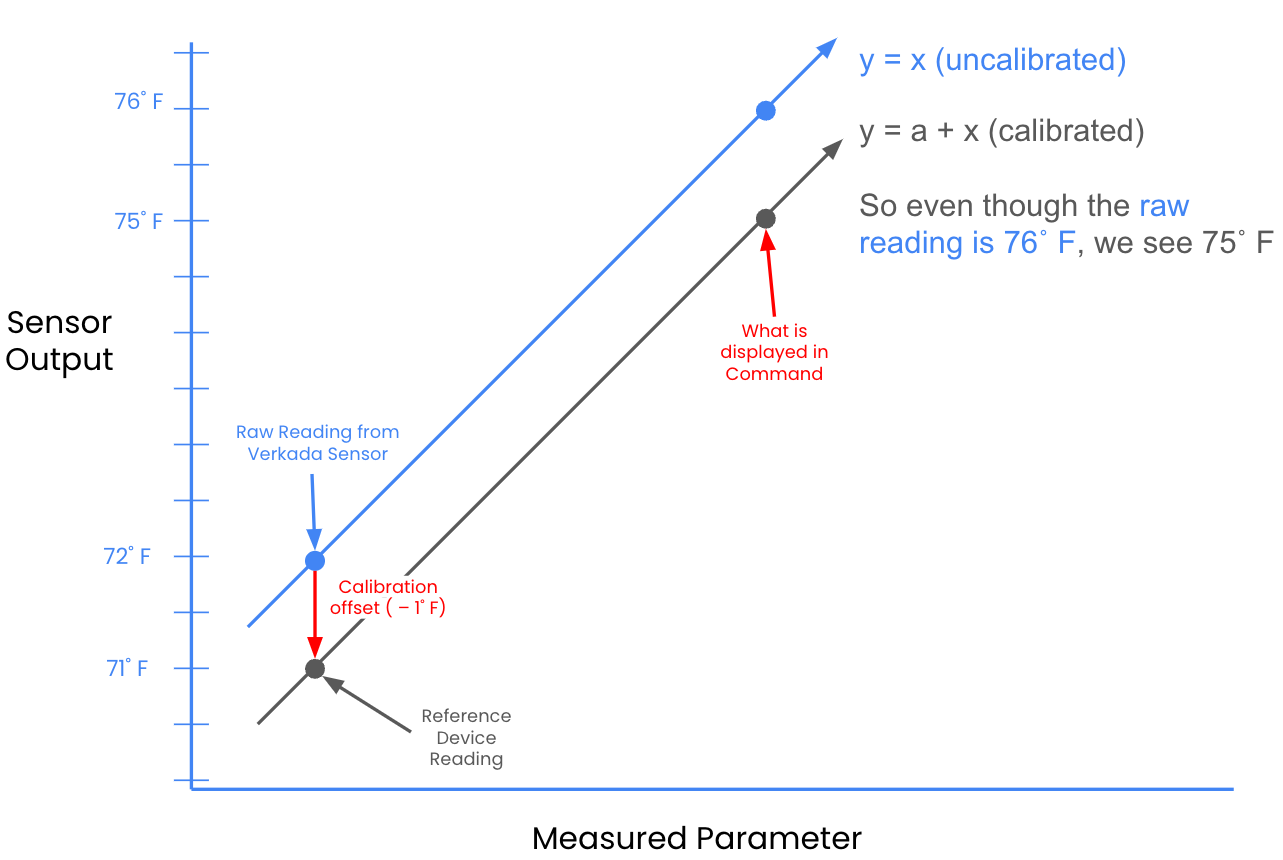
Currently, the **Air Quality Sensor Calibration** page allows you to apply a standard one-point linear calibration to your sensors. Verkada uses a single point to calculate the difference between the reference value and the raw reading to create an offset correction for the error between the two, and then apply that offset to the sensor reading.
For example, if your sensor’s raw Temperature reading is 72˚F (22˚C), but your reference device shows 71˚F (21˚C), and your offset is – 1˚F. Once the calibration is applied, if your raw reading is 76˚F (24˚C), your sensor will show 75˚F (23˚C) in Command.
Which sensor readings can be calibrated?
* Temperature
* Humidity
* Carbon Dioxide
* Carbon Monoxide
* Noise Level
* PM 2.5, 4.0, and 10.0
Does setting the calibration affect past data?
No, calibrating your devices does not affect the past data collected by your sensors. Only the data from the point of calibration onwards has the offset incorporated into it.
What kind of reference devices does Verkada recommend using?
Verkada recommends using the following devices for calibration:
* **Temperature and humidity calibration (NIST-traceable):**
* Traceable Barometric/Temperature/Humidity Wi-Fi Data Logger
* Fluke 52-260HZCAL 52-2 Dual Input Digital Thermometer with NIST-traceable calibration certificate and data
* **PM 2.5, PM 4.0, and PM 10 calibration:**
* TSI DustTrak DRX 8533
---
# Agent Instructions
This documentation is published with GitBook. GitBook is the documentation platform designed so that both humans and AI agents can read, navigate, and reason over technical content effectively. Learn more at gitbook.com.
## Querying This Documentation
If you need additional information that is not directly available in this page, you can query the documentation by asking a question.
Perform an HTTP GET request on the following URL with the `ask` and `goal` query parameters:
```
GET https://help.verkada.com/air-quality/configuration/air-quality-sensor-calibration.md?ask=&goal=
```
`ask` is the immediate question: it should be specific, self-contained, and written in natural language.
`goal` is what the user is ultimately trying to achieve, the reason they need the answer. Sharing it helps GitBook give you a better, more relevant answer. A goal is most helpful when it describes the outcome the user wants rather than restating the question. For example, with `ask=how do I create an API token`, a goal like `automate deployments from our CI pipeline` lets GitBook tailor the answer to that use case.
The response will contain a direct answer to the question and relevant excerpts and sources from the documentation.
Use this mechanism when the answer is not explicitly present in the current page, you need clarification or additional context, or you want to retrieve related documentation sections.