> For the complete documentation index, see [llms.txt](https://help.verkada.com/llms.txt). Markdown versions of documentation pages are available by appending `.md` to page URLs; this page is available as [Markdown](https://help.verkada.com/access-control/users-and-credentials/add-a-user-to-the-verkada-access-system/print-access-control-badges.md).
# Print Access Control Badges
Learn what data fields are supported on access badges and how to print the badges
These access user data fields are supported on access badges:
* First Name
* Middle Name
* Last Name
* Employee Title
* Department
* Company Name
## Add user data
You can add user data in these ways:
* Manually on the user’s profile
* Imported via a .csv file
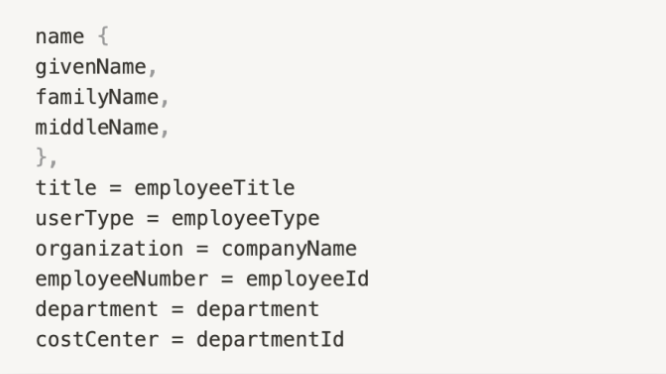
* Imported via System for Cross-domain Identity Management (SCIM), where you should verify that your AD client sends the following details to the SCIM connector:
***
## Manage badge templates
{% hint style="danger" %}
You must have Access System Admin permissions to manage, edit, duplicate, and delete badge templates. Learn more about [Roles and Permissions for Access Control](/access-control/getting-started/roles-and-permissions-for-access-control.md).
{% endhint %}
{% stepper %}
{% step %}
**In Verkada Command, go to All Products > Access.**
{% endstep %}
{% step %}
**On the left navigation, click Access Users and Groups.**
{% endstep %}
{% step %}
**At the top, click Badging and select Add Template.**
{% endstep %}
{% step %}
**Customize the template, as necessary.**
{% endstep %}
{% endstepper %}
***
## Print options
### Set up your printer
The Verkada Badge Printing solution is printer-agnostic, which means that our software is compatible with all badge printers.
{% stepper %}
{% step %}
**To properly set up your printer, ensure that the badge printer driver is correctly installed on your computer and that your browser can recognize it.**
{% endstep %}
{% step %}
**Once the printer is properly installed on your computer, you will see it appear as a printer option in your browser.**
{% endstep %}
{% endstepper %}
{% hint style="warning" %}
For double-sided printing, ensure that you have configured your printer to support this feature. You can find instructions for this in your printer manual.
{% endhint %}
### Print a single badge
{% stepper %}
{% step %}
**In Verkada Command, go to All Products > Access.**
{% endstep %}
{% step %}
**On the left navigation, click Access Users and Groups.**
{% endstep %}
{% step %}
**Select a user to edit.**
{% endstep %}
{% step %}
**Select Profile > Credentials.**
{% endstep %}
{% step %}
**Under Keycards, click Print Card.**
1. Select a **Badge Template.**
2. If needed, edit the text in any name field.
{% endstep %}
{% step %}
**In the bottom right, click Print Card.**
The browser print preview window should appear.
1. Confirm the correct badge printer is selected.
2. Confirm the paper size is the same dimensions as the badge, and the margins are set to 0.
3. In the bottom right, click **Print.**
{% endstep %}
{% endstepper %}
### Print badges in bulk
{% stepper %}
{% step %}
**In Verkada Command, go to All Products > Access.**
{% endstep %}
{% step %}
**On the left navigation, click Access Users and Groups .**
{% endstep %}
{% step %}
**Check the box next to each user whose badge you want to print.**
{% endstep %}
{% step %}
**At the top-right toolbar, click Cards and select Print Cards.**
{% endstep %}
{% step %}
**On Print Card, select a Badge Template.**
{% endstep %}
{% step %}
**Click Print Cards and the browser print preview window should appear.**
a. Confirm the correct badge printer is selected.\
b. Confirm the paper size is the same dimensions as the badges and the margins are set to 0.
{% endstep %}
{% step %}
**Click Print and the badges should print to the paired printer.**
{% endstep %}
{% endstepper %}
{% hint style="warning" %}
If any required data fields are missing a warning will appear. To override this click **Print Anyway**.
{% endhint %}
---
# Agent Instructions
This documentation is published with GitBook. GitBook is the documentation platform designed so that both humans and AI agents can read, navigate, and reason over technical content effectively. Learn more at gitbook.com.
## Querying This Documentation
If you need additional information that is not directly available in this page, you can query the documentation by asking a question.
Perform an HTTP GET request on the following URL with the `ask` and `goal` query parameters:
```
GET https://help.verkada.com/access-control/users-and-credentials/add-a-user-to-the-verkada-access-system/print-access-control-badges.md?ask=&goal=
```
`ask` is the immediate question: it should be specific, self-contained, and written in natural language.
`goal` is what the user is ultimately trying to achieve, the reason they need the answer. Sharing it helps GitBook give you a better, more relevant answer. A goal is most helpful when it describes the outcome the user wants rather than restating the question. For example, with `ask=how do I create an API token`, a goal like `automate deployments from our CI pipeline` lets GitBook tailor the answer to that use case.
The response will contain a direct answer to the question and relevant excerpts and sources from the documentation.
Use this mechanism when the answer is not explicitly present in the current page, you need clarification or additional context, or you want to retrieve related documentation sections.