> For the complete documentation index, see [llms.txt](https://help.verkada.com/llms.txt). Markdown versions of documentation pages are available by appending `.md` to page URLs; this page is available as [Markdown](https://help.verkada.com/access-control/troubleshooting/access-control-hardware-checks/troubleshoot-an-immediate-door-relock.md).
# Troubleshoot Immediate Door Relock
Learn how to troubleshoot when a door’s unlock time is shorter than expected
Sometimes a door may relock quicker than expected, which doesn’t allow sufficient time for a person to open the door. The 2 most common causes for this issue are:
* The [door’s unlock time is set too short](#h_25ed3693db) of duration
* The [door position indicator (DPI) indicates the door is already open](#h_083edd3bc6)
***
## Door unlock time is too short
Depending on the reader’s proximity to the door, the unlock time on the door may be too short for the user to get from the reader to the door before the door relocks.
### Find and adjust door unlock time
{% stepper %}
{% step %}
**In Verkada Command, go to All Products > Access.**
{% endstep %}
{% step %}
**Select the door you want to edit.**
{% endstep %}
{% step %}
**In the top right, click Settings.**
{% endstep %}
{% step %}
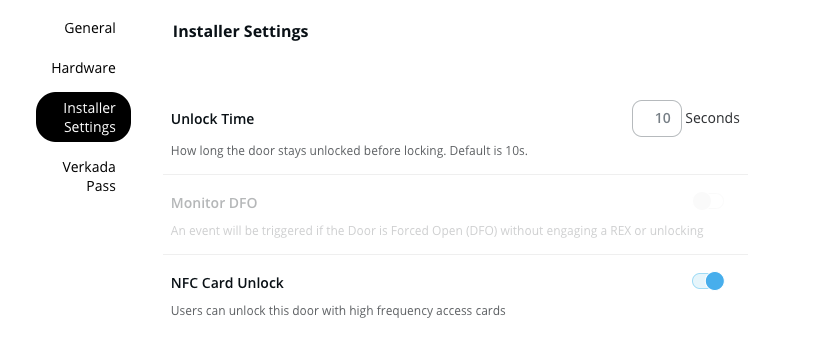
**Under Installer Settings > Unlock Time set the unlock time.**
{% endstep %}
{% endstepper %}
## DPI indicates the door is already open
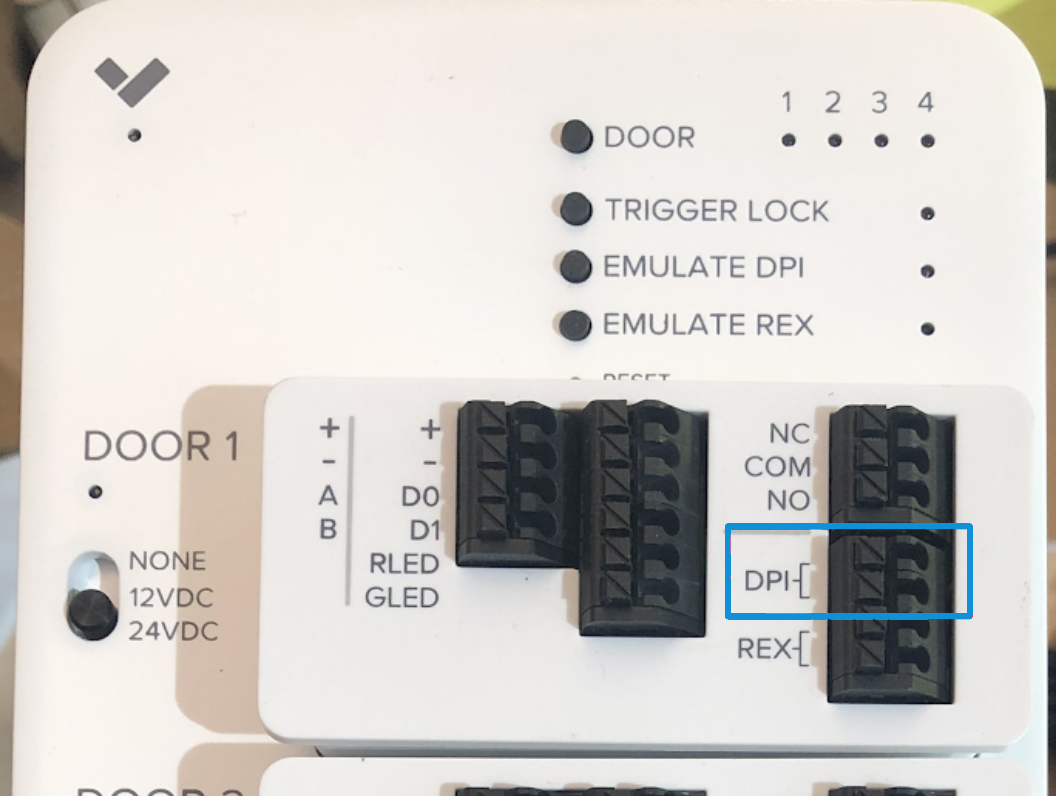
The DPI is a sensor that detects whether a door is open or closed. When a door is unlocked and has a DPI, the controller waits until the open signal is seen then it relocks the door, whether or not the unlock time has fully expired. If the DPI signals the door is open when an unlock event occurs, the door relocks within 1 second of the unlock event.
This issue can be seen when:
{% stepper %}
{% step %}
**There is no DPI installed, although the door’s configuration has enabled DPI.**
{% endstep %}
{% step %}
**The DPI is signaling that the door is open when it’s actually closed.**
{% endstep %}
{% endstepper %}
### Troubleshoot steps
On the door’s page, at the top left, check the timestamp. The door should be listed as **Open**, **Closed**, or **No door sensor**.
* If the door’s timestamp indicates **Open** while the door is physically shut, this explains why the door relocks immediately after unlocking. Check if there’s an issue with the DPI wiring or the DPI itself.
* If no DPI is installed on the door, under **Settings** > **Hardware**, toggle off **DPI**. Doing so causes the door’s timestamp to display **No door sensor**.
* If a **DPI is installed**, yet the door displays **Open** while it’s shut, ensure that the wires are fully inserted into the DPI ports on the cassette.
* If the door still displays **Open**, [check the wiring](#h_e0aa70035d) and the [sensor positioning](#h_38c5f0505a).
#### Check the wiring
{% stepper %}
{% step %}
**Remove the DPI wires from the slot.**
{% endstep %}
{% step %}
**Use a multimeter to test the continuity between the two wires.**
{% endstep %}
{% endstepper %}
If the multimeter shows the circuit is open between the 2 wires, the sensor is indicating the door is open. Verkada access controllers expect a closed circuit when the door is closed.
#### Check the sensor positioning
{% stepper %}
{% step %}
**Check the DPI sensor on the door.**
{% endstep %}
{% step %}
**Ensure that when the door is closed, the contact on the frame and door are aligned. Misaligned contacts break the circuit, signaling to the access controller that the door is open when it is actually closed.**
{% endstep %}
{% endstepper %}
{% hint style="warning" %}
**Note for AC41 only**: Another method to check the DPI status is outlined in [Use the AC41 Test Buttons](/access-control/troubleshooting/verkada-ac41-status-led/use-the-ac41-test-buttons.md). The **DOOR** button on the controller is used to select the door in question, then the **EMULATE DPI** light is checked.
* If the light is illuminated, the DPI circuit is complete indicating a closed door.
* If it is off, then the door is reported as **Open**.
{% endhint %}
---
# Agent Instructions
This documentation is published with GitBook. GitBook is the documentation platform designed so that both humans and AI agents can read, navigate, and reason over technical content effectively. Learn more at gitbook.com.
## Querying This Documentation
If you need additional information that is not directly available in this page, you can query the documentation by asking a question.
Perform an HTTP GET request on the following URL with the `ask` and `goal` query parameters:
```
GET https://help.verkada.com/access-control/troubleshooting/access-control-hardware-checks/troubleshoot-an-immediate-door-relock.md?ask=&goal=
```
`ask` is the immediate question: it should be specific, self-contained, and written in natural language.
`goal` is what the user is ultimately trying to achieve, the reason they need the answer. Sharing it helps GitBook give you a better, more relevant answer. A goal is most helpful when it describes the outcome the user wants rather than restating the question. For example, with `ask=how do I create an API token`, a goal like `automate deployments from our CI pipeline` lets GitBook tailor the answer to that use case.
The response will contain a direct answer to the question and relevant excerpts and sources from the documentation.
Use this mechanism when the answer is not explicitly present in the current page, you need clarification or additional context, or you want to retrieve related documentation sections.