> For the complete documentation index, see [llms.txt](https://help.verkada.com/llms.txt). Markdown versions of documentation pages are available by appending `.md` to page URLs; this page is available as [Markdown](https://help.verkada.com/access-control/troubleshooting/access-control-hardware-checks.md).
# Access Controller Hardware Checks
Learn how to perform physical checks to troubleshoot your Verkada access controller
You can review the common physical checks to verify if a Verkada access controller (including the [AC41](https://docs.verkada.com/docs/door-controller-ac41-datasheet.pdf), [AC42](https://docs.verkada.com/docs/door-controller-ac42-datasheet.pdf), and [AC62](https://docs.verkada.com/docs/door-controller-ac62-datasheet.pdf)) is working properly.
{% hint style="warning" %}
This article assumes that the AC41’s status LED is solid blue. If it is blinking blue, check the [network settings](/access-control/getting-started/access-control-network-settings.md).
{% endhint %}
{% hint style="danger" %}
You must have a multimeter and 2 short wires.
* Always unplug the access controller before you change wiring or swap cassettes.
* Avoid putting the multimeter directly into the cassette ports; use wires to assure a good connection.
{% endhint %}
***
## Components to test
This article describes the various set of tests for each component, as described below.
### Reader
{% stepper %}
{% step %}
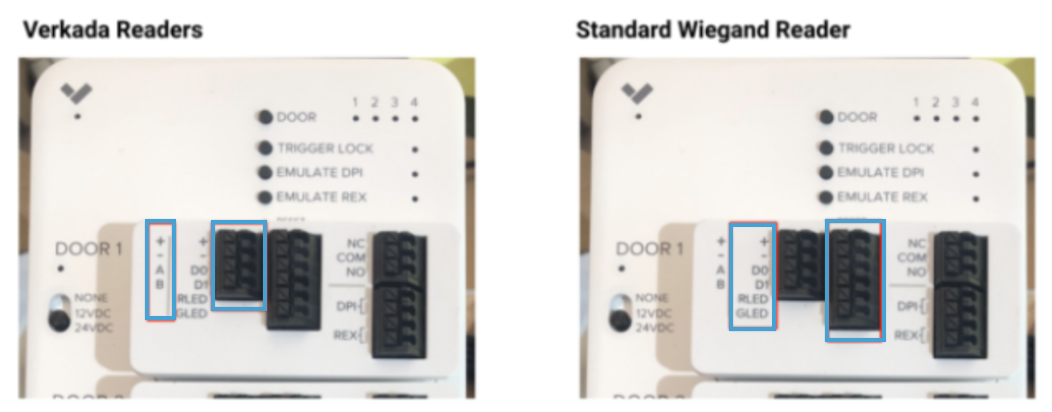
**If the reader powers up and gives feedback when scanning a badge, skip to step 3. Otherwise, connect a wire to the plus (+) and a wire to the minus (-) of the cassette reader bank. (This appears on the left if you are troubleshooting a Verkada reader or Wiegand bank for all other readers.)**
{% endstep %}
{% step %}
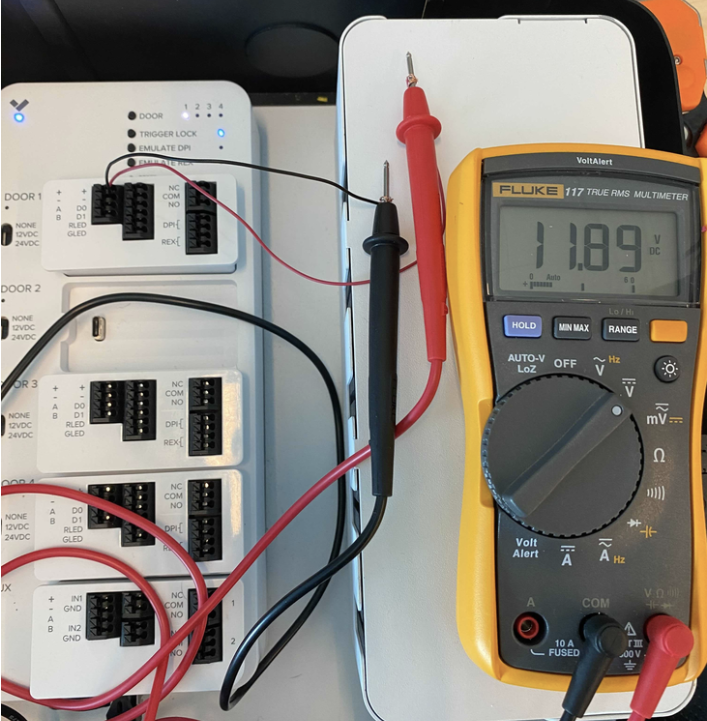
**Using the multimeter, measure DC voltage across the + and -. The expected measurement should be around 12V. If this does not appear near 12V, contact** [**Verkada Support**](https://www.verkada.com/contact/)**.**
{% endstep %}
{% step %}
**Scan a card. As long as this is in a** [**supported card format**](/access-control/installation/badge-reader-support/supported-card-formats.md)**, you will get feedback from the reader indicating that the badge was scanned.**
{% endstep %}
{% step %}
**If nothing is read and there is a working reader on the access controller, move the working reader, cassette and all, to this port and scan a card. If this does not work, contact** [**Verkada Support**](https://www.verkada.com/contact/)**.**
{% endstep %}
{% step %}
**If step 4 works, wire the working reader to the initial cassette.**
{% endstep %}
{% step %}
**Scan a badge. If it doesn’t appear on Command, contact** [**Verkada Support**](https://www.verkada.com/contact/)**.**
{% endstep %}
{% endstepper %}
### Lock relay
These tests help to identify if the lock relay is operating, as expected.
#### Test the NC relay
{% stepper %}
{% step %}
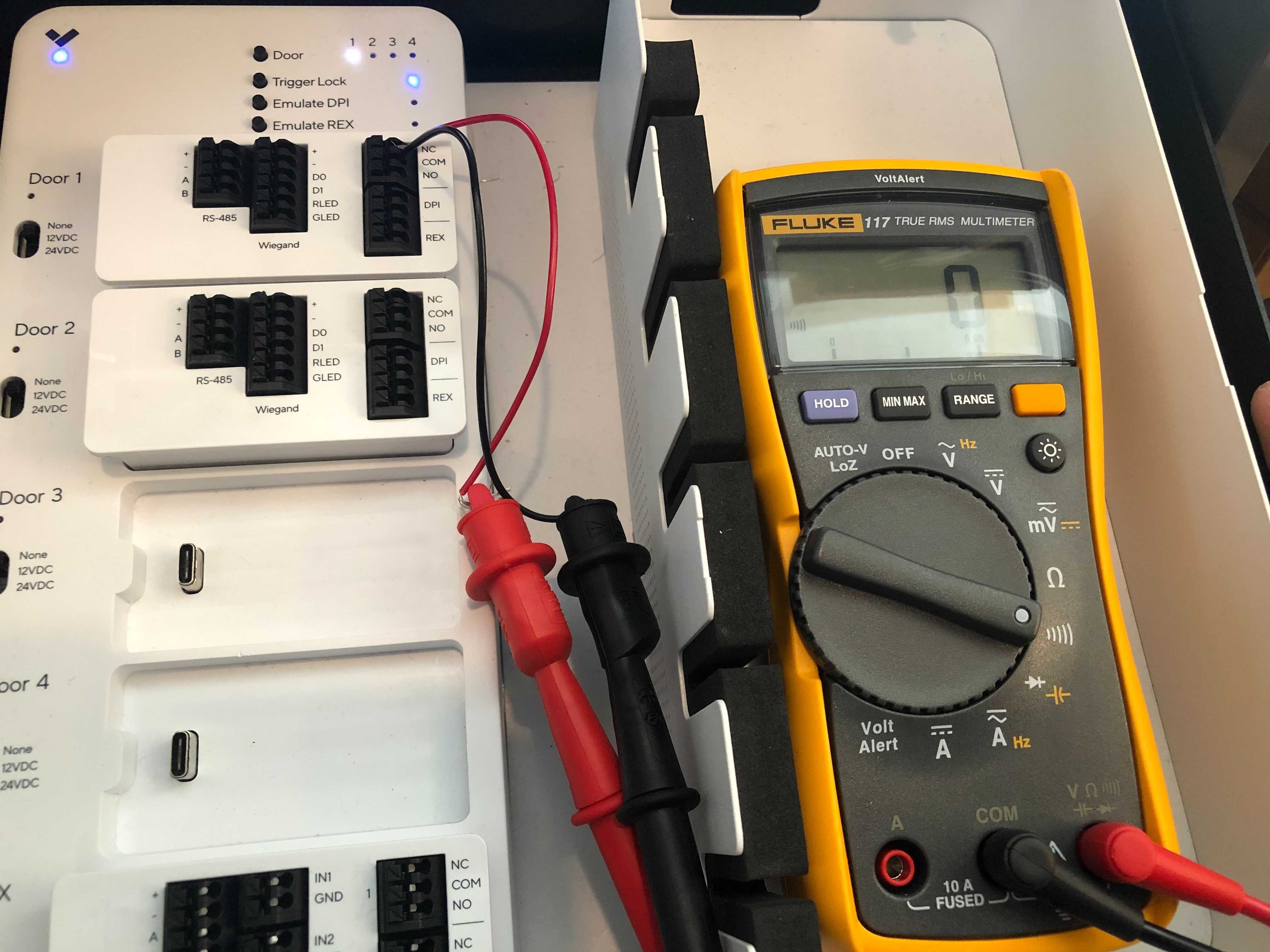
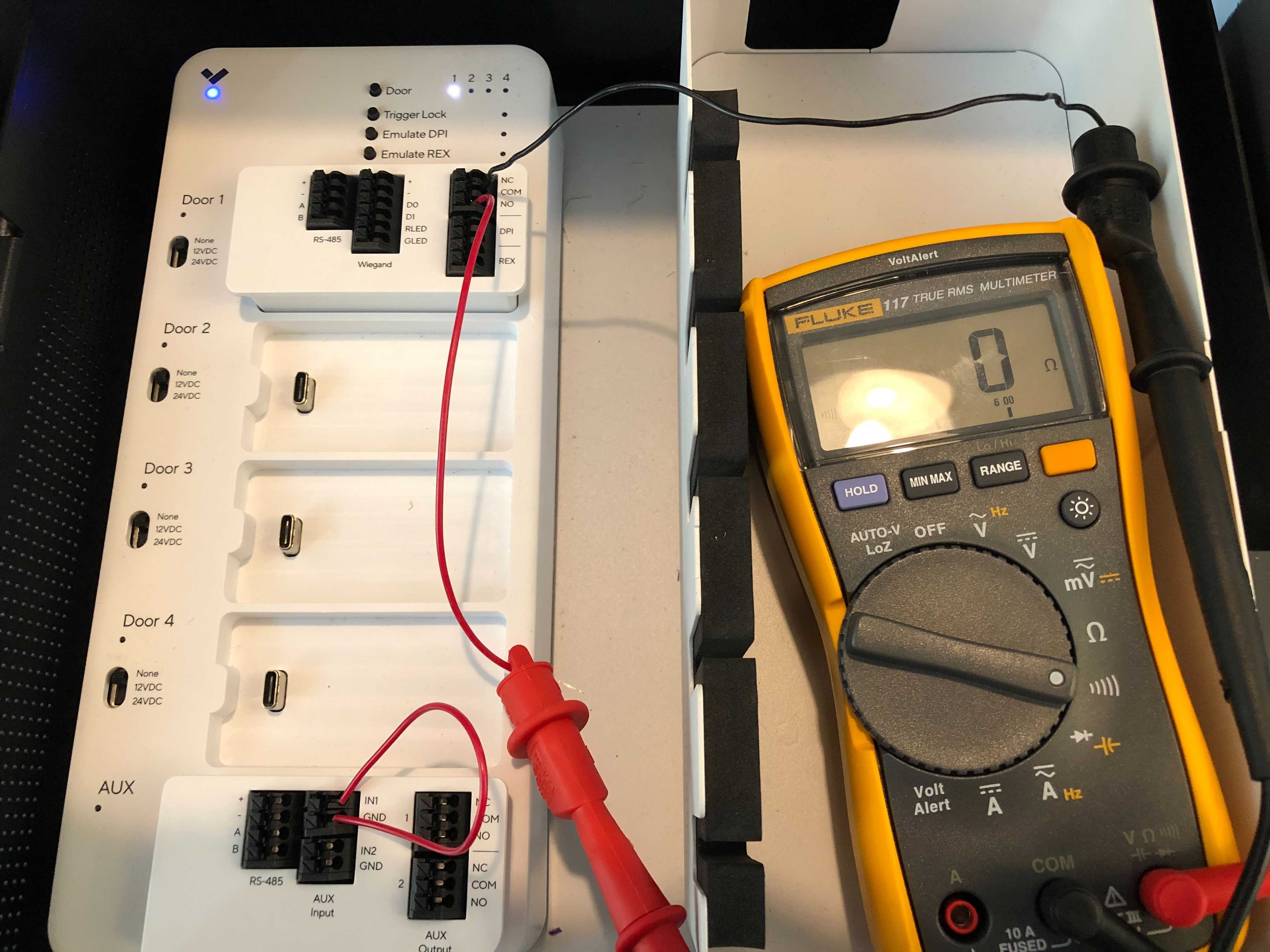
**Connect 2 wires to the lock relay: 1 to Normally Closed (NC) and 1 to COM.**
{% endstep %}
{% step %}
**Connect the multimeter to the wire from NC and the wire from COM.**
{% endstep %}
{% step %}
**At the top right, press DOOR to illuminate the door number you are working on.**
{% endstep %}
{% step %}
**Move the voltage switch to 0V (to the left of the door cassette). This changes the lock relay to dry.**
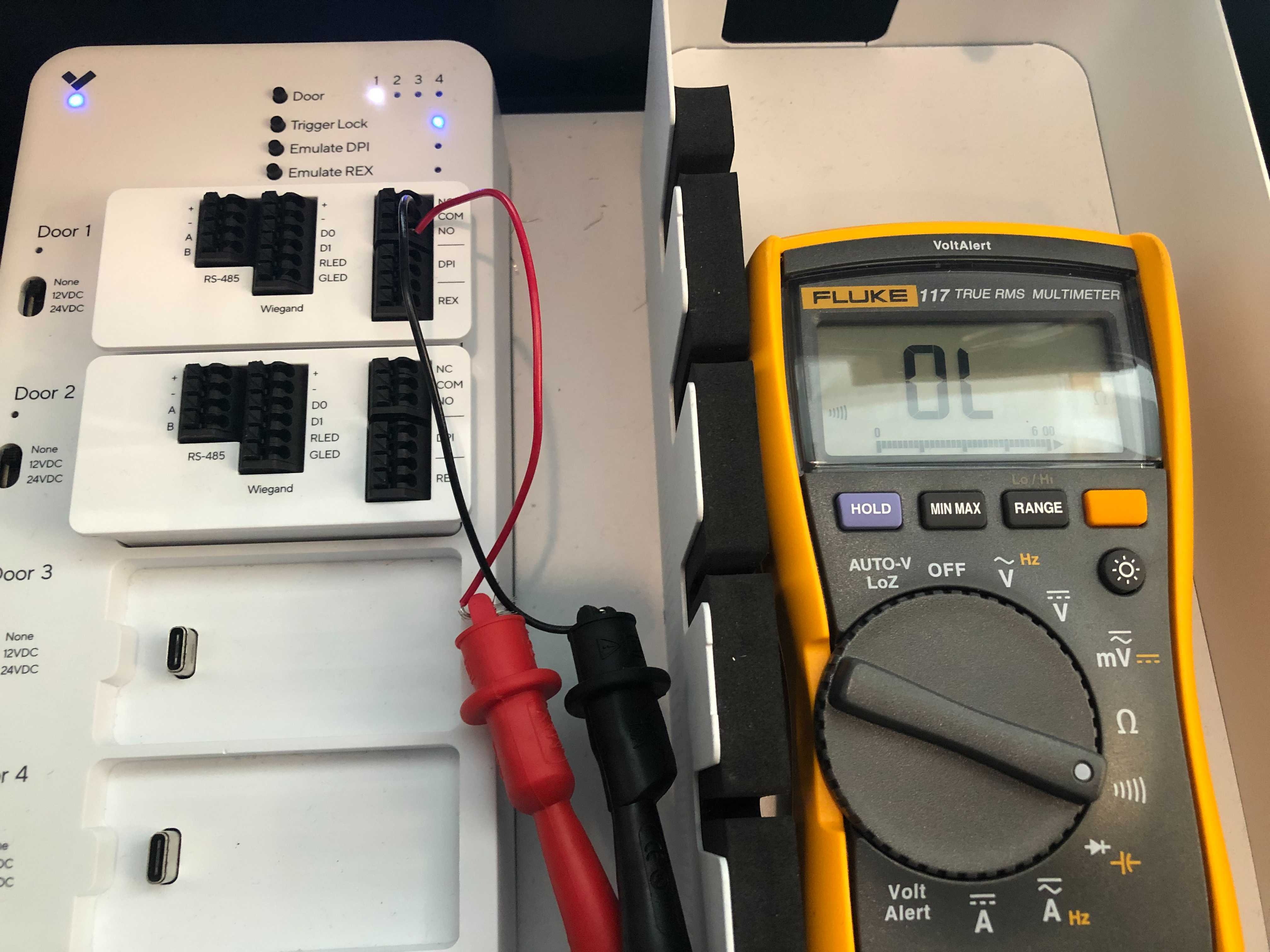
a. Test continuity with the multimeter. The expected behavior is for the NC COM relay to be continuous (constant beep on the multimeter).\
b. Press **TRIGGER LOCK**. The multimeter should read open loop (**OL**).
{% endstep %}
{% step %}
**Move the voltage switch to 12V to change the lock relay to 12V wet.**
a. Change the multimeter to measure DC voltage. The expected behavior is for the NC COM relay to display **around 12V**.\
b. Press **TRIGGER LOCK**. The multimeter should read **0V**.
{% endstep %}
{% step %}
**Move the voltage switch to 24V to change the lock relay to 24V wet.**
a. The expected behavior is for the NC COM relay to display **around 24V**.\
b. Press **TRIGGER LOCK**. The multimeter should read **0V**.
{% endstep %}
{% endstepper %}
#### Test the NO relay
{% stepper %}
{% step %}
**Move the wire from the NC lock relay to the NO port.**
{% endstep %}
{% step %}
**Move the voltage switch to 0V to change the lock relay to dry.**
a. Test continuity with the multimeter. You should see **OL** on the multimeter for the NO COM relay.\
b. Press **TRIGGER LOCK**. The multimeter should read continuous (constant beep).
{% endstep %}
{% step %}
**Move the voltage switch to 12V to change the lock relay to 12V wet.**
a. Change the multimeter to measure DC voltage.\
b. The expected behavior is that the NO COM relay shows **0V**.\
c. Press **TRIGGER LOCK**. The multimeter should measure around **12V**.
{% endstep %}
{% step %}
**Move the voltage switch to 24V to change the lock relay to 24V wet.**
a. The NO COM relay should measure **0V**.\
b. Press **TRIGGER LOCK**. The multimeter should measure around **24V**.
{% endstep %}
{% endstepper %}
### DPI
{% stepper %}
{% step %}
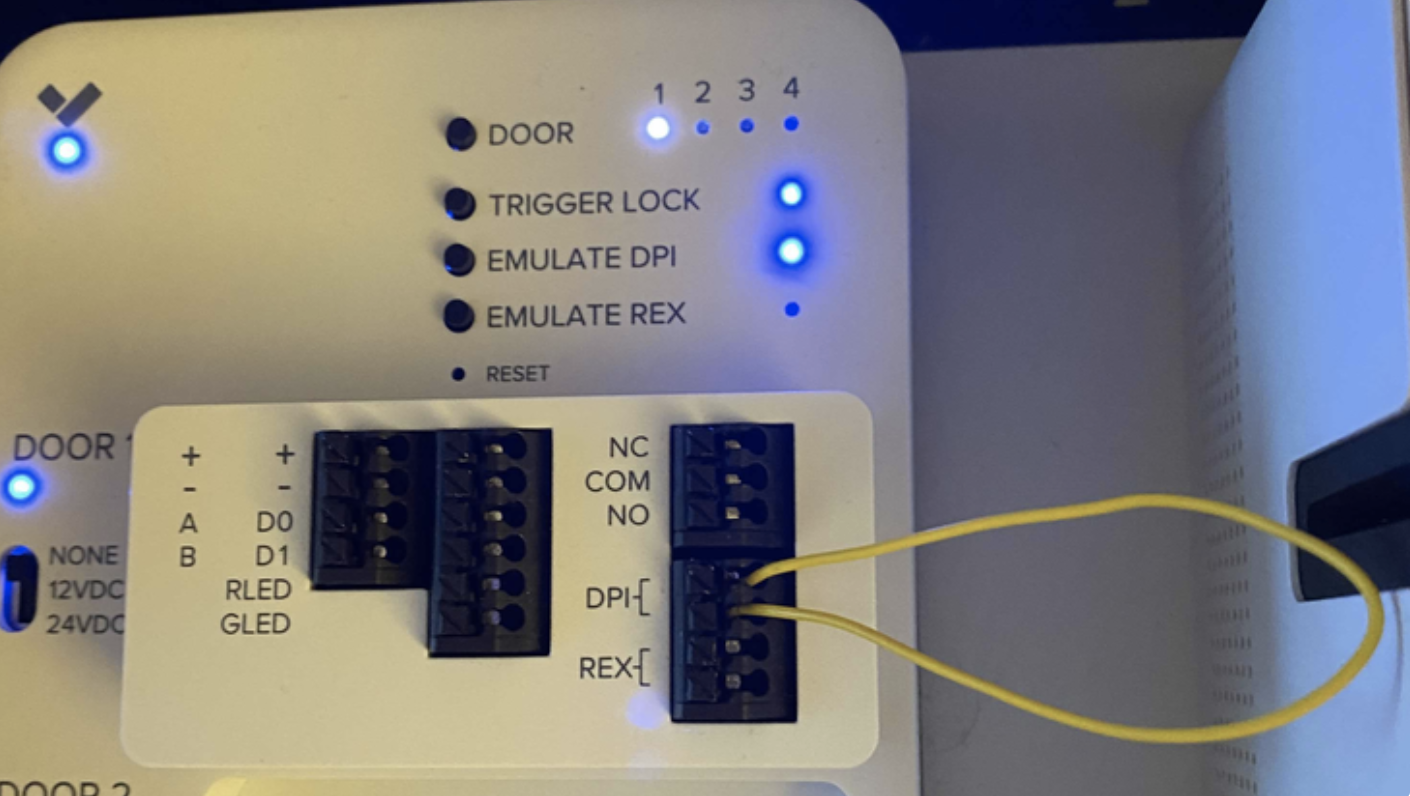
**At the top right of the access controller, press DOOR to select the door you are testing. With nothing plugged into the DPI ports, the EMULATE DPI LED should be off.**
{% endstep %}
{% step %}
**Use a piece of wire to short the DPI inputs. The EMULATE DPI LED should now illuminate. If this LED is illuminated with nothing in the DPI ports, or the LED is off when the inputs are shorted, contact** [**Verkada Support**](https://www.verkada.com/contact/)**.**
{% endstep %}
{% endstepper %}
### Request to Exit (REX)
{% stepper %}
{% step %}
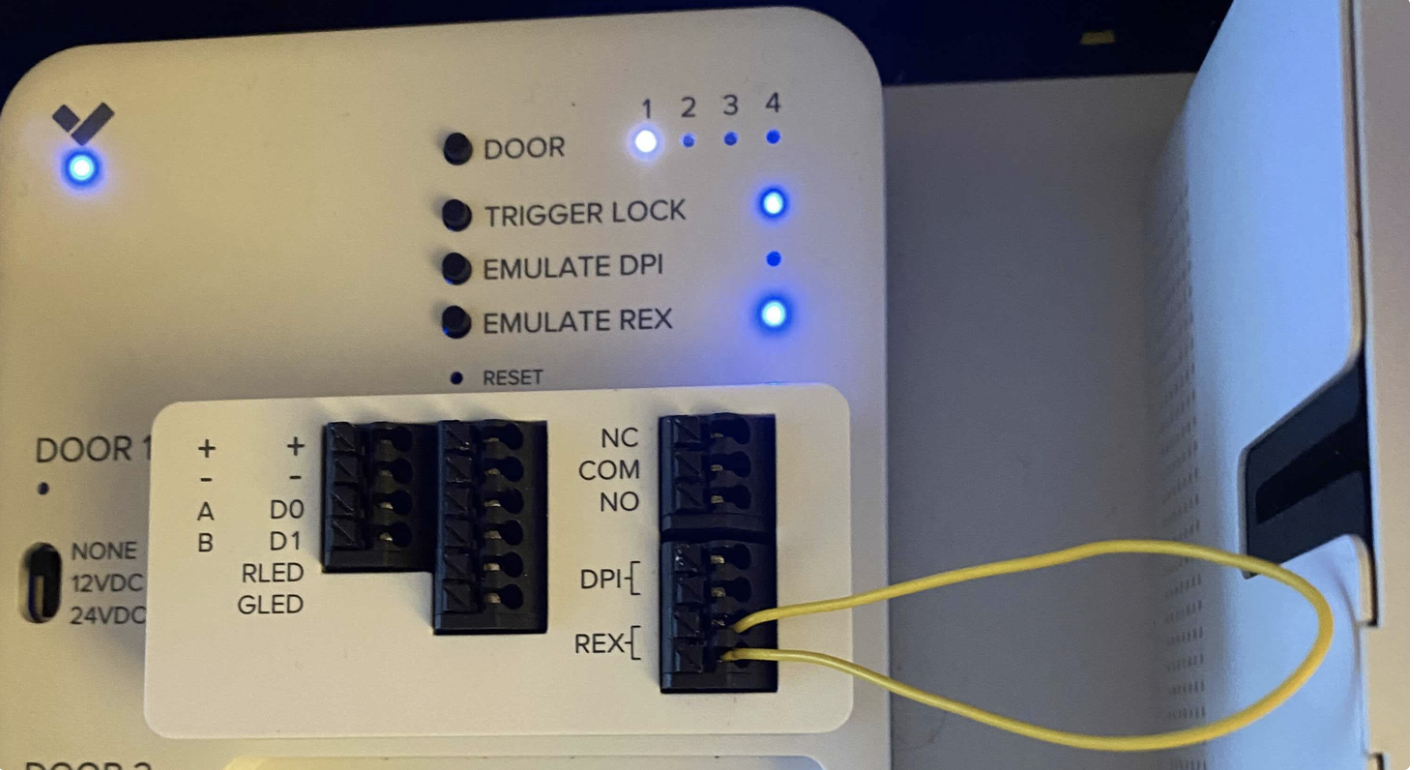
**At the top right of the access controller, press DOOR to select the door you are testing. With nothing plugged into the REX ports, the EMULATE REX LED should be off.**
{% endstep %}
{% step %}
**Use a piece of wire to short the REX inputs. The EMULATE REX LED should now illuminate. If this LED is illuminated with nothing in the REX ports, or the LED is off when the inputs are shorted, contact** [**Verkada Support**](https://www.verkada.com/contact/)**.**
{% endstep %}
{% endstepper %}
### AUX
{% stepper %}
{% step %}
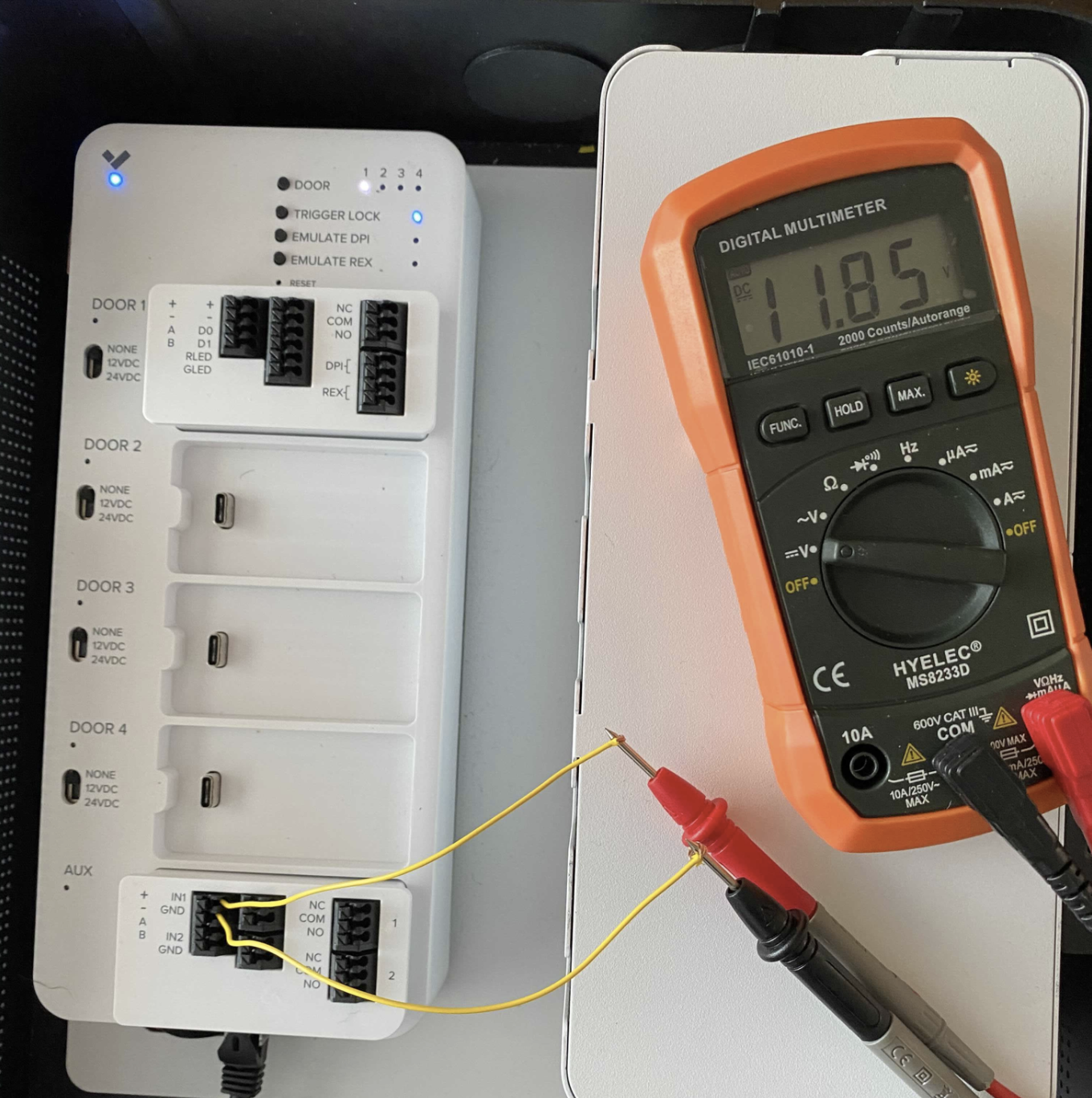
**Test the power of the AUX cassette.**
a. Connect wires to **+** and **-** on the AUX cassette.\
b. Use the multimeter to measure the DC voltage across them. This measure should be around **12V**. If this is measured much higher or lower than 12V, contact [Verkada Support](https://www.verkada.com/contact/).
{% endstep %}
{% step %}
**Test the AUX inputs. The test shows for AUX IN1, and can be repeated with AUX IN2, if needed.**
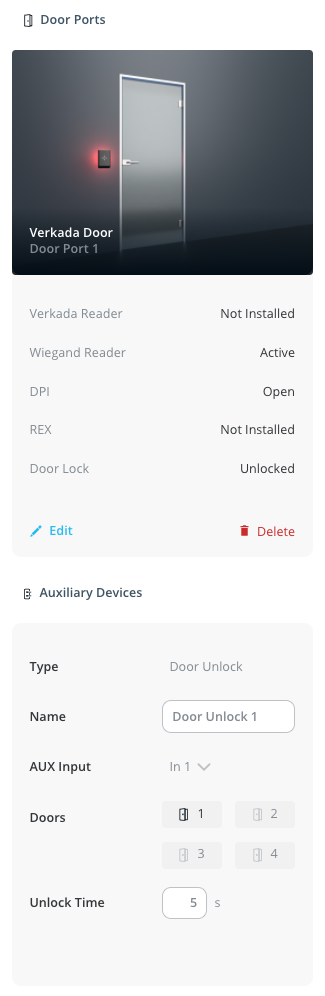
a. On Verkada Command, set up the [AUX configuration](/access-control/configuration/unlock-a-door-from-a-3rd-party-intercom-system-or-button.md) on a door port.
b. On the door port, ensure that the voltage switch is **None**.\
c. On the door port configured with the AUX, plug the multimeter into COM and NO to measure continuity. It should read **OL**.\
d. Short the AUX cassette at **IN1 + GND**. This should cause the door lock relay to trigger, making the multimeter beep. If the multimeter does not read continuous, contact [Verkada Support](https://www.verkada.com/contact/).\
{% endstep %}
{% endstepper %}
---
# Agent Instructions
This documentation is published with GitBook. GitBook is the documentation platform designed so that both humans and AI agents can read, navigate, and reason over technical content effectively. Learn more at gitbook.com.
## Querying This Documentation
If you need additional information that is not directly available in this page, you can query the documentation by asking a question.
Perform an HTTP GET request on the following URL with the `ask` and `goal` query parameters:
```
GET https://help.verkada.com/access-control/troubleshooting/access-control-hardware-checks.md?ask=&goal=
```
`ask` is the immediate question: it should be specific, self-contained, and written in natural language.
`goal` is what the user is ultimately trying to achieve, the reason they need the answer. Sharing it helps GitBook give you a better, more relevant answer. A goal is most helpful when it describes the outcome the user wants rather than restating the question. For example, with `ask=how do I create an API token`, a goal like `automate deployments from our CI pipeline` lets GitBook tailor the answer to that use case.
The response will contain a direct answer to the question and relevant excerpts and sources from the documentation.
Use this mechanism when the answer is not explicitly present in the current page, you need clarification or additional context, or you want to retrieve related documentation sections.