> For the complete documentation index, see [llms.txt](https://help.verkada.com/llms.txt). Markdown versions of documentation pages are available by appending `.md` to page URLs; this page is available as [Markdown](https://help.verkada.com/access-control/ja/she-zhi/verkada-wireless-lock-command-setup/verkada-wireless-lock-led-patterns.md).
# Verkada 無線ロックのLEDパターン
AL54ロックのLEDパターン
AL54には、外側モジュール上部にLEDバーがあり、内側モジュール上部に3つのLEDがあります。これらのインジケーターは色と点滅パターンを用いてロック状態や動作を表示し、デバイスの状態をすばやく把握できるようにします。
***
## 外側LED
### アクセス許可
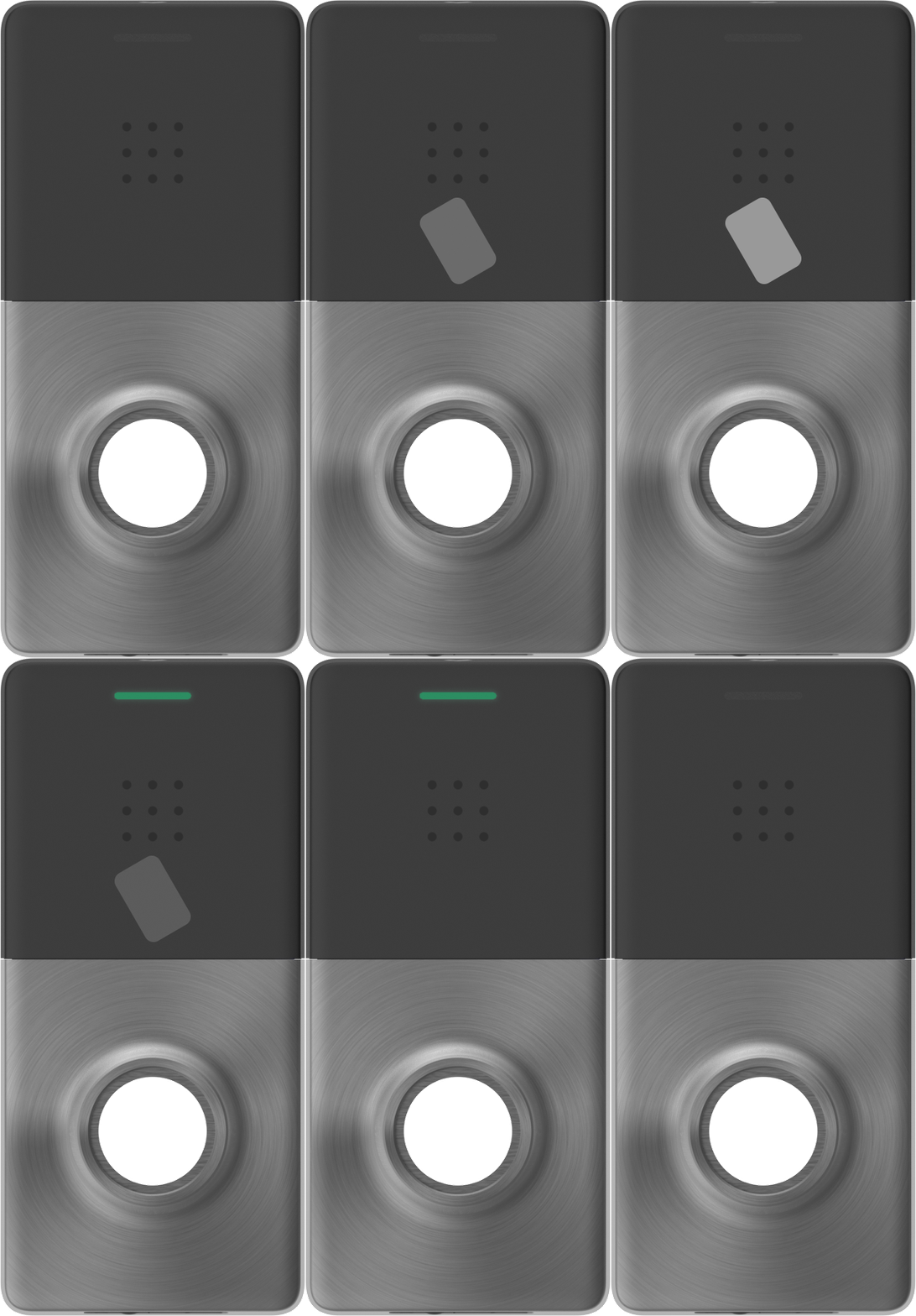
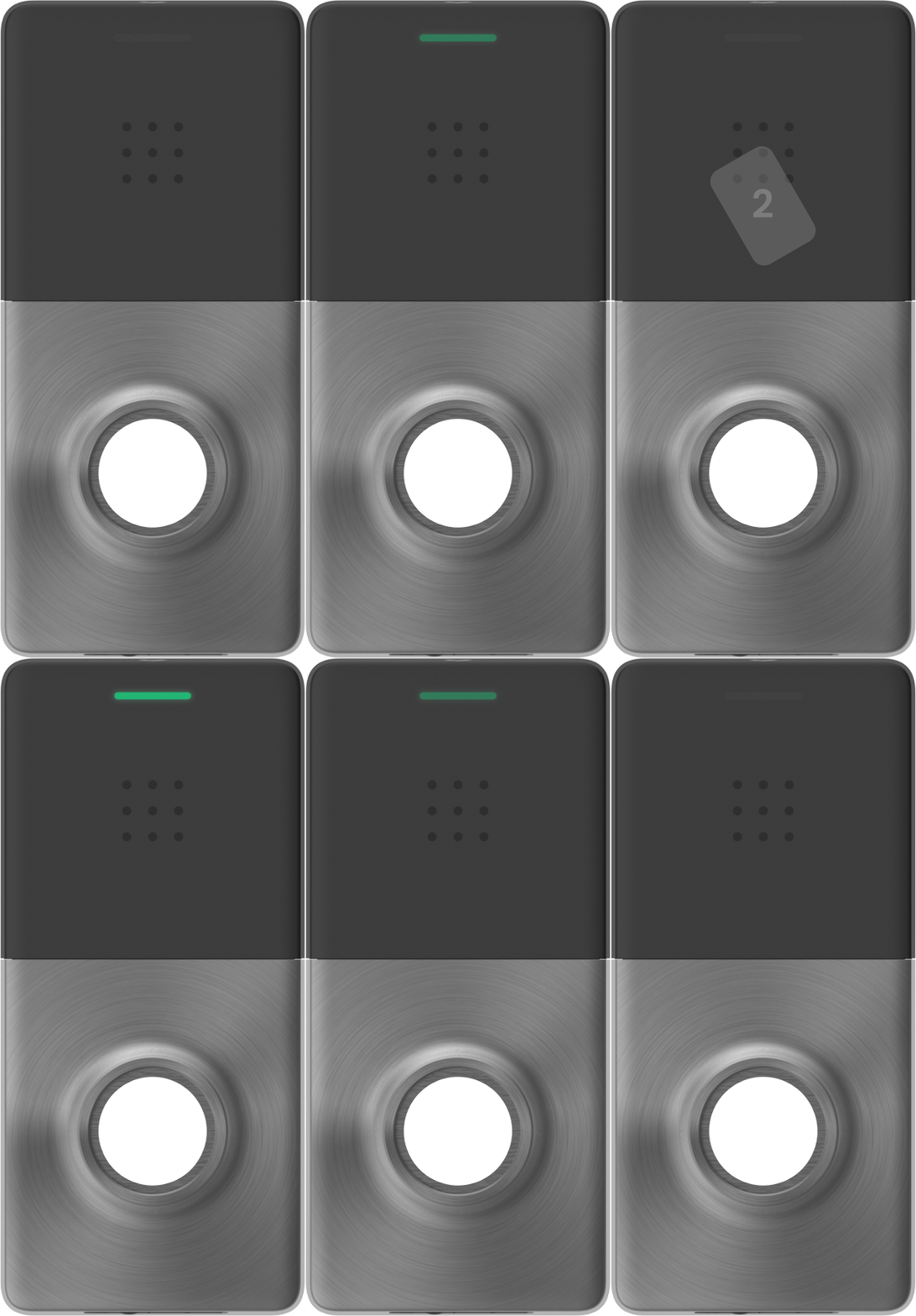
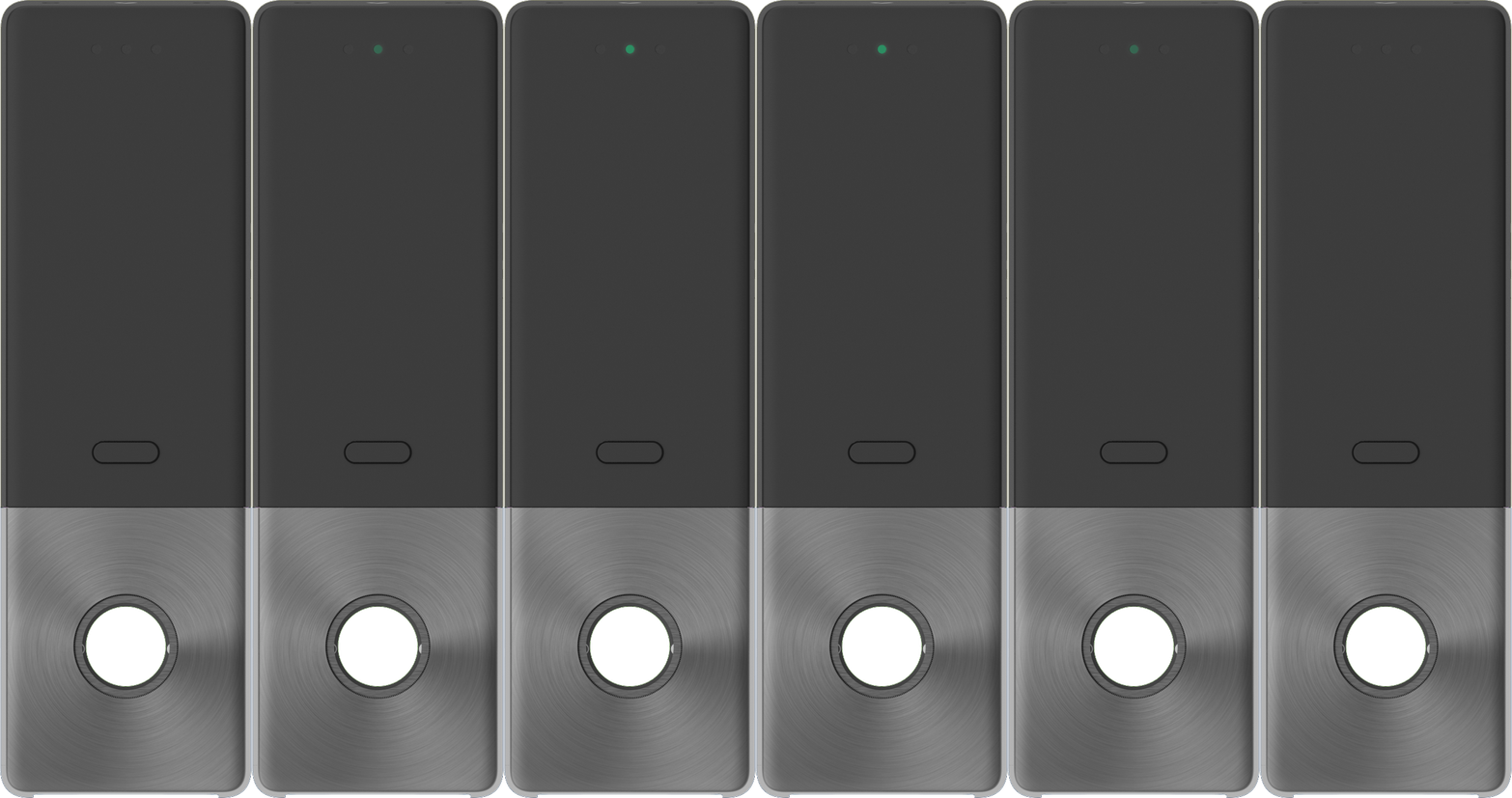
認証情報が提示されアクセスが許可されると、外側LEDはドアのロック解除中、緑色に点灯します。
### アクセス拒否
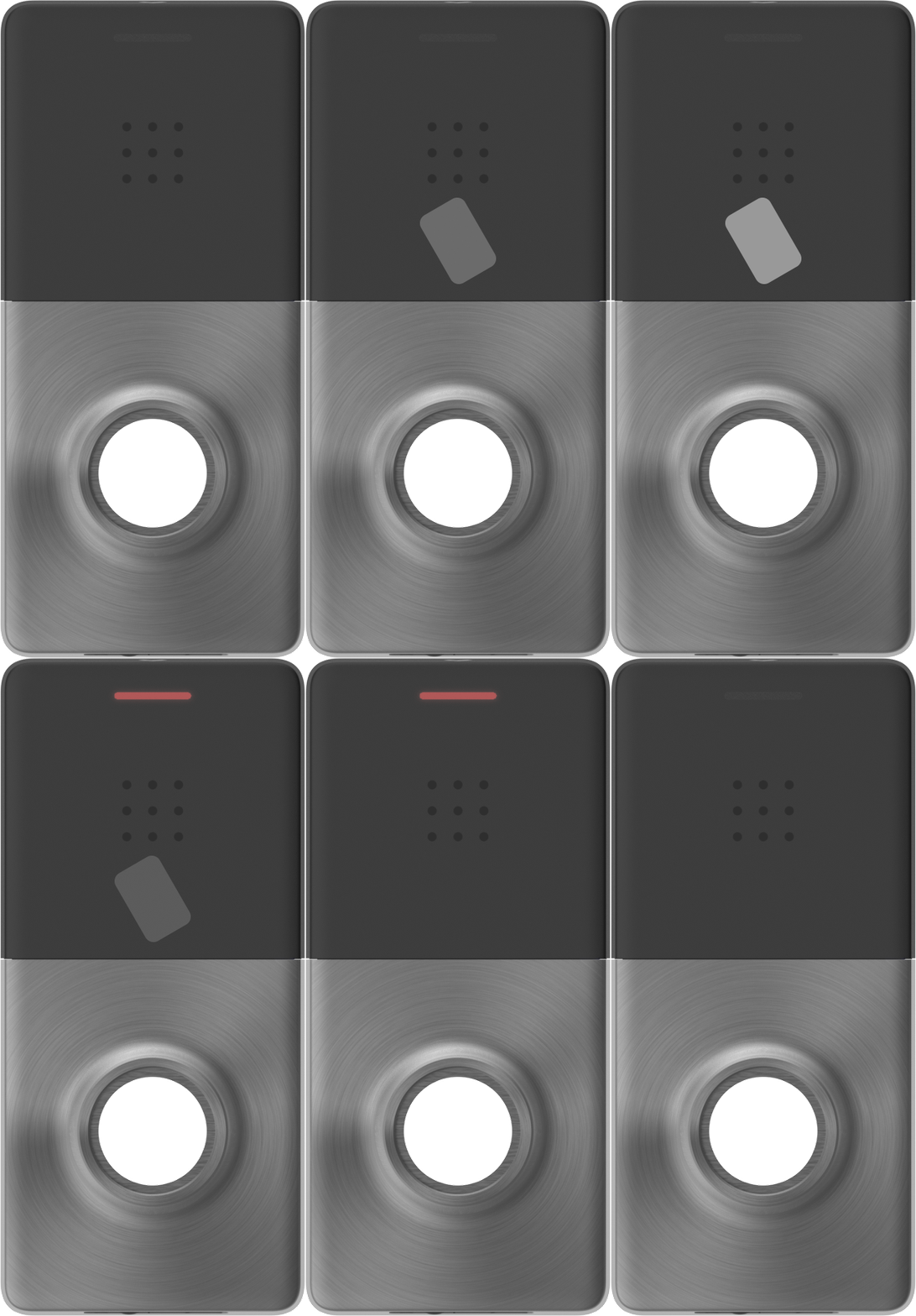
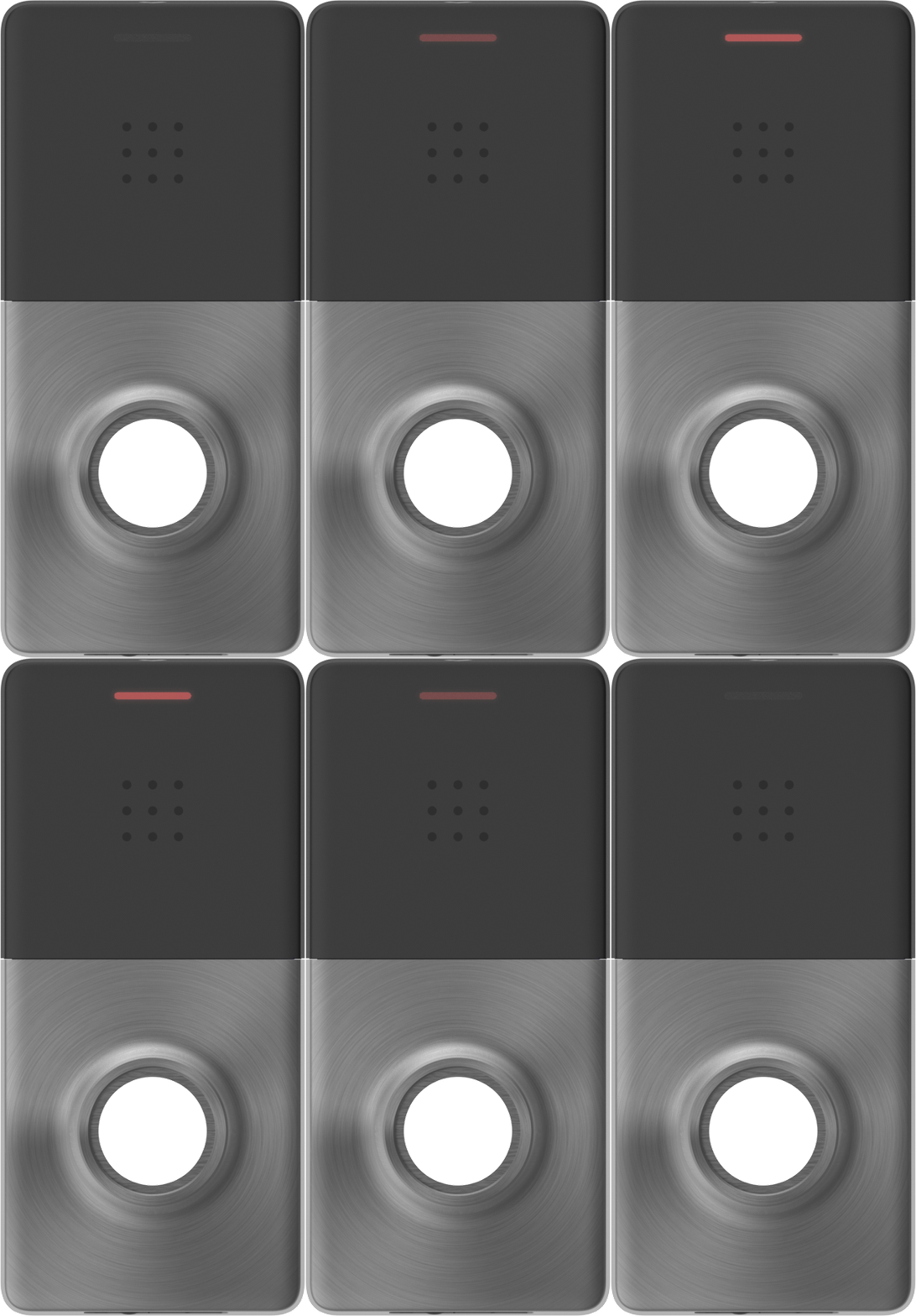
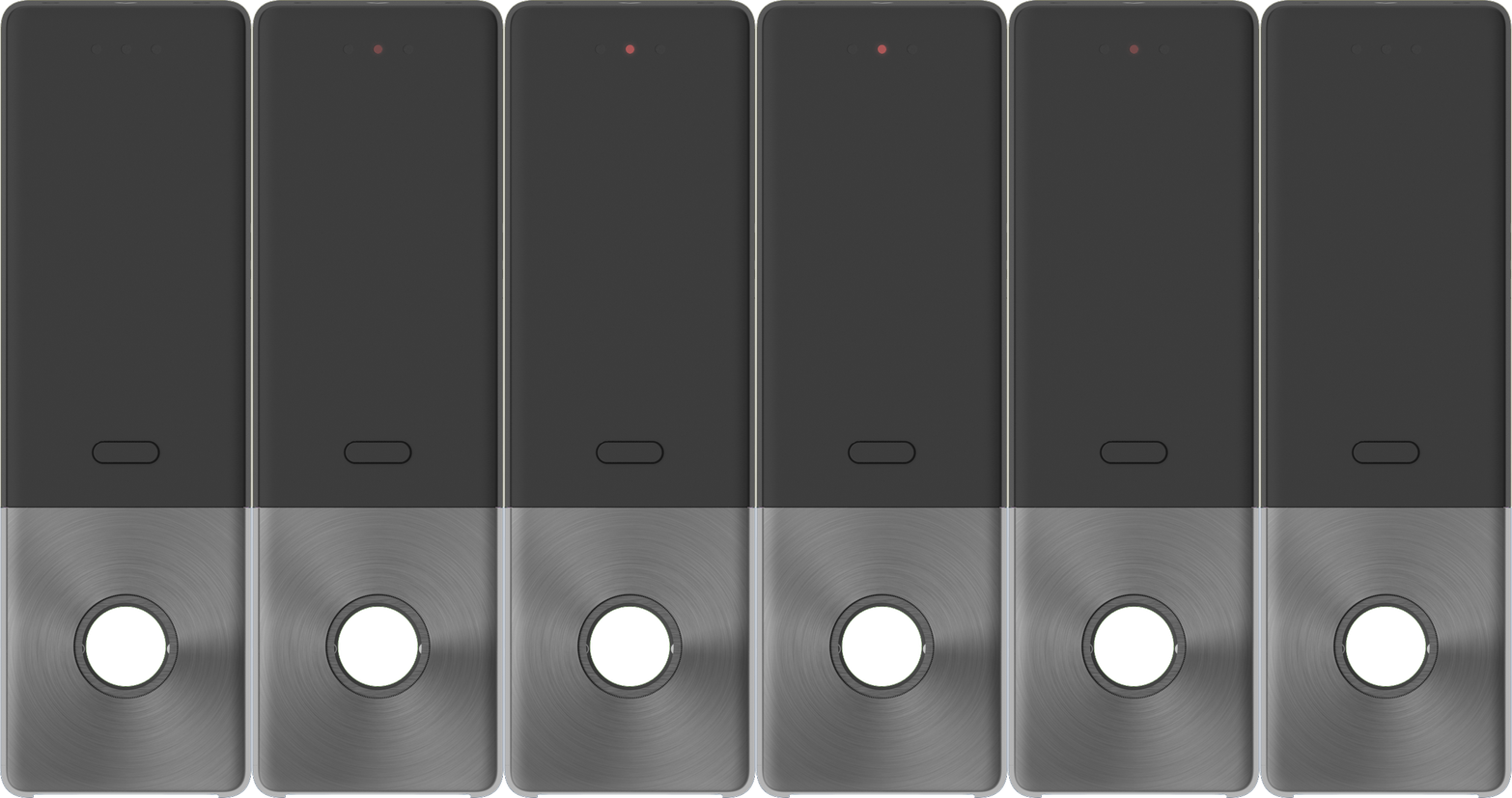
認証情報が提示されアクセスが拒否されると、外側LEDは短く赤色に点灯します。
### スキャン試行中に接続が失われた場合
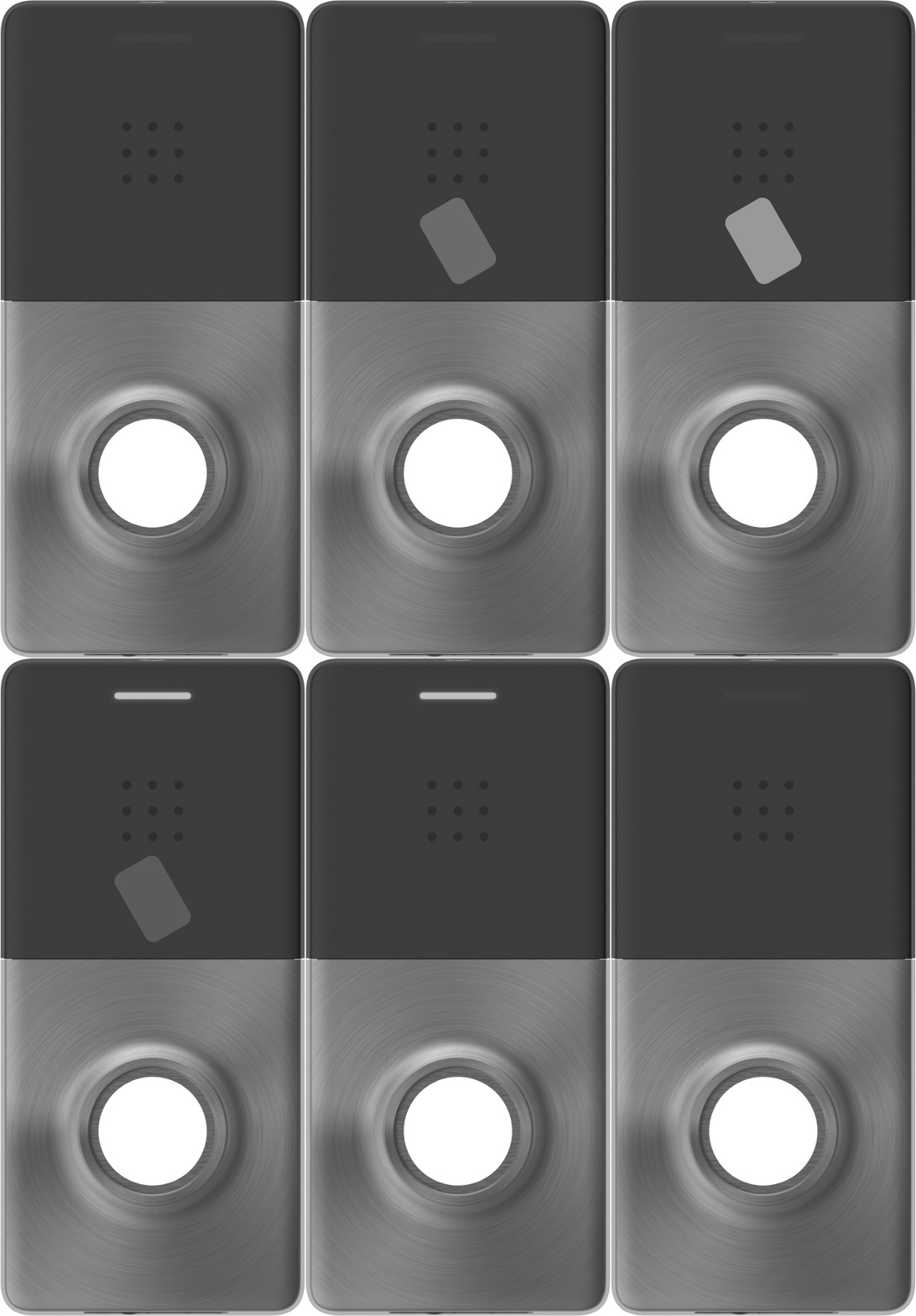
ハブへの接続が失われている間に認証情報が提示されると、外側LEDは一時的に白く点灯します。この場合は、認証情報をもう一度提示してください。
### ウェイクボタン(外側が白く2回点滅)
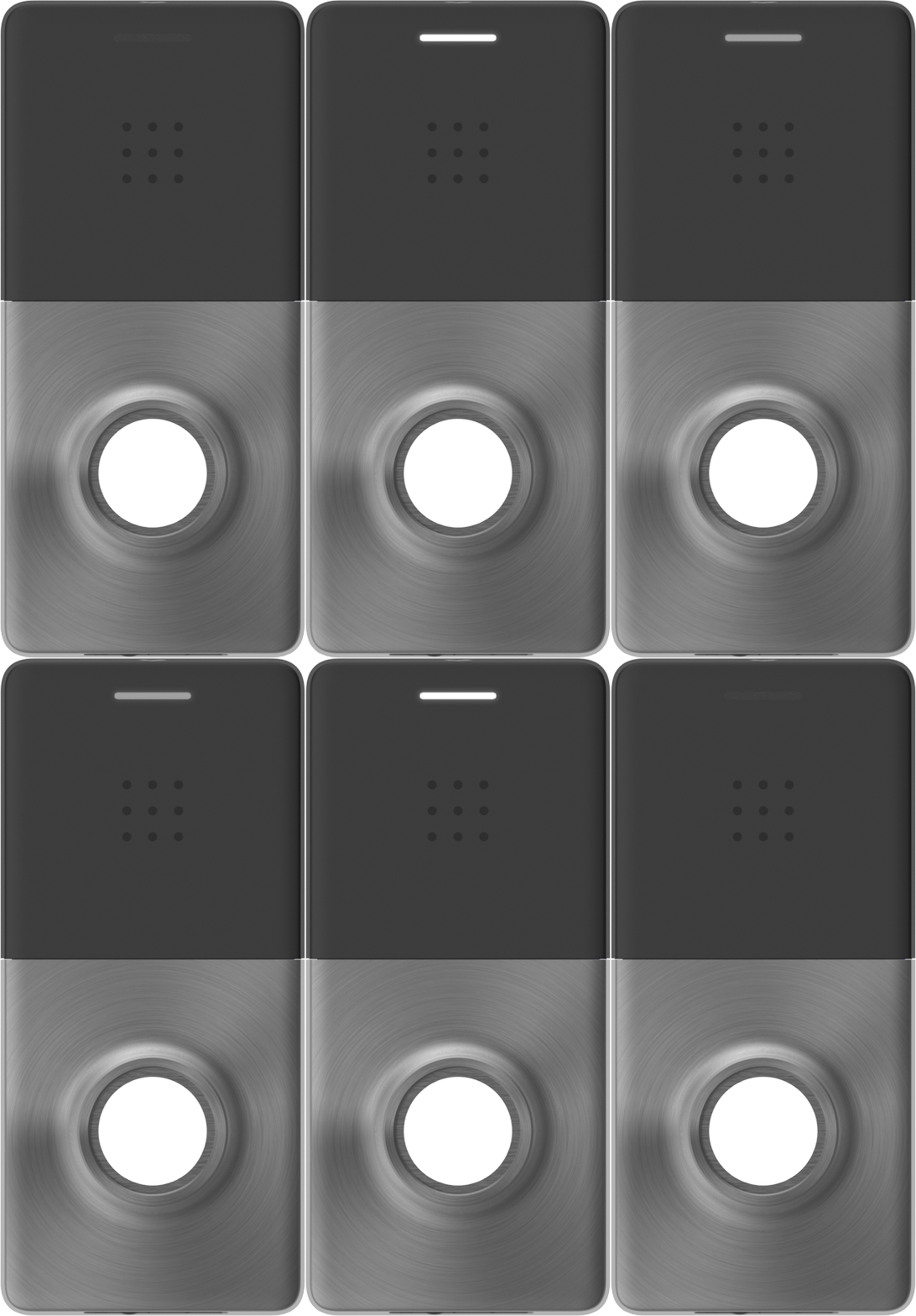
外側モジュール下部のウェイクボタンを押すと、外側LEDが白く2回点滅し、センサーが起動したことを示します。
### 緊急ロック状態
ロックが施錠されている場合の [緊急シナリオ](/access-control/ja/toarto/configure-access-control-event-alerts/emergency-lockdown.md)、内側と外側の両方のLEDが赤く素早く点滅します。
### 緊急ロック解除
ロックが解除されている場合の [緊急シナリオ](/access-control/ja/toarto/configure-access-control-event-alerts/emergency-lockdown.md)、内側と外側の両方のLEDが緑色に素早く点滅します。
### ダブルバッジ - スケジュールからロック解除へ
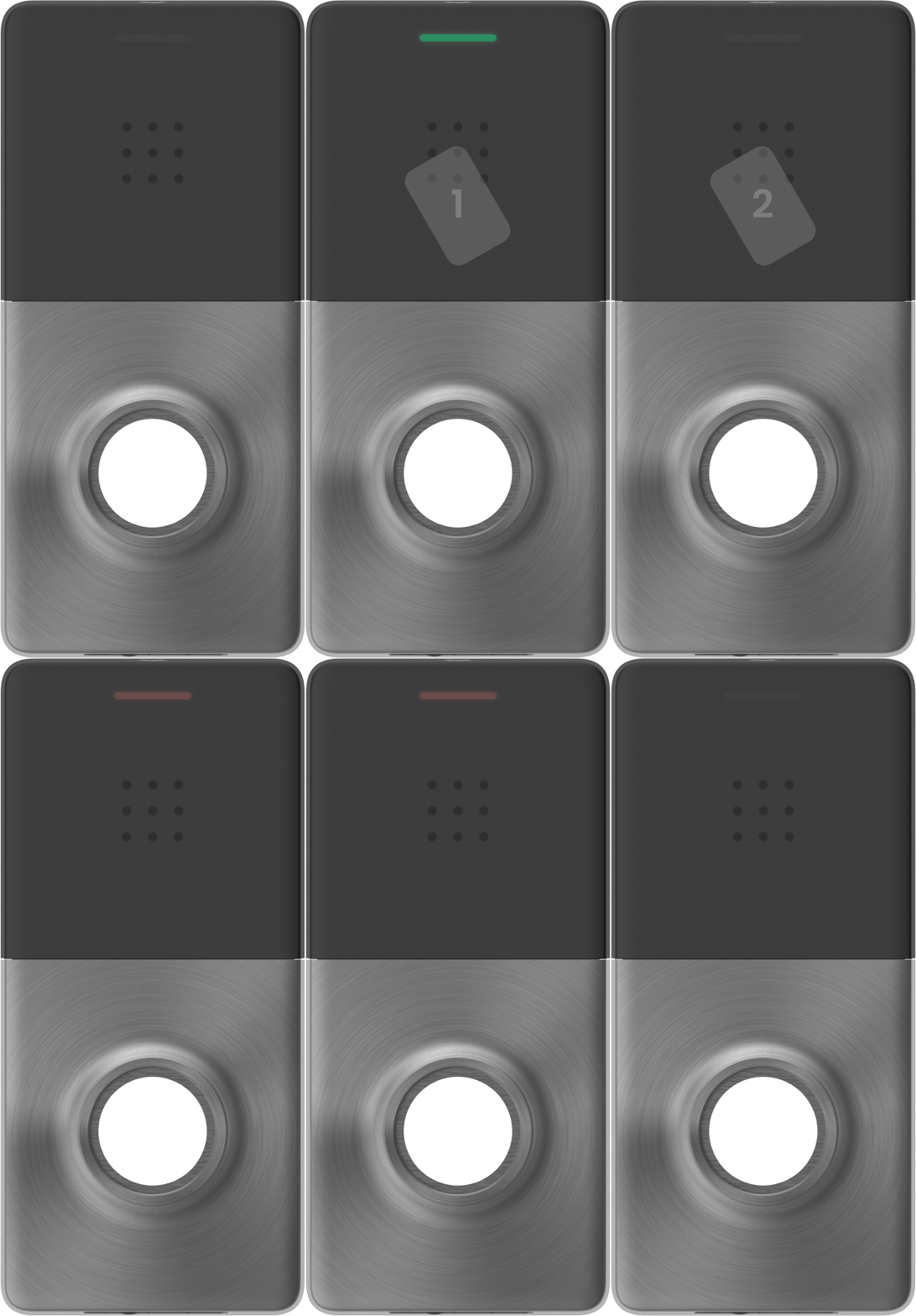
ダブルバッジで現在のスケジュールからロック解除に切り替えると、外側LEDは緑色に3回点滅します。
### ダブルバッジ - ロック解除からスケジュールへ
ダブルバッジでロック状態から現在のスケジュールに切り替えると、外側LEDは赤色に3回点滅します。
***
## 内側LED
### 初めてハブに接続する
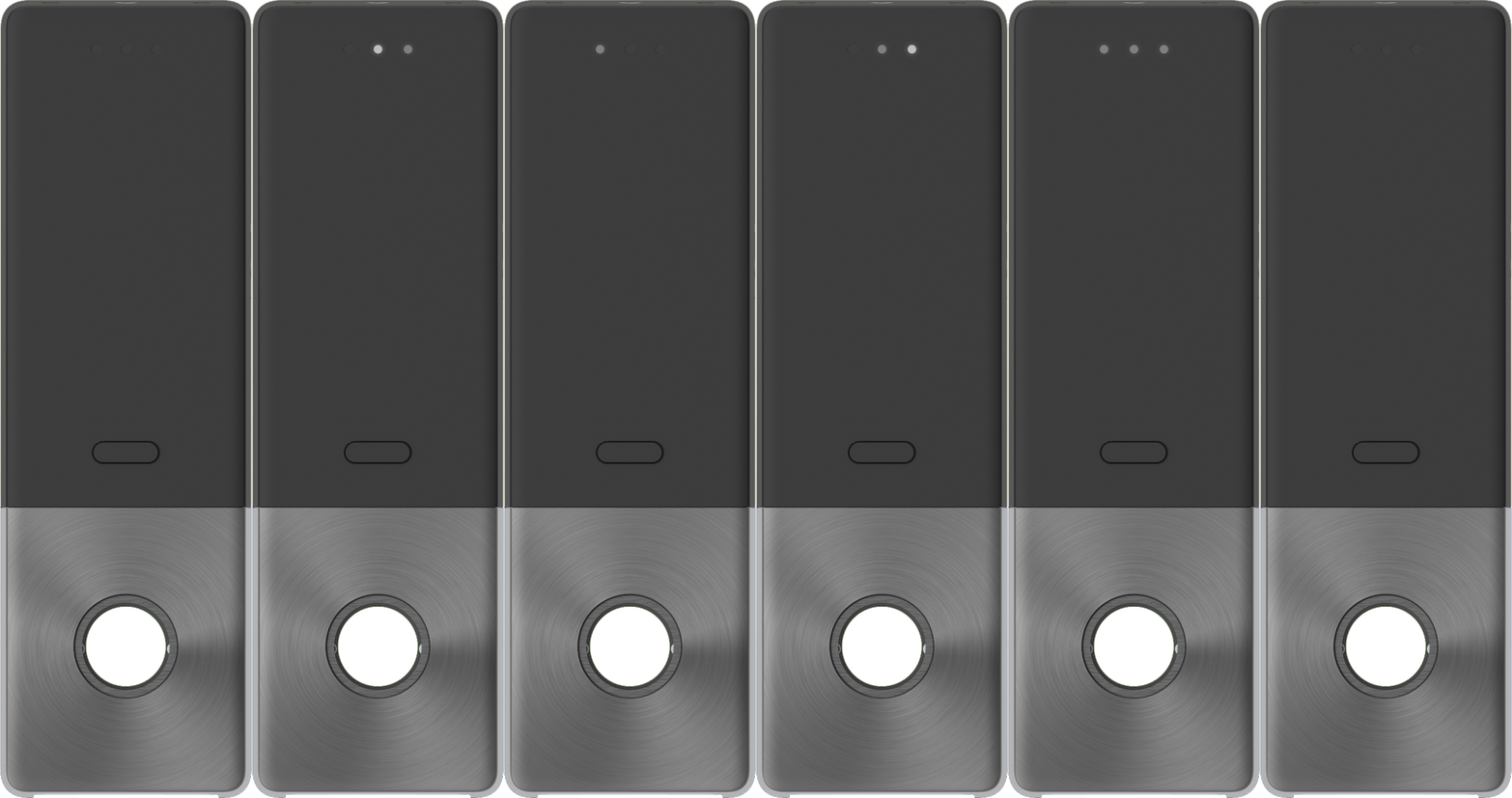
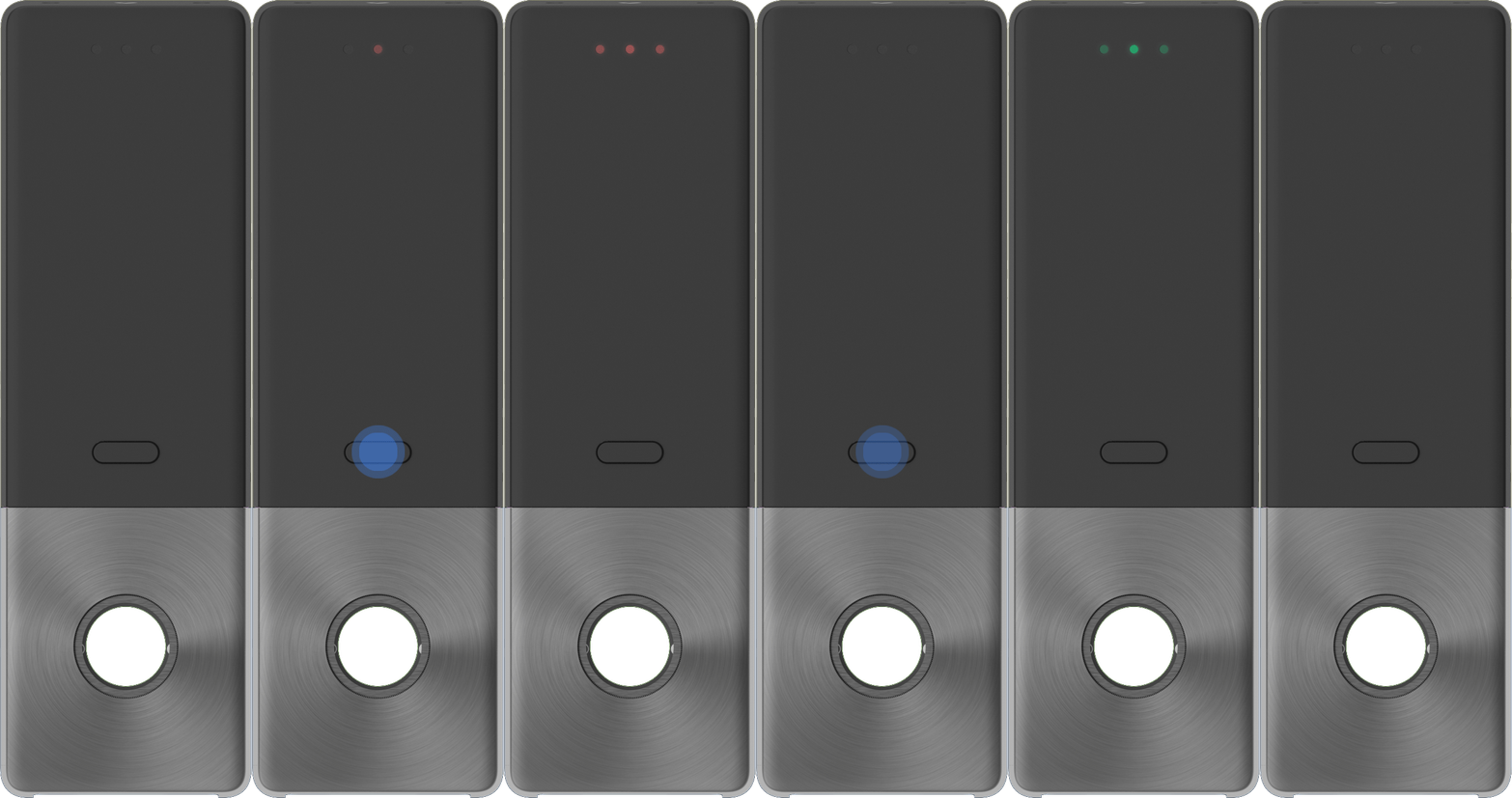
ロックの電源が入ると、内側LEDはハブに接続されるまで白く順次点灯します。接続されると、3つのLEDが同時に白く点灯します。
### 持続的な内側ロック状態表示
ロックがアクセス制御状態またはロック状態にある場合、中央の内側LEDは20秒ごとに赤く点滅します。ロックが解除されると、中央の内側LEDは20秒ごとに緑色に点滅します。
### 内部ボタン(ロック解除モード)
〜のとき、 *内部ボタン機能* に設定されている *ロック解除モード*、内部ボタンを押すと、ロックは現在のスケジュールとロック解除状態の間で切り替わります。ロック解除に切り替わると、内側LEDは緑色に点灯します。現在のスケジュールに戻ると、内側LEDは赤色に点灯します。
### 内部ボタン(プライバシーモード)
〜のとき、 *内部ボタン機能* に設定されている *プライバシーモード*、内部ボタンを押すと、ドアはプライバシー状態になり、オーバーライドグループのユーザーを除くすべてのユーザーに対してロックされます。この状態では、内側と外側の両方のLEDが赤く点灯します。
---
# Agent Instructions
This documentation is published with GitBook. GitBook is the documentation platform designed so that both humans and AI agents can read, navigate, and reason over technical content effectively. Learn more at gitbook.com.
## Querying This Documentation
If you need additional information that is not directly available in this page, you can query the documentation dynamically by asking a question.
Perform an HTTP GET request on the current page URL with the `ask` query parameter, and the optional `goal` query parameter:
```
GET https://help.verkada.com/access-control/ja/she-zhi/verkada-wireless-lock-command-setup/verkada-wireless-lock-led-patterns.md?ask=&goal=
```
`ask` is the immediate question: it should be specific, self-contained, and written in natural language.
`goal` is optional and describes the broader end goal you are ultimately trying to accomplish on behalf of the user. GitBook uses it to tailor the answer towards what is most useful for that goal.
The response will contain a direct answer to the question and relevant excerpts and sources from the documentation.
Use this mechanism when the answer is not explicitly present in the current page, you need clarification or additional context, or you want to retrieve related documentation sections.