> For the complete documentation index, see [llms.txt](https://help.verkada.com/llms.txt). Markdown versions of documentation pages are available by appending `.md` to page URLs; this page is available as [Markdown](https://help.verkada.com/access-control/ja/akusesu/door-schedules-and-exceptions/save-reports-and-schedule-automatic-delivery.md).
# レポートを保存して配信をスケジュールする
自動配信のためのレポートフィルターを作成し、配信をスケジュールする方法を学ぶ
多くのユーザーは、同じレポートを定期的に実行する必要があります。毎回同じフィルターを再適用するのは、繰り返しで時間がかかります。保存済みレポートとスケジュールされたレポート配信を使用すると、ユーザーはフィルター済みレポートを保存し、定期スケジュールに従って自動的に配信できるため、このプロセスを効率化できます。
***
### 利点
* 管理者はフィルターをリセットすることなく、後から戻って簡単にレポートを再実行できます
* これらの保存済みレポートは、カンマ区切り値(CSV)ファイルに変換し、指定した受信者リストに自動でメール送信できます
* これらのメールは、毎日、毎週、または毎月にスケジュールできます
{% hint style="danger" %}
必要なもの **アクセス管理者** レポートを作成および管理するための権限が必要です。
{% endhint %}
***
## 保存済みレポートを作成する
{% stepper %}
{% step %}
**アクセスコントロールのホームページに移動し、左側で[レポート]アイコンを選択します。**
{% endstep %}
{% step %}
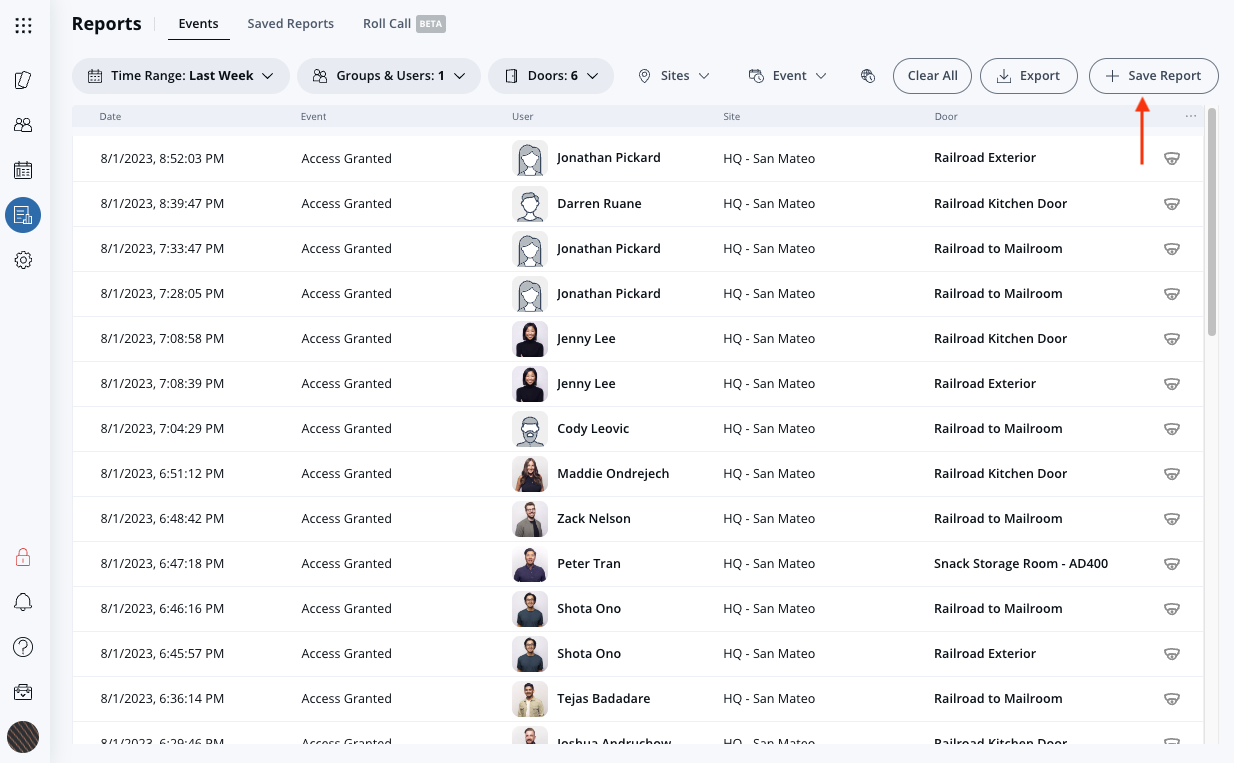
**希望のフィルターを選択し、[レポートを保存]をクリックします。**
{% endstep %}
{% step %}
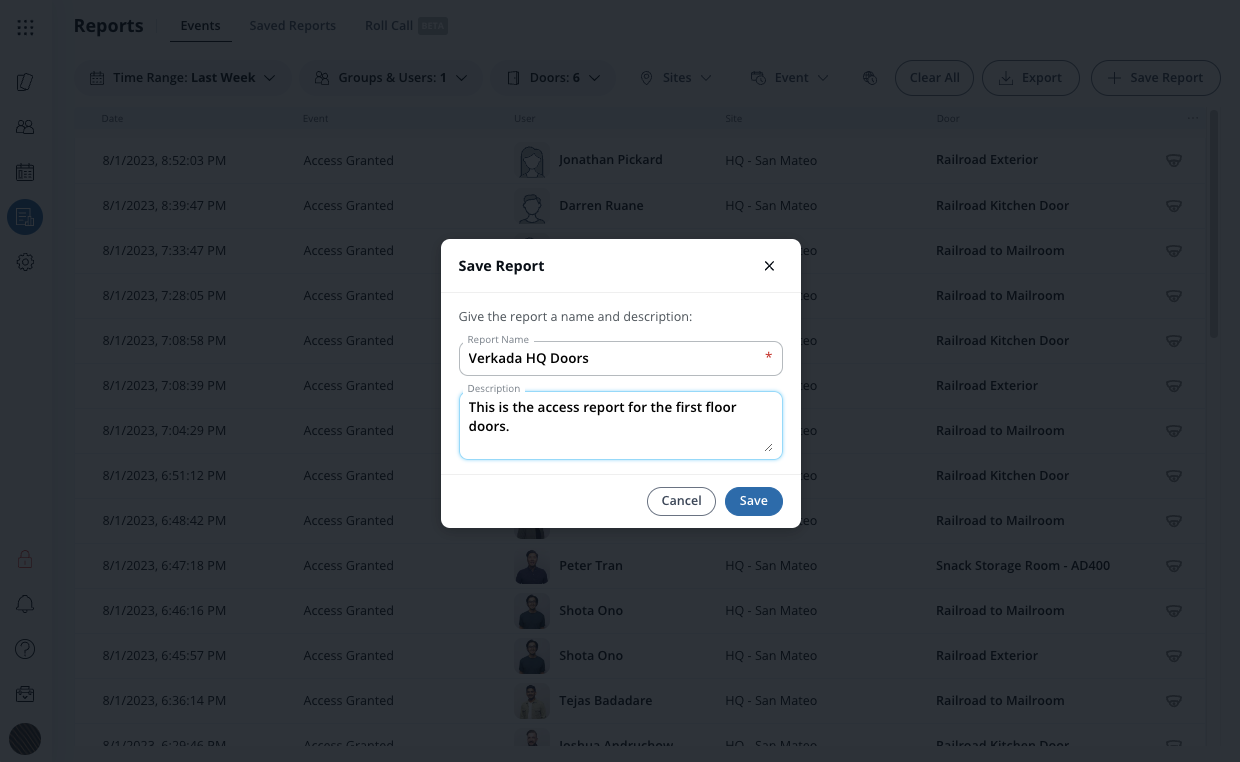
**アップロードの *****レポートを保存***** ダイアログで、レポート名(必須)と説明(任意)を入力し、[保存]をクリックします。どちらも保存済みレポートの作成後に編集できます。**
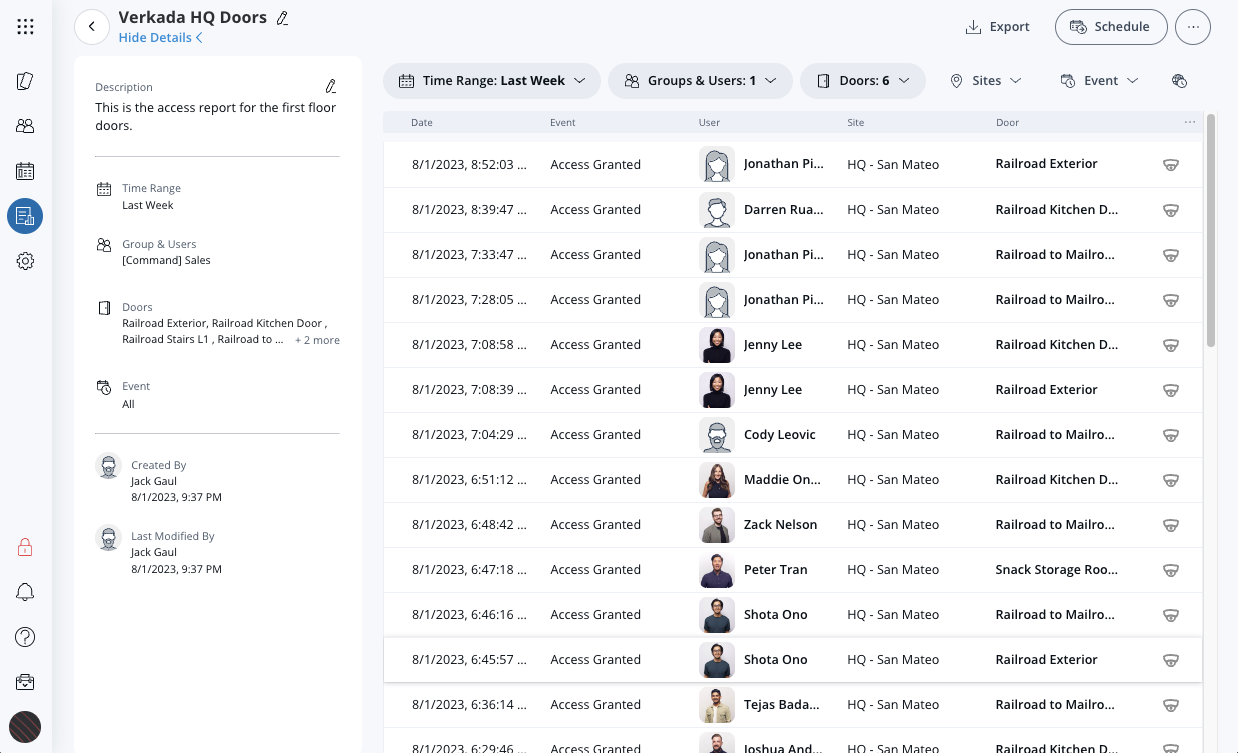
レポートが保存されると、レポートページが読み込まれます。左ペインには保存済みレポートに付随するメタデータがいくつか表示されます。右ペインにはレポート本体が表示されます。\
{% endstep %}
{% step %}
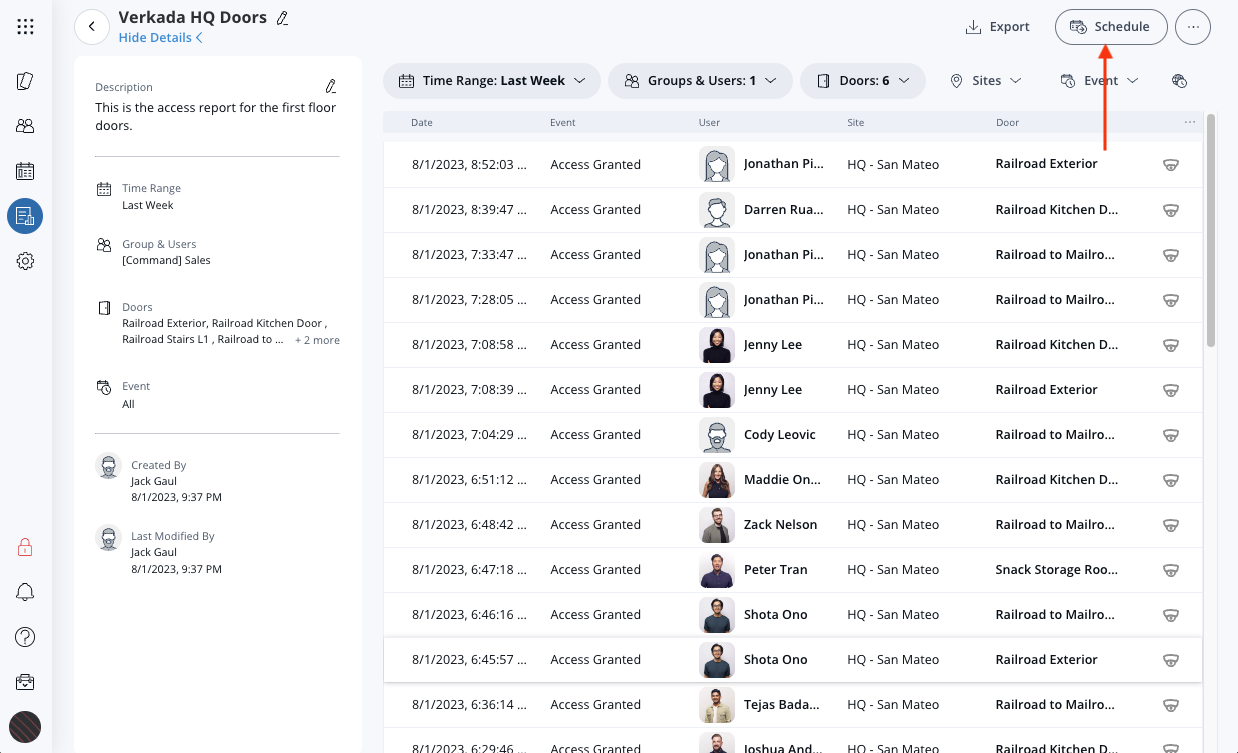
**右上の[スケジュール]をクリックして、これらのレポートをスケジュールします。**
{% endstep %}
{% step %}
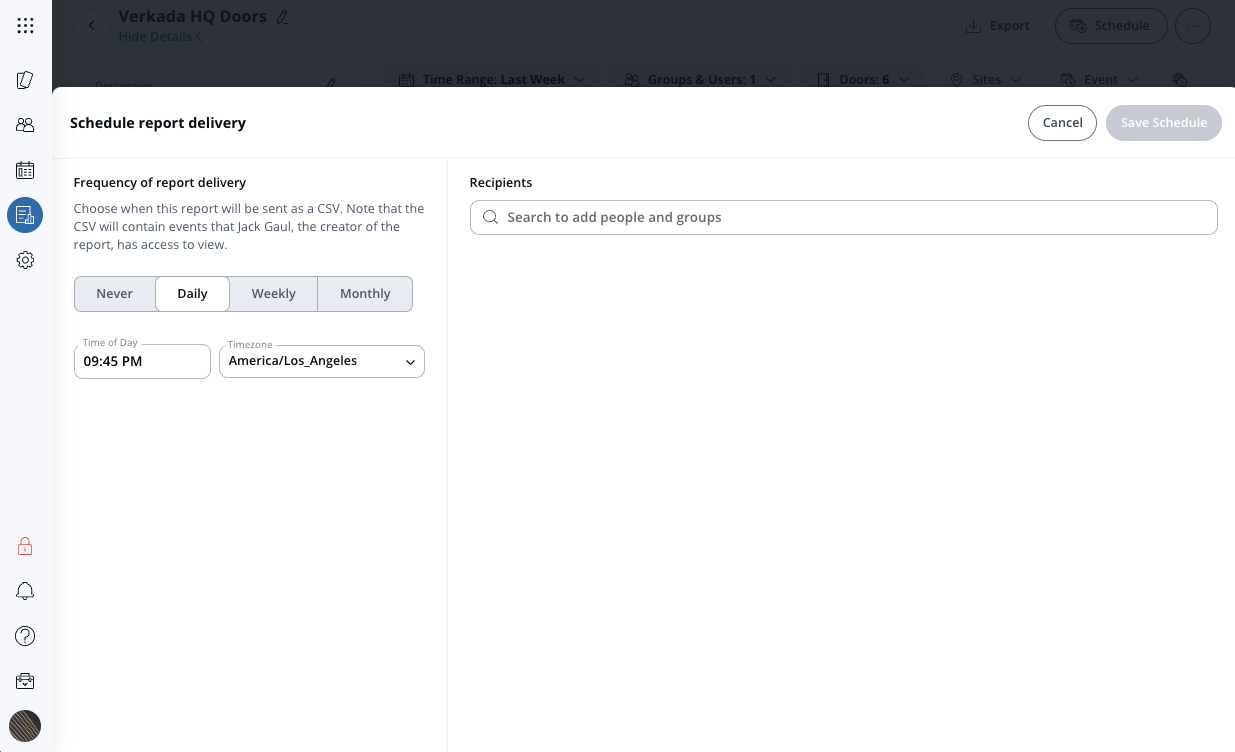
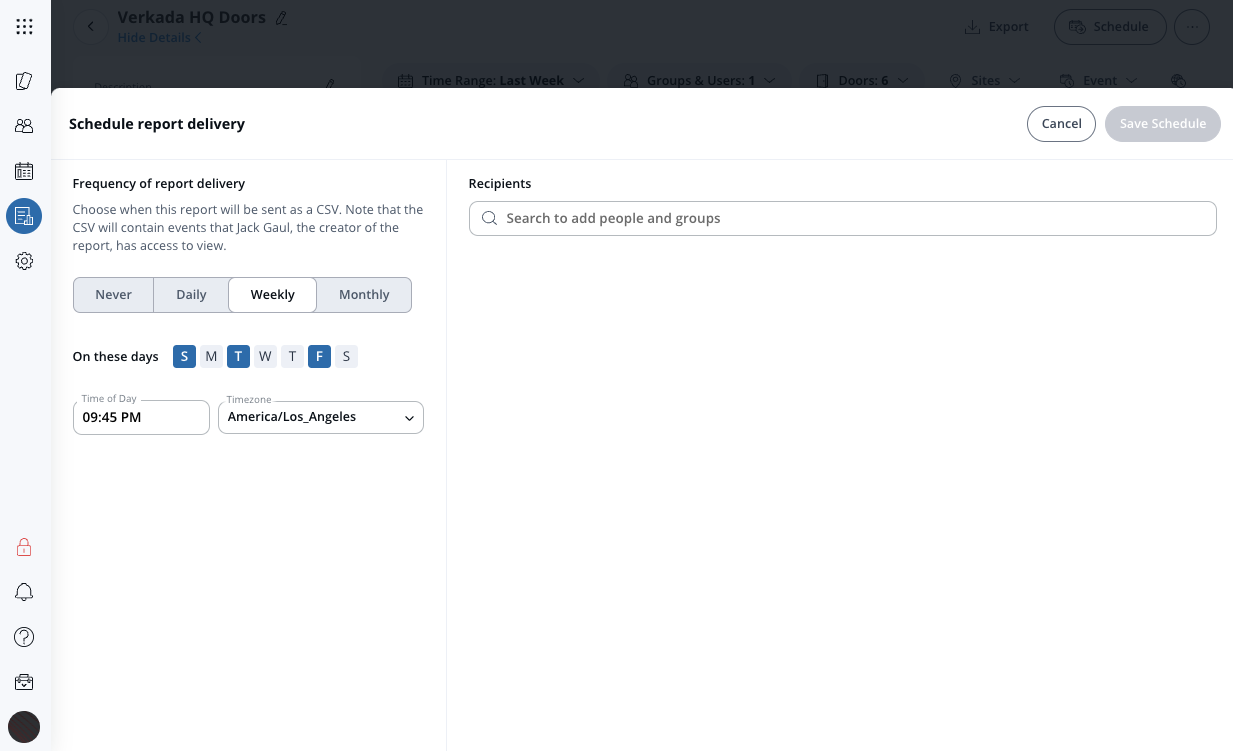
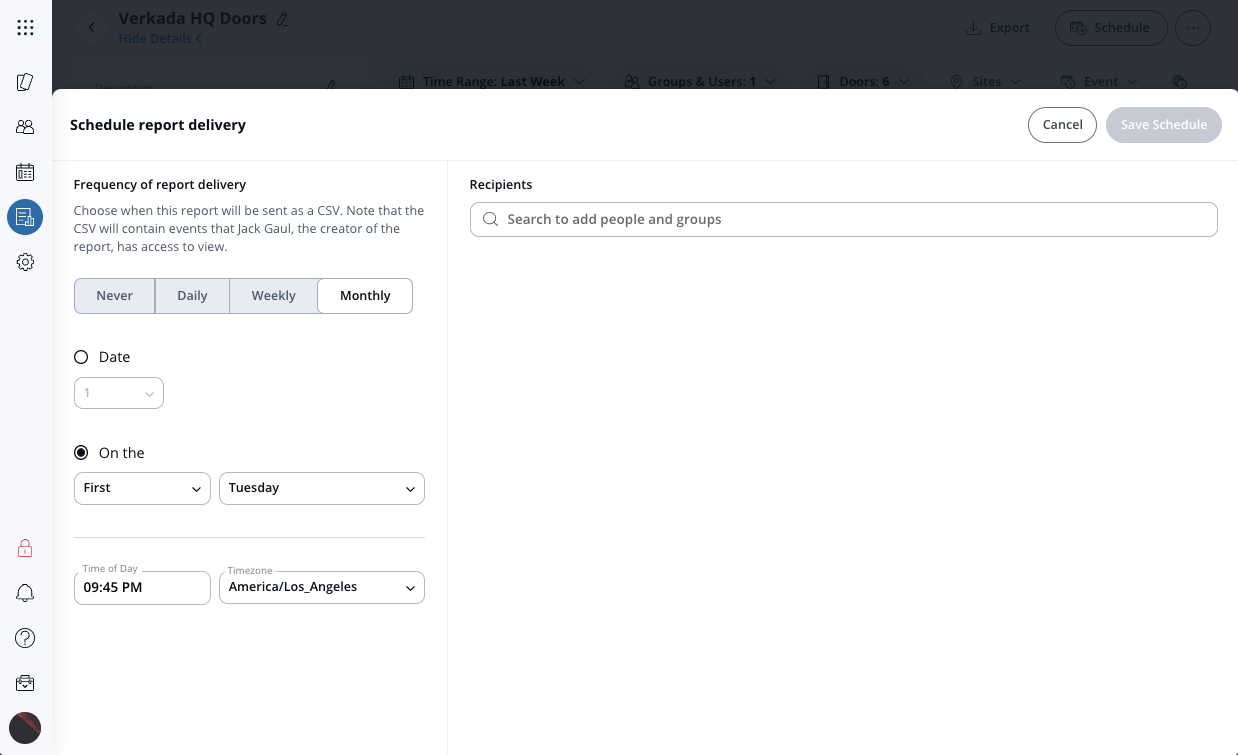
**保存済みレポートのスケジュール頻度を選択します: *****毎日*****, *****毎週*****、または *****毎月*****.**
\
**例**: *毎日* 頻度には、特定の時刻とタイムゾーンが必要です。
\
**例**: *毎週* このオプションでは、レポートを送信したい曜日を選択できます。この例では、日曜日(S)、火曜日(T)、金曜日(F)が選択されています。
**例**: *毎月* このオプションでは、月内の特定の日付、または週番号/曜日を選択できます。
{% endstep %}
{% step %}
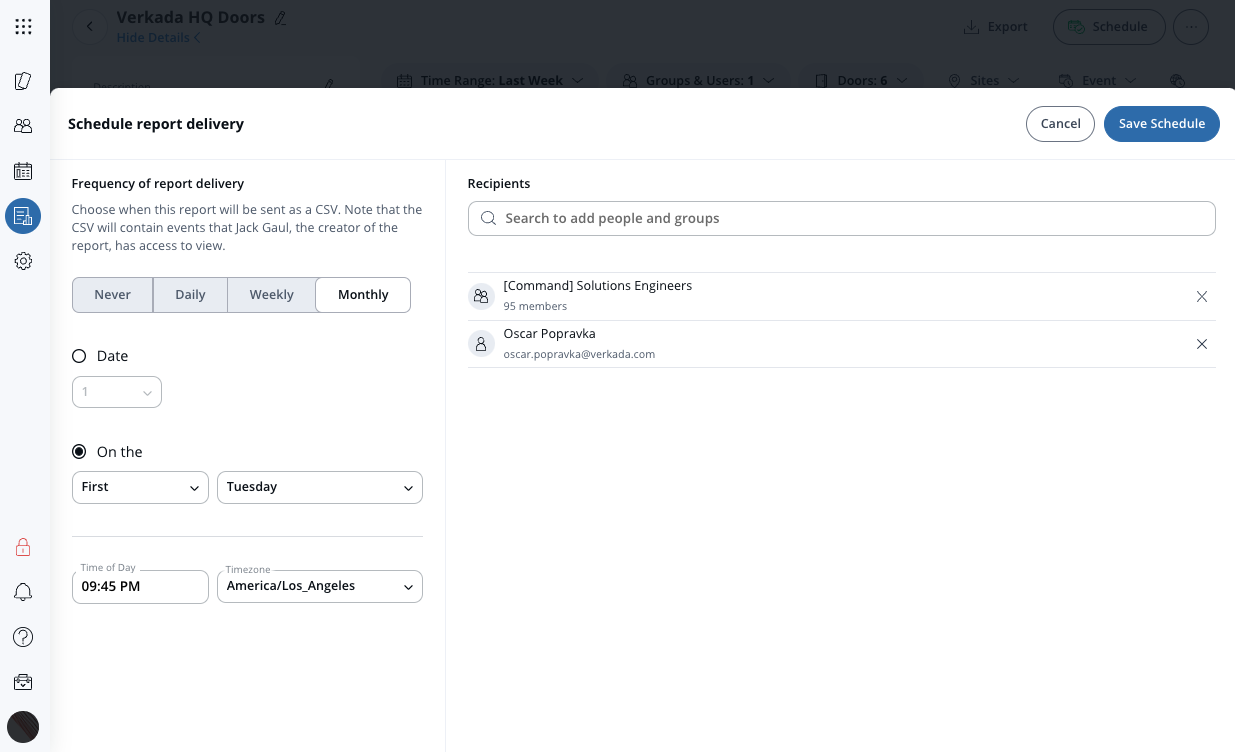
**スケジュールされたレポートの受信者を選択します。個別ユーザーとアクセスグループの両方を指定できます。**
\
**例**:ユーザーとグループを指定
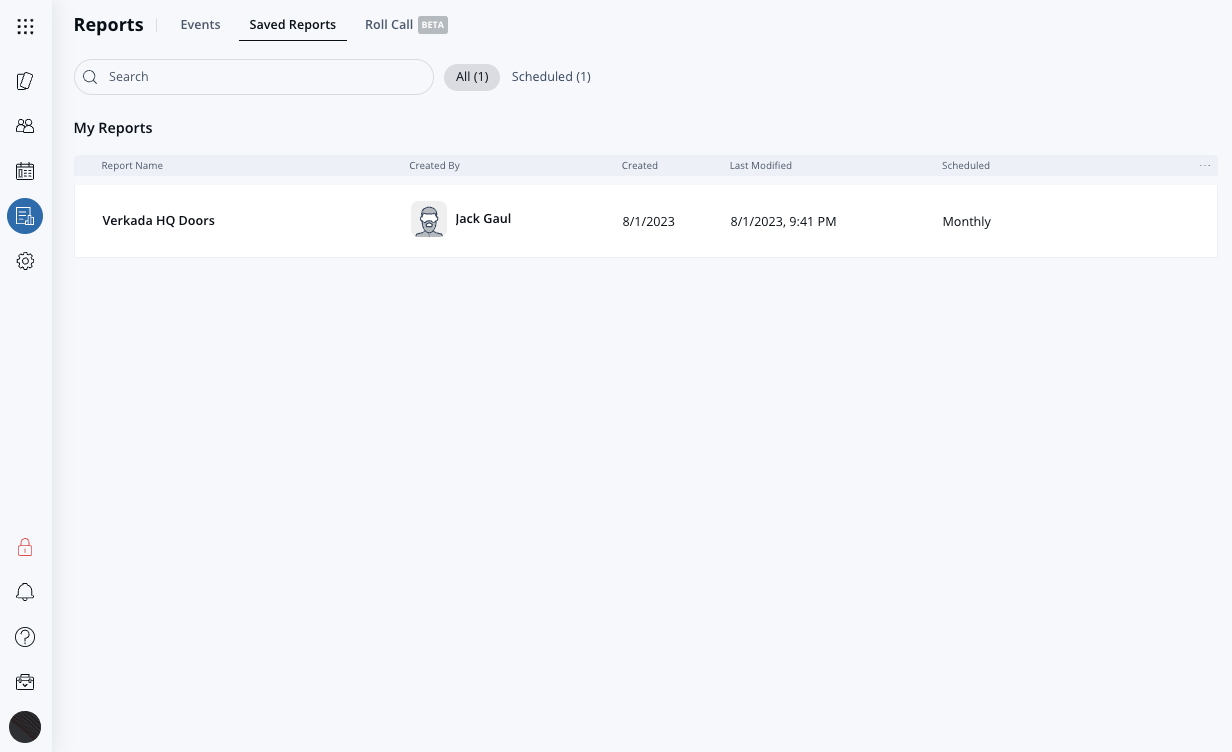
新しい保存済みレポートが **保存済みレポート** タブに表示されるはずです。
{% endstep %}
{% endstepper %}
***
## 既存のレポートを複製する
{% stepper %}
{% step %}
**Verkada Command で、All Products > Access に移動します。**
{% endstep %}
{% step %}
**左側のナビゲーションで[レポート]を選択します。**
1. 必要に応じてフィルターを設定します。
2. 右側で、 **[レポートを保存]。**
{% endstep %}
{% step %}
**オン** **レポートを保存:**
1. 一意の名前を入力します。
2. (任意)レポートの説明を追加します。
3. クリック **保存します。**
{% endstep %}
{% step %}
**レポートを保存すると、[保存済みレポート]タブで開きます。左ペインには保存済みレポートのメタデータが表示され、右ペインにはレポートが表示されます。**
{% endstep %}
{% endstepper %}
***
## スケジュールされたレポートを作成する
{% stepper %}
{% step %}
**Verkada Command で、All Products > Access に移動します。**
{% endstep %}
{% step %}
**左側のナビゲーションで[レポート]を選択します。**
{% endstep %}
{% step %}
**上部で、[保存済みレポート]> 該当のレポートをクリックします。**
1. 右上でクリックします。 **スケジュール。**
2. レポートのスケジュール頻度を選択します:
* **毎日:** レポート配信の時刻とタイムゾーンを指定します。
* **毎週:** レポートを配信する曜日を1日または複数日選択します。
* **毎月:** 月内の特定の日付、または週番号と曜日のいずれかを選択します(たとえば、毎月第2火曜日)。
3. スケジュールされたレポートの受信者を選択します。個別ユーザーとアクセスグループの両方を指定できます。
4. 右上でクリックします。 **スケジュールを保存します。**
{% hint style="danger" %}
保存済みレポートは、作成者本人にのみ非公開です。アクセスコントロールの権限やロールに関係なく、保存済みレポートを表示、編集、実行できるのは作成者だけです。他のユーザーが同じレポートデータを必要とする場合は、レポート配信をスケジュールして結果を送信するか、各ユーザーが自分専用のレポートを作成して保存します。
{% endhint %}
{% endstep %}
{% endstepper %}
***
## 既存のレポートを複製する
既存のフィルターを保持したまま(スケジュールは保持せずに)同様のレポートを作成するには、レポートを複製して必要な変更を加えます。
{% stepper %}
{% step %}
**Verkada Command で、All Products > Access に移動します。**
{% endstep %}
{% step %}
**左側のナビゲーションで[レポート]>[保存済みレポート]を選択します。**
{% endstep %}
{% step %}
**レポートにカーソルを合わせ、** :ellipsis: **>複製。**
1. 一意の名前を入力します。
2. (任意)レポートの説明を追加します。
3. クリック **複製。**
{% endstep %}
{% step %}
**(任意):**
* レポートを開き、必要に応じてフィルターを編集します
* [スケジュールを追加する](#create-a-scheduled-report)
{% endstep %}
{% endstepper %}
***
## レポートを書き出す
保存済みレポートはCSVファイルとして書き出せます。
{% stepper %}
{% step %}
**Verkada Command で、All Products > Access に移動します。**
{% endstep %}
{% step %}
**左側のナビゲーションで[レポート]を選択します。**
{% endstep %}
{% step %}
**上部で、[保存済みレポート]> 該当のレポートをクリックします。**
1. 右上でクリックします。 **書き出す。**
2. クリック **OK** レポートをメールアドレスに送信します。
{% endstep %}
{% endstepper %}
---
# Agent Instructions
This documentation is published with GitBook. GitBook is the documentation platform designed so that both humans and AI agents can read, navigate, and reason over technical content effectively. Learn more at gitbook.com.
## Querying This Documentation
If you need additional information that is not directly available in this page, you can query the documentation by asking a question.
Perform an HTTP GET request on the following URL with the `ask` and `goal` query parameters:
```
GET https://help.verkada.com/access-control/ja/akusesu/door-schedules-and-exceptions/save-reports-and-schedule-automatic-delivery.md?ask=&goal=
```
`ask` is the immediate question: it should be specific, self-contained, and written in natural language.
`goal` is what the user is ultimately trying to achieve, the reason they need the answer. Sharing it helps GitBook give you a better, more relevant answer. A goal is most helpful when it describes the outcome the user wants rather than restating the question. For example, with `ask=how do I create an API token`, a goal like `automate deployments from our CI pipeline` lets GitBook tailor the answer to that use case.
The response will contain a direct answer to the question and relevant excerpts and sources from the documentation.
Use this mechanism when the answer is not explicitly present in the current page, you need clarification or additional context, or you want to retrieve related documentation sections.