> For the complete documentation index, see [llms.txt](https://help.verkada.com/llms.txt). Markdown versions of documentation pages are available by appending `.md` to page URLs; this page is available as [Markdown](https://help.verkada.com/access-control/ja/akusesu/door-schedules-and-exceptions/door-exception-calendars.md).
# ドア例外カレンダー
将来の日付に向けたドアスケジュール変更を自動化する
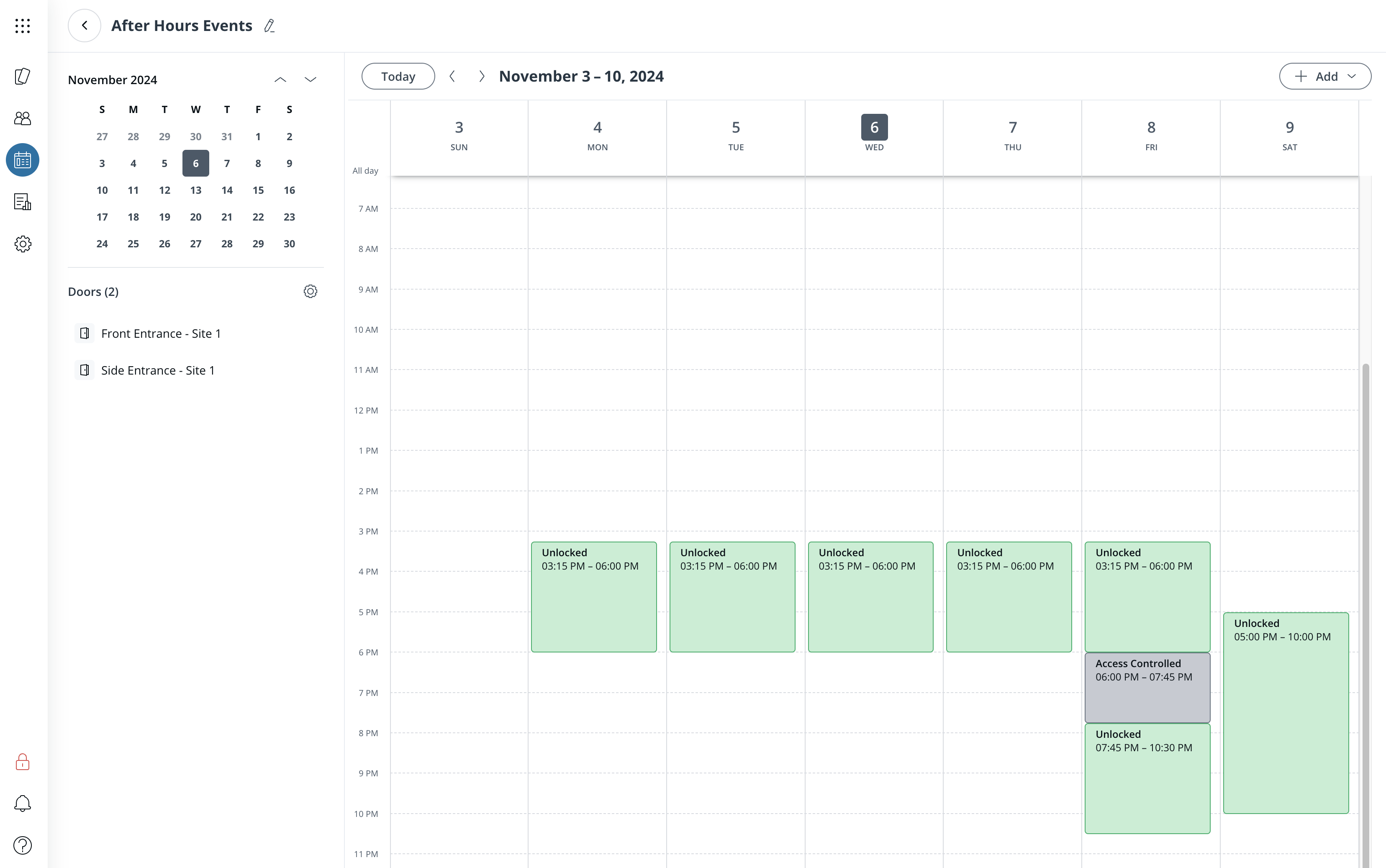
ドア例外カレンダーを使用すると、例外をカレンダーイベントとして作成し、特定の日付に選択したドアの状態を変更できます。これらは通常のドアスケジュールよりも優先されます。
{% hint style="warning" %}
参照 [ドアスケジュールと例外](/access-control/ja/akusesu/door-schedules-and-exceptions.md) ドアスケジュールに関する一般情報について。
{% endhint %}
***
### 主な機能
* ドア例外カレンダーに例外がある日時に、選択したドアのスケジュールを変更します。
* 例外は、数分から数時間までの任意の期間で設定できます。
* 例外を希望する周期(毎週、毎月、毎年など)で繰り返すように設定できます。
* 既に作成した例外を、単一の例外または同じ日付のすべての例外を将来の別の日付に複製して再利用できます
* 同じドアを複数のドア例外カレンダーに追加して、必要な例外の組み合わせを正確に適用できます。
***
## ドア例外カレンダーを作成する
{% stepper %}
{% step %}
**Verkada Command で、All Products > Access に移動します。**
{% endstep %}
{% step %}
**左側のパネルで、\[スケジュール] をクリックします。**
{% endstep %}
{% step %}
**[ドア例外カレンダー]を選択します。**
{% endstep %}
{% step %}
**右上の[例外カレンダーを追加]をクリックします。**
a. 例外カレンダーに一意の名前を付けます。\
b. 例外カレンダーで変更したいドアを追加します。\
c. ドアのスケジュールを変更したい日付に例外を追加します。
{% endstep %}
{% step %}
**右上の[保存]をクリックします。**
{% endstep %}
{% endstepper %}
***
## 例外を追加または変更する
{% stepper %}
{% step %}
**Verkada Command で、All Products > Access に移動します。**
{% endstep %}
{% step %}
**左側のパネルで、\[スケジュール] をクリックします。**
{% endstep %}
{% step %}
**[ドア例外カレンダー]を選択します。**
{% endstep %}
{% step %}
**変更したい特定のドア例外カレンダーを選択します。**
{% endstep %}
{% step %}
**カレンダー上の日付をクリックして新しい例外を追加するか、既存の例外をクリックして変更します。**
{% endstep %}
{% step %}
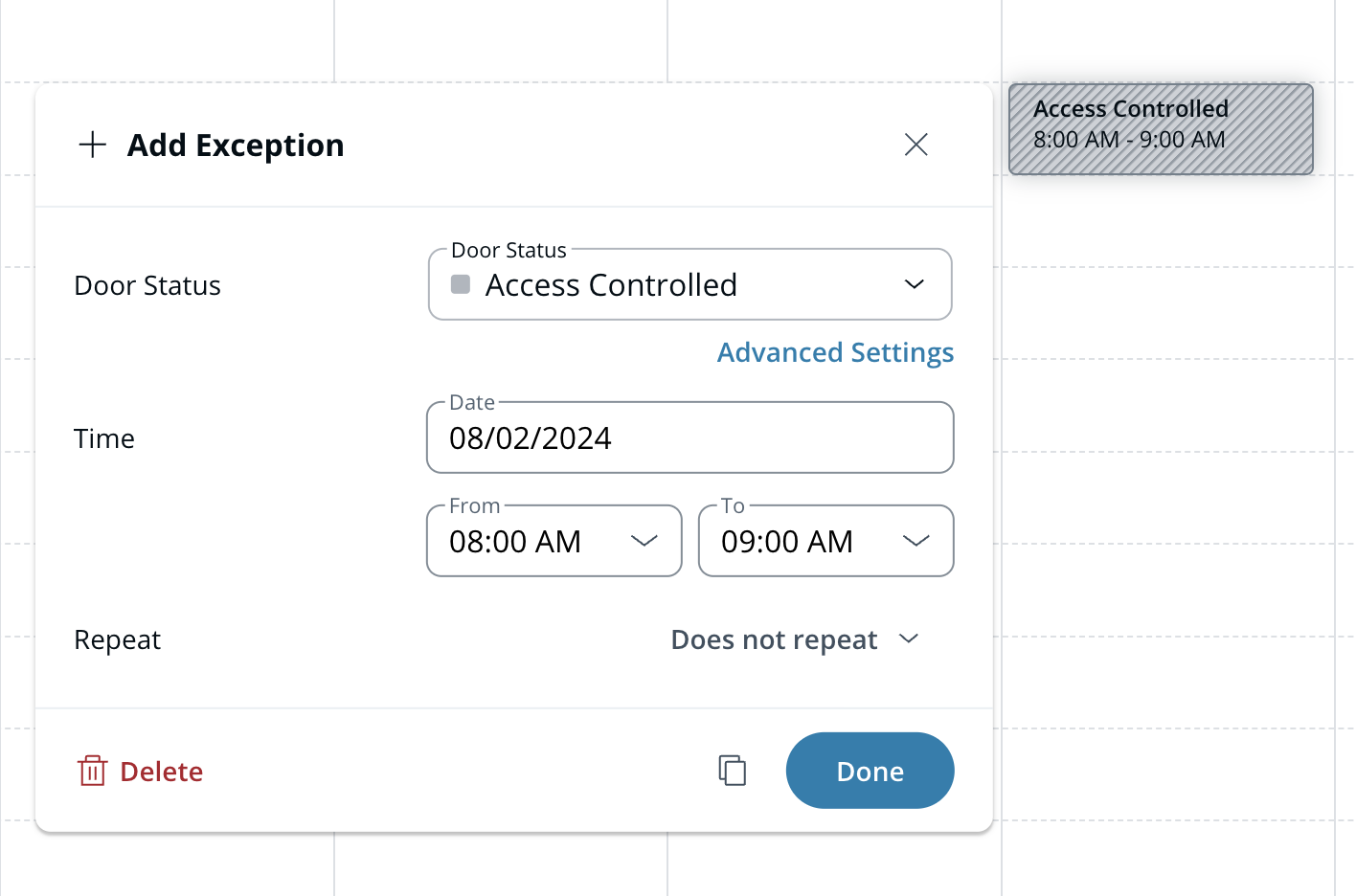
**必要に応じて、例外で次の設定を構成できます:**
* ドア状態
* 日付
* 開始時刻と終了時刻
* (オプション)繰り返し設定
* (オプション)詳細設定([最初の入室者](/access-control/ja/akusesu/door-schedules-and-exceptions/first-person-in-feature.md) と [ダブルバッジ](/access-control/ja/akusesu/door-schedules-and-exceptions/double-badge-to-override-a-doors-schedule.md))
{% endstep %}
{% step %}
**\[完了] をクリックします。**
{% endstep %}
{% step %}
**右上の[保存]をクリックします。**
{% endstep %}
{% endstepper %}
***
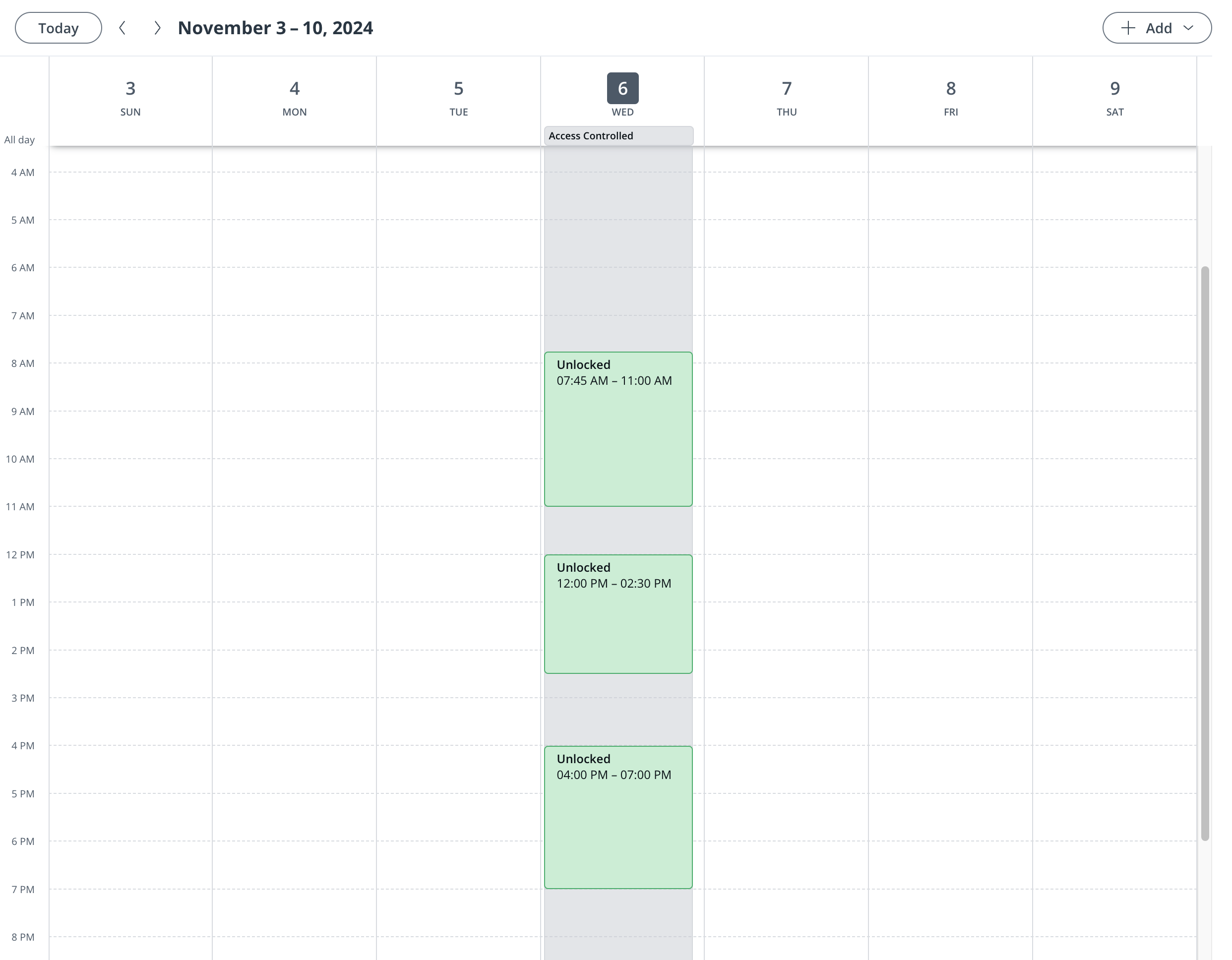
## 終日デフォルトを追加
ドアの1日のスケジュールを置き換えるには、 **終日デフォルト** 例外を使用して、ドアを終日「アクセス制御」にします。その後、特定の時間帯に例外を追加して、異なるドア状態を設定します。
ドア例外カレンダーを編集する際、特定の日付に終日デフォルトを追加する方法は3つあります:
{% stepper %}
{% step %}
**次のいずれかの方法で、日付に終日デフォルトを追加します:**
a. 該当するカレンダーの日付にカーソルを合わせ、次をクリックします **+ 終日デフォルトを追加。**\
b. 該当するカレンダーの日付をクリックし、次を選択します **終日デフォルトを追加**。\
c. 次をクリックします **追加** 右上で、次を選択します **終日デフォルト**.
{% endstep %}
{% step %}
**必要に応じて、次の設定を構成します:**
a. 日付\
b. 開始時刻と終了時刻\
c. (オプション)繰り返し設定
{% endstep %}
{% step %}
**\[完了] をクリックします。**
{% endstep %}
{% step %}
**右上の[保存]をクリックします。**
{% endstep %}
{% endstepper %}
***
## 例外を複製する
{% stepper %}
{% step %}
**Verkada Command で、All Products > Access に移動します。**
{% endstep %}
{% step %}
**左側のパネルで、\[スケジュール] をクリックします。**
{% endstep %}
{% step %}
**[ドア例外カレンダー]を選択します。**
{% endstep %}
{% step %}
**複製したい特定のドア例外カレンダーを選択します。**
{% endstep %}
{% step %}
**単一の例外を複製するには:**
a. 1つの **例外。**\
b. 次をクリックします: **コピーアイコン**。\
c. 次を選択します: **新しい日付** 例外を複製したい日付。\
d. 次をクリックします **複製**.
{% endstep %}
{% step %}
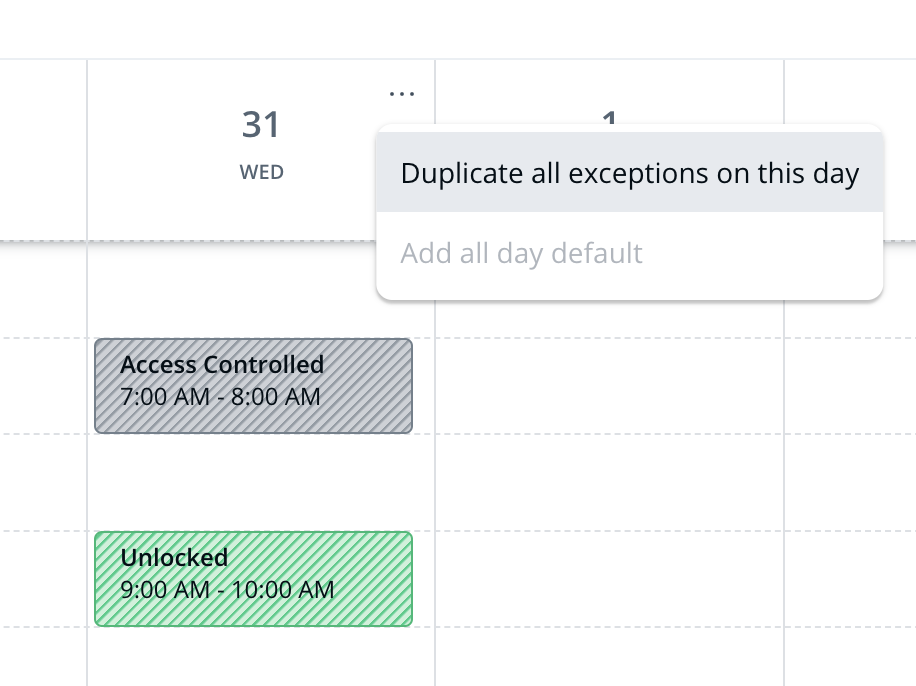
**同じ日付のすべての例外を複製するには:**
a. 次にカーソルを合わせます: **特定の日付のラベル** カレンダー上部にある。\
b. 次をクリックします: **三点アイコン**。\
c. 次をクリックします **この日のすべての例外を複製します。**\
d. 次を選択します: **新しい日付** 例外を複製したい場所。
{% endstep %}
{% step %}
**右上の[保存]をクリックします。**
{% endstep %}
{% endstepper %}
***
## 単一ドアのドアスケジュールとすべての例外をプレビュー
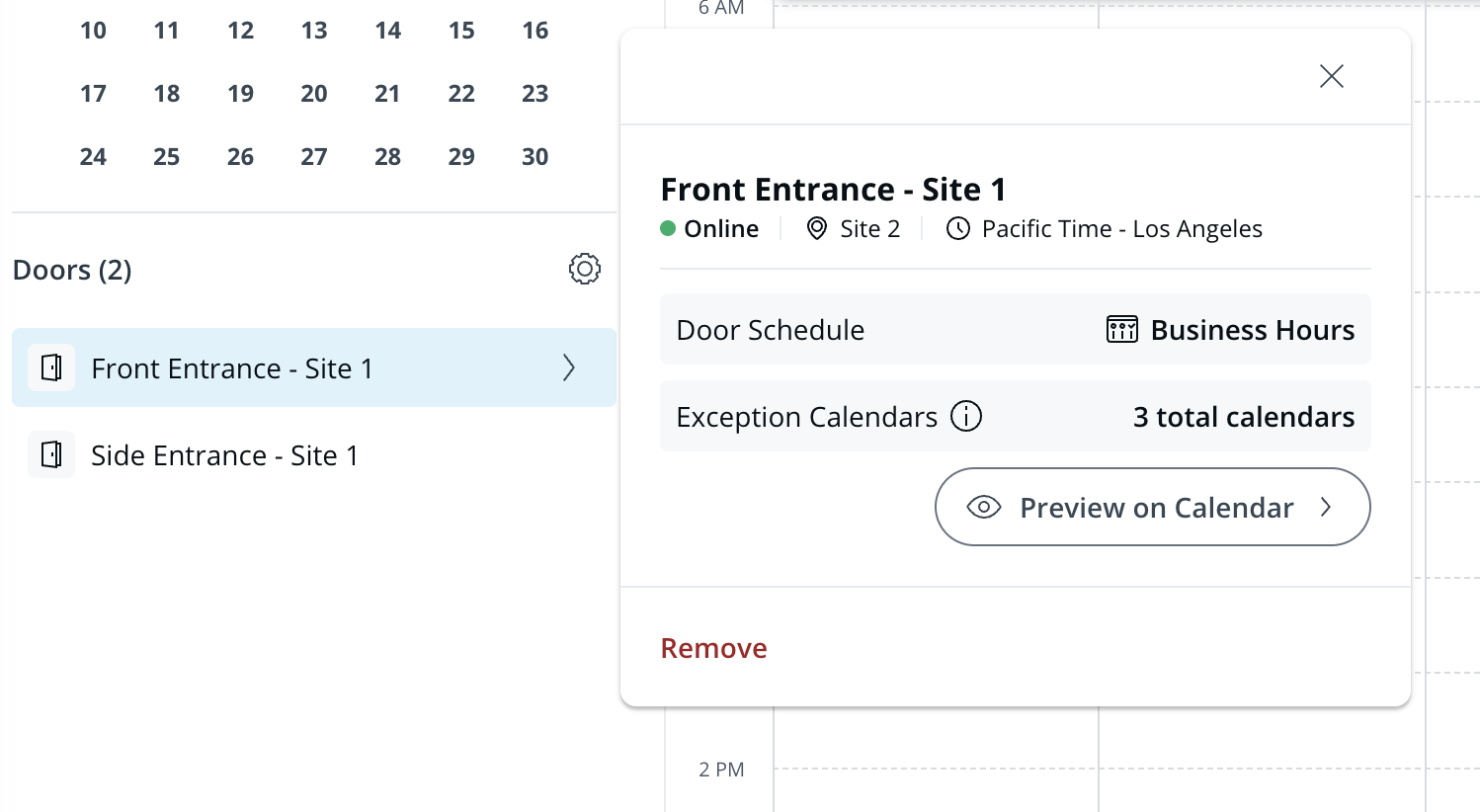
ドア例外カレンダーを作成または編集している間、カレンダー上で選択したドアに適用されているドアスケジュールと、その他すべてのドア例外カレンダーをプレビューできます。これにより、特定のドアに対する他のすべての予定された状態を照合して、追加または編集したい例外を判断できます。
{% stepper %}
{% step %}
**Verkada Command で、All Products > Access に移動します。**
{% endstep %}
{% step %}
**左側のパネルで、\[スケジュール] をクリックします。**
{% endstep %}
{% step %}
**[ドア例外カレンダー]を選択します。**
{% endstep %}
{% step %}
**表示したい特定のドア例外カレンダーを選択します。**
{% endstep %}
{% step %}
**左側で、プレビューしたいドアを選択します。**
{% endstep %}
{% step %}
**[カレンダー上でプレビュー]をクリックします。**
{% endstep %}
{% endstepper %}
***
## FAQ
同じドアを複数のドア例外カレンダーに追加できますか?
ドアは複数のドア例外カレンダーに追加できます。Verkada はすべての例外を組み合わせてドアのスケジュールを調整します。例外が重複する場合、Verkada は以下のルールに基づいて [ドアに重複する例外がある場合はどうなりますか?](#duplicate-exceptions)
ドアに重複する例外がある場合はどうなりますか?
同じドアで複数の例外が重複する場合は、以下の優先ルールに基づいて、最も制限の厳しいドア状態が適用されます。
**ドア状態の優先ルール**
施錠カード+コード入力アクセス制御解錠
{% hint style="warning" %}
例外が重複する場合は、 **最初の入室者** その設定は、重複しているすべての例外で First Person In が有効になっている場合にのみ適用されます。
{% endhint %}
***
{% hint style="info" %}
**実際の動作をご覧になりますか?** こちらをご覧ください。 [動画チュートリアル](https://www.youtube.com/watch?v=jsqtoW21ZT4).
{% endhint %}
---
# Agent Instructions
This documentation is published with GitBook. GitBook is the documentation platform designed so that both humans and AI agents can read, navigate, and reason over technical content effectively. Learn more at gitbook.com.
## Querying This Documentation
If you need additional information that is not directly available in this page, you can query the documentation by asking a question.
Perform an HTTP GET request on the following URL with the `ask` and `goal` query parameters:
```
GET https://help.verkada.com/access-control/ja/akusesu/door-schedules-and-exceptions/door-exception-calendars.md?ask=&goal=
```
`ask` is the immediate question: it should be specific, self-contained, and written in natural language.
`goal` is what the user is ultimately trying to achieve, the reason they need the answer. Sharing it helps GitBook give you a better, more relevant answer. A goal is most helpful when it describes the outcome the user wants rather than restating the question. For example, with `ask=how do I create an API token`, a goal like `automate deployments from our CI pipeline` lets GitBook tailor the answer to that use case.
The response will contain a direct answer to the question and relevant excerpts and sources from the documentation.
Use this mechanism when the answer is not explicitly present in the current page, you need clarification or additional context, or you want to retrieve related documentation sections.