> For the complete documentation index, see [llms.txt](https://help.verkada.com/llms.txt). Markdown versions of documentation pages are available by appending `.md` to page URLs; this page is available as [Markdown](https://help.verkada.com/access-control/integrations-and-alerts/informacast-access-control-integration.md).
# InformaCast Integration
Learn how to integration Verkada Command with Singlewire Informacast
[Verkada Command](/command/getting-started/get-started-with-verkada-command.md) has the ability to integrate with [InformaCast](https://www.singlewire.com/) and gives you the ability to trigger a building lockdown via the traditional Command and Informacast methods, including:
* Verkada lockdown via Command
* Verkada panic buttons
* Verkada alarms
* InformaCast number via direct number dial
* InformaCast Message Template
The person in distress has several options to send an alert and lock down the doors on-premise.
***
## Integrate with InformaCast
To integrate with the InformaCast system, you can utilize the on-premise InformaCast hardware and Verkada’s hybrid-cloud physical security system to link the physical contact closure in each location with Command.
### Components
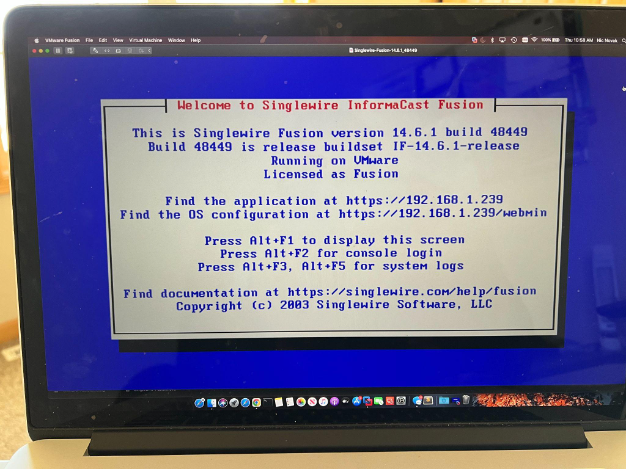
#### InformaCast Fusion Server (virtual machine or a physical server)
This is the on-premise server that relays communication to the InformaCast Cloud.
#### Contact closure
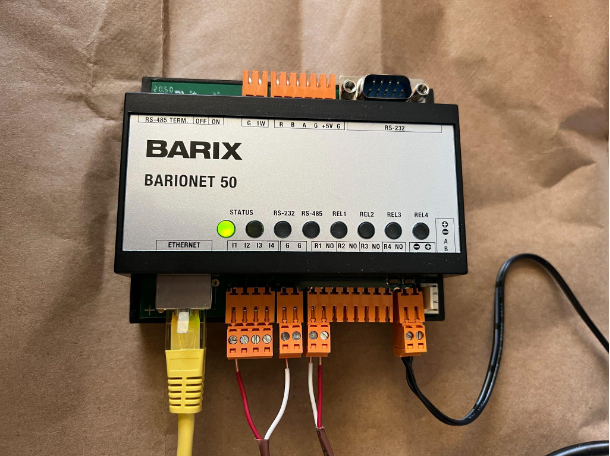
This device physically integrates the Verkada access control system with the on-premise server.
#### Verkada door controller
The door controller manages the lockdown configuration on the Verkada side.
#### InformaCast Cloud
From Informacast Cloud, you can configure:
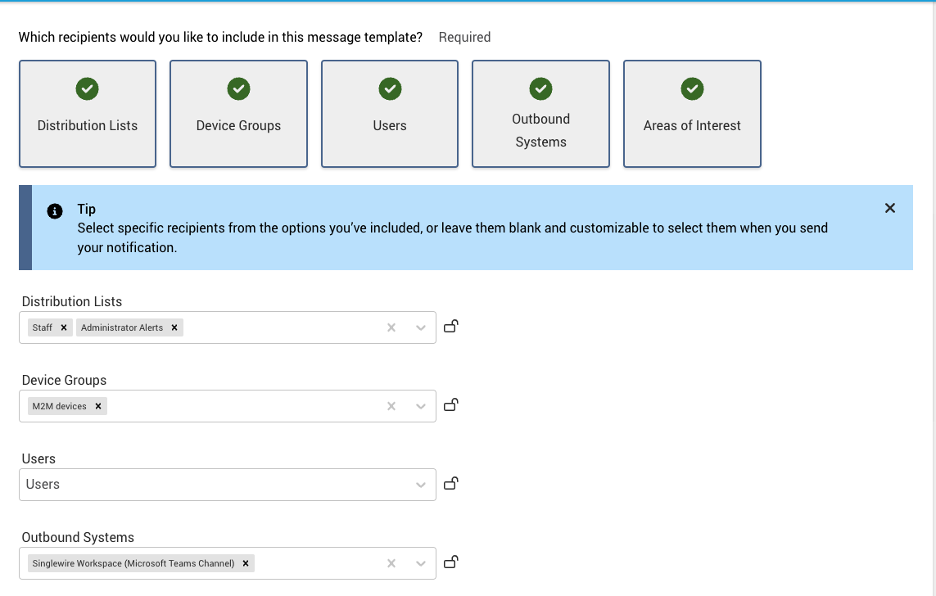
* Message templates, which devices receive that message (IP speakers, digital signage, instant messaging platforms), and who receives that message.
* The integration with the contact closure, and ultimately the integration with Verkada.
### Architecture
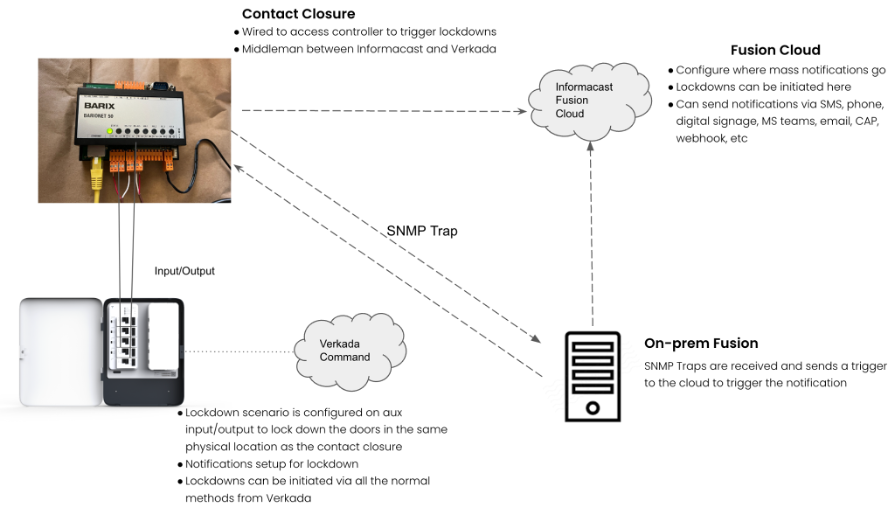
This image illustrates a high-level view of how the different components communicate with each other.
### Configuration
#### InformaCast Fusion Server
Refer to the [InformaCast Fusion documentation](https://support.singlewire.com/s/article/InformaCast-Fusion-Documentation). This can be either a Virtual Machine or a physical on-premise server.
#### Contact closure
Refer to the [list of supported contact closures and configuration instructions](https://www.singlewire.com/help/InformaCast/v12.0.2/advanced/cucm/index.htm#rhsyns=%20\&t=InformaCast%2FPlugin_Management%2FConfigure_Individual_Plugins%2FM2M_Plugin%2FM2M_Plugin.htm).
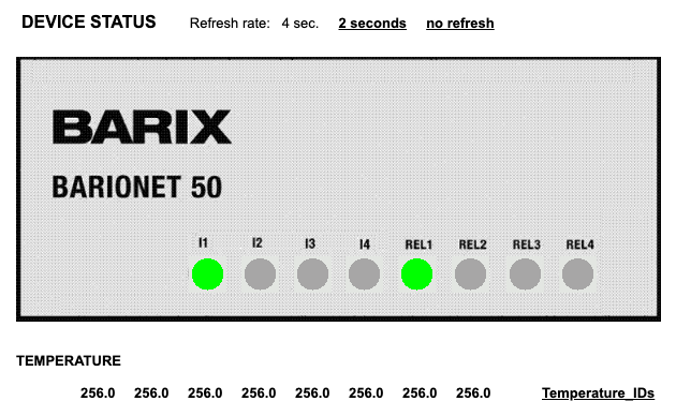
In this example, a Barix Barionet 50 is used as the contact closure.
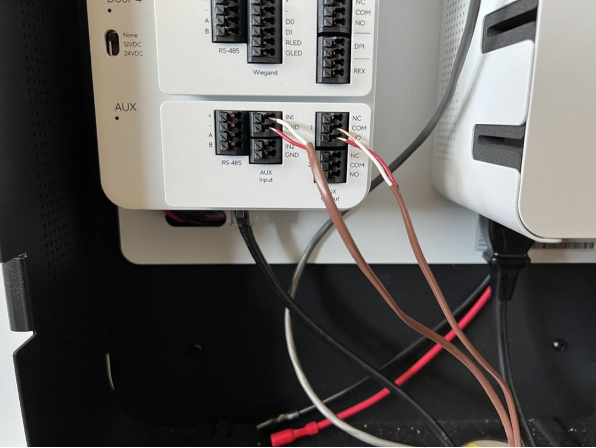
Wire the Barix inputs to the auxiliary outputs on the AC41, and the Barix outputs to the auxiliary inputs on the AC41. This allows the lockdown to be initiated from either system. The image highlights the inputs on the Barix and the outputs on the AC41.
To configure the contact closure, set up a Simple Network Management Protocol (SNMP) trap to the InformaCast Fusion server. Refer to InformaCast documentation for detailed instructions on configuring the Barix Barionet 50 contact closure.
#### Verkada door controller
The door controller requires all the initial setup and the configuration of a lockdown via an auxiliary port. You need to [configure an input/output (I/O) scenario](/access-control/emergency-response/emergency-lockdown.md).
#### InformaCast Cloud
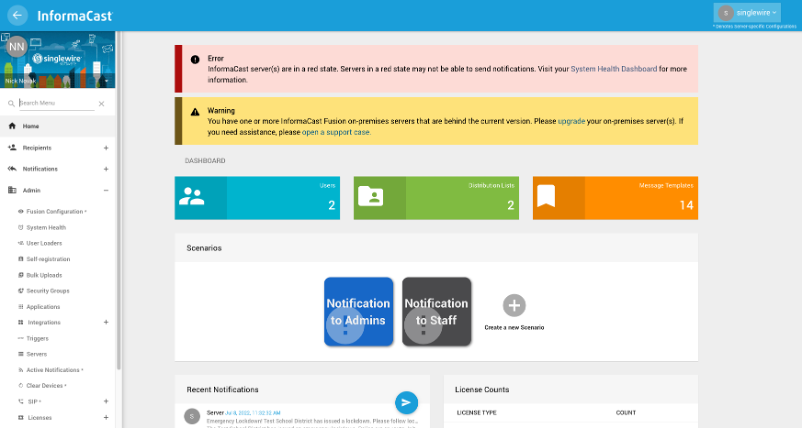
The InformaCast Cloud is where all of the InformaCast configurations live. The 2 major parts of the configuration are **recipients** and **notifications**.
#### Recipients
Configure message recipients, including contact closures, IP speakers, paging systems, and email. This example focuses on the configuration of the contact closure.
#### Contact closures
This section is where you configure your contact closures. In this test environment, there is only one, but you could have one per location in a production environment.
{% stepper %}
{% step %}
**In the top right, click** :plus: **to add the first contact closure.**
{% endstep %}
{% step %}
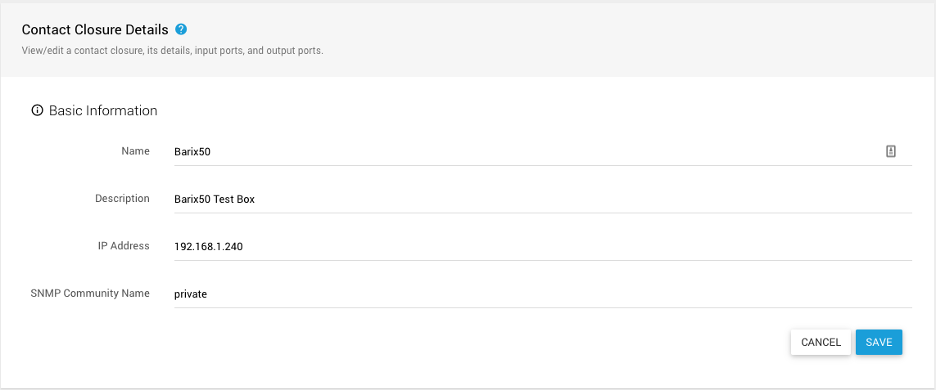
**Configure the setting for the local contact closure and click Save.**
{% endstep %}
{% step %}
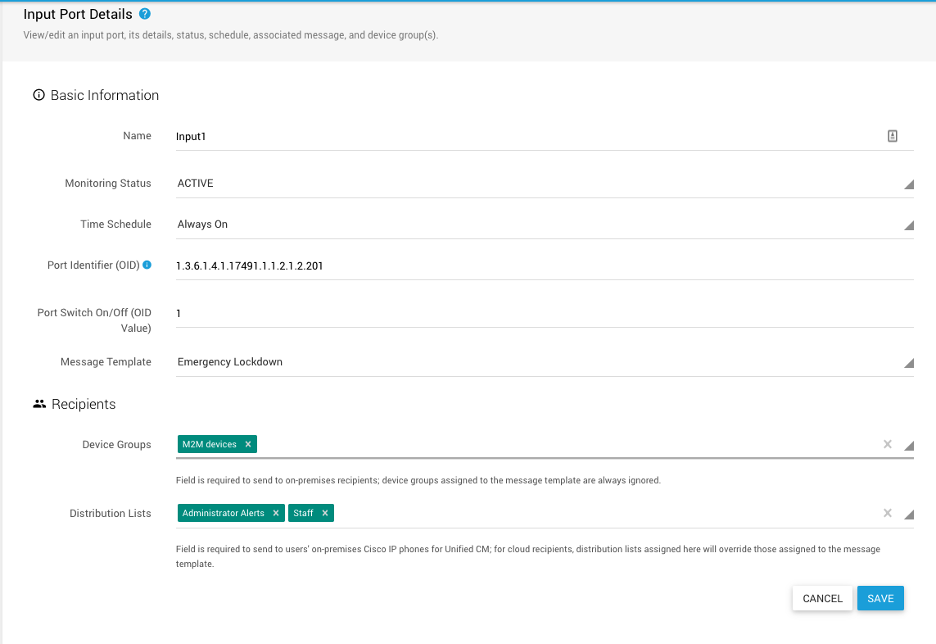
**Configure the input and output triggers on the contact closure, and click Save. This example shows the input, but the output is configured in the same manner.**
{% endstep %}
{% step %}
**Configure the port ID that matches the correct input on the contact closure, the value to turn it off, the message template to send, and the recipients. Refer to the** [**Singlewire Software**](https://www.singlewire.com/) **documentation for information on how to identify the port ID for the supported contact closures.**
This message gets sent to the contact closure as well as emails to users. We will review the message template in the next section.
{% endstep %}
{% endstepper %}
#### Notifications
This portion of InformCast focuses on how the notifications appear. These examples use the message templates, where the emergency lockdown is the default message.
{% stepper %}
{% step %}
**Click Message Templates to configure the settings.**
{% endstep %}
{% step %}
**You should see a list of the default InformaCast message templates. Under Details, click the pencil icon for Emergency Lockdown.**
{% endstep %}
{% step %}
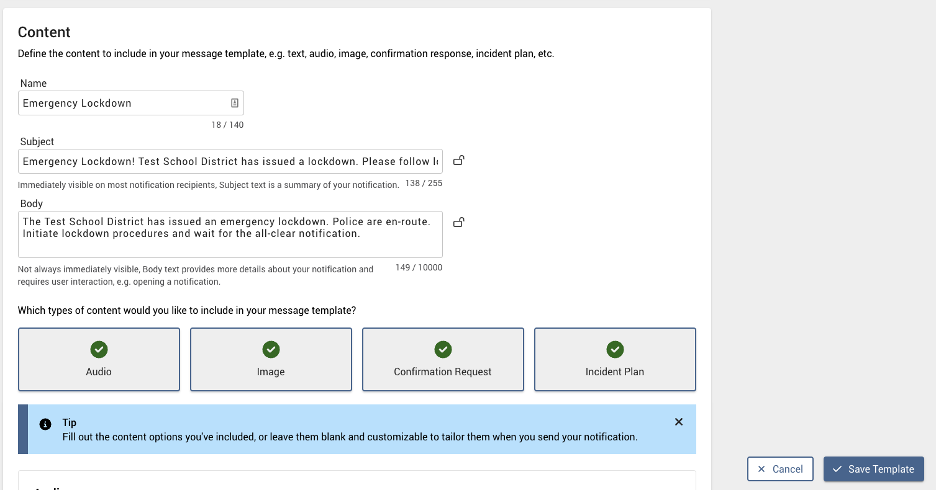
**Set the subject and body of the message, audio, an incident plan, and so on.**
{% endstep %}
{% step %}
**Set up who should receive the message when it is triggered. This example configuration includes email, contact closure, and SMS.**
{% endstep %}
{% endstepper %}
### **Testing**
After you configure the notifications, you should be able to trigger a lockdown from either system. This example triggers from InformaCast. In a real deployment, you can initiate this via a phone, panic button, and so on. This example configures it in the UI and manually triggers the message template.
{% stepper %}
{% step %}
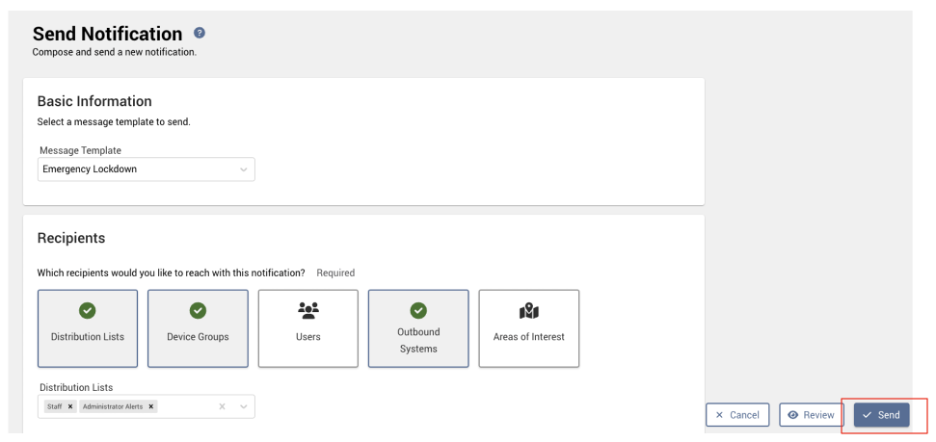
**Go to Notifications > Message Templates > Emergency Lockdown > Play.**
{% endstep %}
{% step %}
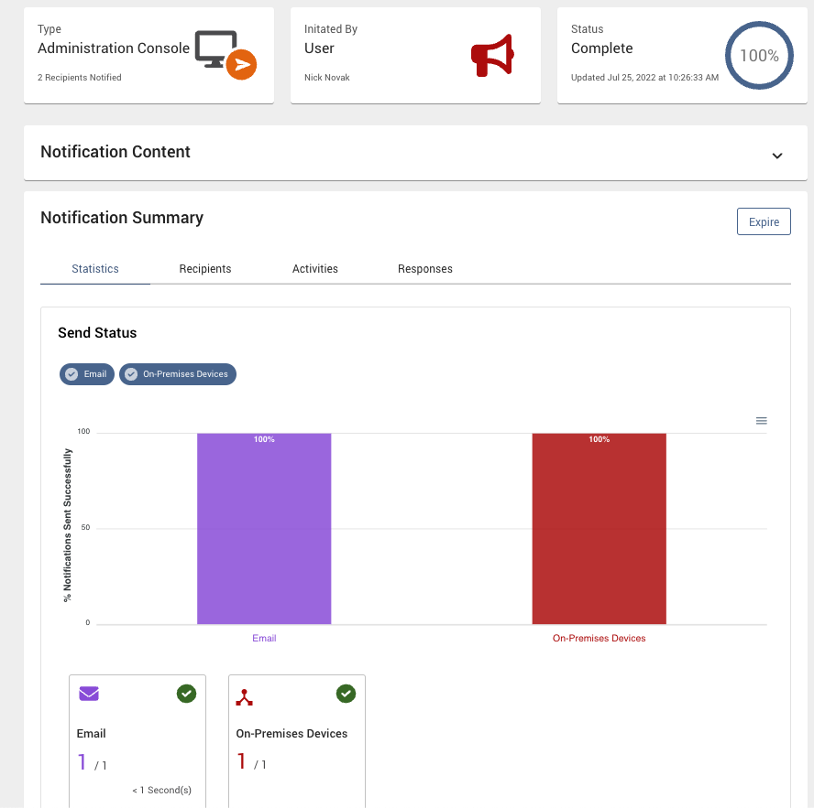
**This triggers a lockdown to Verkada, sends emails to users, and SMS, if configured.**
{% endstep %}
{% step %}
**You can also see the Relay status on the Enclosure and the associated lock status.**
{% endstep %}
{% step %}
**You should also get an email from Verkada Command and see the lockdown banner in Verkada Command.**
{% hint style="info" %}
You can also trigger this in reverse from Command. When you do, Command sends the same messages to the same recipients. You can initiate a lockdown in Command using the standard methods.
{% endhint %}
{% endstep %}
{% endstepper %}
---
# Agent Instructions
This documentation is published with GitBook. GitBook is the documentation platform designed so that both humans and AI agents can read, navigate, and reason over technical content effectively. Learn more at gitbook.com.
## Querying This Documentation
If you need additional information that is not directly available in this page, you can query the documentation by asking a question.
Perform an HTTP GET request on the following URL with the `ask` and `goal` query parameters:
```
GET https://help.verkada.com/access-control/integrations-and-alerts/informacast-access-control-integration.md?ask=&goal=
```
`ask` is the immediate question: it should be specific, self-contained, and written in natural language.
`goal` is what the user is ultimately trying to achieve, the reason they need the answer. Sharing it helps GitBook give you a better, more relevant answer. A goal is most helpful when it describes the outcome the user wants rather than restating the question. For example, with `ask=how do I create an API token`, a goal like `automate deployments from our CI pipeline` lets GitBook tailor the answer to that use case.
The response will contain a direct answer to the question and relevant excerpts and sources from the documentation.
Use this mechanism when the answer is not explicitly present in the current page, you need clarification or additional context, or you want to retrieve related documentation sections.