> For the complete documentation index, see [llms.txt](https://help.verkada.com/llms.txt). Markdown versions of documentation pages are available by appending `.md` to page URLs; this page is available as [Markdown](https://help.verkada.com/access-control/integrations-and-alerts/access-control-reports/roll-call-reports.md).
# Roll Call Reports
Create, preview, and run roll call reports
Verkada roll call reports allow you to obtain a report listing all the users and visitors currently within a site. You can use roll call reports to ensure everyone is safe in an emergency. It is designed to be used in the following scenarios:
* People accounting during an emergency evacuation or scenario
* In/Out tracking
* Attendance purposes
***
## Create a roll call report template
{% hint style="danger" %}
You need **Access System Admin** permissions to create and modify roll call reports.
{% endhint %}
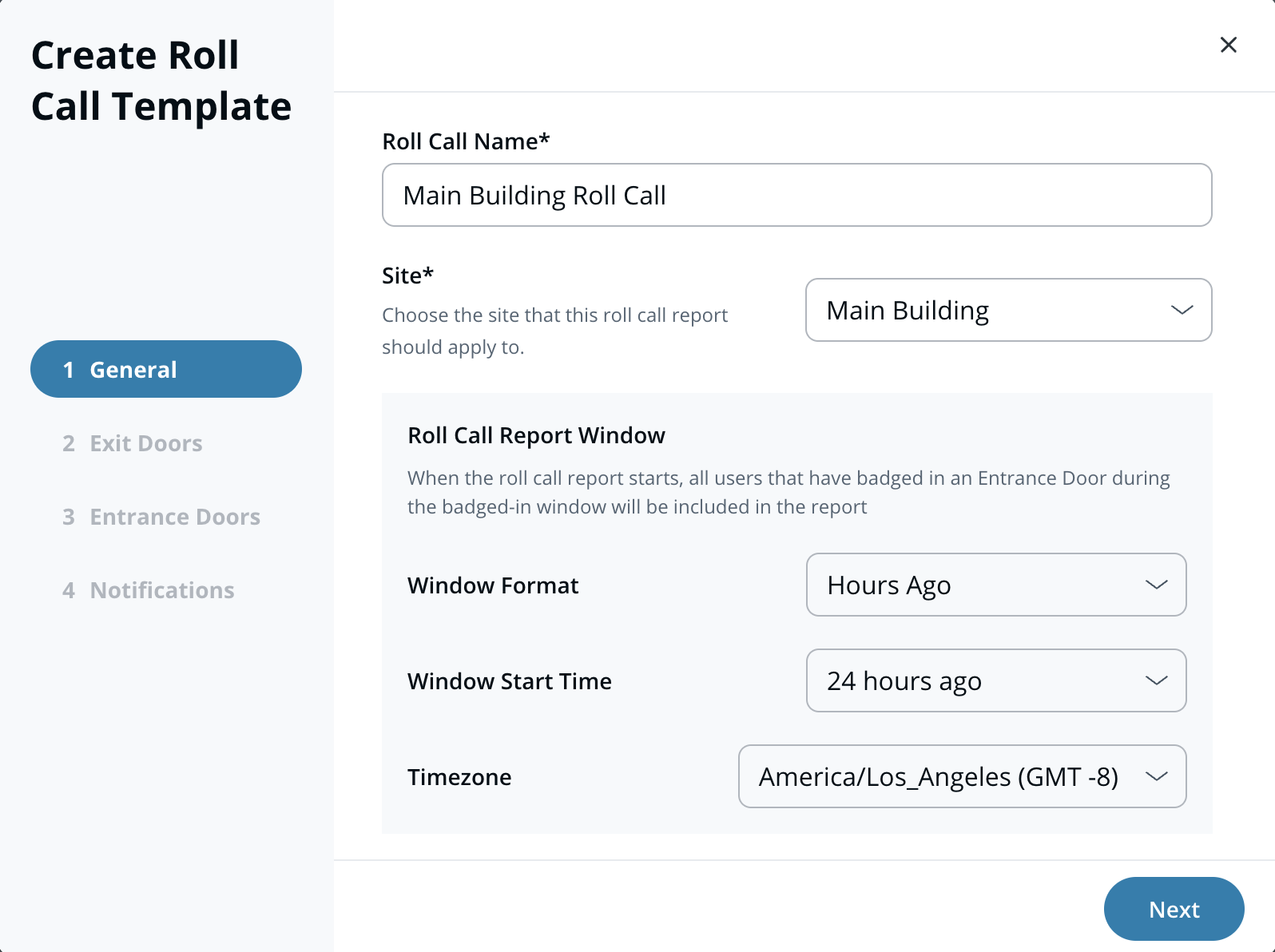
You need to create a roll call report template before you can run a report. This template defines the entrance doors, exit doors, and muster points to be included, along with other relevant settings.
{% stepper %}
{% step %}
**In Verkada Command, go to All Products > Access.**
{% endstep %}
{% step %}
**On the left navigation, select Reports.**
{% endstep %}
{% step %}
**At the top, select Roll Call.**
{% endstep %}
{% step %}
**At the top right, click Templates > Create Template.**
{% endstep %}
{% step %}
**On General enter:**
1. **Template Name**
2. **Site**
3. **Roll Call Report Window Settings**
4. **Window Format**
5. **Widow Start Time**
6. **Timezone**
7. Click **Next.**
{% endstep %}
{% step %}
**On Entrance Doors:**
1. Select **doors representing entrances** that will be used to determine what users have badged in within the report’s time window and should be included in the report.
2. Click **Next.**
{% endstep %}
{% step %}
**On Exit Doors:**
1. Select **doors representing exits or muster points** that will be used to mark users as "safe" in the report.
2. Click **Next.**
{% endstep %}
{% step %}
**On Notifications:**
1. Select users who will be notified when the report is run.
2. Click **Save.**
{% endstep %}
{% endstepper %}
***
## Preview roll call report
You can preview a roll call report to see what users would be included and their status (safe or missing).
{% stepper %}
{% step %}
**In Verkada Command, go to All Products > Access.**
{% endstep %}
{% step %}
**On the left navigation, select Reports.**
{% endstep %}
{% step %}
**At the top, select Roll Call.**
{% endstep %}
{% step %}
**At the top right, click Templates.**
{% endstep %}
{% step %}
**Hover over a roll call template in the list and click Preview.**
{% endstep %}
{% endstepper %}
***
## Run a roll call report
{% stepper %}
{% step %}
**In Verkada Command, go to All Products > Access.**
{% endstep %}
{% step %}
**On the left navigation, select Reports.**
{% endstep %}
{% step %}
**At the top, select Roll Call.**
{% endstep %}
{% step %}
**At the top right, click Run a Roll Call and select your template.**
{% endstep %}
{% endstepper %}
When a report is running, all users who have badged on an entrance door within the report’s time window will be included. Users who have badged on an exit door will automatically be marked "safe." You can also manually mark users as "safe" from Command.
{% hint style="warning" %}
An active report will run in the background until you click **End Report.**
 {% endhint %}
***
## Review and export historical roll call reports
All previously run roll call reports will be saved under **Historical Reports**, which can be reviewed and exported in CSV format.
{% stepper %}
{% step %}
**In Verkada Command, go to All Products > Access.**
{% endstep %}
{% step %}
**On the left navigation, select Reports.**
{% endstep %}
{% step %}
**At the top, select Roll Call.**
{% endstep %}
{% step %}
**Under Historical, select a time range that includes the report you want to review.**
{% endstep %}
{% step %}
**Select the historical roll report from the list.**
{% endstep %}
{% step %}
**Click Export to download the historical report as a CSV.**
{% endstep %}
{% endstepper %}
***
## Visitors in roll call reports
Visitors checked in using Verkada Guest can be granted door access as well as the ability to show up in roll call reports. They will be included in an active report for the site(s) associated with their Visit Access Type. They become valid for the roll call report upon check-in and are removed from it upon check-out.
{% hint style="warning" %}
See [Visitor Access & Visit Access Type](/guest/configuration/door-access-for-guests/manage-visitor-access-control-privileges.md) for more information.
{% endhint %}
***
{% hint style="info" %}
**Prefer to see it in action?** Check out the [video tutorial](https://www.youtube.com/watch?v=w9Ek6r8Bn0w).
{% endhint %}
---
# Agent Instructions
This documentation is published with GitBook. GitBook is the documentation platform designed so that both humans and AI agents can read, navigate, and reason over technical content effectively. Learn more at gitbook.com.
## Querying This Documentation
If you need additional information that is not directly available in this page, you can query the documentation dynamically by asking a question.
Perform an HTTP GET request on the current page URL with the `ask` query parameter, and the optional `goal` query parameter:
```
GET https://help.verkada.com/access-control/integrations-and-alerts/access-control-reports/roll-call-reports.md?ask=&goal=
```
`ask` is the immediate question: it should be specific, self-contained, and written in natural language.
`goal` is optional and describes the broader end goal you are ultimately trying to accomplish on behalf of the user. GitBook uses it to tailor the answer towards what is most useful for that goal.
The response will contain a direct answer to the question and relevant excerpts and sources from the documentation.
Use this mechanism when the answer is not explicitly present in the current page, you need clarification or additional context, or you want to retrieve related documentation sections.
{% endhint %}
***
## Review and export historical roll call reports
All previously run roll call reports will be saved under **Historical Reports**, which can be reviewed and exported in CSV format.
{% stepper %}
{% step %}
**In Verkada Command, go to All Products > Access.**
{% endstep %}
{% step %}
**On the left navigation, select Reports.**
{% endstep %}
{% step %}
**At the top, select Roll Call.**
{% endstep %}
{% step %}
**Under Historical, select a time range that includes the report you want to review.**
{% endstep %}
{% step %}
**Select the historical roll report from the list.**
{% endstep %}
{% step %}
**Click Export to download the historical report as a CSV.**
{% endstep %}
{% endstepper %}
***
## Visitors in roll call reports
Visitors checked in using Verkada Guest can be granted door access as well as the ability to show up in roll call reports. They will be included in an active report for the site(s) associated with their Visit Access Type. They become valid for the roll call report upon check-in and are removed from it upon check-out.
{% hint style="warning" %}
See [Visitor Access & Visit Access Type](/guest/configuration/door-access-for-guests/manage-visitor-access-control-privileges.md) for more information.
{% endhint %}
***
{% hint style="info" %}
**Prefer to see it in action?** Check out the [video tutorial](https://www.youtube.com/watch?v=w9Ek6r8Bn0w).
{% endhint %}
---
# Agent Instructions
This documentation is published with GitBook. GitBook is the documentation platform designed so that both humans and AI agents can read, navigate, and reason over technical content effectively. Learn more at gitbook.com.
## Querying This Documentation
If you need additional information that is not directly available in this page, you can query the documentation dynamically by asking a question.
Perform an HTTP GET request on the current page URL with the `ask` query parameter, and the optional `goal` query parameter:
```
GET https://help.verkada.com/access-control/integrations-and-alerts/access-control-reports/roll-call-reports.md?ask=&goal=
```
`ask` is the immediate question: it should be specific, self-contained, and written in natural language.
`goal` is optional and describes the broader end goal you are ultimately trying to accomplish on behalf of the user. GitBook uses it to tailor the answer towards what is most useful for that goal.
The response will contain a direct answer to the question and relevant excerpts and sources from the documentation.
Use this mechanism when the answer is not explicitly present in the current page, you need clarification or additional context, or you want to retrieve related documentation sections.