> For the complete documentation index, see [llms.txt](https://help.verkada.com/llms.txt). Markdown versions of documentation pages are available by appending `.md` to page URLs; this page is available as [Markdown](https://help.verkada.com/access-control/installation/wiring-best-practices-for-third-party-wireless-locks/set-up-schlage-control-wireless-locks.md).
# Set Up Schlage Control Wireless Locks
Set up Schlage’s Control wireless locks
Verkada integrates with Schlage’s Control wireless lock for easy multiple dwelling unit (MDU) management. This specific wireless lock integration is unique in two ways:
* **No Verkada equipment is needed**. The Control locks communicate to their associated Gateway (GWE) hub over Bluetooth (wired directly into the local network) and on the 2.4 Ghz band. The GWE is put in IP mode and needs an ethernet connection.
* **Easy management**—Verkada’s design has a special user interface (UI) specifically for MDUs to make management easier. Users can now be given direct access to a door instead of having to be added to a group that contains an access level containing the door. The GWE communicates directly with the Allegion ENGAGE site which, in turn, communicates directly with Verkada Command.
{% hint style="warning" %}
See the [Schlage Control Series install guide](https://docs.verkada.com/docs/schlage-control-integration-guide.pdf) for more information.
{% endhint %}
***
## Schlage Control locks with Verkada’s design
Schlage Control locks were designed specifically with multi-tenant units in mind. This includes controlling residential living spaces, such as dormitories, apartments, and condos.
* **Universities**—These locks are a great option for dorm room access control.
* **In multi-tenant**—Offices, supply closets
With this use case in mind, Verkada’s design has a new UI that’s just for the Control lock integration.
### Benefits
* These locks offer a great alternative to hard wiring a door, particularly when doing so would be cost restrictive.
* The Control lock comes in two versions: the *standalone deadbolt* and the *interconnected deadbolt handle*
* These verticals use wireless locks because they don’t require expensive wiring to be run through walls and allow much more flexibility.
* They’re also much more cost effective than wired doors.
* This integration allows Verkada to work with existing customers with Schlage Control wireless locks.
***
## How the integration process works
We recommend that the integration process should be split into two phases:
* [Phase 1](#h_d1a40b2b06): Install and configure your Schlage locks:
* Create the site in Command and sync to Allegion ENGAGE
* Install the Control locks
* Configure the GWE hub
* Commission GWE’s hubs and locks
* Link the hubs and locks
* Verify connection and signal strength in ENGAGE app.
{% hint style="warning" %}
Contact Allegion support to troubleshoot any issues you may have during Phase 1.
{% endhint %}
* [Phase 2](#h_28e85117eb): Set up and configure your locks and settings in Verkada Command:
* [Sync your Verkada site](#h_213a616153)
* [Verify remote unlock](#h_408cb0fddc) and user key card unlock functionality
### Before you begin
To ensure a successful installation, we recommend that you follow these guidelines before you begin:
* Read all of the Schlage Control and GWE hub documentation for the lock series being installed.
* Be aware that Verkada support is not contracted to troubleshoot Schlage hardware.
* Wireless locks are wireless products. If wireless range is a concern, ensure that the Gateway (GWE) is placed within range of all the connected locks.
***
## Phase 1: Install and configure your Schlage locks
### Create Site on Command side first
{% stepper %}
{% step %}
**In Verkada Command, go to All Products > Access. You must have at least 1 access controller in your organization to see the Access tab.**
{% endstep %}
{% step %}
**Select the Settings tab from the top bar.**
a. Select the site that you want to add an ENGAGE wireless lock to.\
b. If the site does not exist, click **Manage Sites** at the top right, then click **Create Site** to make your site.
{% endstep %}
{% step %}
**Verkada sites are mapped 1:1 with the sites in the ENGAGE app.**
a. If someone in your org has not already created a site for this install, click **Create Site** under **Settings** > **Create Allegion Site**:
b. If someone else in your organization has already created this site, you will see **Invite** instead. Click this button to invite yourself as a Manager of the ENGAGE site.
{% endstep %}
{% step %}
**You should receive an email prompting you to accept the invite and log in to Allegion using your existing credentials, or create new credentials.**
{% endstep %}
{% endstepper %}
### Configure the GWE hub
{% hint style="warning" %}
Read the Schlage documentation that’s included in the locks and hubs packaging. The Schlage documentation provides detailed information about the configuration and setup of the Control locks and the GWE hubs.
{% endhint %}
While commissioning the GWE hub ensure you select IP mode.
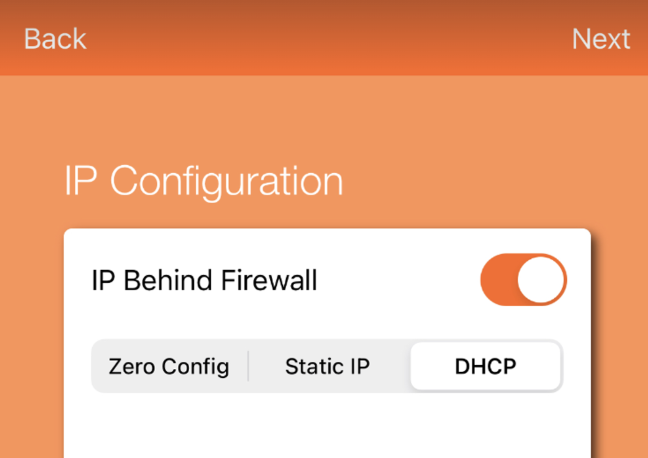
In the IP configuration toggle on **IP Behind Firewall** and change the IP configuration to be **DHCP** from the default **Zero Config**:
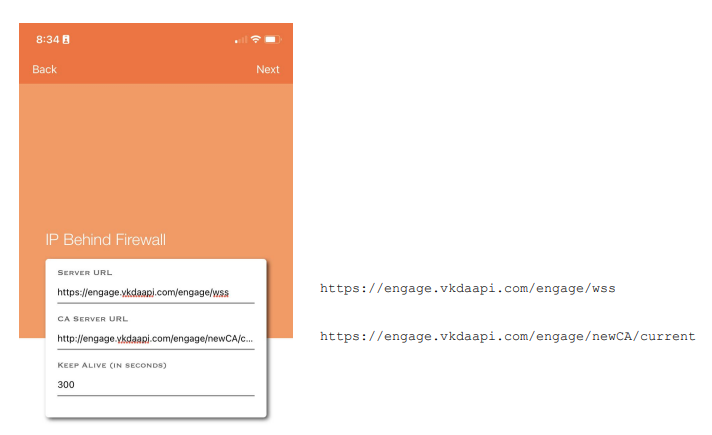
On the next step configure the "Firewall Settings", you need to input some Verkada endpoints so that the hub can communicate with the Verkada backend.
Below is an image of this step in the ENGAGE app, accompanied by the endpoints.
Use these IP addresses to allowlist:
```
https://engage.vkdaapi.com/engage/wss
http://engage.vkdaapi.com/engage/newCA/current
```
### Commission lock(s)
Once the device is ***prepared*** i.e., the lock configuration is updated, and the door file is written, the device is successfully commissioned.
You should see both the hub and any commissioned locks on the ENGAGE site devices page.
Link lock to the hub following the linking wizard.
***
## Phase 2: Configure locks and settings
### Sync your Verkada site
{% stepper %}
{% step %}
**Once the configuration has been completed on the ENGAGE app and the devices are linked, click Sync to pull the configurations into Command.**
{% endstep %}
{% step %}
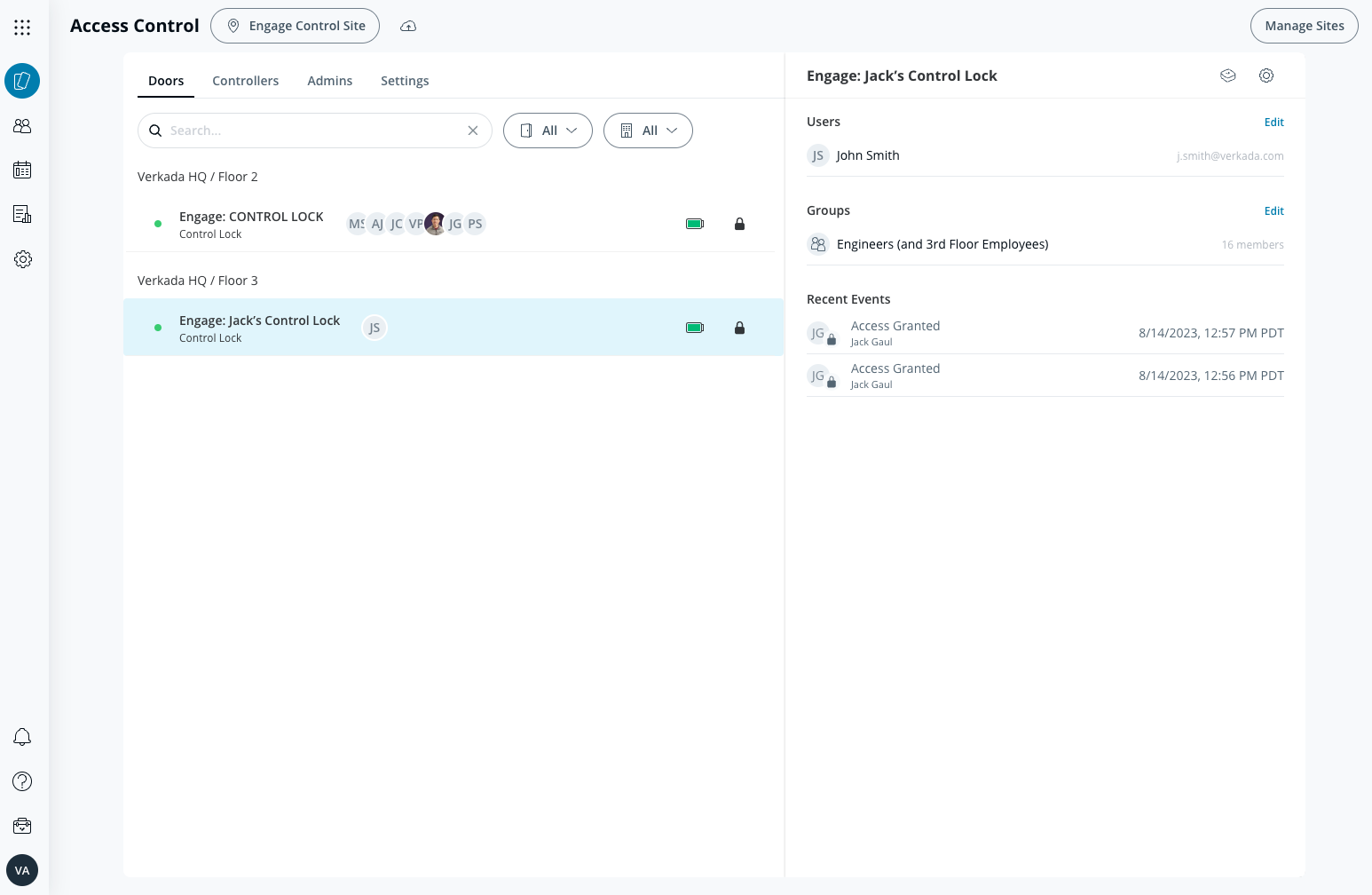
**Verify that the lock shows up in Command.**
{% endstep %}
{% step %}
**On the right side, you see separate sections for *****Users***** and *****Groups*****. You can grant access to users by adding them directly to the door or by adding a group to the door that a user exists in. *****No access levels are required*****.**
{% endstep %}
{% endstepper %}
### Remotely unlock recent events
All events populate in the *Recent Events* section in real time. You can click the *lock* icon to remotely unlock.
***
{% hint style="info" %}
**Prefer to see it in action?** Check out the [video tutorial](https://youtu.be/Q28GD2CGQLI).
{% endhint %}
---
# Agent Instructions
This documentation is published with GitBook. GitBook is the documentation platform designed so that both humans and AI agents can read, navigate, and reason over technical content effectively. Learn more at gitbook.com.
## Querying This Documentation
If you need additional information that is not directly available in this page, you can query the documentation by asking a question.
Perform an HTTP GET request on the following URL with the `ask` and `goal` query parameters:
```
GET https://help.verkada.com/access-control/installation/wiring-best-practices-for-third-party-wireless-locks/set-up-schlage-control-wireless-locks.md?ask=&goal=
```
`ask` is the immediate question: it should be specific, self-contained, and written in natural language.
`goal` is what the user is ultimately trying to achieve, the reason they need the answer. Sharing it helps GitBook give you a better, more relevant answer. A goal is most helpful when it describes the outcome the user wants rather than restating the question. For example, with `ask=how do I create an API token`, a goal like `automate deployments from our CI pipeline` lets GitBook tailor the answer to that use case.
The response will contain a direct answer to the question and relevant excerpts and sources from the documentation.
Use this mechanism when the answer is not explicitly present in the current page, you need clarification or additional context, or you want to retrieve related documentation sections.