> For the complete documentation index, see [llms.txt](https://help.verkada.com/llms.txt). Markdown versions of documentation pages are available by appending `.md` to page URLs; this page is available as [Markdown](https://help.verkada.com/access-control/installation/wire-a-door-to-a-verkada-access-controller/set-up-an-inout-door-with-two-readers.md).
# Set Up an In/Out Door with Two Readers
Set up a single door with an inbound reader and an outbound reader
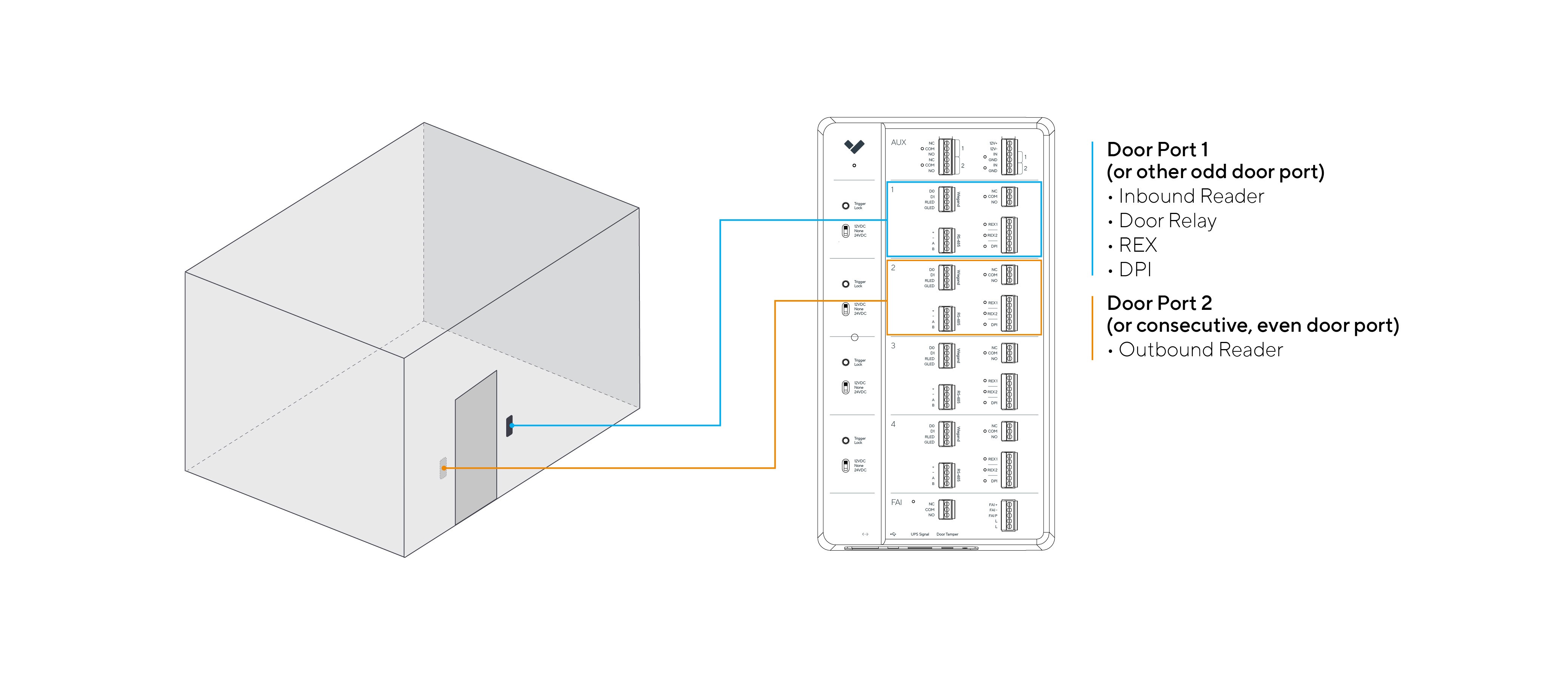
An in/out door uses two consecutive door ports on an access controller:
* Door port 1 (and sequentially any **odd numbered** port) is used for:
* Door relay output
* REX input(s)
* DPI input
* **Inbound access reader**, wired into the Wiegand or RS-485 reader inputs
* Door port 2 (and sequentially any **even numbered** port) is used for an **Outbound access reader**, wired into the Wiegand or RS-485 reader inputs:
Learn more about how to [wire a door to a Verkada access controller](/access-control/installation/wire-a-door-to-a-verkada-access-controller.md).
***
## Set up an in/out door from Verkada Command
In/out door setup is very similar to a normal door setup, with two small differences:
* When you add the door to the access controller, select **In/Out Door** instead of **Door**.
* When you configure the in/out door, select two consecutive door ports on the access controller.
### Requirements
* Ensure that you have a Verkada access controller. This access controller **must** have two available reader slots for the in/out door that you set up.
* To avoid interference and ensure reliable reads when installing in/out readers:
* Do not mount readers directly back-to-back on opposite sides of a surface thinner than \~200 mm (7.9 in).
* If the surface is less than \~200 mm thick, vertically offset the readers by at least \~130 mm (5.1 in).
* If the surface is thicker than \~200 mm, readers can be mounted directly back-to-back.
{% hint style="info" %}
**Recommendation**. You can use any two compatible readers of your choice, but we recommend two Verkada readers.
{% endhint %}
***
## Configuration
{% stepper %}
{% step %}
**In Command, go to the Devices page.**
{% endstep %}
{% step %}
**Select the access controller where you want to set up the in/out door.**
{% endstep %}
{% step %}
**Click Add.**
{% endstep %}
{% step %}
**In the Add Entity modal, select In/Out Door.**
The next screen allows you to populate a door name, building/floor, nearby camera, thumbnail, and set up the door slots for the Inbound and Outbound readers. The **Inbound Reader** is always the first slot, and the **Outbound Reader** is always the second slot.
{% endstep %}
{% step %}
**For Settings, type your values for each field and click Next.**
{% endstep %}
{% step %}
**Configure your Installer Setup settings and click Next.**
{% endstep %}
{% step %}
**Select your desired Access levels and click Done. On your access controller’s screen, you should now see the door setup similar to the example below. Note how there are 2 ports in the Port column of the table.**
{% endstep %}
{% endstepper %}
You can now continue to set up this door as if it was a normal door. If you apply a schedule to the door, the schedules carries over to both readers.
***
## Changes in the door events page
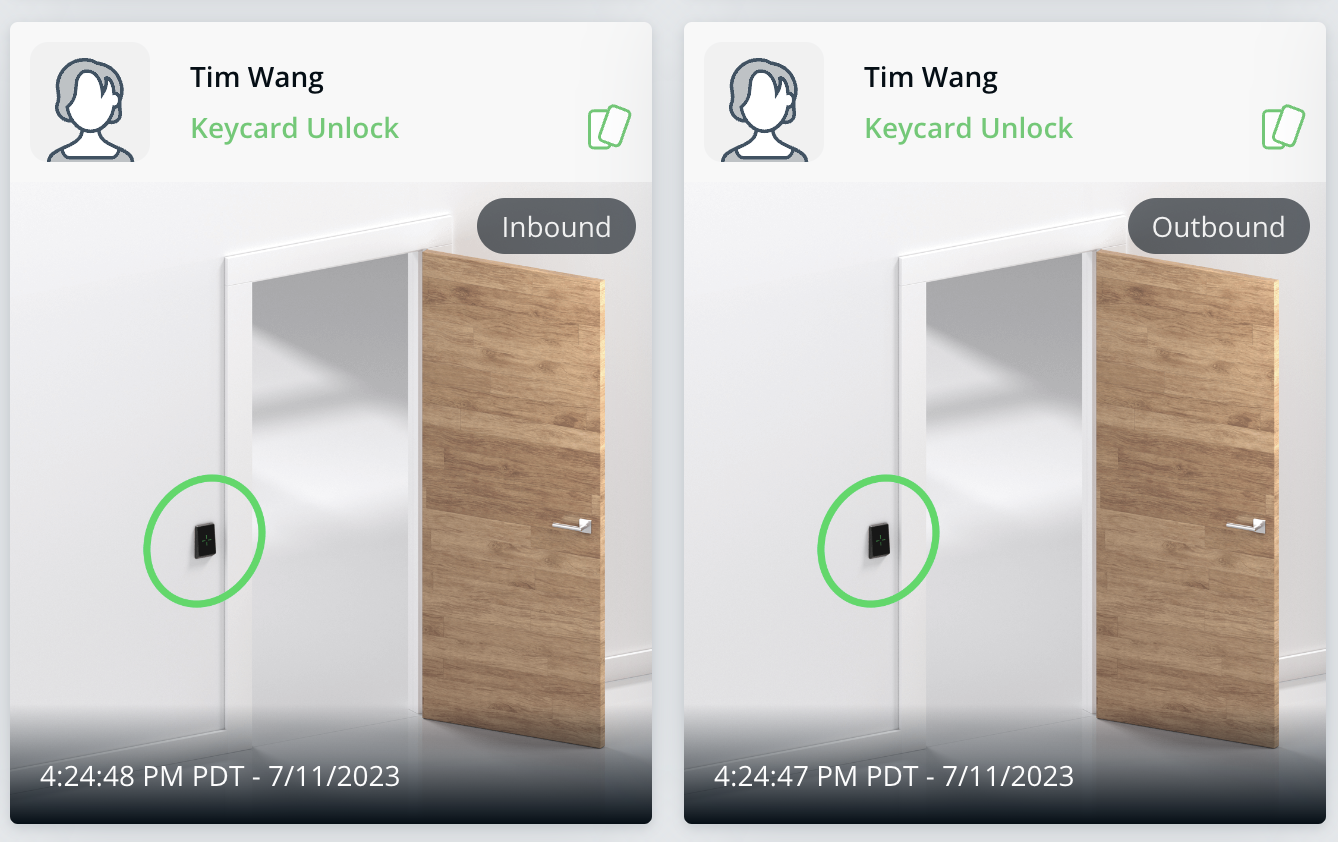
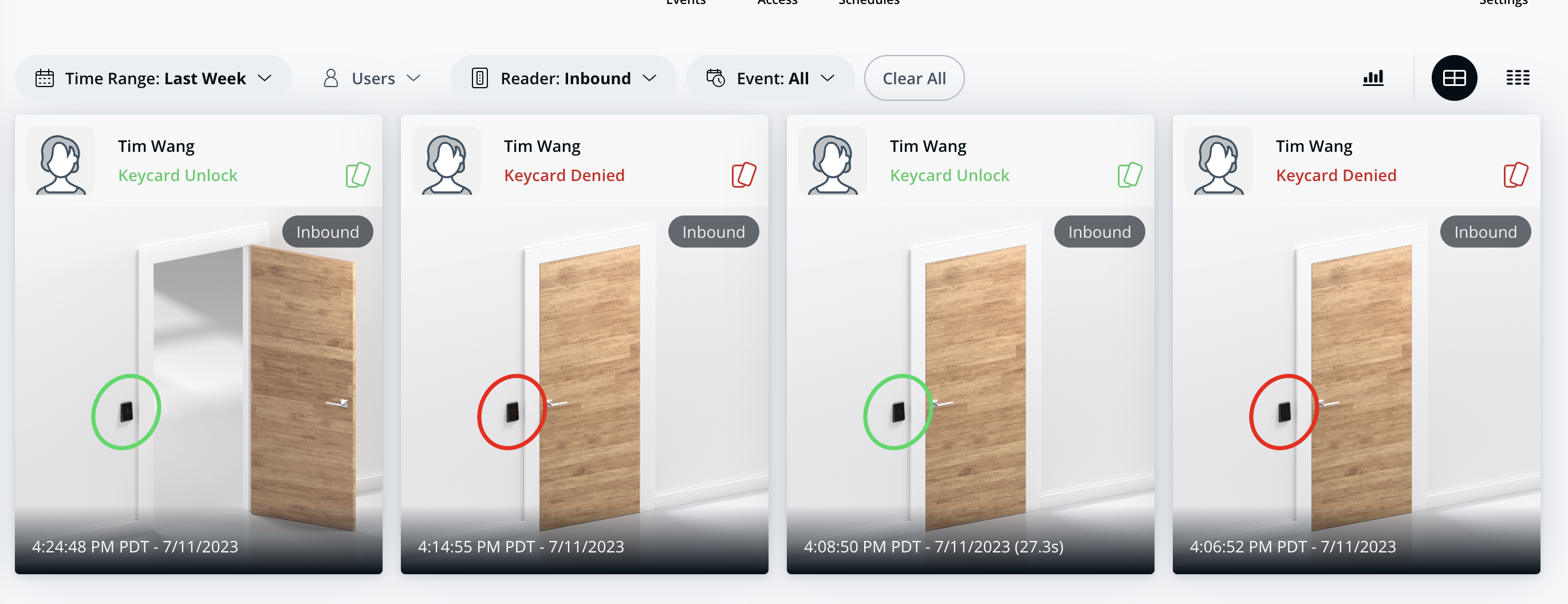
The *Inbound* and *Outbound* *Readers* can produce events that are tagged with the inbound or outbound direction. Access attempts, such as *Keycard Unlock/Keycard Denied*, now appear annotated with direction they are associated with (as shown below).
There is now an added filter on the door events page that allows users to choose to filter events based on the direction (Inbound/Outbound). This filter can be used in conjunction with all the other existing filters (as shown below).
---
# Agent Instructions
This documentation is published with GitBook. GitBook is the documentation platform designed so that both humans and AI agents can read, navigate, and reason over technical content effectively. Learn more at gitbook.com.
## Querying This Documentation
If you need additional information that is not directly available in this page, you can query the documentation by asking a question.
Perform an HTTP GET request on the following URL with the `ask` and `goal` query parameters:
```
GET https://help.verkada.com/access-control/installation/wire-a-door-to-a-verkada-access-controller/set-up-an-inout-door-with-two-readers.md?ask=&goal=
```
`ask` is the immediate question: it should be specific, self-contained, and written in natural language.
`goal` is what the user is ultimately trying to achieve, the reason they need the answer. Sharing it helps GitBook give you a better, more relevant answer. A goal is most helpful when it describes the outcome the user wants rather than restating the question. For example, with `ask=how do I create an API token`, a goal like `automate deployments from our CI pipeline` lets GitBook tailor the answer to that use case.
The response will contain a direct answer to the question and relevant excerpts and sources from the documentation.
Use this mechanism when the answer is not explicitly present in the current page, you need clarification or additional context, or you want to retrieve related documentation sections.