> For the complete documentation index, see [llms.txt](https://help.verkada.com/llms.txt). Markdown versions of documentation pages are available by appending `.md` to page URLs; this page is available as [Markdown](https://help.verkada.com/access-control/installation/verkada-wireless-lock-command-setup/verkada-wireless-lock-led-patterns.md).
# Verkada Wireless Lock LED Patterns
LED patterns for the AL54 Lock
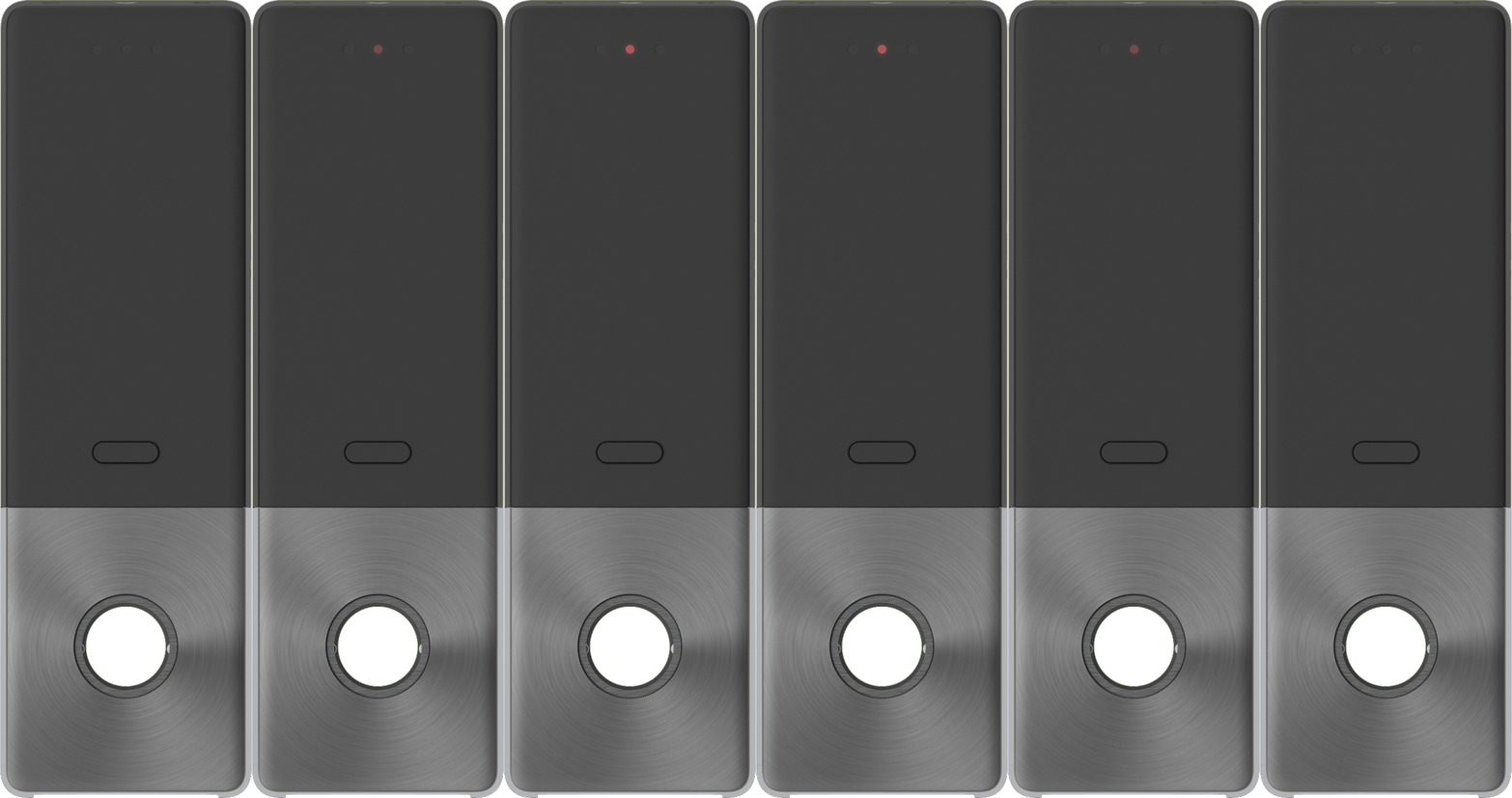
The AL54 has an LED bar on the top of the exterior module and three LEDs on the top of the interior module. These indicators utilize colors and flash patterns to display lock states and activities, enabling you to quickly understand the device’s status.
***
## Exterior LEDs
### Access granted
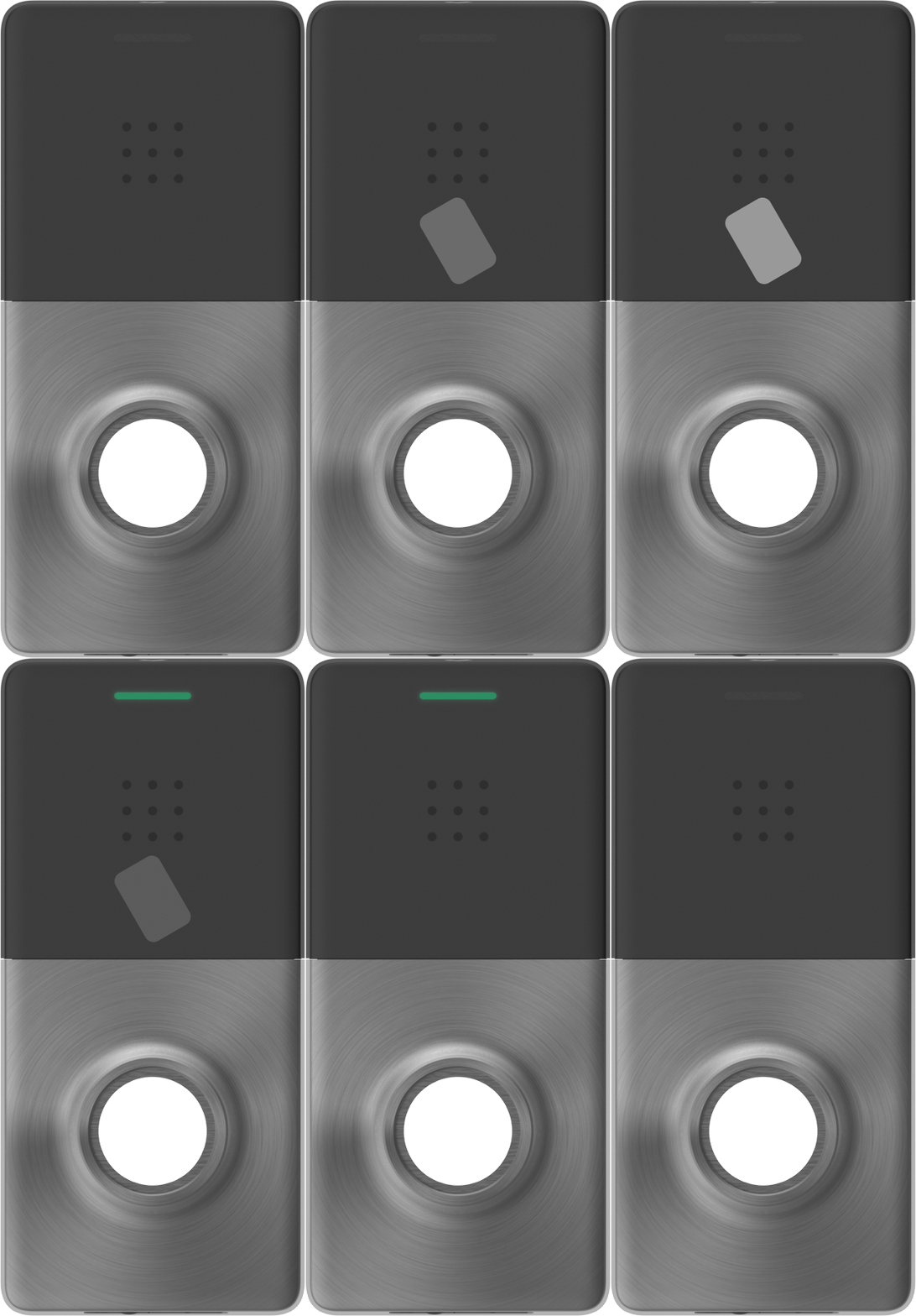
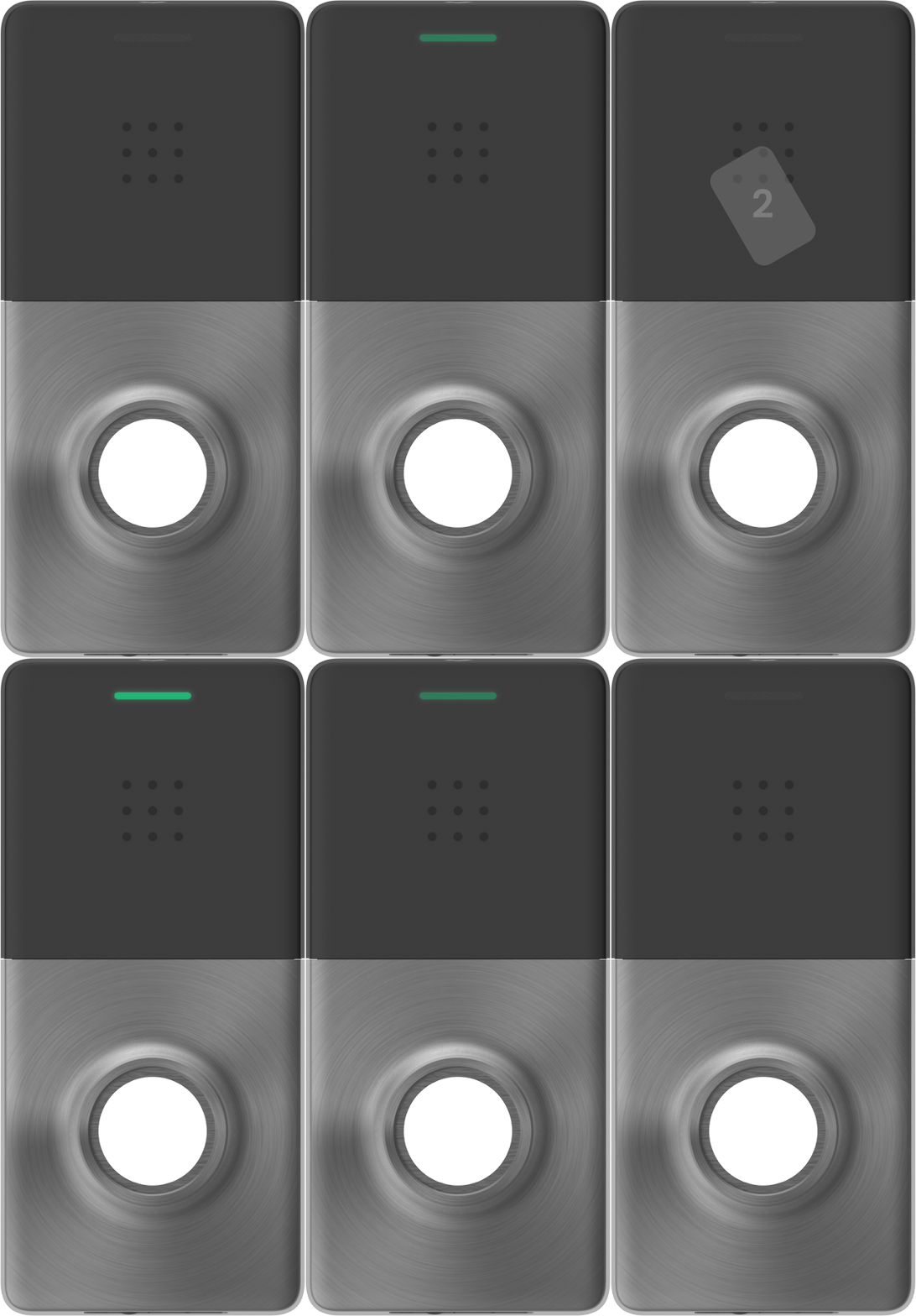
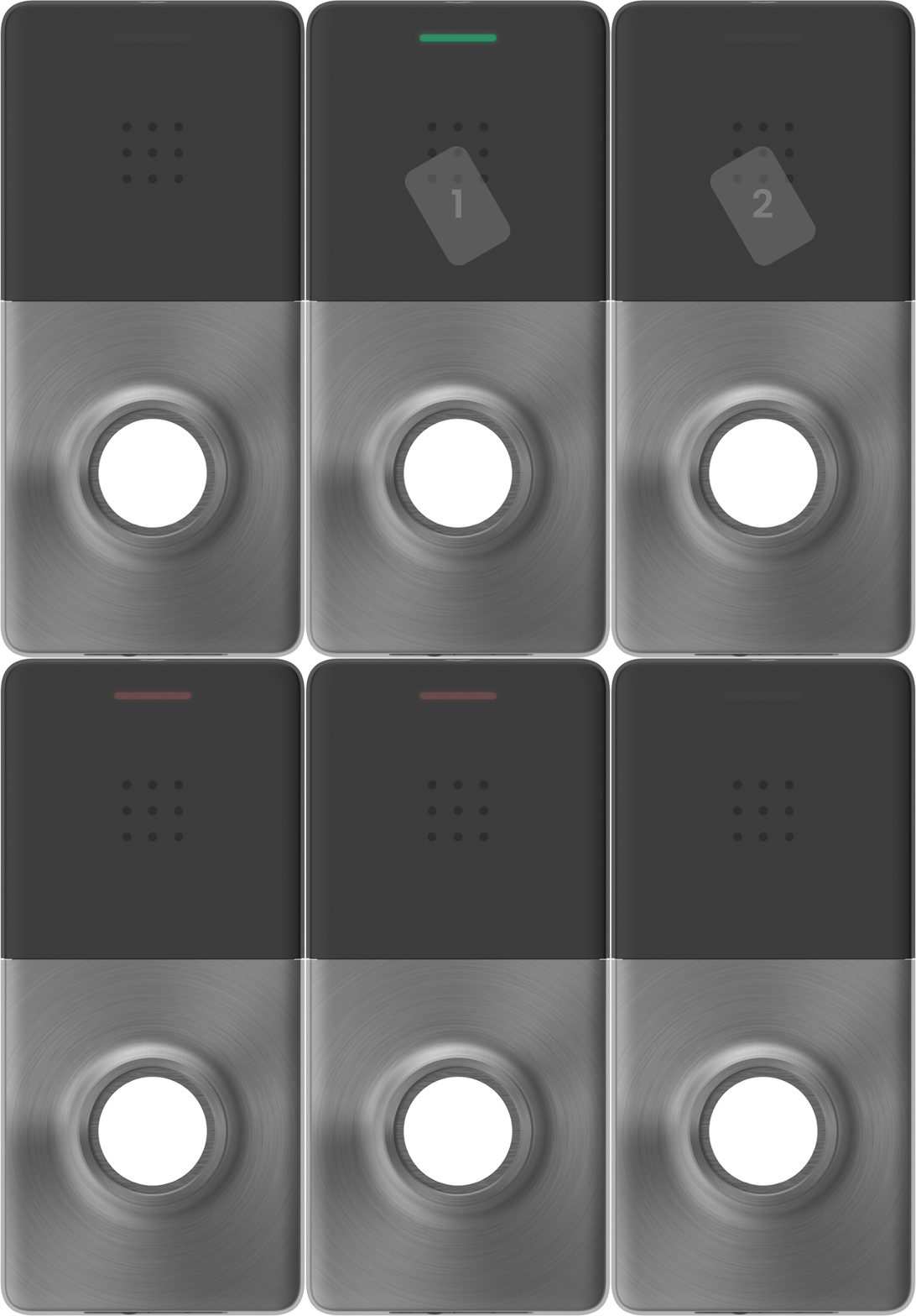
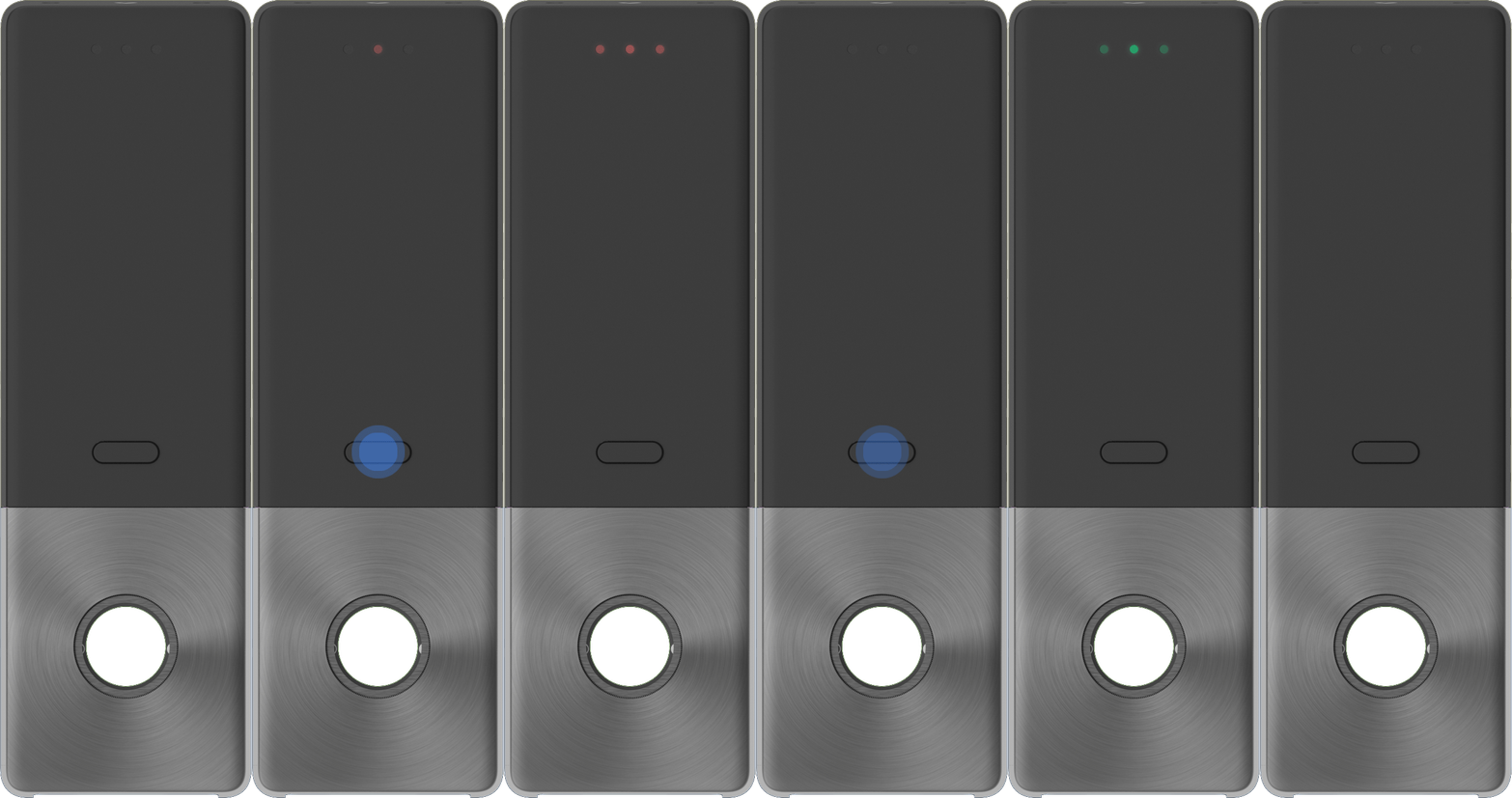
When a credential is presented and access is granted, the exterior LED lights up green for the duration of the door unlock.
### Access denied
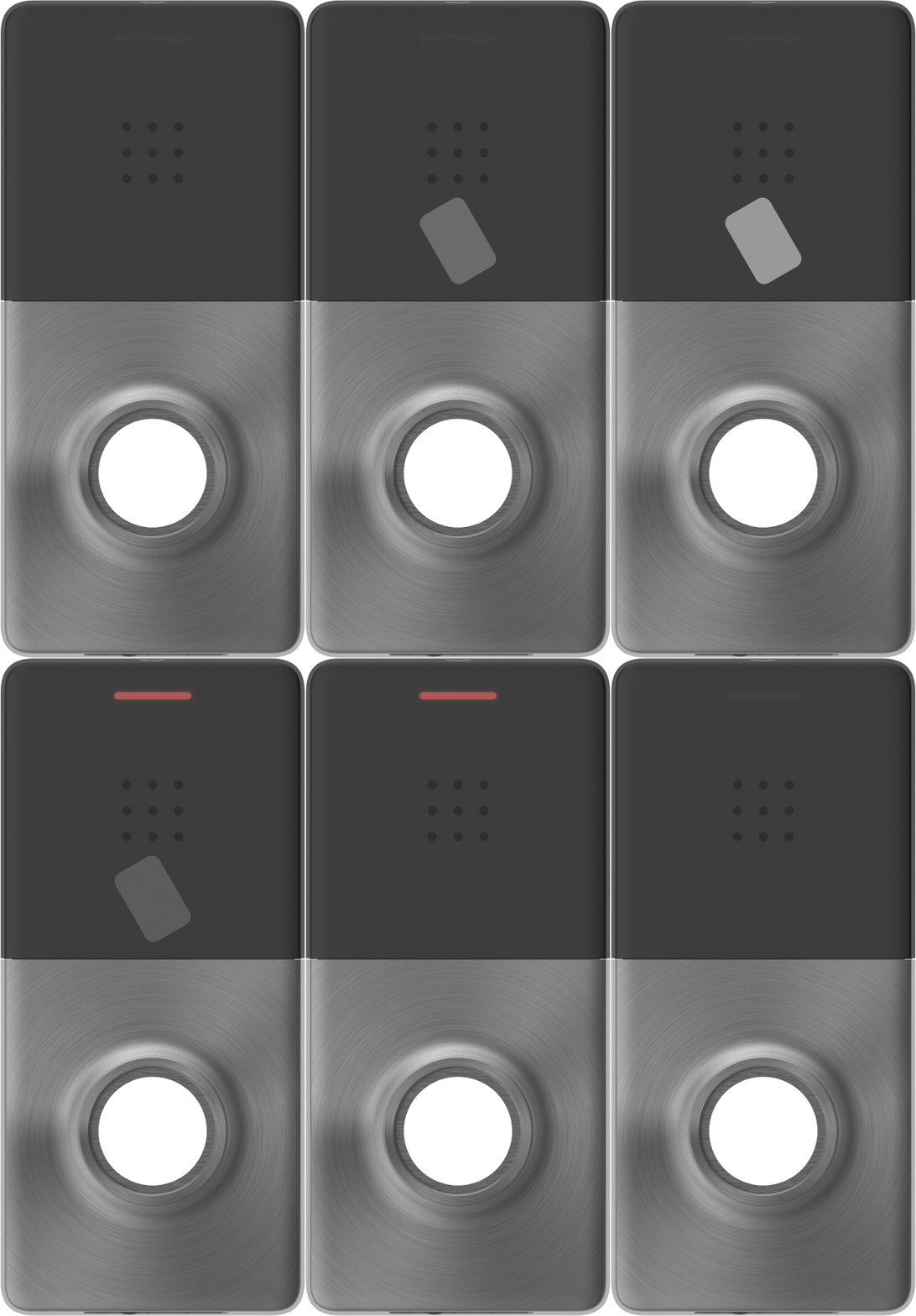
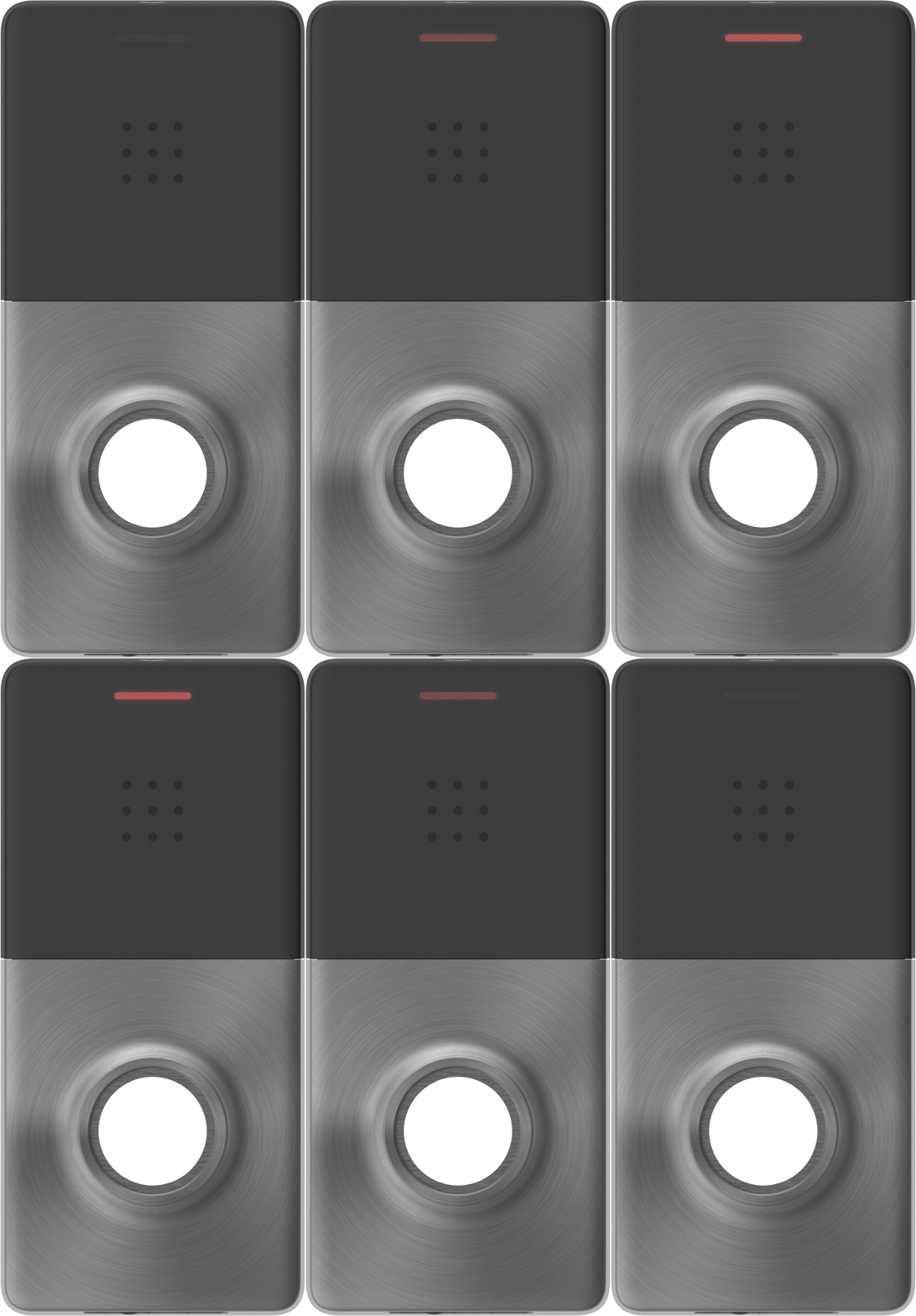
When a credential is presented and access is denied, the exterior LED will briefly illuminate red.
### Connection lost during scan attempt
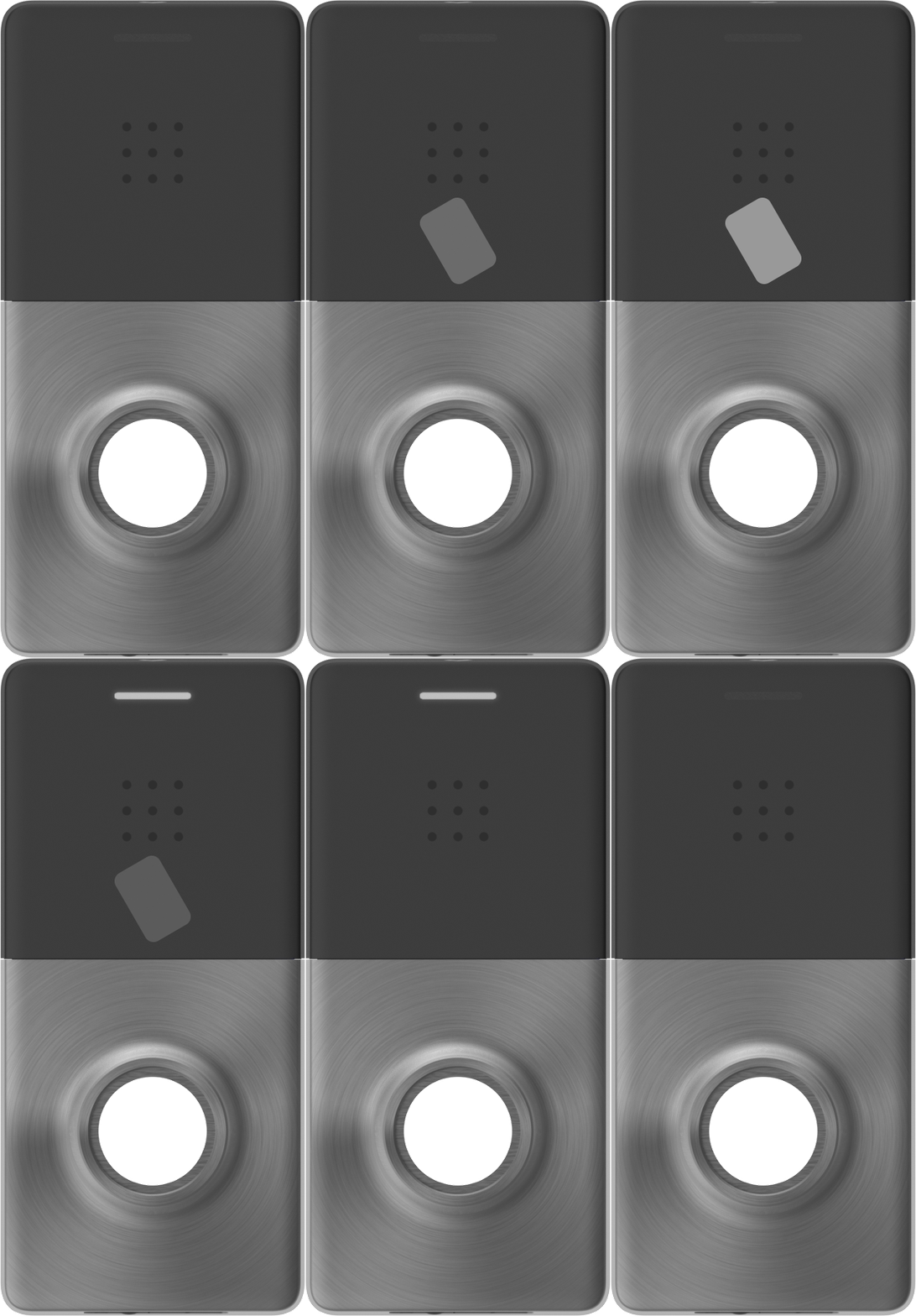
If a credential is presented while the connection to the hub is lost, the exterior LED briefly lights white. In this case, present your credential again.
### Wake button (exterior flash white twice)
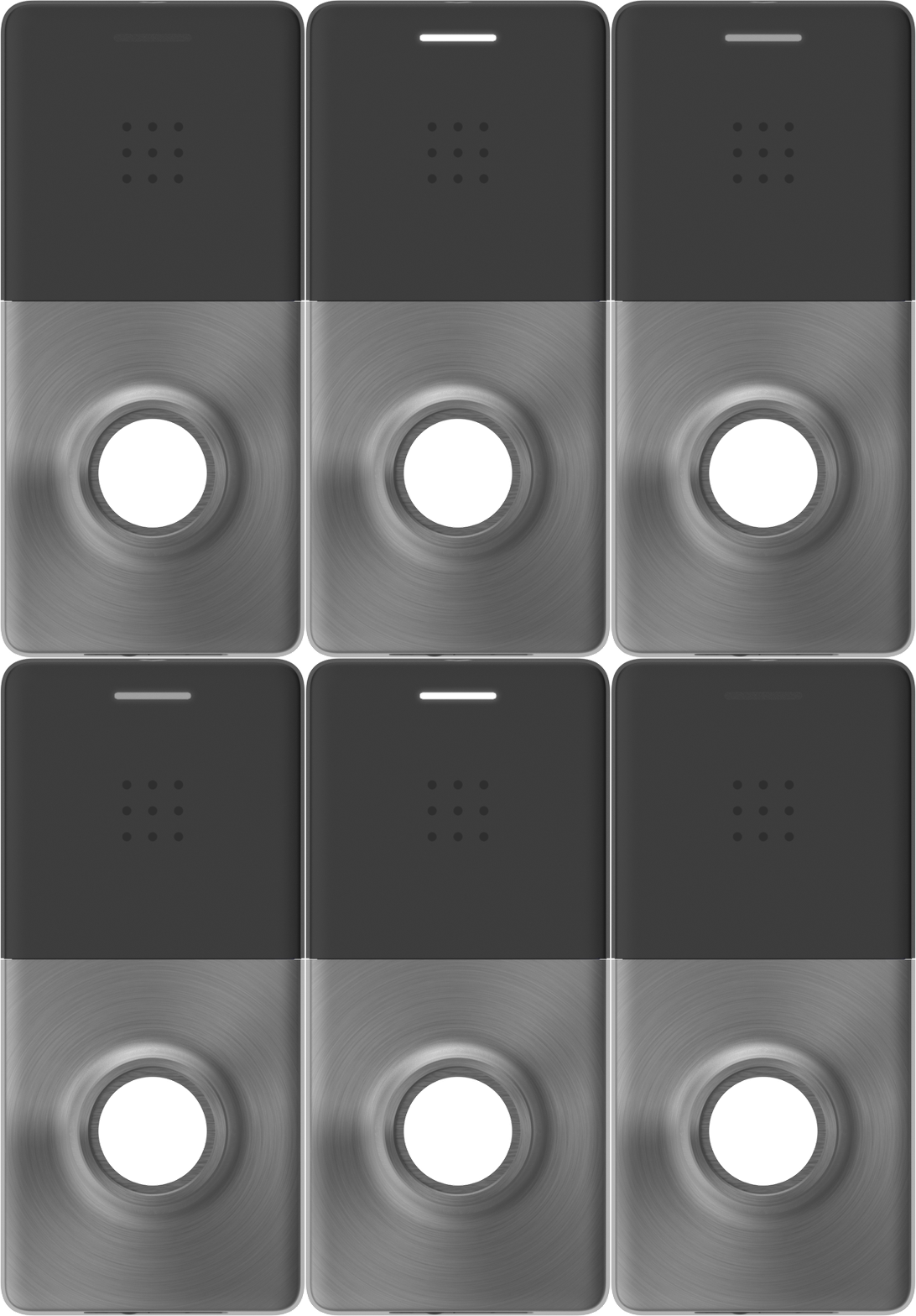
Pressing the wake button at the bottom of the exterior module causes the exterior LED to flash white twice, indicating the sensor has been activated.
### Emergency locked
When the lock is locked during an [emergency scenario](/access-control/emergency-response/emergency-lockdown.md), both the interior and exterior LEDs rapidly flash red.
### Emergency unlocked
When the lock is unlocked during an [emergency scenario](/access-control/emergency-response/emergency-lockdown.md), both the interior and exterior LEDs rapidly flash green.
### Double badge - schedule to unlocked
When double-badging to switch from the current schedule to unlocked, the exterior LED flashes green three times.
### Double badge - unlocked to schedule
When double-badging to switch from locked to the current schedule, the exterior LED flashes red three times.
***
## Interior LEDs
### Connecting to the hub for the first time
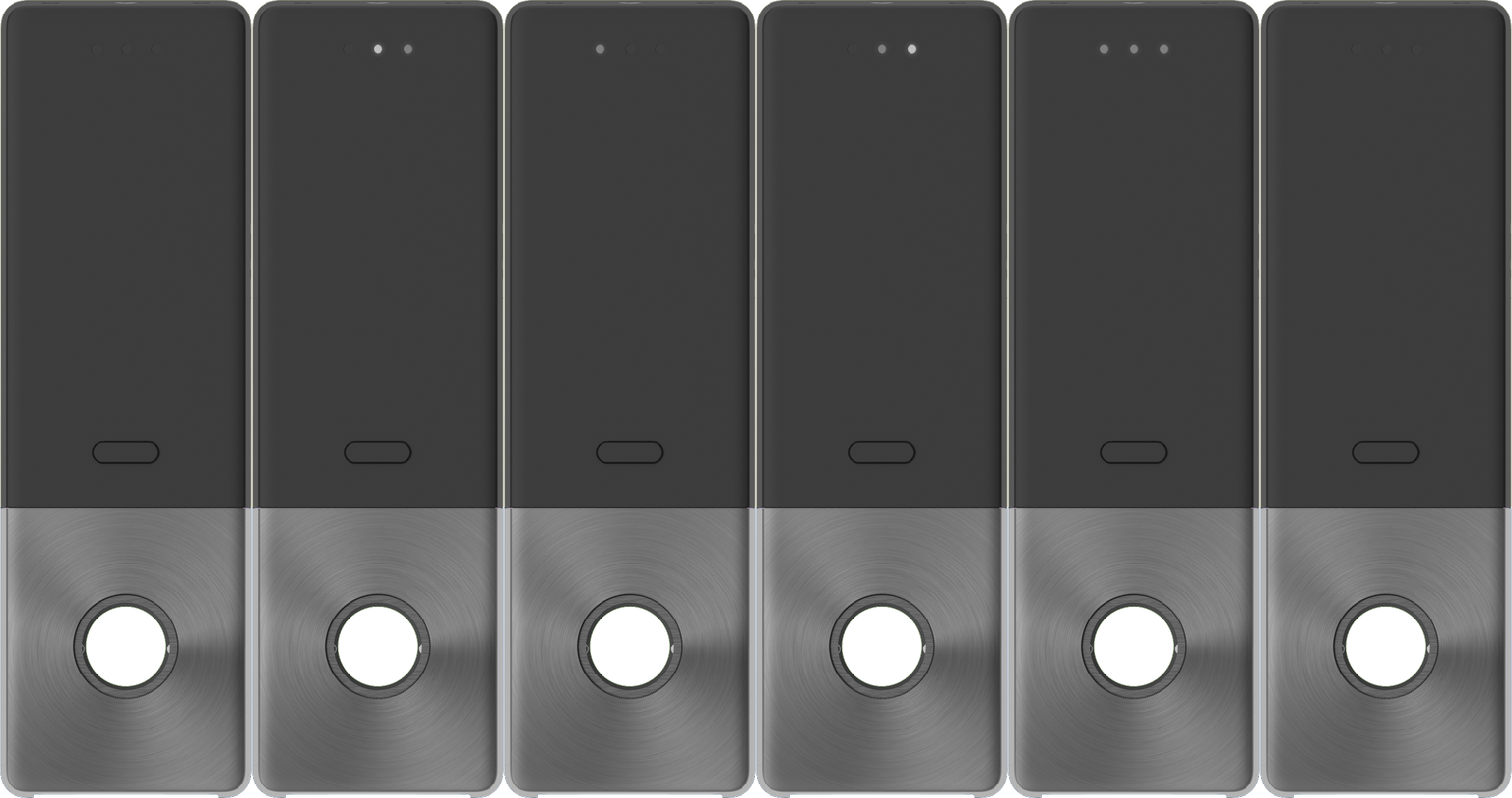
When the lock is powered on, the interior LED cascades white until it connects to a hub. Once connected, all three LEDs illuminate white simultaneously.
### Persistent interior lock state indication
When the lock is in an access-controlled or locked state, the middle interior LED will blink red every 20 seconds. When the lock is unlocked, the middle interior LED will blink green every 20 seconds.
### Internal button (unlock mode)
When the *Internal Button Function* is set to *Unlock Mode*, pressing the internal button toggles the lock between the current schedule and an unlocked state. When toggled to unlocked, the internal LEDs illuminate green. When toggled back to the current schedule, the internal LEDs illuminate red.
### Internal button (privacy mode)
When the *Internal Button Function* is set to *Privacy Mode*, pressing the internal button places the door in a privacy state, locking it to all users except those in override groups. While in this state, both the interior and exterior LEDs illuminate red.
---
# Agent Instructions
This documentation is published with GitBook. GitBook is the documentation platform designed so that both humans and AI agents can read, navigate, and reason over technical content effectively. Learn more at gitbook.com.
## Querying This Documentation
If you need additional information that is not directly available in this page, you can query the documentation by asking a question.
Perform an HTTP GET request on the following URL with the `ask` and `goal` query parameters:
```
GET https://help.verkada.com/access-control/installation/verkada-wireless-lock-command-setup/verkada-wireless-lock-led-patterns.md?ask=&goal=
```
`ask` is the immediate question: it should be specific, self-contained, and written in natural language.
`goal` is what the user is ultimately trying to achieve, the reason they need the answer. Sharing it helps GitBook give you a better, more relevant answer. A goal is most helpful when it describes the outcome the user wants rather than restating the question. For example, with `ask=how do I create an API token`, a goal like `automate deployments from our CI pipeline` lets GitBook tailor the answer to that use case.
The response will contain a direct answer to the question and relevant excerpts and sources from the documentation.
Use this mechanism when the answer is not explicitly present in the current page, you need clarification or additional context, or you want to retrieve related documentation sections.