> For the complete documentation index, see [llms.txt](https://help.verkada.com/llms.txt). Markdown versions of documentation pages are available by appending `.md` to page URLs; this page is available as [Markdown](https://help.verkada.com/access-control/de/benutzer-and-anmeldedaten/add-a-user-to-the-verkada-access-system/upload-bulk-images.md).
# Bilder in großen Mengen hochladen
Erfahren Sie, wie Sie mit Verkada Zutrittskontrolle Bilder in großen Mengen hochladen
Sie können Bilder in großen Mengen hochladen, um schnell Profile und Ausweise für Mitarbeiter und Benutzer zu erstellen.
***
## Einzelne Bilder hochladen
{% stepper %}
{% step %}
**Gehen Sie in Verkada Command zu Alle Produkte > Zugriff.**
{% endstep %}
{% step %}
**Klicken Sie in der linken Navigation auf Zugriff auf Benutzer und Gruppen.**
{% endstep %}
{% step %}
**Suchen Sie das Profil des Benutzers für das Foto, das Sie hochladen möchten.**
{% endstep %}
{% step %}
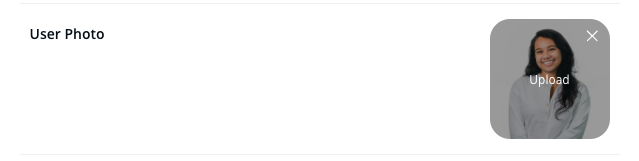
**Unter Profil können Sie ein Foto per Drag-and-drop in den Bereich Benutzerfoto ziehen oder dort hochladen.**
{% endstep %}
{% endstepper %}
***
## Bilder in großen Mengen hochladen
{% stepper %}
{% step %}
**Gehen Sie in Verkada Command zu Alle Produkte > Zugriff.**
{% endstep %}
{% step %}
**Klicken Sie in der linken Navigation auf Zugriff auf Benutzer und Gruppen.**
{% endstep %}
{% step %}
**Klicken Sie oben rechts auf Importieren > Benutzerfotos hochladen.**
Benennen Sie jedes Bild in einem der folgenden Formate:
* `[E-Mail-Adresse].[Dateityp]`
* `[Benutzer-ID].[Dateityp]`
* `[externe ID].[Dateityp]`
* Begrenzen Sie jedes Bild auf 5 MB.
* Laden Sie bis zu 500 Bilder pro Stapel hoch.
* Verkada passt Bilder, die größer als 512 × 512 px sind, automatisch an. Laden Sie bei Bedarf zuerst ein Beispielbild hoch, um zu überprüfen, ob die Größenanpassung Ihren Anforderungen entspricht.
{% endstep %}
{% step %}
**Bilddateien per Drag-and-drop ziehen.**
{% endstep %}
{% step %}
**Beheben Sie alle auftretenden Fehler, zum Beispiel:**
* Die Dateigröße ist zu groß.\
* Der Dateiname stimmt nicht mit einem vorhandenen Benutzer überein.
* Beschädigte Datei. Wenn der Benutzer eine beschädigte Datei hochlädt, ist der Upload nicht zulässig.
{% endstep %}
{% step %}
**Klicken Sie auf Hochladen, um die Fotos in den Profilen der Benutzer zu speichern.**
{% endstep %}
{% endstepper %}
---
# Agent Instructions
This documentation is published with GitBook. GitBook is the documentation platform designed so that both humans and AI agents can read, navigate, and reason over technical content effectively. Learn more at gitbook.com.
## Querying This Documentation
If you need additional information that is not directly available in this page, you can query the documentation dynamically by asking a question.
Perform an HTTP GET request on the current page URL with the `ask` query parameter, and the optional `goal` query parameter:
```
GET https://help.verkada.com/access-control/de/benutzer-and-anmeldedaten/add-a-user-to-the-verkada-access-system/upload-bulk-images.md?ask=&goal=
```
`ask` is the immediate question: it should be specific, self-contained, and written in natural language.
`goal` is optional and describes the broader end goal you are ultimately trying to accomplish on behalf of the user. GitBook uses it to tailor the answer towards what is most useful for that goal.
The response will contain a direct answer to the question and relevant excerpts and sources from the documentation.
Use this mechanism when the answer is not explicitly present in the current page, you need clarification or additional context, or you want to retrieve related documentation sections.